


The second part is devoted to Shodan’s search capabilities. It describes in detail the structure of search queries, filter syntax, and the principle of operation of the search engine. Shodan maps, visualization styles, vulnerabilities, and the module for working with web components and interfaces are separately considered. You will learn how to effectively form queries, find non-standard services, and analyze the results. Examples of practical exercises and external tools are added to expand the functionality.

The Shodan Command Line Interface (CLI) is bundled with the official Shodan Python library. This means that if you are using the latest version of the library, you already have access to the CLI. To install the new tool, run the command:
Once the installation is complete, the tool needs to be initialized with your API key:
You can get an API key for your account on the website https://account.shodan.io
The alert command allows you to create, view, clear, and delete network alerts. It is used to monitor changes in your environment or to receive alerts about new devices within a specified IP network.
The convert command converts the compressed JSON file generated by Shodan to other file formats. Currently, conversion to kml and csv formats is supported. This is useful when you want to present the results in a table or plot them on a map.
The count command shows the number of results that match a given search query. Example usage:
Result:
This example shows the number of Microsoft IIS 6.0 servers found in the Shodan database.
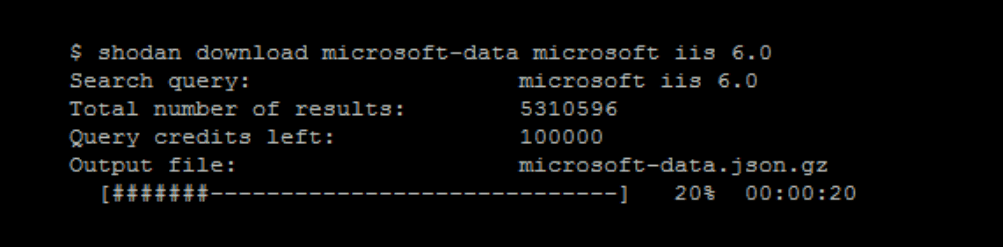
The download command searches Shodan and saves the results to a file, where each line contains a separate JSON banner. By default, only 1000 results are downloaded. If you need more, you can use the –limit flag.
The download command is one of the most commonly used commands because it allows you to not only retrieve the results, but also save them for further processing by the parse command. Since scrolling through the results uses up your query credits, it is a good idea to store the data locally so that you don’t waste your credits again when you make repeated requests.
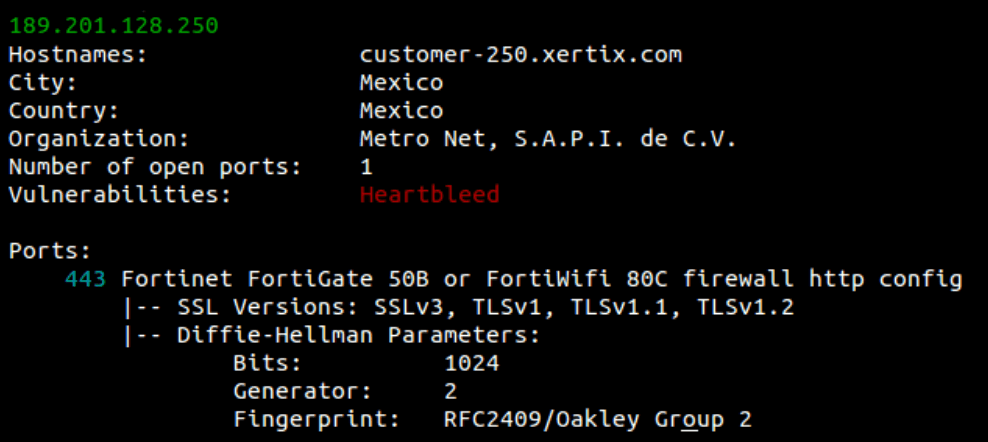
View information about a host: its geographic location, open ports, and the organization that owns the IP address.
Example:
$ shodan host 189.201.128.250
honeyscore — checks whether an IP address is a honeypot, i.e. a system that simulates an industrial device to detect attack attempts.
Example:
info — shows basic information about your API plan, including the number of requests and scans remaining this month.
Example:
myip — shows your external IP address from which you access the Internet.
Example:
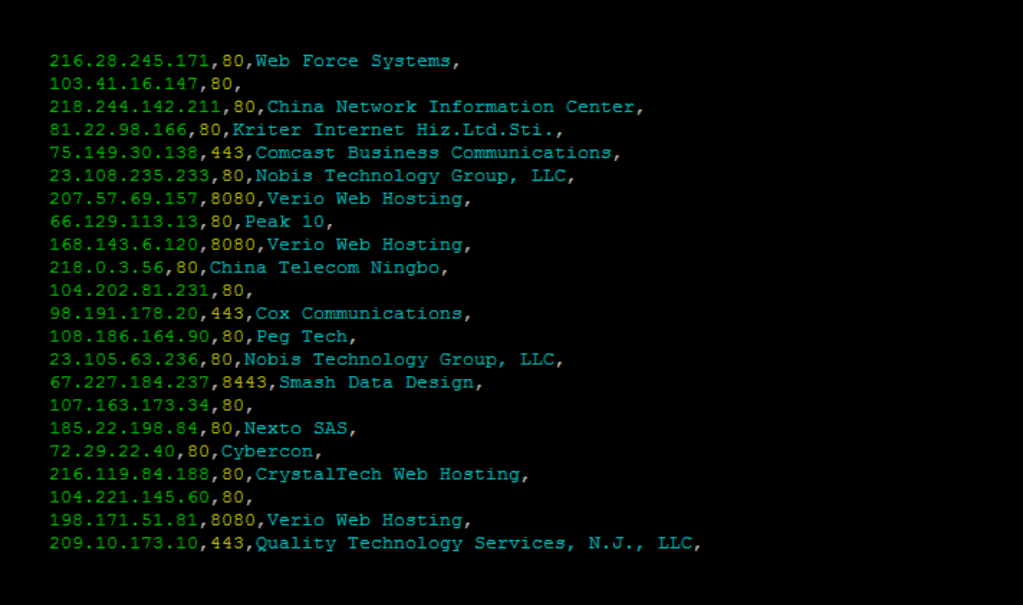
parse — used to parse a file obtained using the download command. Allows you to filter out the required fields, convert JSON to CSV, and easily integrates with other scripts.
Example:
$ shodan parse --fields ip_str,port,org --separator , microsoft-data.json.gz
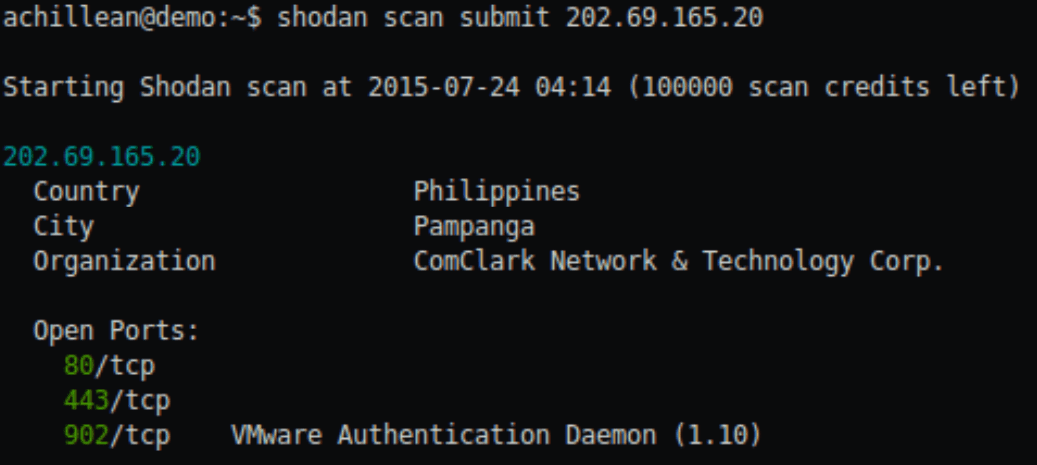
The scan command provides access to several subcommands, the most important of which is submit, which allows you to run a scan through Shodan.
Example:
$ shodan scan submit 202.69.165.20
searchThe search command allows you to search Shodan and view the results directly in the terminal. By default, it displays the IP address, port, hostnames, and other data. If necessary, you can use the –fields parameter to display only the banner fields you are interested in.
$ shodan search --fields ip_str,port,org,hostnames microsoft iis 6.0
The stats command allows you to specify facets for a search query. For example, this command will show the countries with the most Apache web servers:
$ shodan stats --facets country apache
Top 10 Results for Facet: country
US 8,336,729
DE 4,512,172
CN 1,470,434
JP 1,093,699
GB 832,221
NL 684,432
FR 667,871
CA 501,630
RU 324,698
BR 266,788
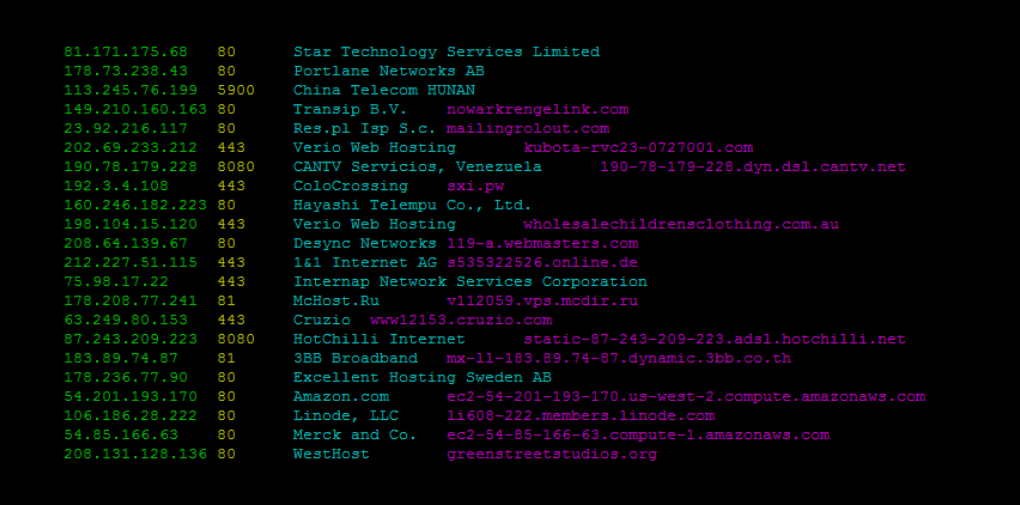
This command provides access to view the data stream collected by Shodan scanners.
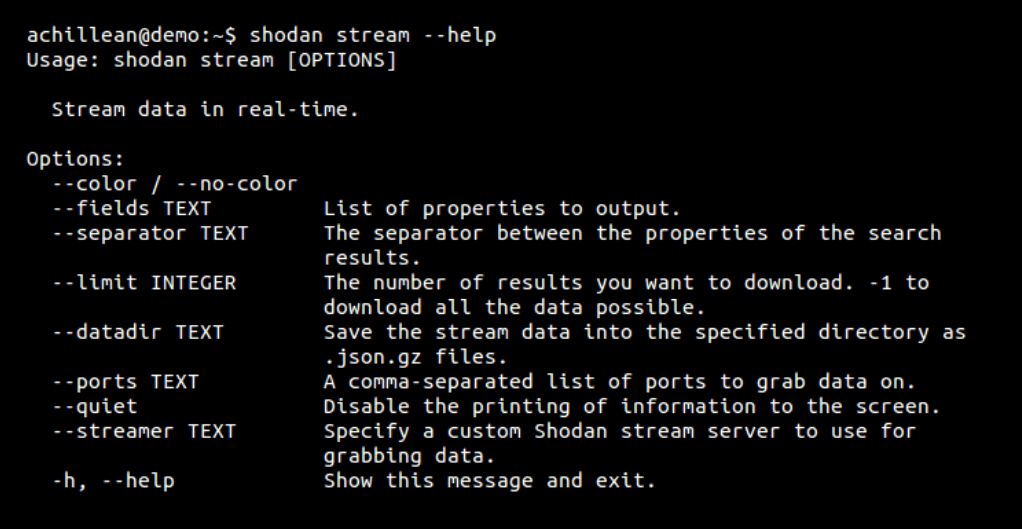
The command supports many different flags, but it is really important to mention only three of them:
The –datadir flag allows you to specify the folder where the data stream will be stored. The files generated in this directory will have the following name format: YYYY-MM-DD.json.gz. For example, the file could be called 2016-01-15.json.gz. A new file is automatically created every day when a stream is received, until you disable recording. The command that downloads all the stream data in real time and stores it in /var/lib/shodan/:
--limitThe –limit flag specifies how many results will be downloaded. By default, the stream command runs indefinitely until you stop it. If you only want to collect a sample of data, this flag will limit the number of records. For example:
This command will join the stream, print the first 100 results, and then exit.
This flag takes a comma-separated list of ports and allows you to receive live data only from those ports. For example, to receive banners only from ports 80 and 8080, use:
Shodan helps you quickly understand what services are available on a public network. For example, to count all service banners on the 78.13.0.0/16 subnet, run:
In the example, the result is 4363, which is approximately 4,363 banners.
Next, it is useful to see which ports are most frequently open. A simple query for this is:
It will return the top ports (for example: 7547, 80, 443, 8080, etc.). To get a more complete list of facets, you can increase the limit of returned ports:
The example reveals over 1000 unique ports, giving a broader picture of the distribution of services.
Pay special attention to the most common ports: port 7547 (often associated with modems and TR-069) needs to be checked due to known security issues; also, many web servers run on non-standard ports (8080, 81, 82, 8443, etc.). To see which web servers are running on ports other than 80/443, use:
(request in quotes so that -port is not interpreted as a shell flag).
Finally, check the SSL/TLS versions used for SSL-enabled services:
The example is dominated by tlsv1, tlsv1.2, tlsv1.1, but there are also outdated sslv3/sslv2 – they should be filtered out or the configurations updated.
Brief conclusion: start with counting (count), look at the port distribution (stats –facets port), investigate services on non-standard ports and check SSL versions. This will give a quick and practical picture of the security of the public network.
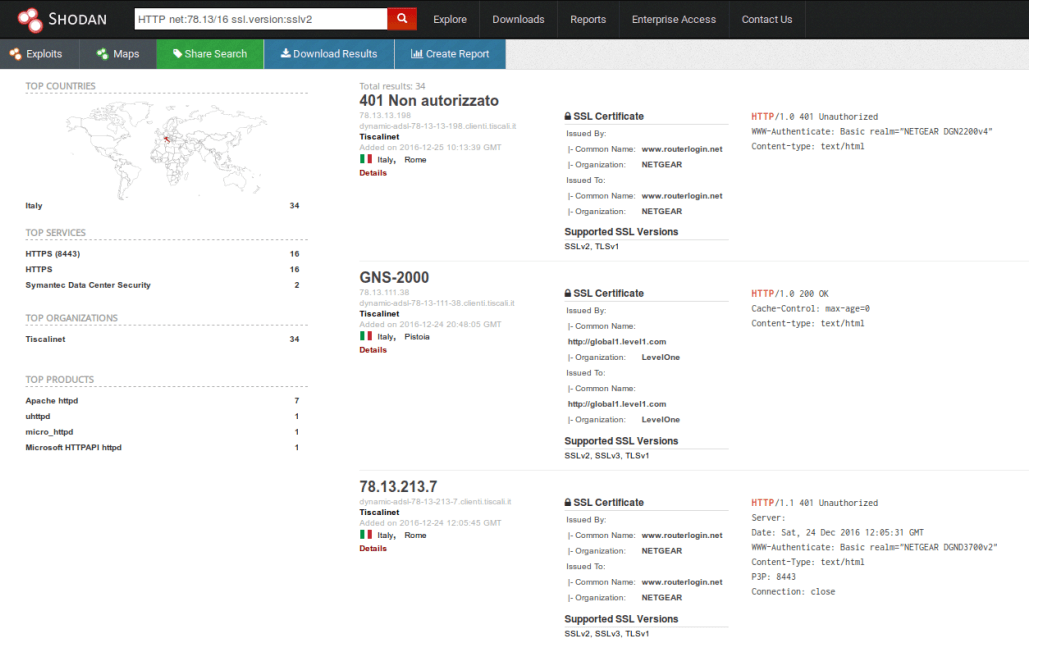
It appears that these NetGear devices are the primary users of SSLv2-compliant services on this network.
Example: Telnet exploration. Let’s say we want to explore devices on the Internet that are using Telnet. Let’s combine the previous commands like this:
First, we create a telnet-data folder to store Telnet data. Then, we request 10,000 records (–limit 10000) from the data stream for the standard Telnet ports (–ports 23,1023,2323) and save the results to the telnet-data/ folder via –datadir.
Maltego is an open source application designed to collect, analyze, and visually explore data from various sources.
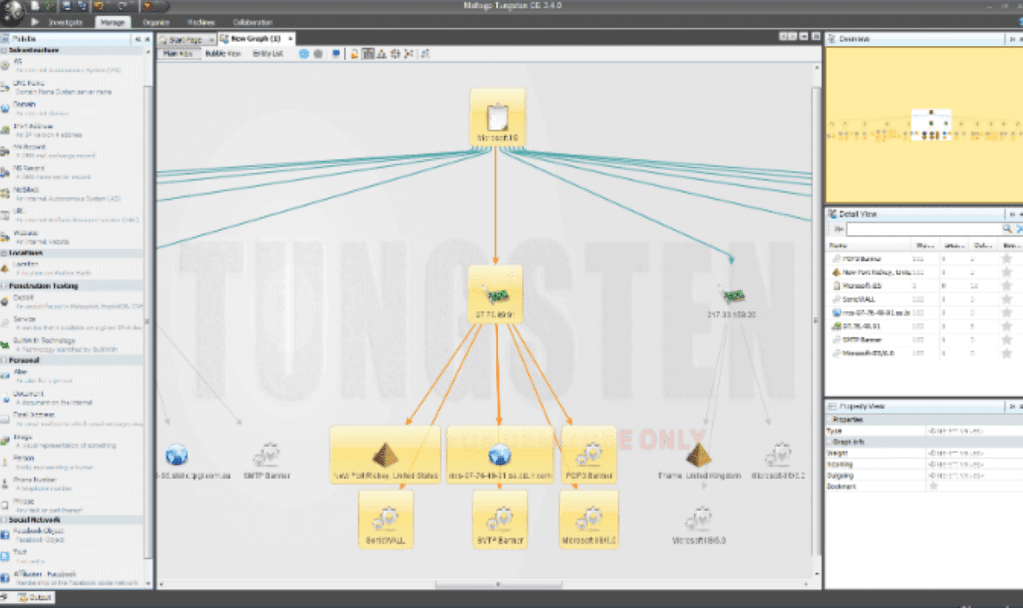
The Shodan addon for Maltego provides 2 new entities – Service and Exploit and 5 new transforms:
searchShodan
searchShodanbyDomain
searchShodanbyNetblock
toShodanHost
searchExploits
Shodan is an API-driven platform that collects banners and metadata about publicly available services on the Internet. It allows you to automatically retrieve the same information as through the web interface, but in a form that is easy to script and integrate. The REST API is used for searching, getting host information, working with facets, and other auxiliary operations, while the Streaming API provides a “raw” feed of banners in real time – it is used for monitoring and large research tasks. Note: access to the full stream usually requires a paid subscription or data license.
Shodan has several types of limits that depend on the tariff plan. First, query credits — they are spent on queries with filters or when moving to the next pages of results; a simple query without filters may not write off credits, but a query like apache country:us and moving to page 2 already write off credits. Second, scan credits — each on-demand scan is requested via the API and spends credits for one scan request. Third, alerts — the number of network alerts (and the number of IPs/ranges in them) is limited by the plan; maximum — ~100 alerts per account. It is important to remember that query and scan credits are renewed at the beginning of the month, so plan your research accordingly.
Facets provide aggregated statistics on an area of interest — for example, port distribution, SSL/TLS versions, SSH fingerprints, etc. If a search returns many results, facets allow you to “see from afar” the main patterns and bottlenecks: which ports are the most common, which products are detected most often, which protocol versions are used. Through the API and CLI, you can specify the necessary facets and get snapshots of statistics — this is often the first step before in-depth analysis or selective data downloads.
To work with the API in Python, install the official library:
Initialization is simple – pass your API key:
You can get the key in your account: https://account.shodan.io. After that, you are ready to perform searches, get host details, and work with facets through convenient library methods. It is recommended to always wrap calls in try/except to correctly handle API errors and not stop script execution.
One of the basic examples is searching for a word and displaying IP and banners:
By default, each page contains up to 100 banners; to navigate to another page, use the page= parameter. If you need to iterate through all banners sequentially without facets, it is convenient to use api.search_cursor(‘apache’) – this makes it easier to automatically process a large number of results.
To see what Shodan found for a specific IP, use api.host():
Optionally, you can get a full history of banners by IP by passing history=True; this will bring back services that are no longer active and help restore past configurations or identify past vulnerabilities.
If you need to scan your network immediately, Shodan supports on-demand scans via the API:
This is an asynchronous process: after initiation, you will receive the task id, the number of IPs in the scan (count) and credits_left — the remaining credits for scans. Use the id to monitor the status and further process the results.
Streaming API returns a stream of banners in real time — it is a “raw” stream, without the ability to search within it. It is used to monitor new detections or to track specific patterns (vulnerabilities, certain products). Example of CVE filtering:
def has_vuln(banner, vuln):
    return 'vulns' in banner.get('opts', {}) and vuln in banner['opts']['vulns']

for banner in api.stream.banners():
    if has_vuln(banner, 'CVE-2015-0204'):
        print(banner)
Please note: Standard plans often only give access to a small portion of the stream (~1%), full access requires the purchase of a Data License.
Alerts are a convenient way to track events for specific network bands. Create an alert:
alert = api.create_alert('Production network', '198.20.69.0/24')
# або декілька діапазонів
alert = api.create_alert('Prod+Staging', ['198.20.69.0/24','198.20.70.0/24'])
You can make a story temporary by specifying expires. After creation, you get an id — subscribe to it and handle banners the same way as in a standard stream:
You can quickly create, delete, and export alerts through the CLI; this is convenient for real-time monitoring of production networks.
Over the years, when MongoDB often did not require authentication, many instances ended up exposed on the internet. Shodan captures the banners of such instances — the banner contains metadata about the version, database lists, totalSize, etc. To bulk download banners:
Then we process the file locally: we iterate over the records, extract the JSON part of the banner, sum totalSize and count the most common database names. A simple script will give a summary in human format (GB/TB/PB) and the top 10 database names, which helps to estimate the volume of published data.
Recommended approach for public network surface reconnaissance: first assess the scale (shodan count net:… or api.search), then collect aggregates via shodan stats –facets (ports, products, ssl.version), identify anomalies (non-standard ports, old SSL/SSH, public databases), download the necessary results (shodan download) and process them locally with scripts. After that, configure alerts for continuous monitoring of changes and automate routine processing of results.
Shodan is not just a search engine for devices on the Internet, but a powerful analytics tool that combines the convenience of the command line, the flexibility of the API and the depth of data about the global infrastructure. Using the CLI, REST API and Streaming API, you can effectively monitor open ports, services, vulnerabilities, analyze networks and even create your own security monitoring systems.
With facets, alerts, and the ability to work with streaming data in real time, Shodan is becoming a strategic-level tool — for both cybersecurity professionals and infrastructure researchers. When used correctly, it allows not only to identify risks, but also to prevent potential incidents, find configuration errors, and track network changes.
Today, Shodan is one of the basic platforms for OSINT, pentesting, and monitoring open services worldwide. Having mastered its interface and API, you actually get access to the “X-ray” of the Internet — capable of showing what is hidden behind millions of IP addresses and ports.
