


This section explains what Shodan is, how it collects information about devices on the Internet, and how a “banner” — a digital fingerprint of a service — is formed. You will learn how to interpret device metadata, what IPv6 scanning is, how the data collection mode works, and how the results are distributed and randomized. A separate block is dedicated to working with SSL certificates and basic vulnerability scanning. This section is a perfect start to understanding how Shodan sees the world of online devices.

Shodan is a search engine for devices connected to the Internet. While traditional search engines search for web pages, Shodan allows you to find devices and services: web servers with specific software, network cameras, industrial controllers, and other equipment. This is useful when you need to understand which versions of software are common, count open FTP servers, or assess the scale of a potential vulnerability after it is published — tasks that traditional search engines are not suitable for.
The basic unit of information in Shodan is a banner. A banner is the text that the service returns when a connection is established: for web servers, these are HTTP headers, for other protocols, their own responses or greeting lines. The content of a banner depends heavily on the protocol. For example, a typical HTTP banner might look like this:
This banner shows that the device is running the nginx web server version 1.1.19. Other services return different banners — for example, Siemens S7 industrial controllers often provide detailed information about the firmware, model, and serial numbers:
Copyright: Original Siemens Equipment
PLC name: S7_Turbine
Module type: CPU 313C
Unknown (129): Boot Loader A
Module: 6ES7 313-5BG04-0AB0 v.0.3
Basic Firmware: v.3.3.8
Module name: CPU 313C
Serial number of module: S Q-D9U083642013
Plant identification:
Basic Hardware: 6ES7 313-5BG04-0AB0 v.0.3
Therefore, before working with Shodan, it is important to determine which services you are interested in: queries and filters for web servers will differ from those required for SCADA, FTP or IP cameras.
Shodan indexes banners, not hosts: if several services are running on the same IP address, each of them will appear in the index separately. In addition to banners, the service collects metadata – geolocation, host name, operating system and other attributes. Most of this data is available via the web interface; advanced search capabilities and mass automation are more convenient via API.
Shodan also works with IPv6. Although the volume of IPv6 records was initially much smaller than for IPv4, with the spread of IPv6 their share is increasing, and this should be taken into account when assessing the attack surface or searching for devices in modern networks.
The approach to working with Shodan should be systematic: formulate the goal (what exactly you are looking for), select the appropriate filters and check the metadata to filter out noise and false results.
Shodan scanners work around the clock and update the database in real time – each visit to the site shows an up-to-date “snapshot” of the Internet.
Scanner operation mode: Scanners constantly check addresses and ports, collecting banners and metadata. This ensures data freshness and the ability to quickly analyze.
Geographic distribution: Scanners are located all over the world (for example: USA – east and west coast, China, Iceland, France, Taiwan, Vietnam, Romania, Czech Republic). Such coverage minimizes the impact of local blockages and makes data collection more uniform.
The algorithm is simple:
a random IPv4 address is generated;
a random port is selected from the list that Shodan checks;
a banner is connected and captured;
repeat. The random (non-incremental) approach ensures uniform network coverage and reduces systematic bias in the data.
The combination of 24/7 operation, global scanner locations, and randomization makes Shodan data representative and resilient to local limitations. This helps to obtain a more objective picture when monitoring or assessing vulnerabilities.

Shodan stores detailed SSL/TLS information in the ssl field of the banner: not only the certificate itself, but also supported protocol versions, Diffie-Hellman parameters, results of known vulnerability checks, and the certificate chain. If the service is vulnerable to Heartbleed, opts.heartbleed appears in the banner with the test response, and “CVE-2014-0160” appears in opts.vulns (a non-vulnerable service may contain an entry with a ! prefix, such as !CVE-2014-0160).
Support for EXPORT ciphers is recorded as CVE-2015-0204 (FREAK). In the case of Logjam, scanners try to establish a connection with ephemeral DH ciphers and, if successful, store the dhparams parameters (prime, public_key, bits, generator, fingerprint). The scanners also check direct connections with different versions (SSLv2, SSLv3, TLSv1.0, TLSv1.1, TLSv1.2) and record supported/unsupported versions in ssl.versions (where the prefix – means the version is not supported). The ssl.chain field stores the certificate chain in PEM format. This data is used to easily find devices with known vulnerabilities and assess weaknesses in encryption settings.
opts з Heartbleed:
dhparams in Logjam:
ssl.versions (version support/non-support):
"ssl": {
  "versions": ["TLSv1", "SSLv3", "-SSLv2", "-TLSv1.1", "-TLSv1.2"]
}
Example search query to find Heartbleed vulnerable devices in the US:
country:US vuln:CVE-2014-0160
For most services, Shodan crawlers analyze the main text of the banner and extract useful information from it: for example, group names in MongoDB, screenshots from remote desktop services, or lists of Bitcoin peers. There are two advanced analysis techniques that are worth paying special attention to: web component detection and cascading (chain) scanning. Below is a clearly structured description of both techniques.
The crawlers try to determine the technologies used to build the site. For HTTP/HTTPS modules, they analyze the headers and HTML and store the result in the http.components field. This is a dictionary where the key is the name of the technology (for example, jQuery), and the value is a dictionary with a categories property (a list of categories associated with this technology). Example structure:
Interpretation: The http.components field indicates that the site is running on the Drupal CMS and uses jQuery and PHP. Through the Shodan REST API, you can search by the http.component filter and aggregate data by the http.component and http.component_category facets to obtain statistics by technology and category.

If the banner contains information about other peers or other IP addresses (for example, a list of peers in a DHT), scanners can automatically initiate additional scans for these addresses. This allows for the detection of additional hosts that would not have been directly included in the initial set of checks.
Example of a banner from a DHT node (mainline DHT for BitTorrent) containing a list of peers:
DHT Nodes
97.94.250.250 58431
150.77.37.22 34149
113.181.97.227 63579
252.246.184.180 36408
83.145.107.53 52158
...
Previously, the scanner would just collect this banner and move on. With cascading enabled, it would trigger banner captures for each peer listed (checking the appropriate port and protocol). So, one initial scan can trigger a chain of child scans.
To capture which child queries originate from which primary scan, two fields are used in the records:
_shodan.id — the unique identifier of the banner. This field is present when a cascade scan can be initiated from this banner.
_shodan.options.referrer — the unique identifier of the “parent” banner that caused the current banner to be created (indicating where the additional scan came from).
These fields allow you to recreate scan chains and build a map of the relationships between devices detected during automatic data collection.
Benefits: Cascading scans and web component detection provide a broader and deeper view of the network infrastructure and technology stack on sites.
Risks: Chain scans can increase network load and increase the chance of getting on block lists due to mass requests – so ethical and legal aspects should be considered when planning the analysis.
The easiest way to access Shodan data is through the web interface. Almost every interface allows you to enter a search query, so first, let’s talk about how Shodan interprets queries.
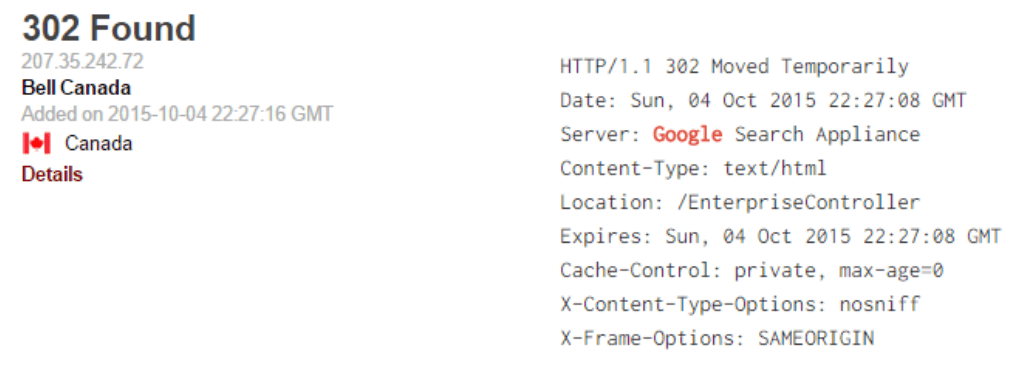
By default, the search only looks at the main text of the banner and does not search for metadata within it. That is, a Google query will return those records where the word “Google” appears in the banner itself – these can be, for example, devices with a Google Search Appliance in organizational networks, and not necessarily official Google services.
Shodan seeks to find records that meet all the conditions of the query: a logical AND works between the values. For example, apache + 1.3 is equivalent to apache 1.3.
To search not only by the text of the banner, but also by metadata, search filters are used.

Filters are special keywords to narrow down results based on service or device metadata. Filter format:
Note: there should be no space between the colon and the value. If the value contains spaces, enclose it in quotes, for example:
Some filters allow multiple values separated by commas. For example, to find devices with Telnet on ports 23 and 1023:
If the filter does not support commas (e.g. port, hostname, net in some cases), in practice Shodan allows you to provide multiple values through filter repetition or other syntactic variations — but most often a comma works for port.
To exclude results, put a minus sign in front of the filter:
An example of a combined query showing services on port 8080 where the main banner text is not empty:
In Shodan, each banner has a numeric hash property; for empty banners, this value is zero — so -hash:0 cuts off empty responses.
Нижче — кілька часто вживаних фільтрів (детальніше — у додатку B документації Shodan):
category — service category (e.g. ics, malware).
city — city name.
country — full country name.
net — results only from the specified IP range (in CIDR notation), e.g.: net:190.30.40.0/24
org — filtering by the organization that owns the IP, e.g.: org:”Verizon Wireless”
For fast accuracy, combine text search and filters: for example apache port:80 country:”US”.
Use quotes for values with spaces.
Excluding (-filter:value) is often easier than building a long positive query.
hash helps separate empty or similar banners from useful entries.
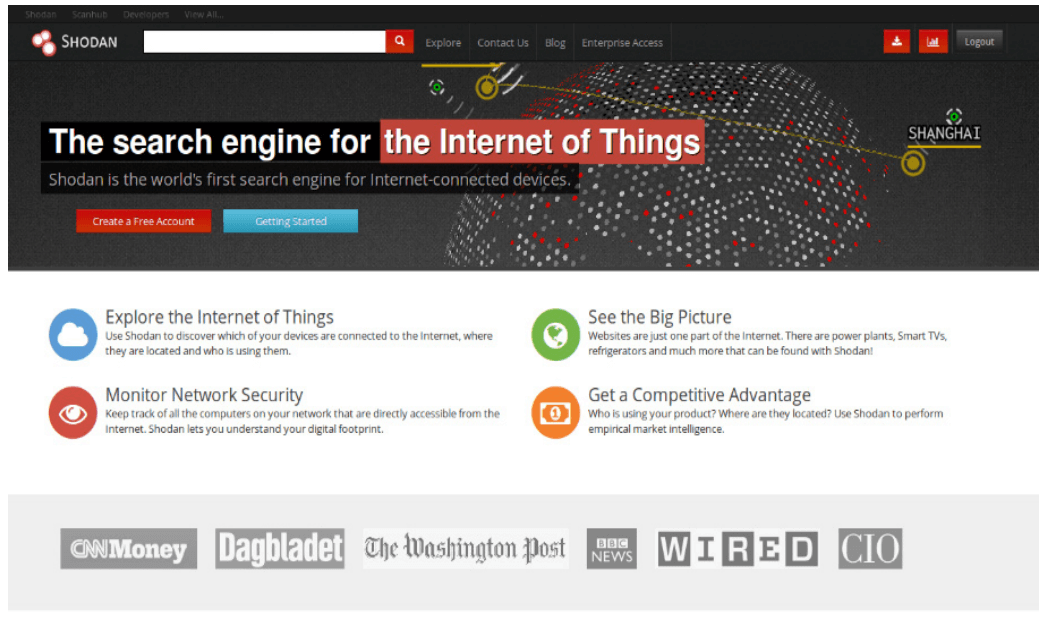
The primary interface for accessing Shodan data is the search engine at https://www.shodan.io. By default, the search query looks at data collected over the past 30 days (unlike the old site, which searched the entire database). As a result, the results from the site reflect the most current map of the Internet at the moment.
After performing a search, a Download Data button appears at the top. Available export formats:
JSON — each line contains the full banner and all metadata; preserves all available information and is most convenient for further processing (supported by the Shodan CLI client).
CSV — contains IP, port, banner itself, organization and hostnames; useful for quick import into Excel, but less information due to format limitations.
XML — an outdated format, takes up more space and is less convenient to use.
Downloading requires export credits (a one-time currency purchased on the site). One credit coin allows you to download up to 10,000 results. The generated files are available in the Downloads section of the site.
Shodan allows you to generate a report based on a search query: graphs, tables, and visualization of the distribution of results across the Internet. The report is fixed at the time of generation and is not automatically updated when new data is received – this is convenient for monthly comparison of changes. The section with saved reports is opened by the button in the upper right corner.
To find specific devices, it is useful to use ready-made queries from the Shodan community directory – users share their queries, descriptions and tags. General queries help beginners to quickly navigate. Note: these queries are visible to everyone – do not publish what you do not want to show others.
The idea of hiding a service – running it on a non-standard port – is often considered “security by obscurity” and is usually ineffective. For example, to find OpenSSH running on a non-standard port 22, use:
The product filter limits the search to OpenSSH, and -port:22 excludes standard SSH servers. The generated report shows which non-standard ports are used most often (example frequencies: 2222, 5000, 23, 26, 5555, etc.). Often, the “random” choice of port turns out to be non-unique: port 2222, for example, is very common (often due to honeypot configurations or ISP defaults).
Analysis of banners from one country can reveal patterns: for example, in Australia, many devices with OpenSSH on port 5000 have the same SSH keys and old versions of OpenSSH (which indicates centralized provider equipment and potential risks). Such findings show that moving the service to a non-standard port does not guarantee security and can give a false sense of security.
The Shodan search engine provides powerful capabilities: up-to-date data (30-day slice), export in convenient formats, generation of unchangeable reports and access to common queries. But when working, it is important to understand the limitations (export formats, cost of export credits) and correctly interpret the results (for example, non-standard ports are often not unique, and patterns in banners can indicate centralized equipment or a Honeypot).
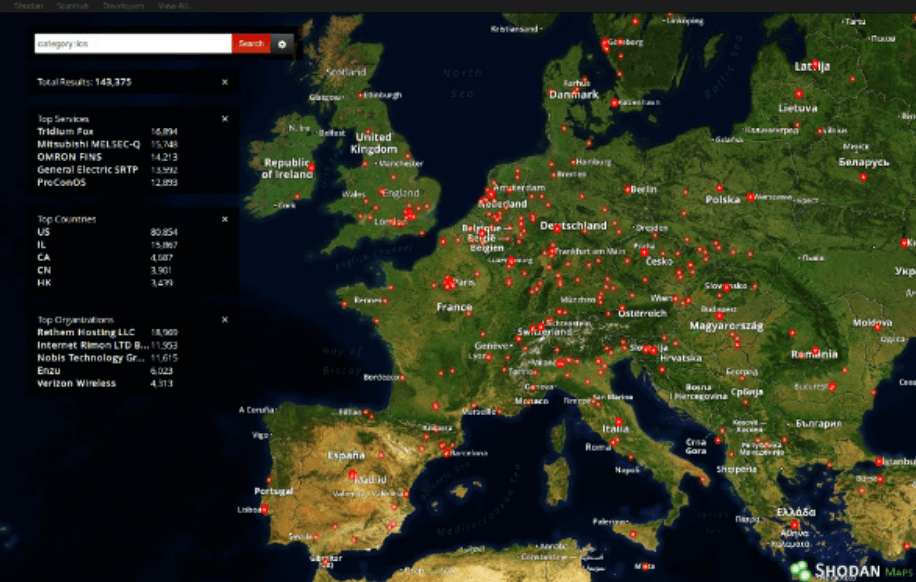
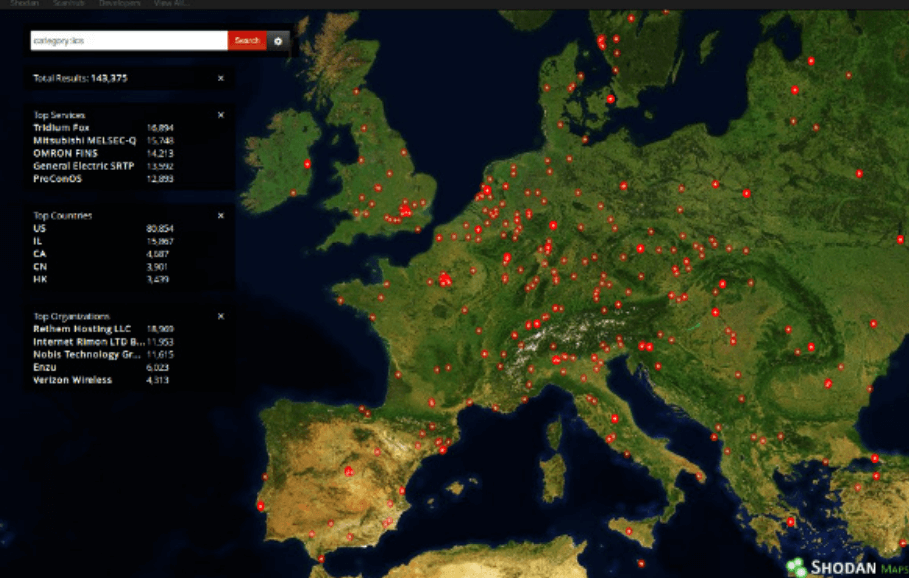
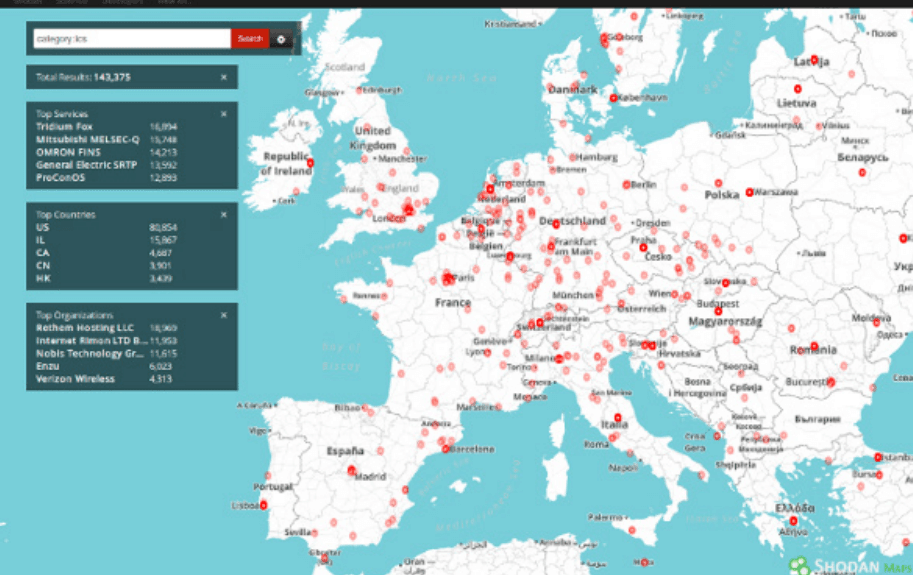
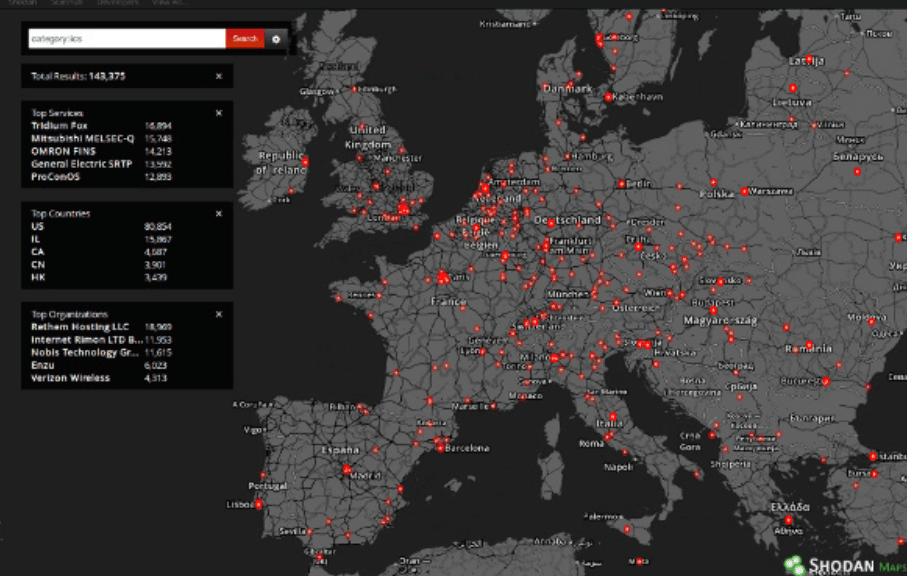
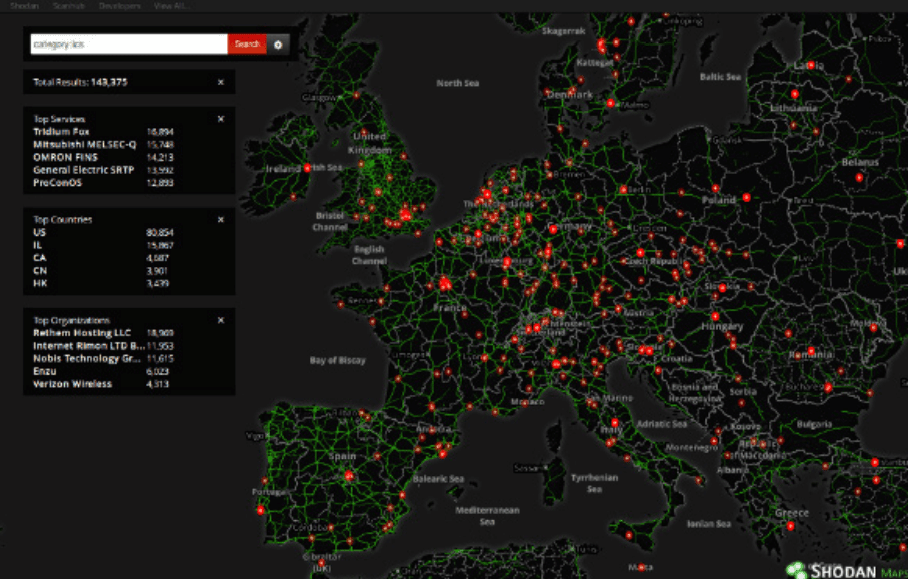
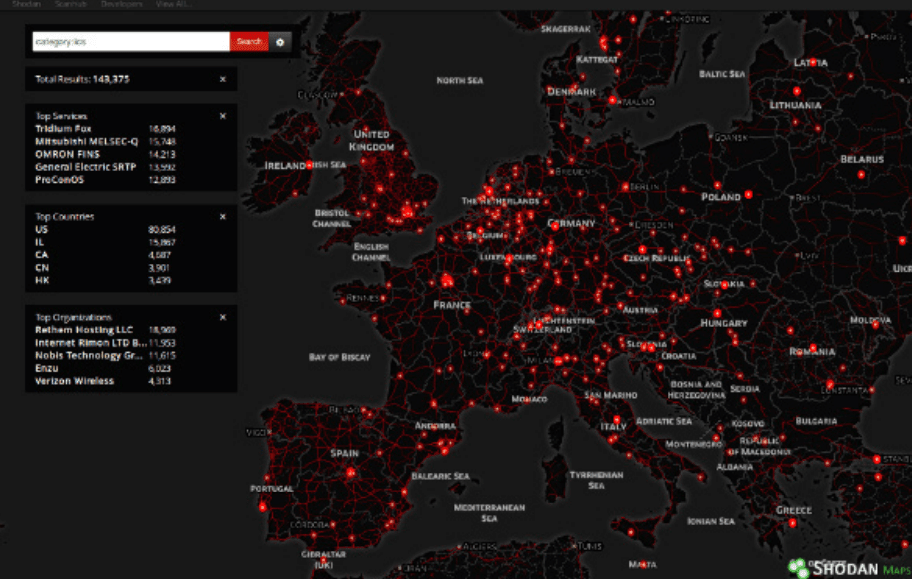
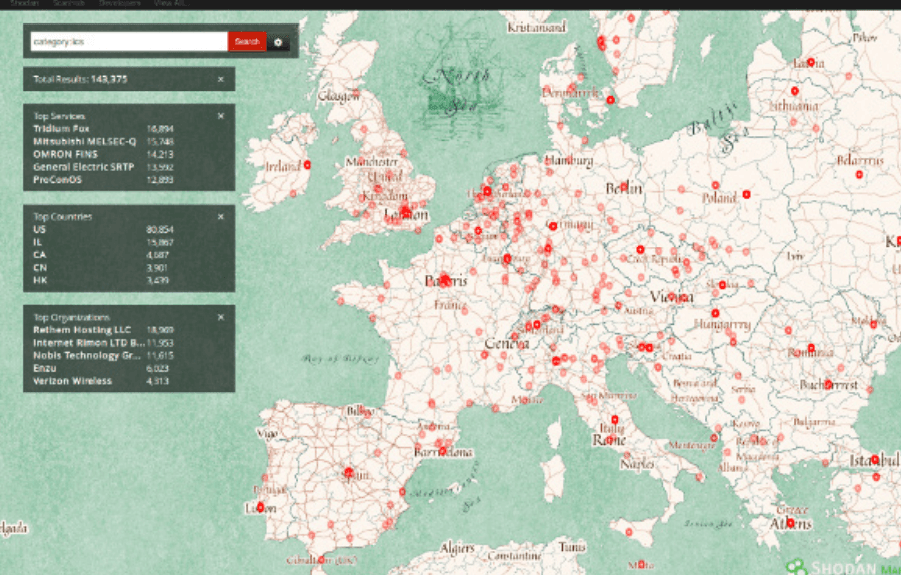
The Shodan Maps site allows you to explore search results visually, rather than in the text form of the main site. The map displays up to 1000 results at a time and automatically refines your search query to the area you have focused on (when zooming in/out).
All filters and search syntax that work on the main site also work in the mapping interface – you can apply port:, country:, org: and other filters to narrow the displayed set of labels on the map.
When you change the map zoom, Shodan selects and displays only those results that match your current geographic area and current filters. This allows you to quickly get a localized picture of the infrastructure without viewing the entire database.
Several types of map display are available – choose icons, label density or clustering. Click the button next to the search term to see a list of options and switch between them according to your preferences.
The Shodan Vulnerabilities site collects information about vulnerabilities and exploits from sources such as CVE, Exploit-DB, and Metasploit, and makes them searchable through a web interface. Unlike the main Shodan engine, this project allows you to search not only the text of the banner, but also the full information about the exploit, including metadata.
The search filters on this site differ from those of other Shodan projects: they are designed to simplify the user’s work as much as possible where possible. By default, the search is performed on the full content of the exploit (including metadata), which distinguishes this tool from the main Shodan, which searches only on the text of the banner without additional filters.
Below is a list of the main filters available for searching in the vulnerabilities section:
author — the author of the vulnerability or exploit.
description — a description of the vulnerability/exploit.
platform — the target platform (for example: php, windows, linux, etc.).
type — the type of vulnerability/exploit.
(A full list of filters and their detailed descriptions are available in the Vulnerabilities website interface.)
The Shodan Images site makes it easy to browse the screenshots that Shodan collects. This interface is specifically designed for the has_screenshot filter and uses the same search syntax as the main Shodan search engine.
The search bar at the top uses the usual Shodan keywords and filters. It is most effective for filtering by organization (org) or IP range (net), but you can also narrow your results by image source type or other metadata. To display only results with available screenshots, use:
For example, to see screenshots within a specific network block:
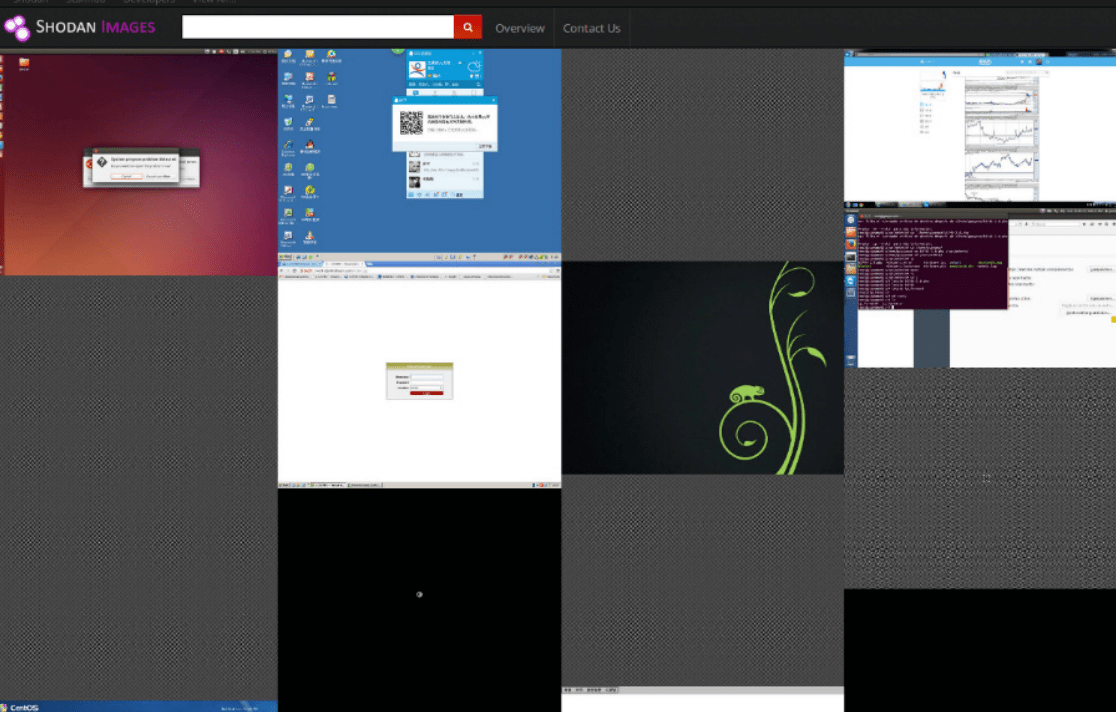
Data for the snapshots is collected from five different sources — each corresponding to its own service/port and has its own banner:
VNC (RFB)
Remote Desktop (RDP)
RTSP (streams from video devices)
Webcams (HTTP/web interfaces)
X Windows
Since each source is received from a separate port/service, the results can be filtered by protocol or by the appropriate text in the banner. For example:
for VNC use keywords related to RFB;
for RTSP – look for rtsp;
for webcams – usually filter HTTP services with has_screenshot:true (i.e. http has_screenshot:true).
All results with screenshots:has_screenshot:true
Screenshots from a specific network block:net:198.51.100.0/24 has_screenshot:true
Screenshots related to RTSP:rtsp has_screenshot:true
HTTP servers with available images (often webcams):http has_screenshot:true
Because screenshots are retrieved from different services and ports, the displayed images may contain private or sensitive information — ethical and legal norms should be observed when working with this data.
Shodan allows you to see the Internet from a different perspective — not as a set of sites, but as a living ecosystem of devices and services with their own “banners”, metadata and vulnerabilities. If you approach working with the platform wisely — clearly formulate queries, select filters and check metadata — it will become a powerful tool for monitoring, risk analysis and quick problem detection. Remember about ethics and limitations: large volumes of scans and careless use of data can harm both you and the infrastructure.
Let’s continue — in the next part we will analyze practical examples of queries and the most useful filters.
