
13.11.2024
2 min
1009



Do you think Chrome’s incognito mode guarantees privacy? That’s a dangerous illusion. In this article, we take a detailed look at how Chrome continues to track you even without authorization: from fingerprinting and WebGL to integration with Google Services. You’ll learn why the browser doesn’t allow the use of anti-fingerprint tools, blocks extensions, changes APIs, and how Chrome actually forms a user’s digital profile. Technical explanations, practical examples, architectural analysis — everything to show: incognito doesn’t save you if you stay in Chrome. We debunk myths, explain the risks, and show you how to get out of the game.

“You can clear your history, log out of your accounts, use VPN and private mode — but Chrome will still know who you are. And not through cookies, but through your computer, behavior and even mouse movements.”
In today’s Internet, it’s no longer enough to simply “leave no trace.” Major browsers, including Google Chrome, have learned to squeeze the most out of a user — even when they’re consciously trying to remain invisible. And we’re not just talking about banal cookies that are easy to block, but about much deeper things: the physical characteristics of your device, your browser behavior, installed fonts, extensions, system language, and the user’s psychomotor model.
This hidden mechanism is called browser fingerprinting — a unique digital fingerprint that can be collected from almost any computer, even if you haven’t saved anything in the cache or local storage.
Google Chrome, which occupies more than 60% of the browser market in the world, is the leader not only in convenience, but also in user tracking. And although Chromium is an open project, most users have no idea which APIs Chrome uses to identify you. Often, this happens even before the page loads — you just need to launch the interface.
There is an illusion that private mode or a VPN automatically makes the user “invisible.” But in reality, even in this mode, Chrome:
provides the site with information about the number of cores of your processor;
allows you to see the model of your video card via WebGL;
does not block the upload of real IP via WebRTC;
displays your system fonts, language and time zone;
stores a unique Device ID (via X-Client-Data) when synchronizing with a Google account.
Moreover, websites can observe exactly how you move your mouse, how fast you type, which buttons you press, how often you switch between tabs. This is not just technical tracking – it is profiling you as a person.
In this article, we will take an in-depth look at:
how exactly Chrome identifies you (with examples from Chromium code);
which APIs are used for tracking (and how to neutralize them);
how sites recognize you even in Puppeteer or headless browsers;
and, most importantly, how to actually protect yourself, not just click “Clear History”.
The goal of this article is not to give you the illusion of protection, but real tools, code examples, behavioral tips, and system solutions that will allow you to control the situation.
“Fingerprinting is when a website sees you even if you don’t want it to. And not because you said something, but because your computer was silent incorrectly.”
When we talk about browser fingerprinting, we mean not one method, but a complex system of dozens of data sources that the browser voluntarily or semi-forcedly provides to the website. Chrome, as one of the most powerful browsers, implements these mechanisms through various APIs and internal properties. Even if you have cookies disabled, JavaScript is able to “read” your identity with almost the same accuracy.
Conventionally, all fingerprinting methods can be divided into four large groups.

These are parameters that do not change between sessions or change very rarely:
Number of logical processor cores (navigator.hardwareConcurrency)
Graphics card model (via WEBGL_debug_renderer_info)
Screen resolution and color depth (screen.width, screen.colorDepth)
System fonts (used in Canvas API or CSS font fallback)
Installed plugins and MIME types (navigator.plugins, navigator.mimeTypes)
System locale and language (navigator.language, navigator.languages)
Time zone (Intl.DateTimeFormat().resolvedOptions().timeZone)
Available keyboard layouts and input methods
This data allows you to create a unique combination that describes your device with great accuracy, regardless of accounts, browser history, or IP address.
Chrome allows the site to track not only what you have, but also how you behave:
Mouse movement speed and shape
Keystroke spacing
Page navigation order (using Tab, Shift+Tab)
Scrolling frequency and rhythm
Interaction with elements (click, hover, focus)
Losing and regaining window focus
Chrome allows the site to track not only what you have, but also how you behave:

Modern trackers combine several characteristics into a single signature that is almost unchanged between sessions. For example:
Canvas + system fonts + rendering + gamma → Canvas fingerprint
WebGL + GPU + OS → unique WebGL hash
DeviceMotion API + sensor noise → mobile device identification
Frame rate in Web Animations → system performance
It is these hybrid models that are most commonly used today to recognize bots, headless browsers, and even emulators.
Chrome has built-in APIs that extract connection, power consumption, and account data from the system:
WebRTC allows you to determine your real IP address even when using a VPN
NetInfo API provides information about network type, speed and latency
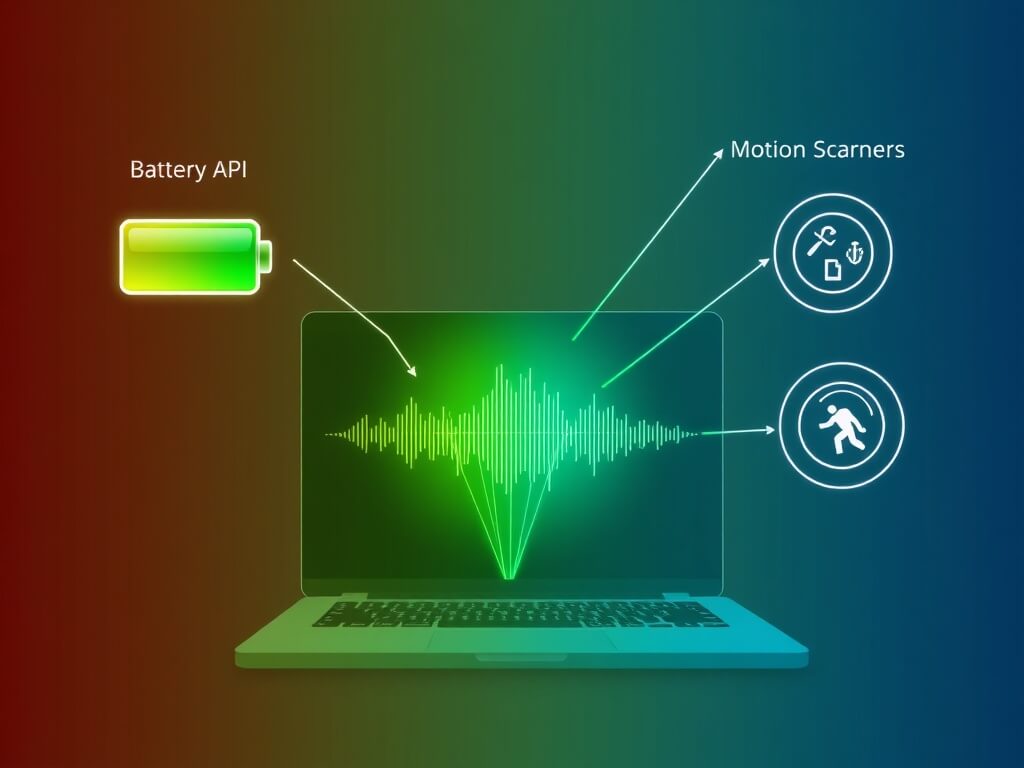
Battery API allows you to estimate the battery level and its rate of change
Client Hints (CH) transmit the device model, architecture and OS
X-Client-Data — an encoded token from Chrome, which is used to synchronize with a Google account
Google Sync ID — a unique identifier associated with your Google profile
All of this allows sites to identify you regardless of cookies or local storage, even if you are “signed out.”
const canvas = document.createElement('canvas');
const ctx = canvas.getContext('2d');
ctx.textBaseline = 'top';
ctx.font = '16px Arial';
ctx.fillText('Hello, fingerprint!', 2, 2);
const hash = canvas.toDataURL();
console.log(hash); // унікальний для кожного пристрою
Even minor differences in fonts, anti-aliasing, drivers, or GPUs produce completely different hashes.
Fingerprinting is not a single variable that can be disabled. It is a complex system that combines dozens of signals: from the number of cores to how you move the cursor. Chrome, having full access to modern browser APIs, essentially forms a digital profile of the user based on how he looks, behaves, and what he connects to. And this profile is stored even without logging into a Google account.
How Chrome uses this data in practice – we will consider in the next section on static tokens and examples from real Chromium code.
“Your device says more about you than you think. And it says it even before you click ‘I accept.’”
One of the most dangerous features of fingerprinting in Google Chrome is its use of static characteristics — those that are tied to the hardware and do not change between sessions. It is through them that the browser can determine the uniqueness of the device without any interaction with the user. Chrome out of the box allows sites to read a large number of such parameters, and most of them cannot be anonymized by conventional means.

In this section, we will look at the key components that Chrome actively uses to build a unique fingerprint.
Canvas is an HTML5 API that allows a site to draw images without your knowledge. But how exactly text or graphics are drawn depends on a lot of things: fonts on the system, GPU drivers, video card model, anti-aliasing settings, etc.
The same text drawn with the same code will look different on different devices. Sites convert this image to a base64 string (via canvas.toDataURL()), and then hash it. The result is a stable, unique fingerprint that doesn’t change even after clearing the cache.
Chrome implements the Canvas API with minimal restrictions — no permission requests, no precision limits, no randomization, unlike, for example, Firefox in private mode or Safari on iOS.
WebGL is an API that allows a website to render 3D graphics directly in the browser. But the main danger is that it gives access to video card drivers, GPU models, and even manufacturer information. Chrome supports the WEBGL_debug_renderer_info extension, through which a page can obtain the following data:
GPU renderer (e.g. GeForce GTX 1660 Ti/PCIe/SSE2);
Vendor (e.g. NVIDIA Corporation);
OpenGL version;
Platform type (Windows/Linux/Android);
Shader processing features (calculation accuracy, limitations).
The combination of this data is in most cases sufficient for reliable device identification.
Even if you think your system is nothing special, the set of fonts you have installed is a signature in itself. Chrome allows you to read these fonts through:
CSS font fallback (element is displayed only if font is available);
Canvas API (text is rendered differently depending on font set);
Retrieving available styles via getComputedStyle().
Unlike mobile platforms, on desktop systems, users often install additional fonts — this is what gives sites additional distinction between two identical machines.

Chrome provides precise access to screen settings, including:
Resolution (screen.width, screen.height);
Available workspace (screen.availWidth);
Color depth (screen.colorDepth);
Screen orientation (portrait/landscape);
Refresh rate (partly via the Web Animations API).
These settings are typically not changed, especially on laptops and desktops. Together with Canvas and WebGL, they form a set of settings that are specific to a particular device.
5. Other sources: navigator and IntlIntlThe site can obtain without any permissions:
Number of CPU cores (navigator.hardwareConcurrency);
Interface language (navigator.language, navigator.languages);
Time zone (Intl.DateTimeFormat().resolvedOptions().timeZone);
Platform type (navigator.platform);
Is touch-screen supported;
Which browser is used (navigator.userAgent).
And although userAgent can be spoofed, Chrome returns most other parameters in the most accurate form possible, without any obfuscation.
const canvas = document.createElement('canvas');
const gl = canvas.getContext('webgl');
const debugInfo = gl.getExtension('WEBGL_debug_renderer_info');
const vendor = gl.getParameter(debugInfo.UNMASKED_VENDOR_WEBGL);
const renderer = gl.getParameter(debugInfo.UNMASKED_RENDERER_WEBGL);
console.log(vendor, renderer);
This code gives a full GPU model, even if you are on a VPN or in private mode.
Static tokens are the most dangerous type of fingerprinting because they are stable, accurate, and do not require active user interaction. Chrome, as a platform with open access to all modern APIs, essentially creates an “X-ray” of your device for the site. And it is these parameters that form the basis of any profiling, which is later supplemented by behavioral and network factors.
In the next section, we will look at dynamic tokens: how Chrome allows a site to observe your actions and use this for identification.
Browser fingerprinting today increasingly uses not only static characteristics, but also dynamic user behavior. And this is where Chrome shows the greatest “openness”: it allows sites to freely track your actions on the page without any requests for permission.
These dynamic parameters are behavioral markers that are independent of hardware or IP address. They cannot be turned off by clearing the cache or turning on a VPN, and they are the ones that best reveal your digital identity.
One of the most important channels of such tracking is mouse movement. In Chrome, sites can record literally every movement of the mouse: direction, speed, pauses, micro-jittering, acceleration – all of which can be turned into a unique behavioral pattern.
Next comes keyboard interaction. The way you type is so individual that it resembles a digital signature. And Chrome allows you to measure the delay between keystrokes, the number of corrections, the rhythm of typing, the use of key combinations.
Next is page scrolling. The browser transmits exactly how you scroll: with a touchpad, a mouse wheel, or swipes. Even the way you interact with content is an important behavioral sign.

Typical actions that Chrome allows to be collected for behavioral profiling:
mouse coordinates and its movement through elements;
cursor speed and acceleration;
clicks (type, intensity, frequency);
typing (speed, pauses, errors);
scrolling depth and type of interaction with content;
tab focus loss, window minimization, zooming;
screen orientation or page size change;
reactions to navigation, pop-ups, menus.
It is worth mentioning separately that even a simple text input form can contain a whole array of data. For example, a site can calculate how long you looked at the field before starting to type, how fast you typed, whether you paused between words, or whether you used autocomplete.
Even if you change all the standard parameters — browser, IP, VPN, screen — these dynamic traces remain. Because they do not depend on the technology, but only on you.
What types of attacks or analysis are based on these markers:
determining whether a user is a bot or a human;
profiling multi-user behavior (multi-accounts);
comparison with previous sessions on other sites;
analytics to recognize real vs. emulator or headless browser;
suspicion of automation of actions, clicks or form filling.
All of this works in Chrome by default, without warning windows, without permissions, without visibility for the user. And given the popularity of the browser itself, these mechanisms are used everywhere: from banking sites to account registration pages.
Chrome allows sites to not only collect behavioral or technical parameters separately, but also combine them into hybrid models that are almost impossible to fool. These systems are used by advertising trackers, anti-bots, account verification services – all those who need to confidently identify the user even after clearing the cache or changing IP.
Unlike classic fingerprinting, which collected only hardware data, new systems create multidimensional profiles. They combine the characteristics of the GPU, Canvas, system language, resolution and dozens of other parameters with how you behave on the site – how fast you scroll, how you click, when you leave the tab, etc.
One of the iconic examples is the use of Canvas fingerprint in combination with mouse behavior. If the site first draws text on a hidden canvas and reads the resulting hash (which varies depending on the GPU driver, OS, browser), then it starts to monitor how you interact with elements, what shades you choose, where you stop with the cursor. All these variables are linked into a single chain and processed by a neural network or script.
Examples of typical hybrid relationships in Chrome fingerprinting:
Canvas fingerprint + frame rate + mouse movement = device identifier with performance evaluation;
WebGL data + screen orientation + scrolling = mobile or desktop user profile;
Keyboard layout + browser language + typing = fake account detection in verification;
Battery API + Client Hints + session interruptions = emulator or sandbox environment detection.
All this can be collected without cookies and even without local storage. The hash is formed on the fly – from data provided by the browser itself. The most powerful combinations here are WebGL-render + Canvas + Audio fingerprint: they take into account thousands of variables – from shadow anti-aliasing to audio sampling frequency.
What are the dangers of such hybrid approaches:
they work even in incognito mode;
do not depend on accounts or logins;
are not blocked by common anti-trackers;
do not require access to the file system or camera;
can update your profile every time you change your habits.
It is precisely because of this complexity and flexibility that hybrid fingerprinting models have become the de facto standard for protecting registrations, CAPTCHAs, transaction verification, and ad networks.
In Chrome, this works automatically — the browser does not block anything, on the contrary, all APIs are available and stable, and backward compatibility is guaranteed. For attackers or commercial trackers, this is the ideal environment: stable, predictable, with a large number of signals.
Hybrid fingerprinting is not just a set of parameters, it is a living model. And Chrome becomes its ideal tool, combining speed, API access, and deep integration into the OS.
The most vulnerable Chrome APIs are those that were not designed for tracking, but for productivity and multimedia. And these are the main sources of fingerprinting today, as they give deep access to graphics, video, audio and internal settings of your device. And all this without warning the user.
WebRTC is a real-time interface for exchanging audio and video data. Its peculiarity is that it creates a direct connection between browsers, bypassing proxies and services. And if it is not blocked, WebRTC openly reveals your real IP address, even if you are sitting through a VPN or Tor. This leak is especially dangerous for Linux or Android users, where browsers do not always block WebRTC by default. Chrome not only does not hide this interface – it actively uses it, allowing any site to read your local and public IP via RTCPeerConnection.
Canvas API is another deep hole in privacy. Every time you visit a site with Canvas enabled, the browser renders a hidden image or text on a virtual canvas and then reads it as an image. This gives a unique visual fingerprint, because the result depends on the OS, drivers, GPU, browser, anti-aliasing settings, and render engine. Even two users with the same laptop but different fonts will have different fingerprints. And importantly, the site can do this in the background, without any interaction with you.
WebGL is a low-level graphics API used for 3D graphics in the browser. It gives sites access to deep information about the video card: the name of the GPU, drivers, shaders, memory size, and how objects are rendered. It is based on it and builds even more accurate fingerprints than Canvas, because everything from shader programs to the precision of floating-point calculations is involved here.

The most common ways to read fingerprints through these APIs:
getting IP addresses via WebRTC even under VPN conditions;
rendering fonts and characters in Canvas and reading pixel differences;
creating 3D models via WebGL and analyzing how the GPU processes geometry;
combining Canvas and WebGL into hybrid prints;
checking the type of graphics drivers and the level of extension support.
These APIs work completely openly in Chrome. The site doesn’t have to ask you — it simply creates an invisible Canvas, runs a WebGL render in the background, or initiates a WebRTC request. They’re even available in incognito mode.
What does this threaten:
even a single visit to a site creates a unique trace;
VPNs or proxies are no help if WebRTC is active;
WebGL and Canvas are not blocked by regular plugins;
based on these APIs, your browser can be distinguished from millions.
Blocking these mechanisms requires either a custom proxy environment or the use of special frameworks that filter API calls. Simple extensions like uBlock will not help – this must be done at the sandbox level or using LD_PRELOAD and Canvas poisoning.
Unlike classic methods, where the browser reads the technical parameters of the system, behavioral fingerprinting is based on how you behave on the Internet. Chrome provides trackers with everything they need to build accurate profiles: typing rhythm, navigation, mouse movements, click patterns – everything becomes the basis for a model that improves over time.
Such profiles do not require cookies or IP – even if the user clears local storage or uses a VPN, the behavior remains constant. And this is what allows algorithms to “recognize” a person with high accuracy.
The most common behavioral patterns read through Chrome:
Page scrolling speed and rhythm;
Delays between clicks or transitions;
Navigation methods (keyboard, mouse, gestures);
Text input: duration, errors, editing;
Interaction with complex elements: dropdowns, tabs, filters;
Tab focus: when you navigate, minimize the window, go back;
Response to load: do you continue clicking if the page freezes;
Wait time before performing an action (e.g., before confirming a purchase).
These metrics are not collected on just one site, but are synchronized through scripts running on multiple domains at once — often large ad networks or anti-fraud systems. The result is a behavioral profile that can be compared to other sessions: whether it’s the same person, a bot, or a new account of an old user.
How Chrome helps with this process:
allows reading full DOM event telemetry;
does not block any key behavioral APIs;
has a stable environment without random delays or noise, which improves profiling quality;
supports sharing JavaScript code via CDN, which speeds up tracking on many sites simultaneously.
Moreover, some services even use behavioral fingerprints as an authentication mechanism – for example, banks or crypto exchanges can additionally verify the user not by password, but by how he behaves. Well-known systems – BioCatch, FingerprintJS Pro, PerimeterX – work exactly like this: they do not just identify, they analyze habits.
The problem is that it is almost impossible to avoid this form of fingerprinting. Even if you use a virtual machine, sandbox or emulator – your behavior still leaves a trace. After all, a person will never move the mouse like a bot, and vice versa.
Even if the user tries to disguise his activity on the network as much as possible – changes IP, browser or even starts a session through a virtual machine – traces remain at the system level, which Chrome transfers to sites without any permission. These include language settings, locale, set of installed fonts, date format, currency, and keyboard layout. At first glance, these are small things, but they create a unique cultural-system profile that is very difficult to accurately reproduce.
One of the key factors is the list of installed fonts. Chrome allows JavaScript scripts to check whether certain fonts are supported, and based on this, a fingerprint is formed. For example, a specific set of Cyrillic or Asian fonts typical for certain regions immediately “give away” the origin of the system or its cultural features.
Next comes the language and locale settings. Chrome automatically passes navigator.language and navigator.languages, as well as Intl formats that indicate:
what language you use as your primary language;
what number and date format you have set;
what currency looks like on your system;
what is the default alphabet, layout, and region.
Examples of data that Chrome automatically sends to sites:
navigator.language: the primary language of the browser (e.g., uk-UA);
navigator.languages: a list of all available languages, including secondary ones ([‘uk-UA’, ‘en-US’]);
Intl.DateTimeFormat().resolvedOptions().timeZone: time zone (Europe/Kyiv);
Intl.NumberFormat().resolvedOptions().locale: number and currency format;
document.characterSet: page encoding (e.g., UTF-8);
specific fonts available only in certain OS builds or language packs.
All this information is virtually unchanged unless you change the OS settings or use a specially prepared machine. Therefore, trackers get not just “browser language”, but an entire cultural and systemic portrait.
What are the dangers of such markers:
fonts do not change from browser to browser – they come with the system;
locale often corresponds to the real region, even with VPN;
input language and layout suggest whether you are a real native speaker;
it is impossible to simulate a 100% accurate system without deep customization.
For example, if a site sees that the user has Cyrillic fonts installed, Ukrainian language, Europe/Kyiv time zone, but a VPN address in Germany, this already gives grounds to believe that the user is trying to hide his origin. And Chrome in this case is not an ally, but a source of exposure.
It is worth noting separately: even such details as the emoji set or support for ligatures in fonts are already used in some systems to determine a specific OS version. Taken together, this is another channel through which Chrome involuntarily gives away everything about your environment.
Some browser APIs at first glance look completely innocent — they are supposedly created for the convenience of the user or developer: to show the battery level, provide access to the microphone, or detect the movement of the device. But in Chrome, these interfaces work without restrictions and provide sites with sensitive signals that help build very accurate digital fingerprints. And although the data itself seems safe, in combination they can expose you more accurately than an IP address.
The Battery API plays a particularly important role in this. Through it, the site can see your battery level, whether you are connected to the network, and most importantly, the exact time until it is completely discharged or charged. This indicator depends on many hardware and software factors, so it serves as a stable device identifier. If you open the site several times during the day, the system easily recognizes that this is the same user — even without cookies.
The AudioContext API is no less important. It allows you to create an imperceptible audio signal and analyze how your device processes it. The result depends on the audio drivers, the type of equipment, the accuracy of calculations in the DSP block. All this forms an audio fingerprint — a stable and very difficult to fake parameter. Even two identical laptops can give different results due to different driver versions or background programs.
Another direction is access to sensors. On mobile devices, Chrome allows sites to read orientation, movements, and even ambient lighting. It would seem that these are trifles. But if a user often visits a site in transport, the system “learns” this pattern and begins to recognize a person by the movement of the device. On desktops, this does not work so accurately, but even minimal sensors can provide additional information.
There are only two key areas that are actively used for identification:
System APIs that provide information about the device’s state:
Battery API (charge level, operating time, network connection),
MediaDevices API (camera, microphone names, connection types),
Sensor API (motion, orientation, lighting conditions).
Audio analysis:
The AudioContext API reads how the system plays sound, processes the waves,
Based on this information, an imprint is created that is stable for a specific device.
The combination of these data is so effective that it is used not only by advertising trackers, but also by banking security systems, anti-fraud analysis, verification on cryptocurrency exchanges. Chrome does not block access to these APIs in any way – even in incognito mode, even without user interaction.
As a result, a site can not only know who you are – it knows where you are now, from which device, what battery state, with what equipment, and even what exactly you have in your ears – a headset or speakers. All this – without a single click of “allow”.
When it comes to privacy in Chrome, people usually mention technical details: WebGL, fonts, IP address. But the main threat lies even deeper — in how Google itself has integrated its own ecosystem of services into Chrome that do not look like trackers, but perform the same function. And it is through them that billions of data are collected from millions of sites.
The mechanism is very simple: Chrome communicates with various Google domains (for example, googleapis.com, gstatic.com, fonts.googleapis.com) not only when you deliberately visit Google sites, but almost constantly, loading fonts, scripts, analytics or DNS responses. And although these requests look like “service”, a full set of metadata is transmitted through them: IP, User-Agent, language, resolution, network speed, behavior on the page.
The most common ways Google gets data from Chrome without your knowledge are:
Google Fonts: when a site connects a font via fonts.googleapis.com, the browser automatically contacts the Google server, transmitting all session information;
Google Tag Manager (GTM): a centralized script that allows sites to dynamically embed tracking without changing the code. It also records what events occur on the page, how fast the user reads, what they click on;
gstatic CDN: through it, Chrome loads service resources. At first glance, it is just infrastructure, but in fact it is a collection channel;
Safe Browsing API: Chrome constantly checks URLs through Google to prevent fraud. But these requests also contain session IDs and a browser fingerprint;
Chrome Update Service: each update or background ping contains data about the version, extensions, installed components, location.
Chrome “disguises” these services as protection, security, or stability. But in reality, they act as centralized telemetry collection points, and you can hardly disable them even if you want to. Manually blocking these addresses is difficult because they are critical for the operation of most sites: if you block Google Fonts, the site will break the layout. If you cut out GTM, the analytics will stop working.
Why this is fundamentally important:
Chrome is the only browser where tracking services are built into the architecture itself;
most users don’t even realize that simply viewing a page with a Google font is also transmitting device data;
website owners rarely control what is transmitted via GTM or CDN – most “hang” scripts without checking;
the data collected by Google is not limited to advertising – it is integrated into the account profile, Google Ads, search, YouTube, Gmail.
Even if you are not logged into Chrome, these services are able to link your profile to your behavior – through unique fingerprints, time, location, set of sites. That is, Google is able to know not only who you are, but also what you read, how fast, where and on what device.
Most users believe that incognito mode in Chrome guarantees privacy. And indeed, when you turn it on, the browser reports that “your activity is not saved.” But there is a critical clarification here: it is not saved locally. However, for sites, trackers and Google – you remain completely visible. Incognito is only limited isolation that does not protect against external surveillance.
In fact, Chrome in this mode continues to use the same APIs, transmit the same headers, support the same Google services as in regular mode. It doesn’t block WebRTC, disable WebGL, prevent fingerprinting, and most importantly, it doesn’t insulate you from tracking via DNS, IP, behavioral patterns, or system settings.

Let’s take a look at what incognito doesn’t do in Chrome:
does not change your IP address — so sites and trackers see you exactly the same;
does not clear your browser fingerprint — the set of fonts, plugins, audio, language, locale remains the same;
does not block third-party scripts — tracking from Google, Facebook, TikTok works the same;
does not hide you from Google — even without authorization, the browser remains tied to the update ID or Safe Browsing;
does not isolate DNS requests — that is, your provider or any MITM observer sees all the sites you visit.
Moreover, in some cases, Chrome gives out even more information in incognito. For example, the browser adds a specific Sec-CH-UA-Mode flag, which can be used to accurately determine that the user is in private mode. This allows trackers to keep separate statistics specifically for “anonymous” visitors.
Another problem is plugins and extensions. Chrome blocks them in incognito only if you manually disallow them, but even those that are activated have full access to traffic, tab history, and behavior. That is, if you have, for example, a translator extension or password manager enabled, they can “see” everything you do.
Why is this dangerous:
many users rely on incognito as full protection, while it is only pseudo-protection;
it creates a false sense of security, which can lead to reckless actions – for example, logging into personal accounts or viewing sensitive content;
most trackers already have filters to detect incognito users – and even use it as a risk criterion (in banks, on exchanges, in advertising).
Incognito in Chrome is more of a “guest mode” for your computer than true online privacy. It hides your tracks from other users of the same device, but not from the internet at all.
When the user finally realizes the scale of tracking in Chrome and tries to protect himself, the browser begins to actively resist. And this is no exaggeration: Chrome does not just not support privacy, it purposefully limits the protection capabilities, making it either unavailable or useless. This is not a design flaw – it is a policy embedded in the code.
The first blow is the limitation of extensions. If you try to find a plugin in the Chrome Web Store that blocks fingerprinting, masks WebGL or hides the font list – you will most likely not find it. Or you will find an old version that no longer works. Google systematically removes or bans plugins that change the behavior of the API, even if they are completely safe. There is one reason: advertising. The Google Ads platform depends on the ability to accurately recognize users, and any anti-fingerprinting is a threat to its accuracy.
Even worse – when you try to install a protective extension manually. Chrome either blocks the .crx file entirely, or allows it to be installed, but automatically disables it after a restart. In some cases, the plugin may work for the first few minutes, but as soon as the browser detects atypical activity — for example, User-Agent header substitution or anomalies in the behavior of the Canvas API — its functions are cut off at the process level.
Chrome also fights technical attempts to “cheat” the browser. If an extension tries to substitute data about the video card or operating system, Chrome compares the substituted values with the real ones and ignores the change or duplicates the real information in a parallel request. And with the next API update, the access structure simply changes, which is why the plugin stops working altogether.
The main ways Chrome doesn’t let you protect yourself are:
blocks or removes extensions that mask fingerprints;
disables manually installed plugins after updates or restarts;
modifies API behavior to bypass security interventions;
inserts real values instead of fake ones, even if you try to replace them;
detects and logs masking attempts for further analysis in Telemetry.
As a result, the user remains defenseless: even if you are technically savvy, even if you are ready to manually configure all the settings, Chrome will still find a way to restore transparency. This is a systemic fight against privacy, disguised as “increasing security.” But in essence, it is about protecting advertising, not you.
In the minds of most users, there is a simple formula: if you are not logged in, you are not visible. But for Chrome, this rule does not work. The browser associates you with a Google account even when you do not enter any login, do not go to Gmail and do not click the “Sign in” button. The whole point is that Chrome itself is part of the Google ecosystem, and as soon as you use it, you are already inside the tracking system.
The main problem is that the Chrome browser has built-in integration with Google Services at the core level. This means that even without logging in to your account, it:
constantly communicates with Google servers (clientsX.google.com, update.googleapis.com, ssl.gstatic.com);
sends unique browser installation identifiers;
performs DNS queries through Google;
pings the Safe Browsing service — along with version, language, IP, hardware information.
These requests are not blocked even in incognito mode. And what’s worse, most of them include an ID that is associated with your profile at the operating system level. If you’ve ever logged into Google in this browser — even six months ago — the system has already remembered your device, a combination of IP, Canvas, and Audio fingerprints. After that, it’s almost impossible to untie it.
Here’s how Chrome ties you to Google without logging in:
When you first launch the browser, an installID is created and stored on the server;
This ID is sent each time you access any Google service;
Google can match your activity to a known profile using your fingerprint, IP, and time of day;
Even if you delete cookies, the system uses “invisible” markers – Service Worker, localStorage, IndexedDB;
Chrome restores your previous visits and confirms your identity through the font, audio, and language APIs.
This means that the lack of a login does not guarantee anonymity. If you think you opened YouTube without logging in, Google still knows who you are, because your browser “gave you away” at the start. And if you also use the same IPs, open the same sites, the accuracy of the comparison reaches 98–99%.
To finally emphasize: Chrome is not created for anonymity. On the contrary, its architecture from the very beginning was built so that all user actions could be tied to the Google profile — with or without a login.
Even if you are aware of the scale of surveillance, even if you read every technical parameter, turn off trackers, block scripts — Chrome still keeps you inside the system, and it was done intentionally. Google knows that most users won’t want to or can’t switch browsers, which is why Chrome is built to make alternatives feel awkward, unstable, or redundant.
One of the main principles is architectural coherence with the web. Chrome has become the benchmark for modern websites: 90% of web resources are based on it. Because of this, developers rarely optimize pages for alternatives, and those users who switch to, say, Firefox or Brave are faced with:
buggy video players,
buttons that don’t work,
CSS or font errors,
limited access to new APIs.
This is not a bug — it is the result of a de facto monopoly, when Google’s browser became not just a means of viewing, but a platform that dictates standards for the entire Internet. You can exit Chrome, but you will not leave its rules.
Another factor is user inertia. A person gets used to tabs, passwords, extensions, autofill. Chrome plants you on its own ecosystem: Google Sync saves your bookmarks, search history, form settings, bank cards. And if you try to switch to another browser — all this comfort disappears. You are offered to export data, but in fact:
some extensions do not work in other browsers,
autofill functions are limited,
tracking blocking plugins are different and require manual configuration,
integration with Android or Gmail is lost.
This creates the illusion that “it’s inconvenient on another browser,” although the inconvenience is a direct consequence of the artificial isolation that Google itself created.
And most importantly, there is no support for true privacy at the system level. Chrome not only does not help you protect yourself, but also devalues attempts to do so. The browser counteracts obfuscation, blocks anti-fingerprinters, updates the API without warning, limits the functionality of extensions, refers to “security”, but always acts in the interests of advertising.
In the end, Chrome is not a browser in the usual sense. It is a data collection platform disguised as a user interface. It is not created for you, but for the behavioral analytics market, where you are just a resource. And as long as you use Chrome, even in “private settings” mode, you remain inside the game, the rules of which were not written by you.