27.02.2025
4 min
1174



Today, ZIP, RAR, and PDF files are often used in education and work, as archives help to quickly transfer large textbooks, assignments, or other materials. However, sometimes a problem arises – the archive is protected by a password that has been forgotten. In such a situation, the ZipRipper program becomes useful. This is a simple tool that allows you to restore access to encrypted archives in a matter of minutes. It works on Windows 10 and Windows 11, does not require complicated installation, and is suitable for educators, students, and anyone who comes across archives in their daily work.
Disclaimer: No information was compromised during the setup of the program, and the program was used solely for educational purposes.
In modern conditions, people are increasingly becoming interested in protecting their own data and conference information. In some places, ZIP and RAR archives are used to reduce the size of the file, hard drive. Most often, this is found in educators, because in such archives they can transfer on educational platforms in the form of assignments for work or textbooks, reference materials, etc.
Sometimes situations arise when I, as an educator, provided information to a child in an archive and set a password for security, and later, I forgot it. And the problem arises when a student received an archive with information or an assignment, but cannot open it, and I also forgot the password and cannot open it, but I need to work, at such moments modern technologies are very helpful and successful solutions are found to solve the problem, one of such solutions was the ZipRipper program. So let’s start, because theory is good, but in practice it is better.
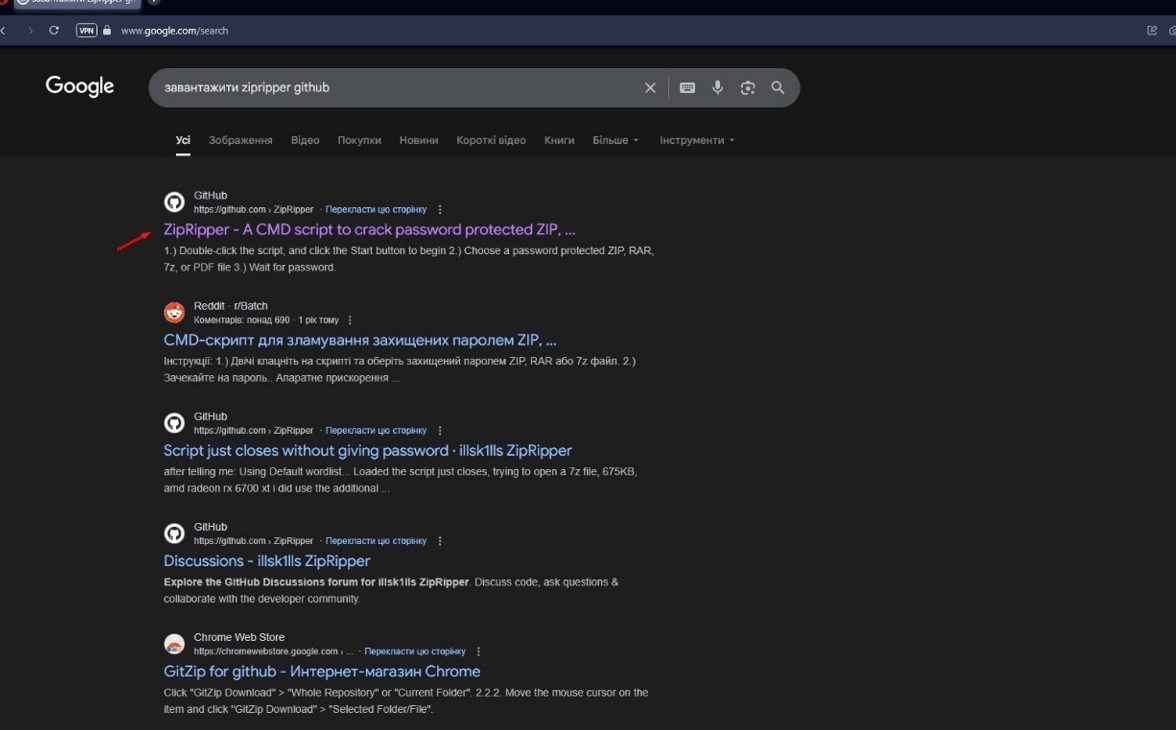
Open a browser and enter the query “Download ZipRipper github” into the search engine. We need the first link:
Follow the link and download the Zip archive with the program using the “Download Zip” button.
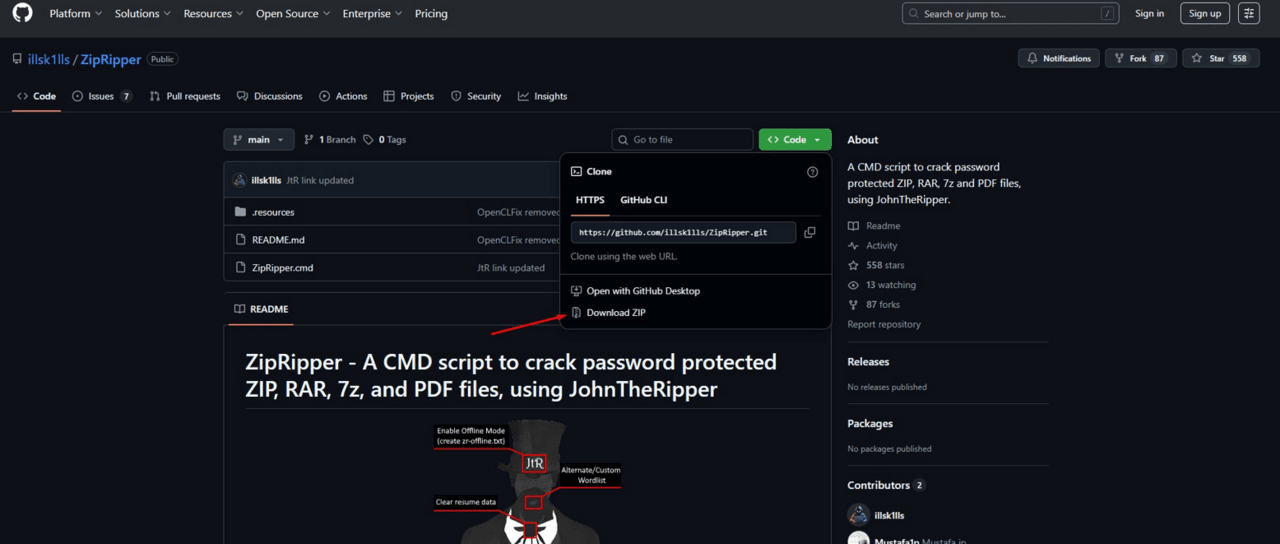
Step 3 Unzip the downloaded file
Since the program is portable and does not require installation, although the option to install an offline dictionary is also available.
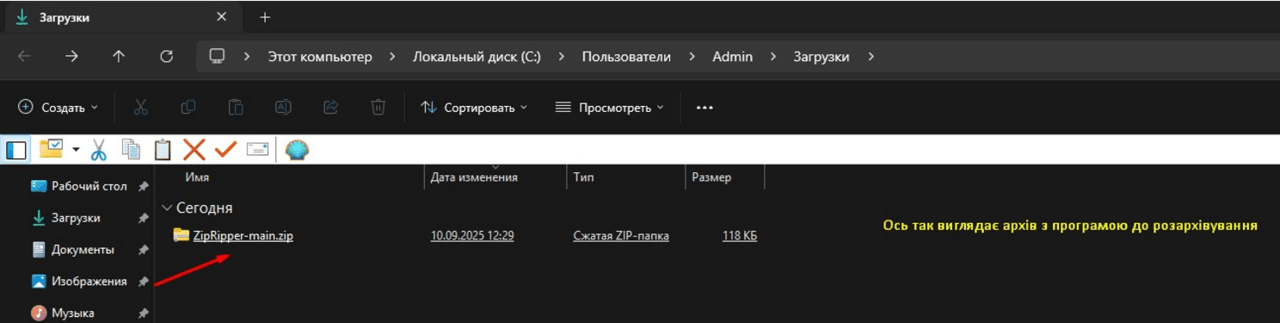
We need to go to download and unzip the program to any convenient location. In my case, it is “Desktop”
This is how the dialog box for extracting the file to the Desktop looks like in my case on Windows 11, although this program can also be used in Windows 10.
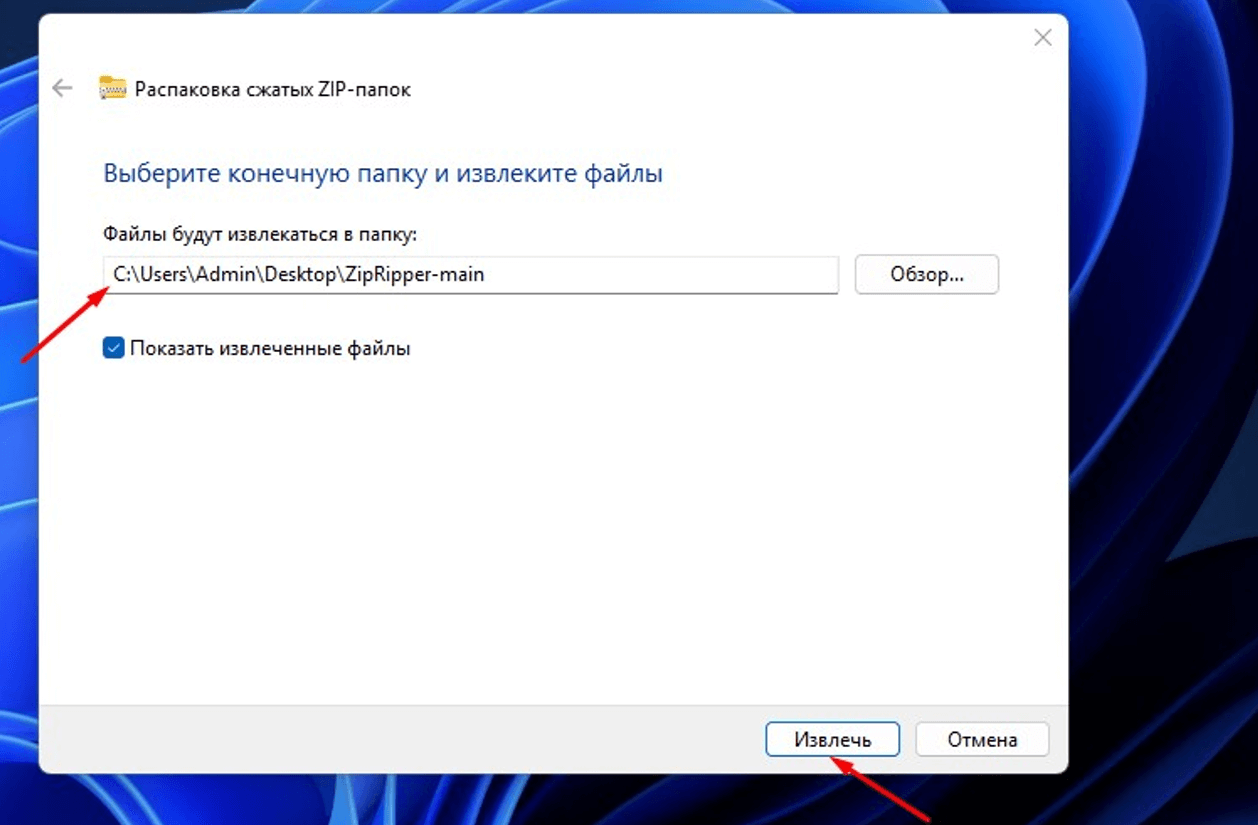
After we already have the program, we can start using it. For example, we have two textbooks on the History of Ukraine for grades 8 and 11, which we need to get from the archive for which I forgot the password. Here are the textbooks that should be in the archive:

When we need to use the program, we open our program folder, in my case from the desktop, and run the file “ZipRipper.cmd”. After starting, we will have a graphical interface in which we need to click the “Start” button.
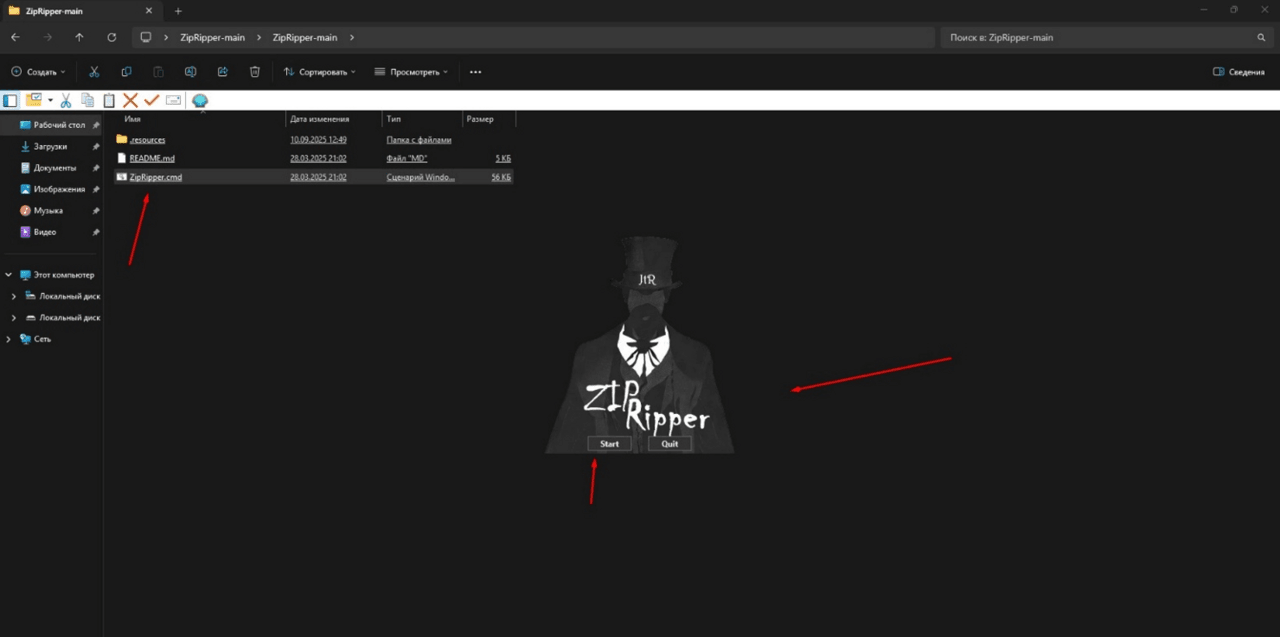
After clicking the Start button, the program offers us to select our file, the password for which we forgot, we click “OK” and select our file.
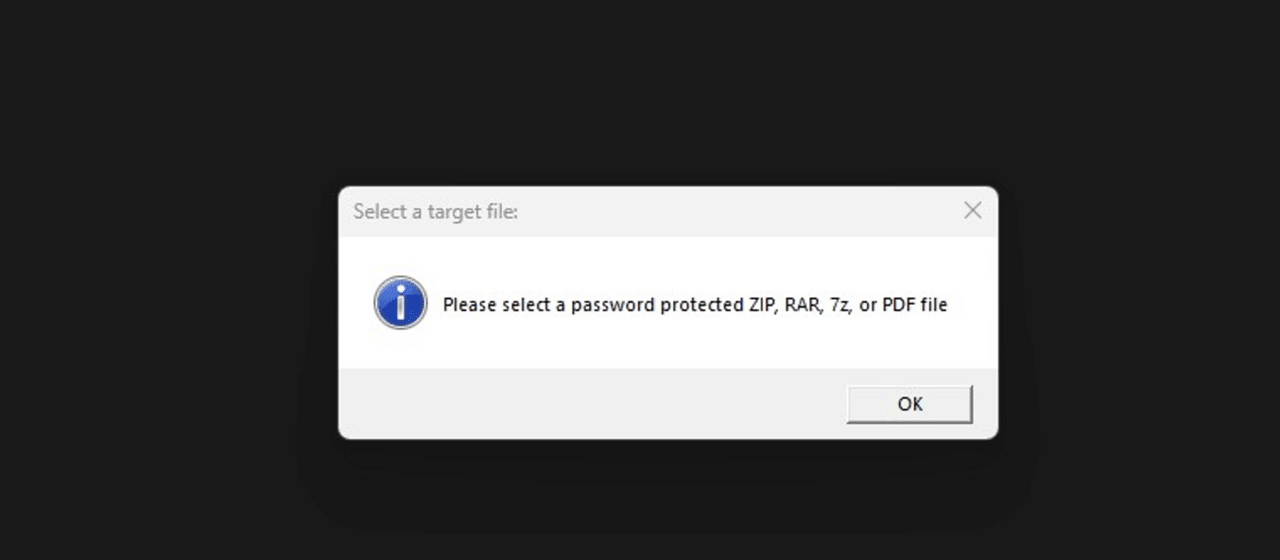
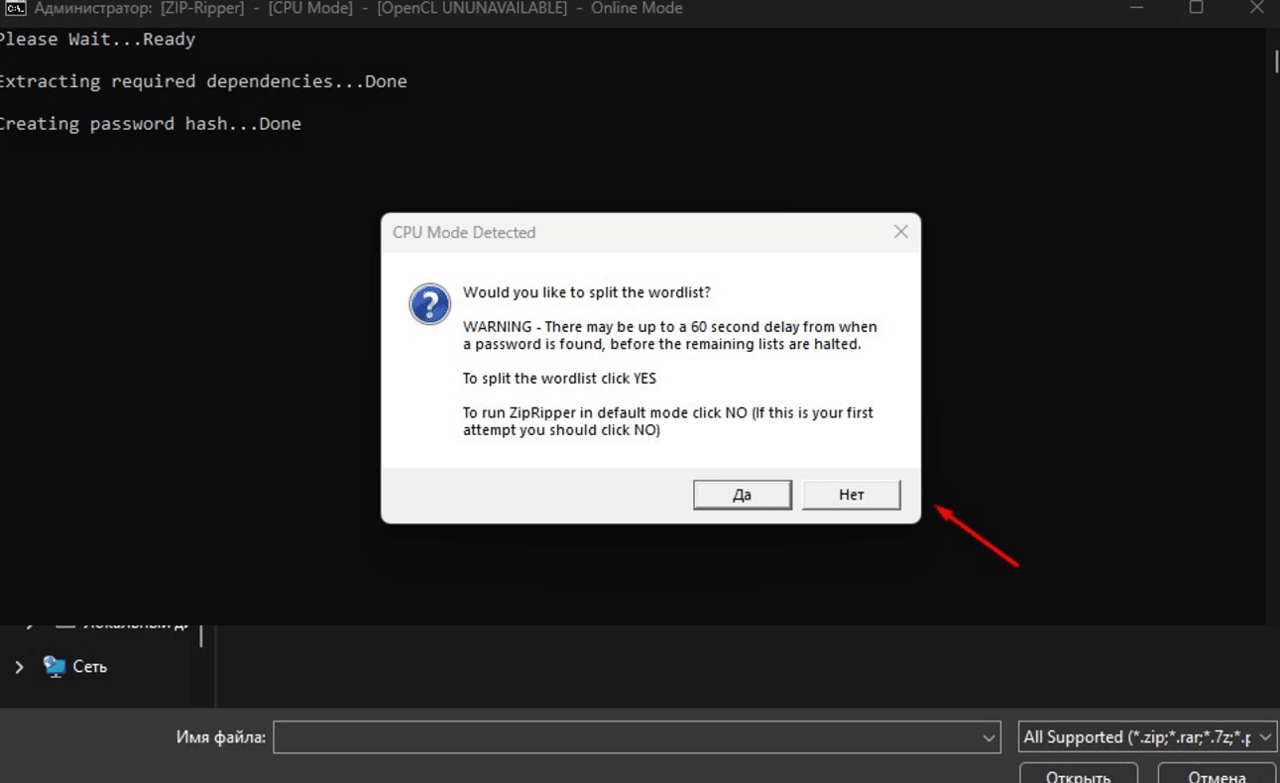
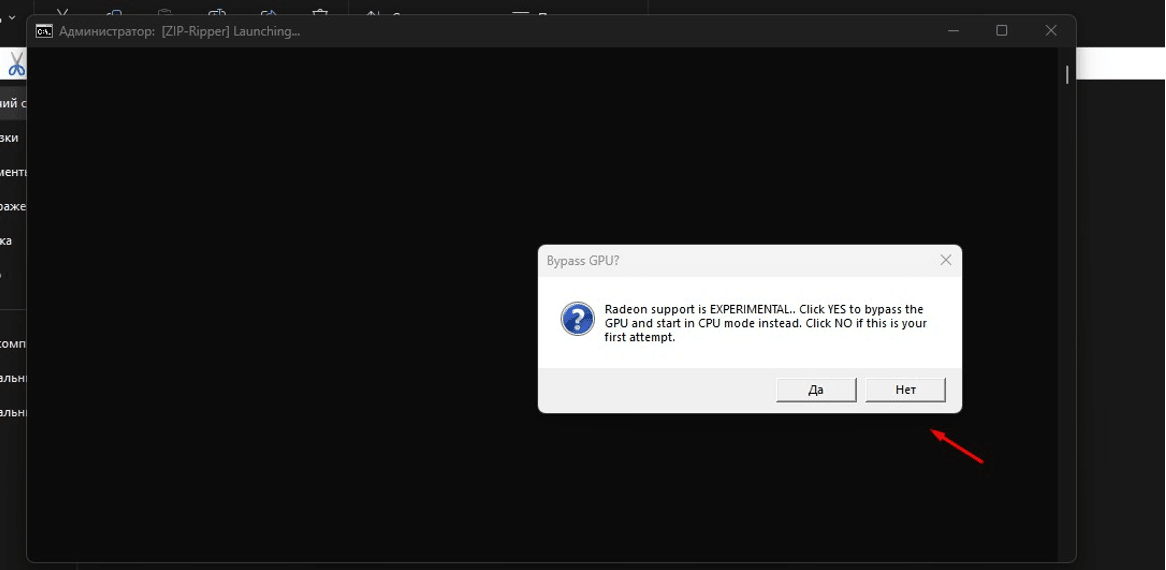
And here is our archive with textbooks, we select it, click open. Yes, since our password is selected by the video card, and I have an AMD Radeon video card, the program warned us that this is experimental for AMD, so I click “No” and continue.
Next, we get a window that the program wants to pick a password using the processor, we don’t need it, so we click “No” and continue working.
During the program operation, the file had to be renamed to Latin letters so that the program would not have errors. After the program is finished, we get this window where the time for how long the password was picked and the password itself are indicated, and a text document with the password is also created on the desktop.
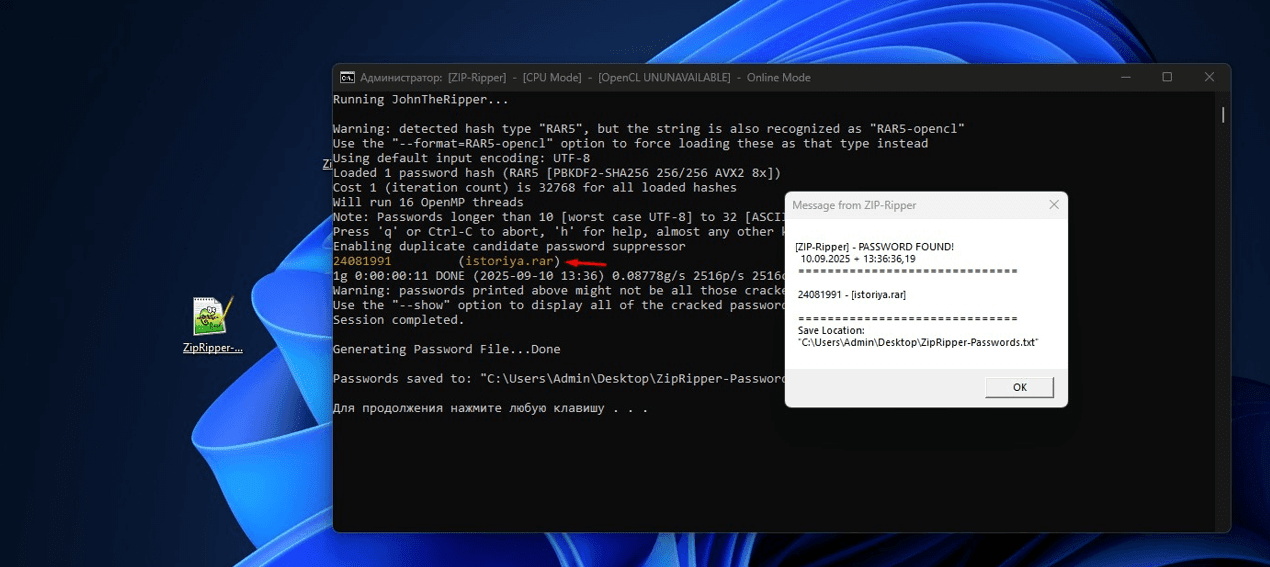
We check the password provided, because if it is correct, then the archive with textbooks will open.
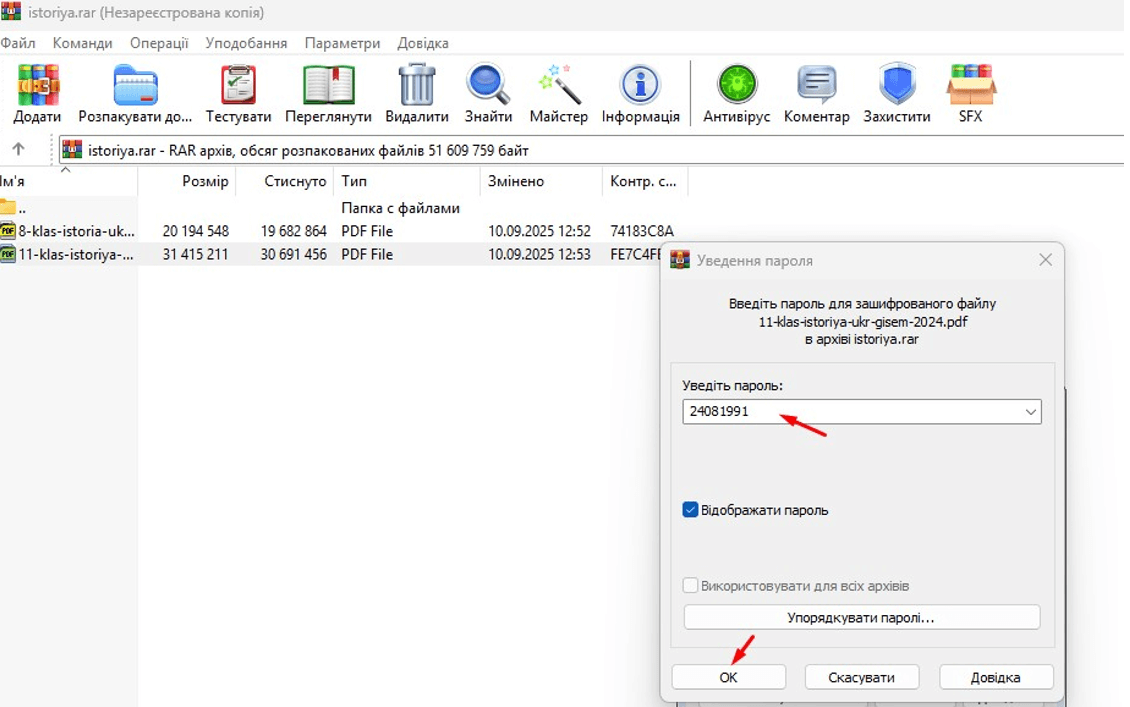
As we can see, our textbooks have appeared on the Desktop.
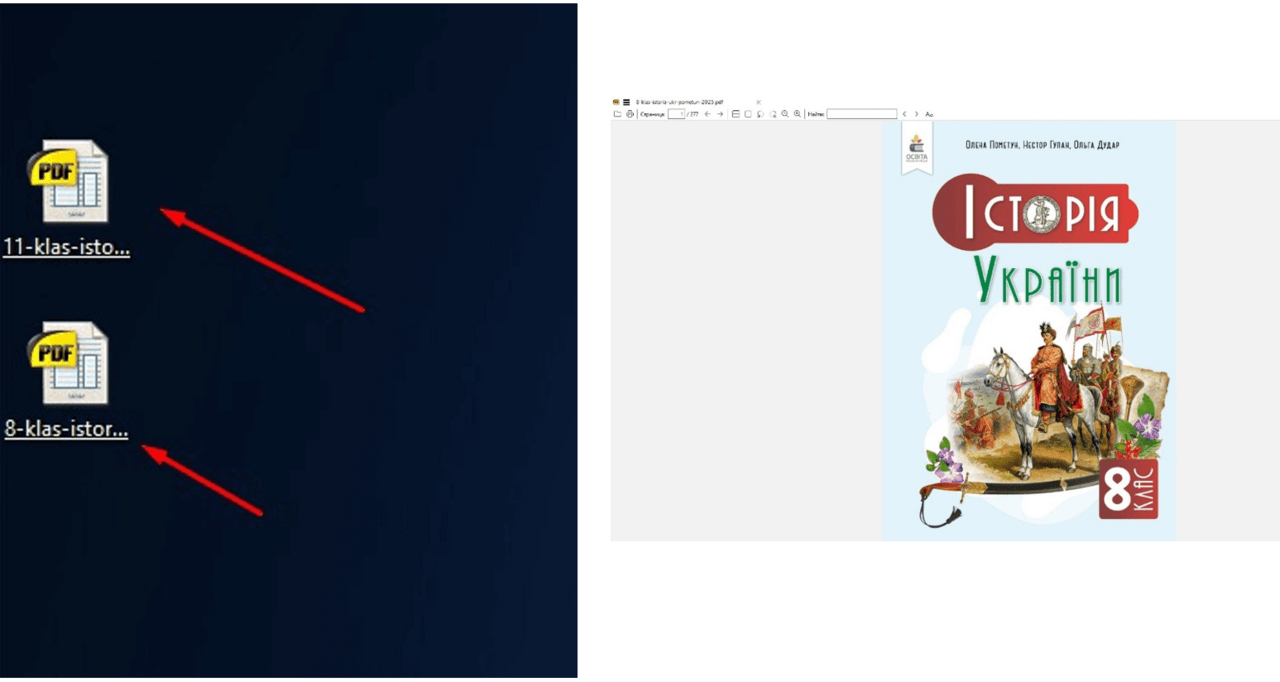
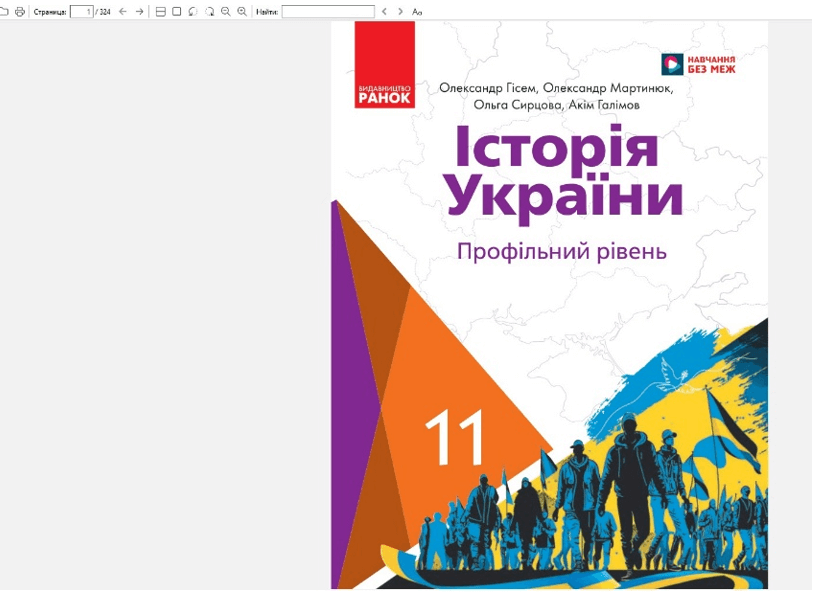
The textbooks open well and we can work with them.
Thus, summing up, it is worth noting that the program has fulfilled its task and found the password to the textbooks. It is worth noting that the use of this program is used exclusively for educational purposes, with the aim of improving our lives in the era of technology.