
15.05.2024
15 min
1309



If you use an AI for programming, such as Claude Code, it is important to understand that such an assistant has access to your files and can accidentally change or delete data. To avoid risks, you can run Claude Code in Docker – this is an easy way to create a secure environment isolated from the main system. The article explains step by step how to set up Claude Code in VS Code via Dev Container to work comfortably and without fear of losing files. You will learn why isolation is needed, how it affects performance and why even beginners can do it in 10 minutes without complicated settings.

The AI development system upgrade led to the transition to Claude Code, running in a Docker environment using the Dev Container feature in VS Code. This approach allows you to combine the convenience of working with an AI assistant with safe isolation from the main system.
The material explains what exactly caused the change in tools, what shortcomings the previous solutions had, and why containerization turned out to be the most effective way. The publication provides a short step-by-step guide for those who want to set up a similar environment without unnecessary difficulties.
The code and example configuration are available in an open repository: github.com/tim-sha256/claude-in-docker
The current system consisted of two services — ChatGPT Plus and Cursor Pro. The first subscription, costing twenty dollars, was used for regular communication, short technical queries and quick experiments with the code. The second, Cursor Pro, cost about the same and served as the main environment for developing more serious projects. This combination seemed optimal: ChatGPT had been used since 2023, and Cursor since August 2024, and for a long time everything worked stably, without significant problems or complaints.
Over time, however, the first unpleasant little things began to appear, which gradually turned into tangible limitations. Responses from the services sometimes came with a delay, large volumes of code were processed slowly, and the interaction with the tools themselves became less and less flexible. What had previously seemed like a reliable combination began to cause irritation. There was an increasing desire to find a solution that would allow us to work faster, without constant restrictions and unnecessary risks.
The problem was the speed and cost of working with the previous system. Before the update, Cursor offered 500 requests per month, and even with active work on one or two projects, this was more than enough. Average workload was about 40–60 hours per month, so the limit was almost never exceeded. The option to switch to a token-based plan was available, but it didn’t attract much interest — twenty dollars per month seemed like a small amount.
After implementing the new “unlimited requests” model, serious performance problems began to appear. Instead of the expected improvement, the system began to work slower, and delays of 2–5 minutes became the norm. Complaints from Cursor users who encountered the same difficulties began to appear more and more often in chats and on Reddit. Although there was still an option to go back to the old plan with a limit of 500 requests, it was obvious that this option would not last long. All this made me wonder if it was justified to continue paying $40 per month for unstable results.
The search for an alternative led to the switch to Claude Code, which turned out to be a simpler, faster and more profitable solution. Its advantages are easy to notice even during a short test:
the cost is half as low — only $20 instead of $40;
stable operation without long delays and speed limits;
the ability to use web chat for non-code related requests;
support for working with CLI, which provides full integration with the IDE;
clear display of token costs and clear usage limits.
Thanks to these advantages, Claude Code has become a natural extension of the workflow, maintaining convenience, but eliminating restrictions and unnecessary costs. Now the development environment works stably, and the process of writing code has become faster and more predictable.

The problem concerns the security of artificial intelligence agents that are granted excessive access to the system. Running such tools with full rights to the file system, terminal, or confidential data poses serious risks that can sooner or later lead to undesirable consequences. This can be compared to having access to a computer by a remote developer you don’t know and cannot interact with directly — only via messages. Even if there is trust, this situation causes obvious discomfort.
The security situation is not improving: reports of vulnerabilities in agent management systems, dangerous scenarios, and unpredictable behavior of AI tools are becoming more and more frequent. Examples include cases where intelligent agents deleted project files, bypassed security filters, or executed commands that were potentially harmful to the system.
To avoid such risks, it is worth considering possible ways to control interaction with the agent:
Manually confirming each action before allowing a command to run. This ensures security, although it can be slow.
Running the AI in an isolated environment — for example, in a Docker container, where the agent won’t have access to the entire system.
Using minimal permissions and controlled directories to limit the tool’s impact.
Such methods allow you to find a balance between convenience and security, reducing the risk of unpredictable actions by artificial intelligence while maintaining work efficiency.
Using Claude Code without risk to the entire system is possible by restricting its working environment. The idea is to create a “closed box” — a separate space where the AI will have access only to the project it is working on, without being able to touch the rest of the computer. The most convenient solution for this is to run Claude Code in Docker, working inside a container via the VS Code Dev Container.
This approach provides a number of advantages that ensure both security and stability of work:
Claude only accesses files inside the container or volumes that are specifically mounted by the user.
The system remains intact – even if the container crashes, the underlying operating system will not be affected.
Isolation protects secrets – the container does not see local keys, passwords, or integrations until the user grants access to them.
Setting up such an environment takes a minimum of time. If Docker and VS Code are already installed, preparing a container and launching Claude Code takes no more than five minutes. After that, you can immediately work with code in a familiar interface, but in a completely secure environment.
To prepare an environment for working with Claude Code in Docker, you just need to follow a few simple steps. The main goal is to create an isolated project structure in which Claude will work only with the necessary files, without touching the rest of the system.
Before you start, make sure that everything you need is already installed and configured:
Docker and VS Code must be installed locally.
An active Claude Code subscription (any plan).
A GitHub account is not required, but will be useful during setup.
Once these conditions are met, you can proceed directly to the configuration. First, a main working folder is created, which will become the root for Claude and the project (or several projects). Inside it, you need to create a subfolder .devcontainer, and inside it, a file devcontainer.json.
Then you can use the ready-made structure available in the open repository by simply copying the contents or cloning it using the command:
After that, just open the root folder (for example, claude-in-docker, if you used a clone of the repository) in VS Code. A modal window will appear in the lower right corner of the program with the suggestion “Reopen in Container”, which allows you to launch the working environment inside the Docker container. From this moment, Claude Code will be ready to work in a safe and completely isolated space.
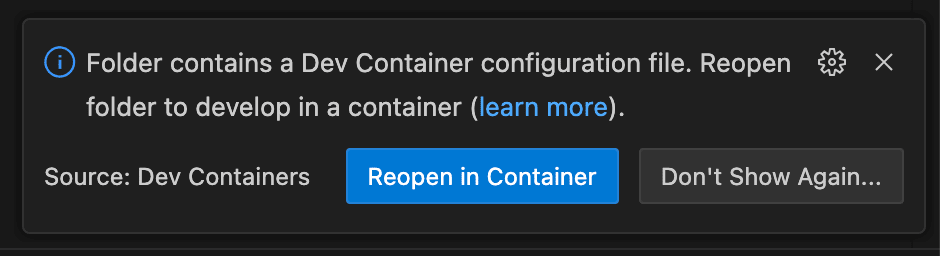
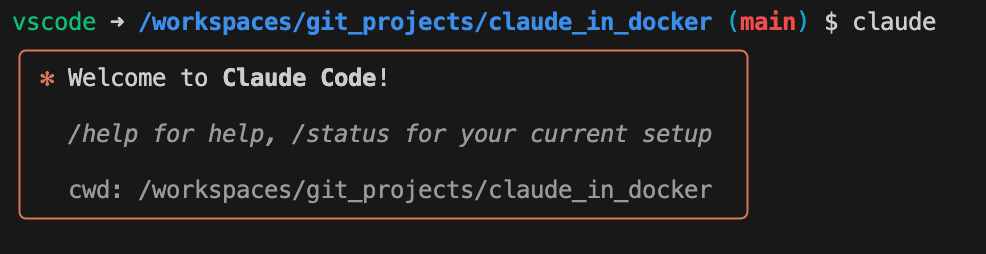
After clicking “Open again in container”, you need to wait for some time. That’s it – you can check if Claude Code is installed by running the claude command in an open terminal:
Because you are working in an isolated environment, you will encounter an error when attempting to execute git clone, pull, push, and other similar commands: the container does not contain credentials and does not have access to local SSH keys, which are typically used to authenticate to GitHub.
A common solution is to create a new SSH key directly inside the container and add it to your GitHub account. However, this approach is not always secure, as it automatically grants broad permissions, including the ability to view or edit data, change settings, or perform unwanted actions. A more secure alternative is to use a Fine-Grained Personal Access Token, an access token with well-defined rights.
To create it you need:
follow the link https://github.com/settings/personal-access-tokens/new;
create a new granular token and grant it access only to the necessary repositories;
In the permissions settings, open the “Repository permissions” section, scroll to the “Contents” item and select the “Read and Write” access level.
This approach provides full Git functionality inside the container, while maintaining system isolation and security.
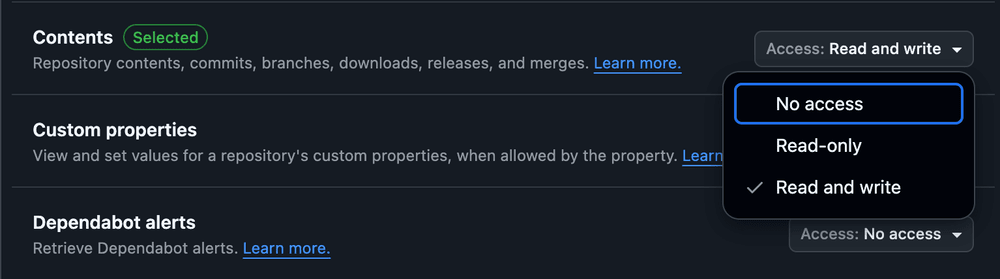
This single permission is enough to perform basic git operations — cloning, pulling, pushing, etc. Additional permissions are usually not needed unless you are working with a large number of repositories. After configuring the settings, you need to click “Generate token”, copy the received token and save it in a safe place.
After that, Claude will no longer be able to accidentally or intentionally change the GitHub account data. To add the credentials and use them for further work, just run the command to clone a private repository that is publicly accessible:
git clone https://<USERNAME>:<TOKEN>@github.com/<USERNAME>/<REPO-NAME>.git
This command will create a secure connection to GitHub using the generated token and allow you to work with repositories without risk to your main account. And then, after cloning cd into the project folder, run this to save your credentials:
git remote set-url origin https://<USERNAME>:<TOKEN>@github.com/<USERNAME>/<REPO-NAME>.git
Done — the environment is fully configured and ready to work with Claude Code. Thanks to Docker isolation, the risks to the system are significantly lower than during normal use, and all operations now take place in a controlled space.
Moving to Claude Code in Docker using VS Code Dev Container demonstrates how modern AI tools can combine convenience and security without compromise. The isolation of the environment provides peace of mind for the system, tight control over file access, and stable performance even in long-term projects.
This configuration paves the way for a new model of working with AI assistants – where the developer gets complete freedom of action, while the system remains secure. Using containers allows you to build more predictable, clean, and repeatable work environments where mistakes or experiments are not a threat.