



13.12.2023
5 min
2190



Want to improve the efficiency of text editing in Unix and Linux environments? The Vim Cheat Sheet is your primary resource for mastering this powerful editor. With a user-friendly design and comprehensive coverage of Vim modes and commands, our cheat sheet will take your programming productivity to new heights. The Vim cheat sheet contains the essentials in an easy-to-digest format. Whether you’re a beginner who wants to understand the basics or an experienced developer who needs a quick reference on commands, this cheat sheet has you covered. Available as a free download in PDF, DOC, and ZIP formats, you can keep this cheat sheet close at hand. Print it out for easy access or save it to your digital device for on-the-go use.
From cursor movements to complex file operations, our Vim cheat sheet contains a wide range of features. Learn about global shortcuts, cursor navigation, insert mode, visual commands, and more. We’ve carefully compiled the most useful keyboard shortcuts to simplify your Vim workflow. Improve your programming journey today with a Vim cheat sheet and make Vim your most powerful programming ally! In this article, you will find everything you need to use the Vim editor effectively. From basic commands to advanced functions, our Vim cheat sheet will be your indispensable guide in navigating this powerful text editing tool. Easy to download and print, it provides quick access to the most important commands and shortcuts, always up-to-date with the latest update in November 2023.
Vim is a powerful and customizable text editor commonly used in Unix and Linux environments. It is known for its efficiency and speed. Once you’ve mastered the keyboard shortcut, you can greatly improve your productivity when working with text files. In this article, I’m going to develop a Vim cheat sheet that will teach you about keyboard shortcuts and their associated descriptions. So let’s get started!
Vim works in different modes: normal mode, paste mode, and visual mode. In normal mode, you can navigate through the file, make changes, and execute various commands. Insert mode allows you to enter text, while visual mode allows you to select and manipulate blocks of text. Below are some keyboard shortcuts that may help you when working with Vim.
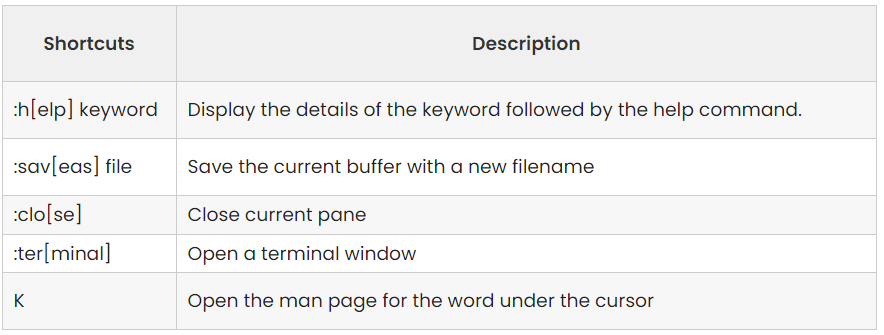
You have extensive customization options and you can define your own shortcuts and displays to suit your needs. Let’s first deal with its global abbreviations.
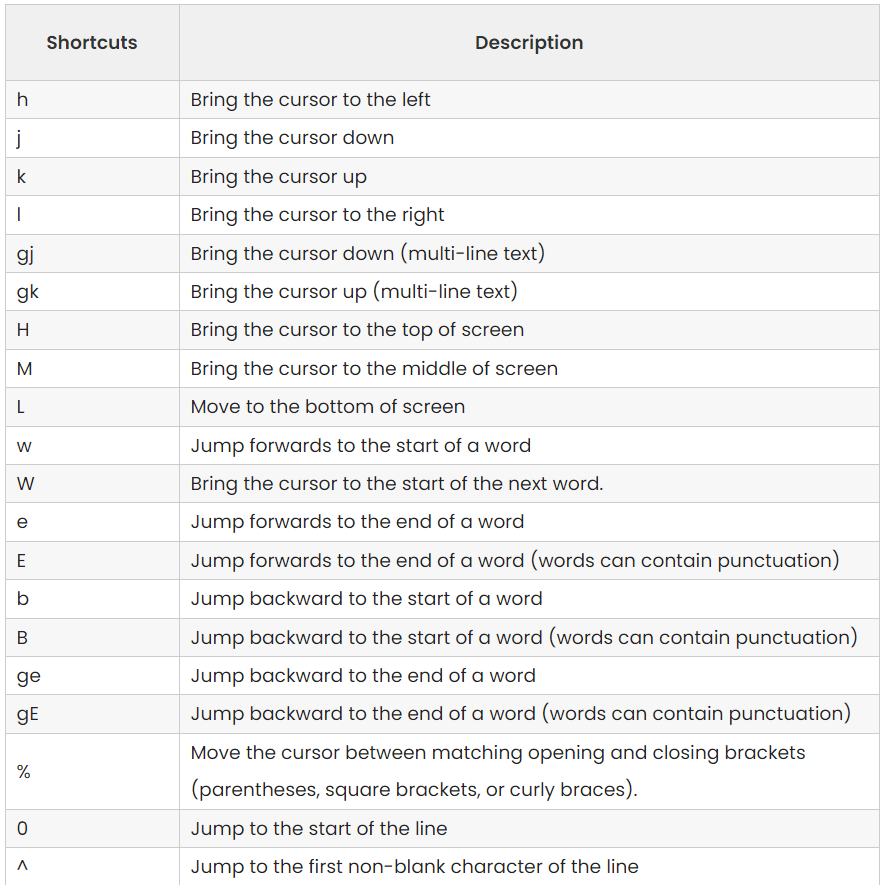
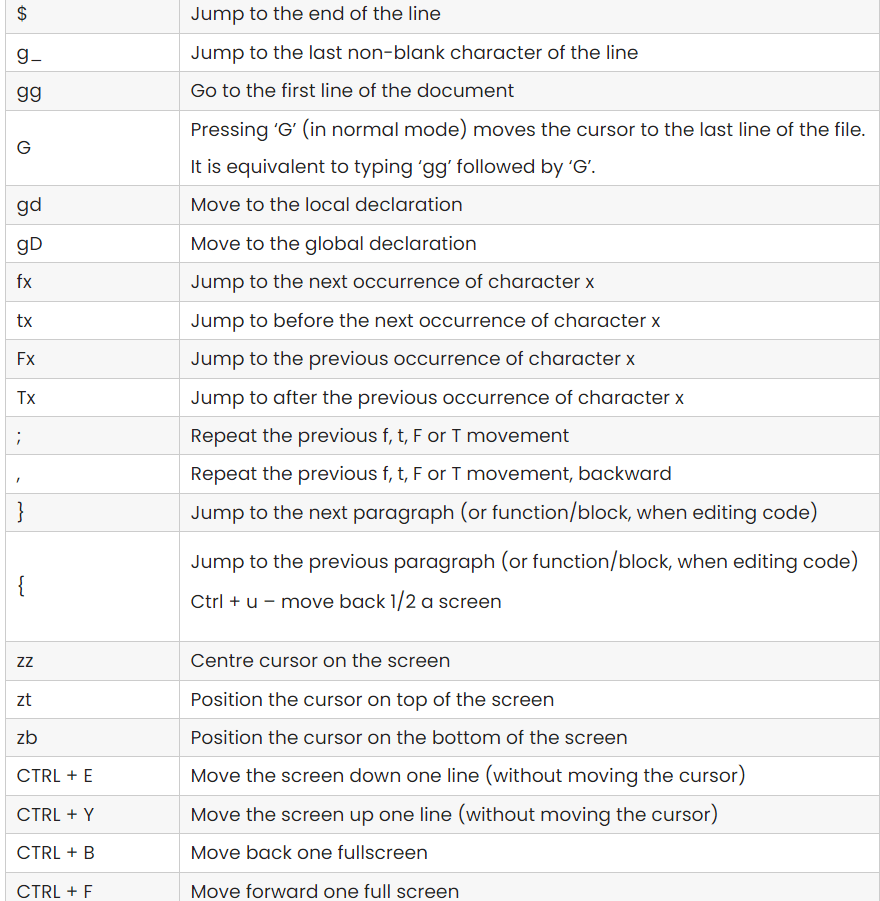
Moving the cursor is the main aspect of editing in Vim. Vim provides a wide range of shortcuts and commands for quick file navigation. Here are some of the basic keyboard shortcuts for moving the cursor in Vim.
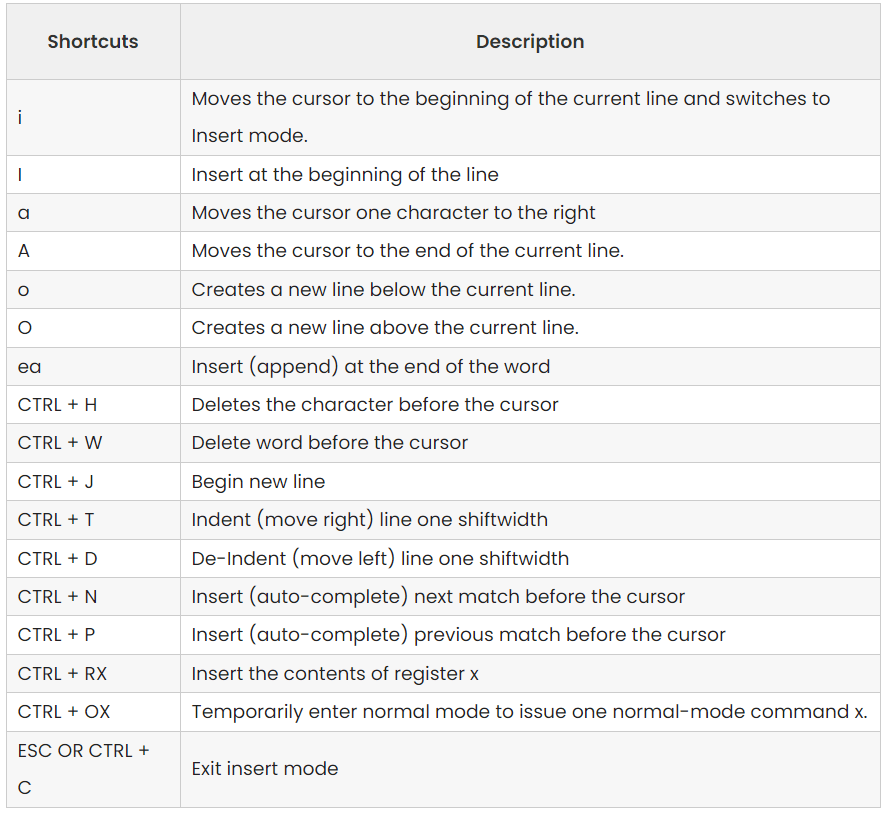
In Vim, insert mode allows you to immediately insert or add text to your file. Here’s an overview of how to enter insert mode and insert and add text.
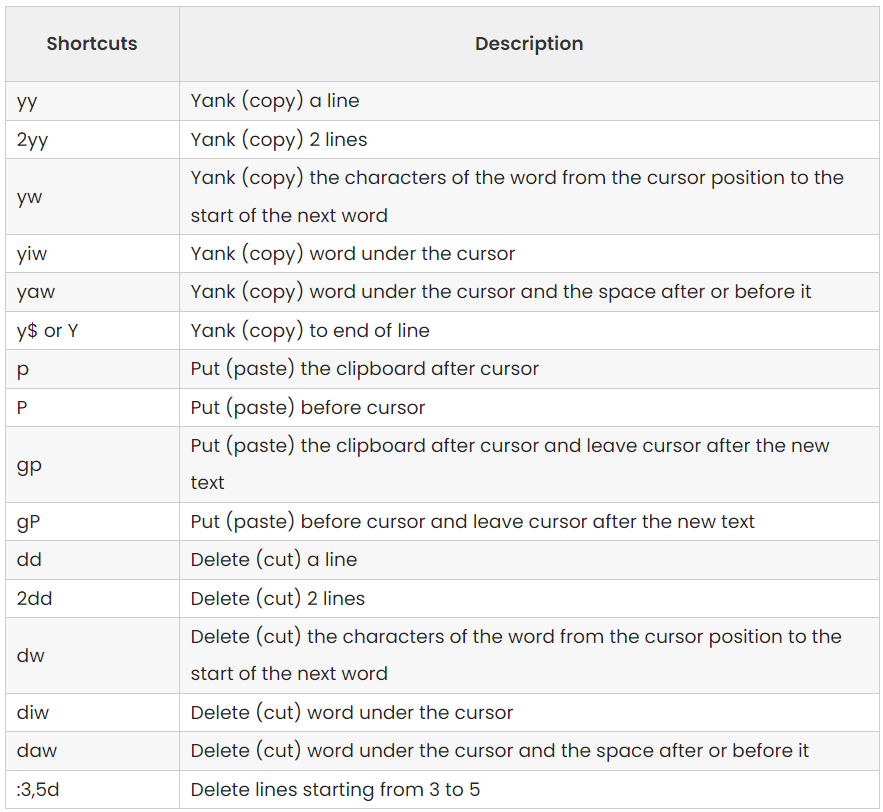
In Vim, cutting and pasting text uses commands like d for delete and p for paste. Here are some keyboard shortcuts you can use when cutting and fitting text in Vim.
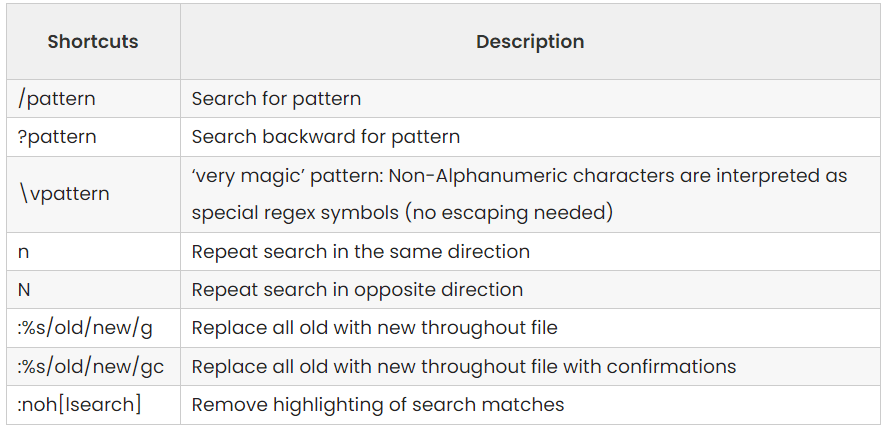
Text search and replace is a powerful Vim feature that allows you to find specific patterns and replace them with the lines you want.
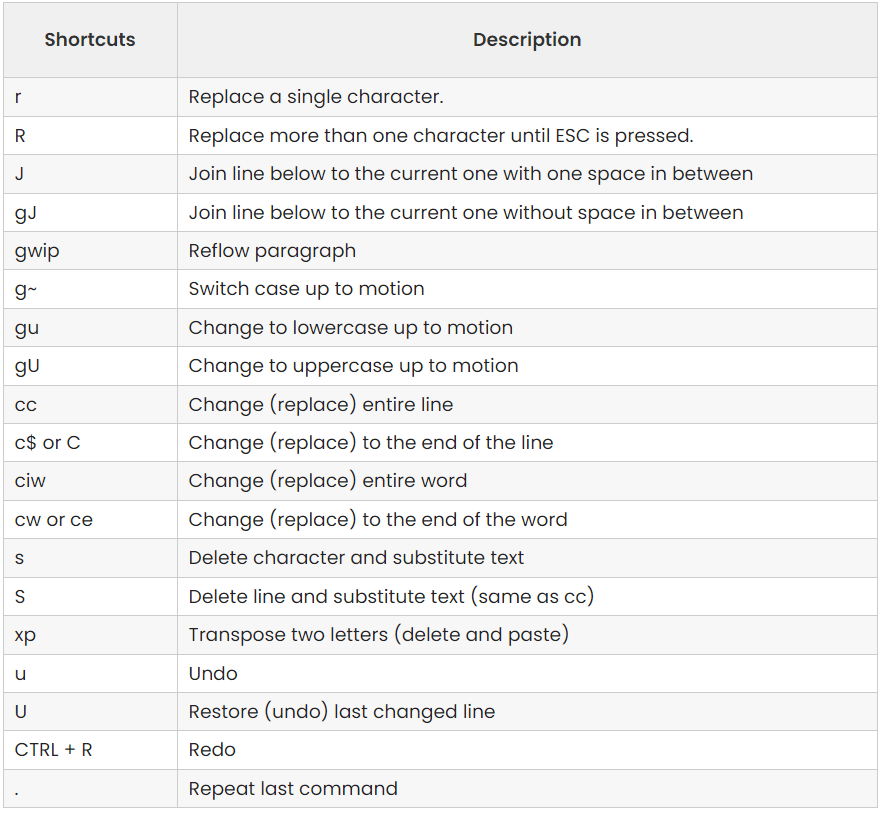
Editing in Vim includes various commands and techniques for changing text in a file. Here’s an introduction to some basic editing operations in Vim.
In Vim, selecting text using visual mode allows you to highlight and manipulate specific text. Visual mode provides ways to break text, including character, line, and block breaks.
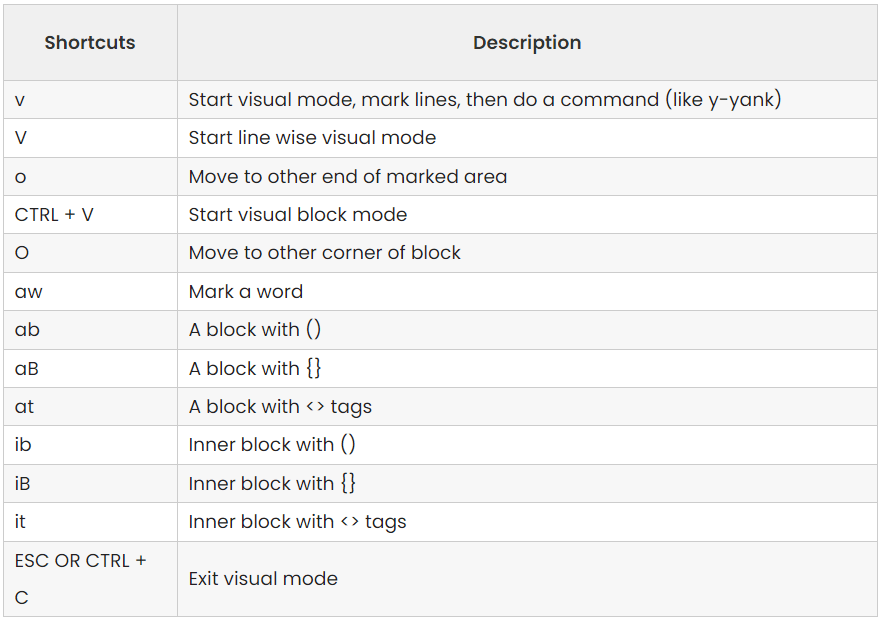
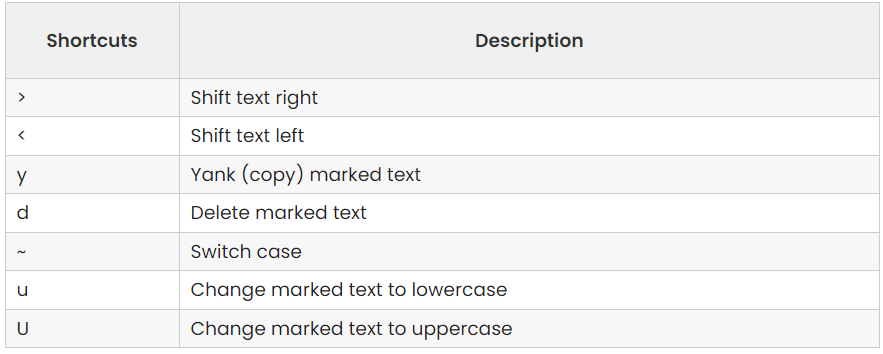
Visual commands in Vim allow you to perform a variety of operations on validated text. In visual mode, you can display specific text elements and control them with a keyboard shortcut.
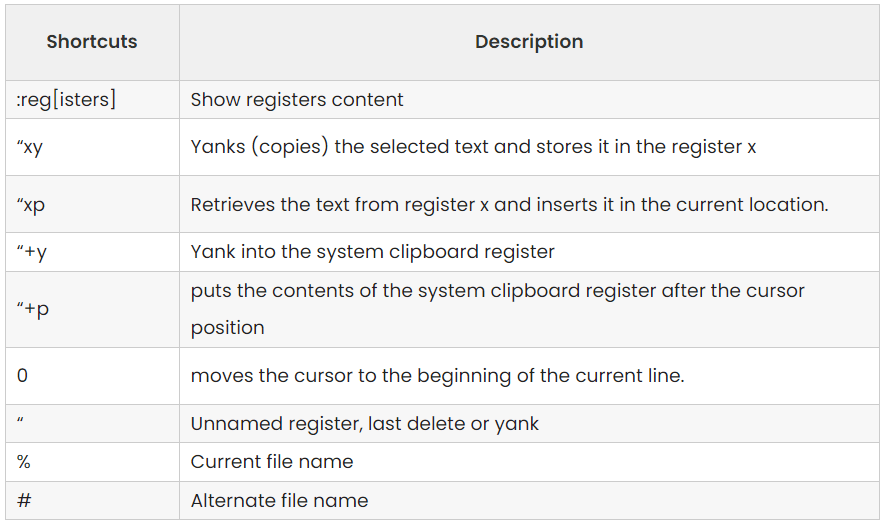
Vim has fireplace registers for text storage and processing. They act as temporary storage locations where you can copy, cut, or extract text for later use. Vim provides several registers, each designated by a letter or special character.
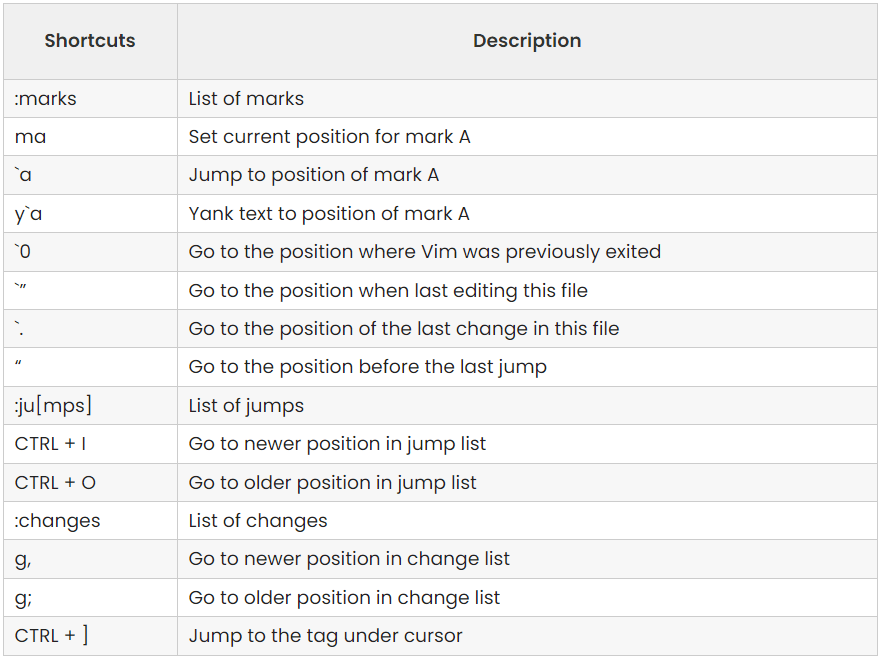
In Vim, markers and positions are used to navigate and refer to specific locations in a file. They can quickly jump to highlighted locations or select specific positions for later use.
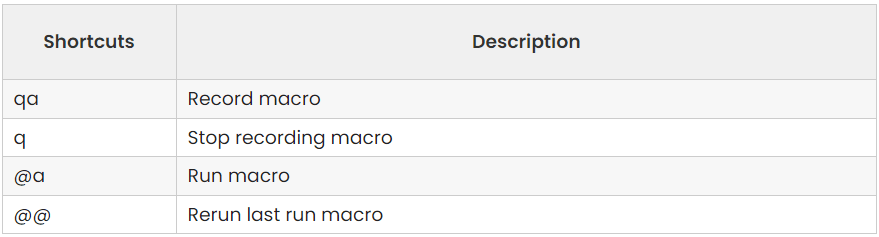
A macro in Vim is a powerful feature that allows you to record a sequence of commands and play them back on demand. They are especially useful for automating repetitive tasks and efficiently performing complex editing operations.
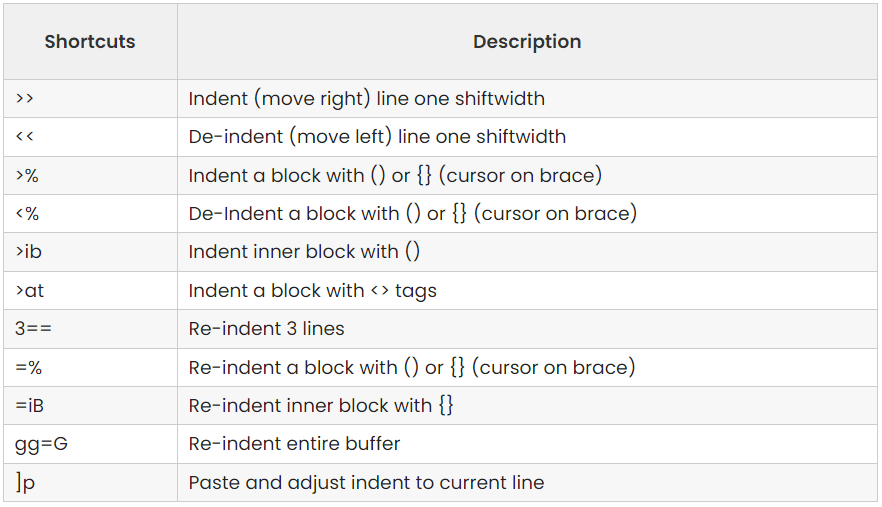
Vim has several ways to indent text, whether it’s a single line or a block of code. Here are some keyboard shortcuts to indent text in Vim:
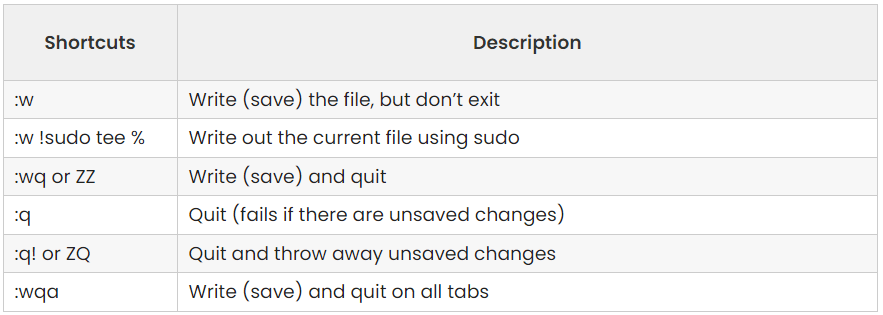
Vim has several ways to exit the editor and close the file. Below are some common keyboard shortcuts.
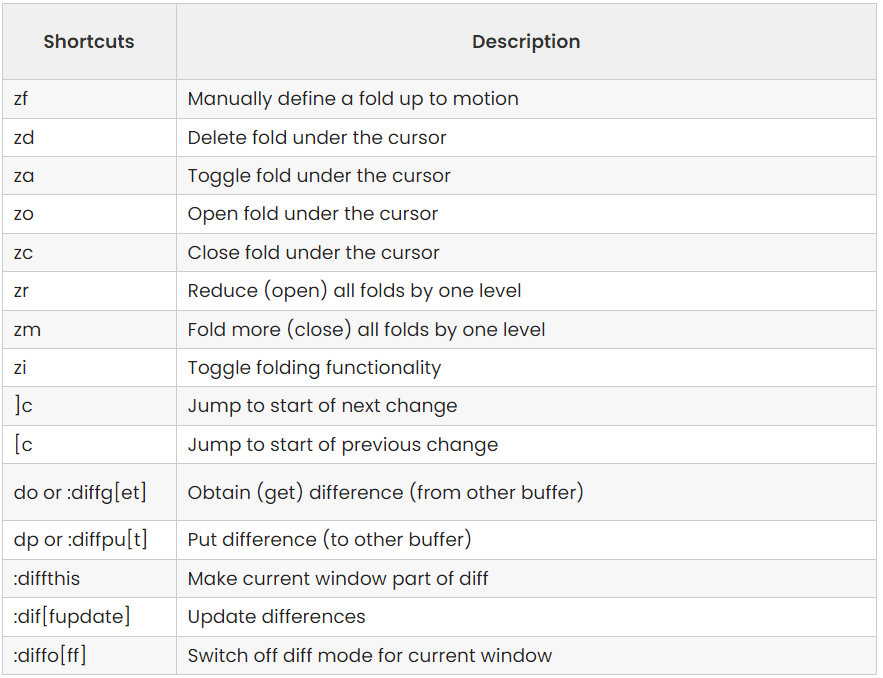
In Vim, the diff function allows you to compare and highlight the differences between two or more files. This lets you see the changes made between different versions of a file or compare files side-by-side.
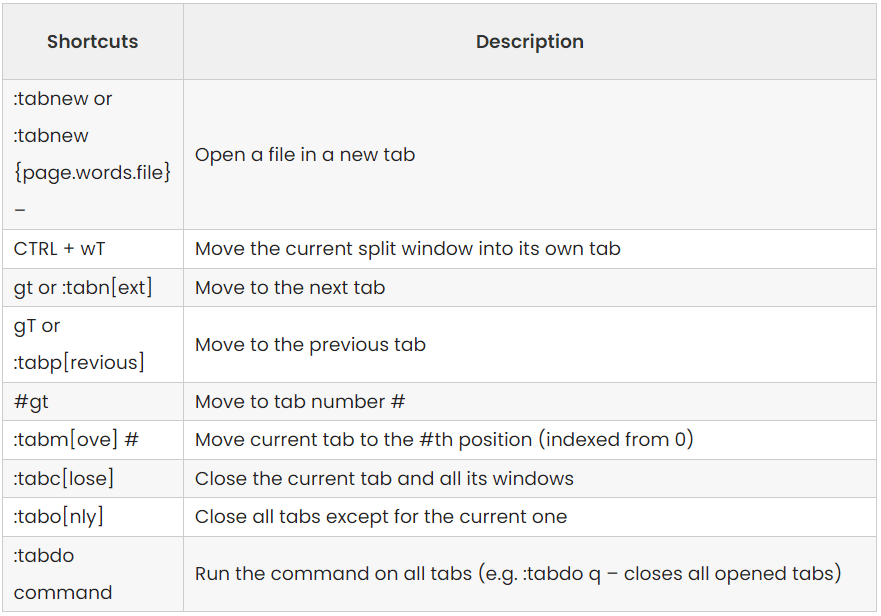
In Vim, tabs are a convenient way to manage multiple files in a single Vim< /span> session. Tabs allow you to work on multiple files at once, keeping them organized and easily accessible.
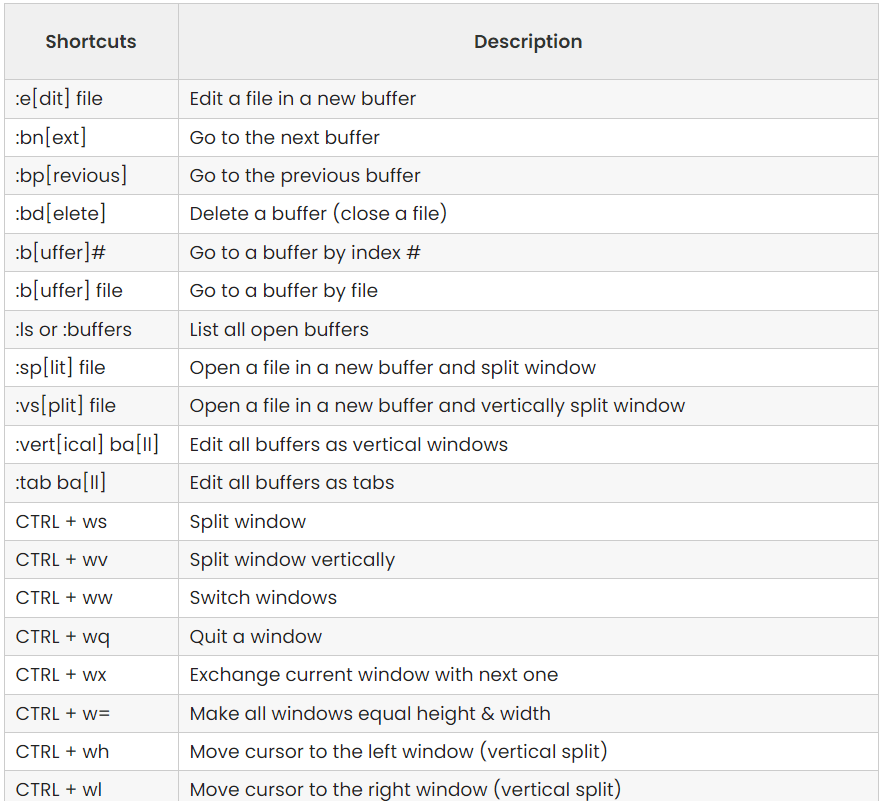
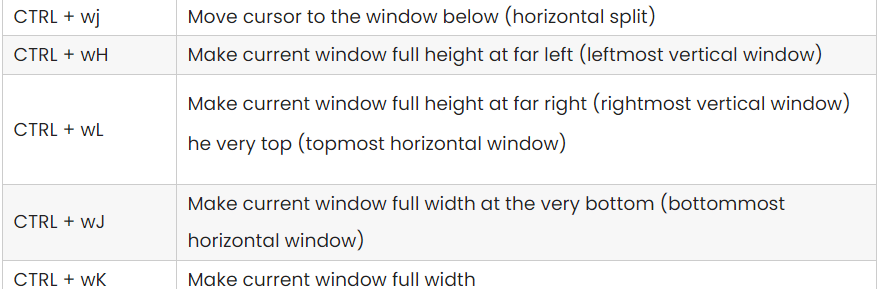
In Vim, you can work with multiple files simultaneously during a single Vim session. It allows efficient editing and switching between different files.
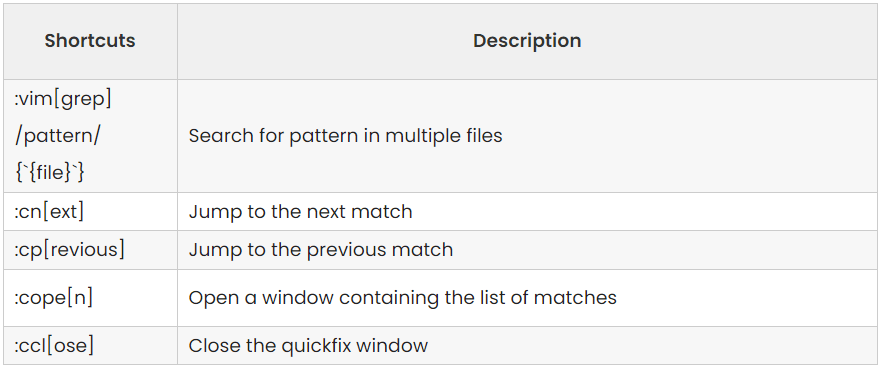
You can search for a pattern in multiple files at once with a command like:vimgrep< Command /span>.:vimgrep. This allows you to perform a search operation that spans multiple files within a single Vim session. Below are some keyboard shortcuts.
In conclusion, Vim is a powerful text editor with many features. In this article, I have covered various aspects, including commands, modes, and functions. We started with an introduction to the Vim cheat sheet, which includes an overview of commonly used commands and keyboard shortcuts. I hope this helps you as you work with Vim. However, if you have any questions or queries related to this article, feel free to comment below. Thank you.