
12.07.2024
1 min
1345



In today’s digital world, more and more users are faced with files for which they have forgotten the password – PDF documents, RAR, ZIP or 7Z archives. In this article, we will take a detailed look at how to restore access to encrypted files using free utilities such as pdfcrack, rarcrack and John the Ripper. We will show how the dictionary attack method works, why weak passwords can be cracked in a matter of minutes, and how to protect your documents from unauthorized access.
Disclaimer: All information below is provided for educational purposes only. The author does not advocate the misuse of hacking techniques. Use the knowledge gained to test the security of your own files or within the limits of legally permitted situations.
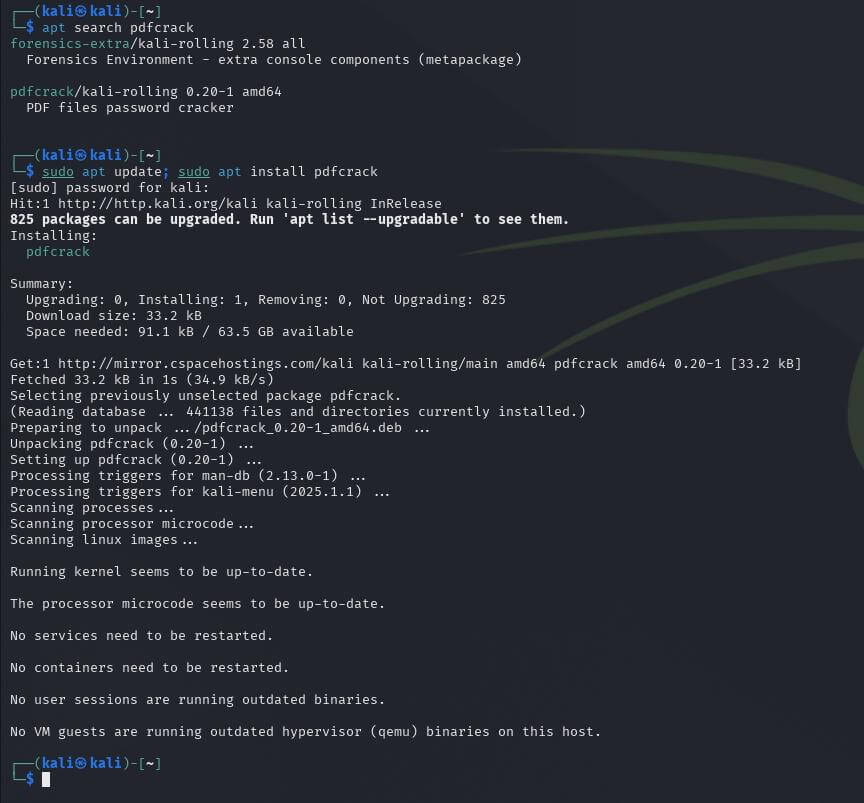
First, let’s find and install the program data in the repository:
apt search pdfcrack
sudo apt update
sudo apt install pdfcrack
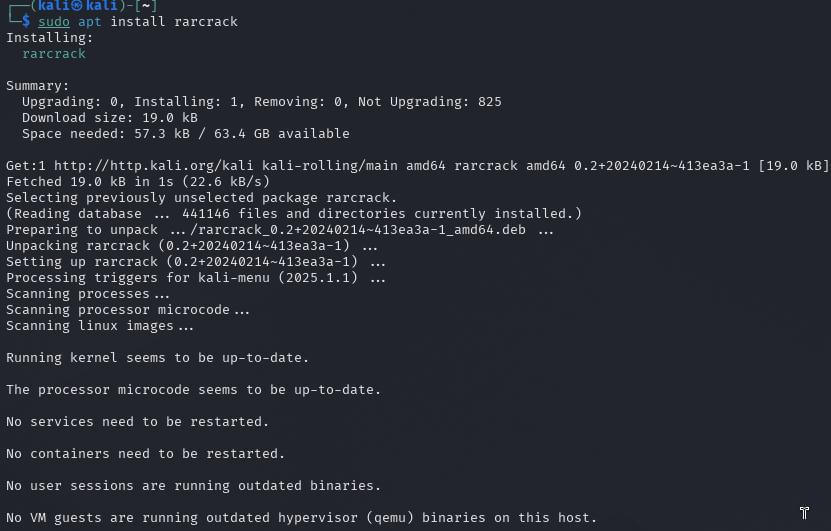
Same with rarcrack:
sudo apt install rarcrack
(sudo apt update вже не обов'язково вводити так як виконав цю операцію)
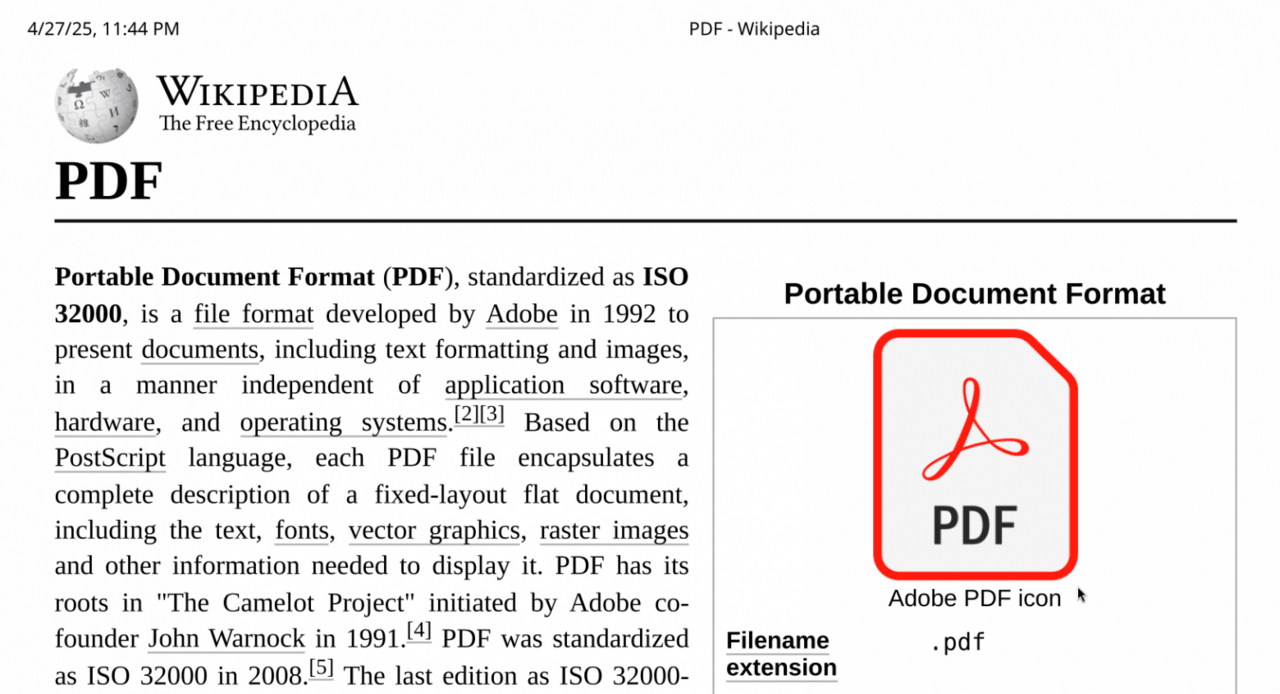
Next, we create our pdf from the Wikipedia page (Ctrl+P in the browser) and go to the site https://www.ilovepdf.com/ where can you encrypt a pdf with a password.


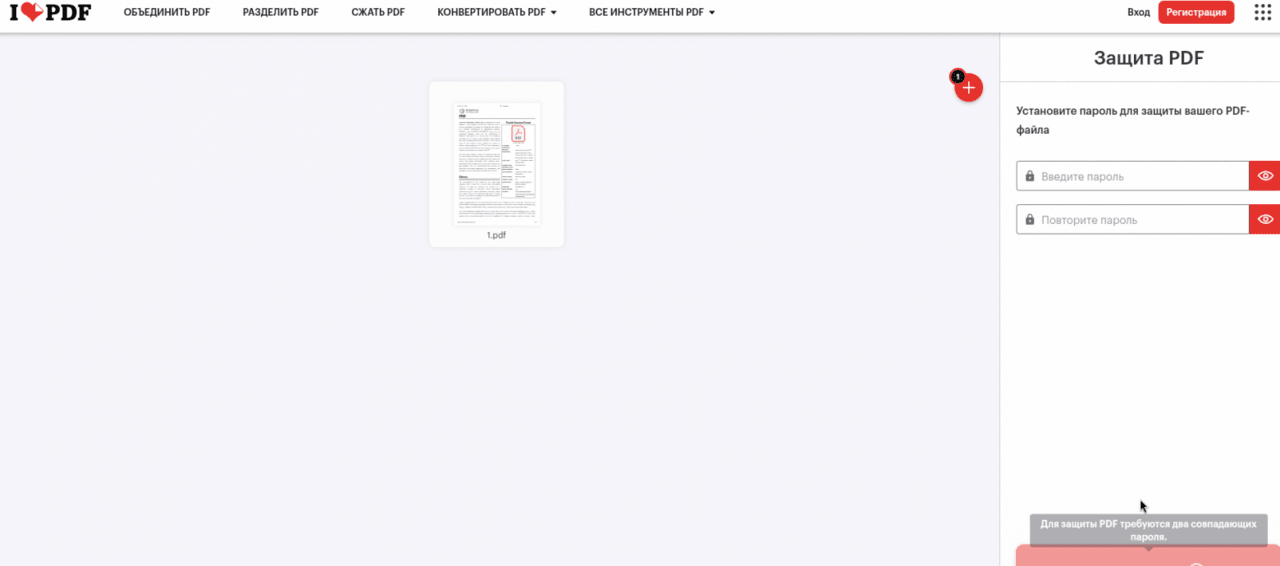
Після операцій можна завантажити зашифрований pdf

And then we try to crack the password with the pdfcrack utility. Open a terminal (naturally) and type the following (general syntax example):
pdfcrack --wordlist=/шлях/до_файлу_словника/файл словника /шлях_до зашифрованого pdf/зашифрований pdf
Or like this:
pdfcrack --wordlist=/usr/share/wordlists/rockyou.txt 1_protected.pdf
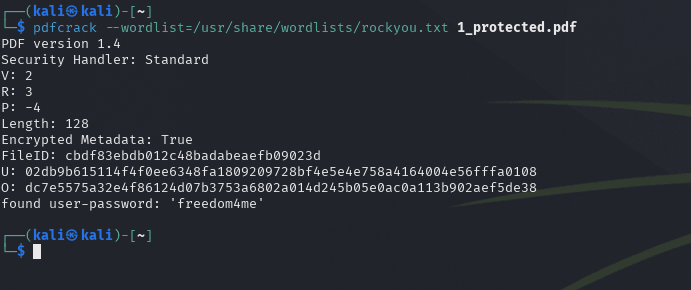
As you can see from the screenshot, the program successfully picked up the password from the dictionary — freedom4me. All that remains is to enter this password.
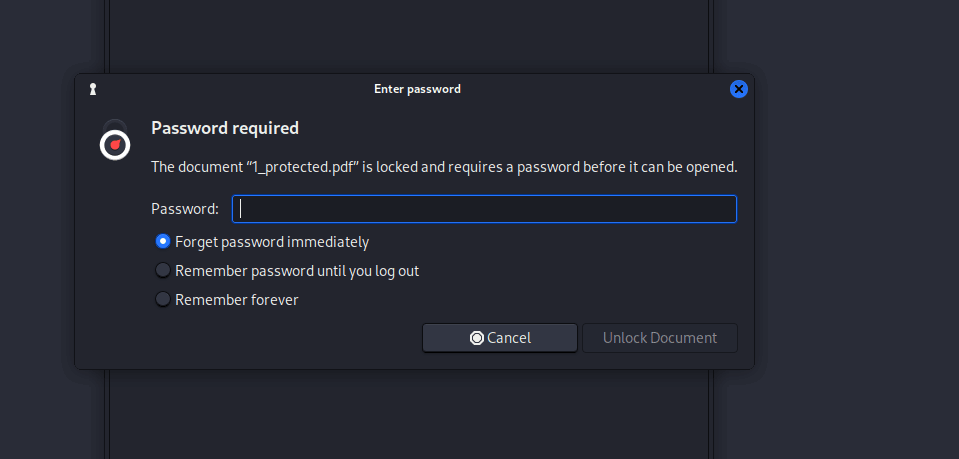
We find the file, try to open it — the system asks for a password. We enter the selected one: access is open:
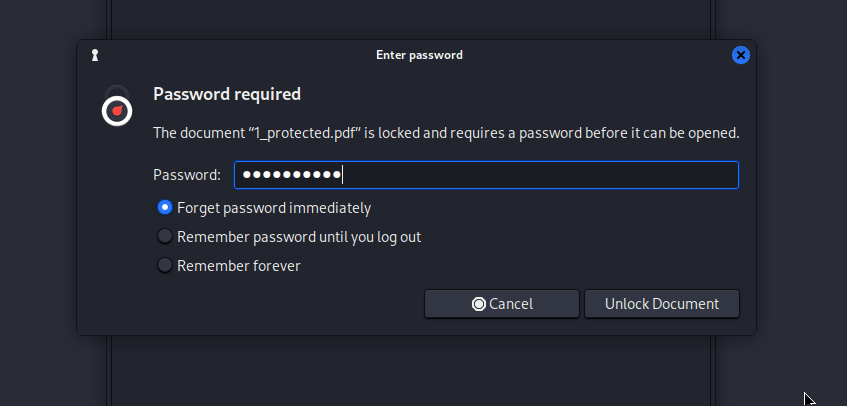
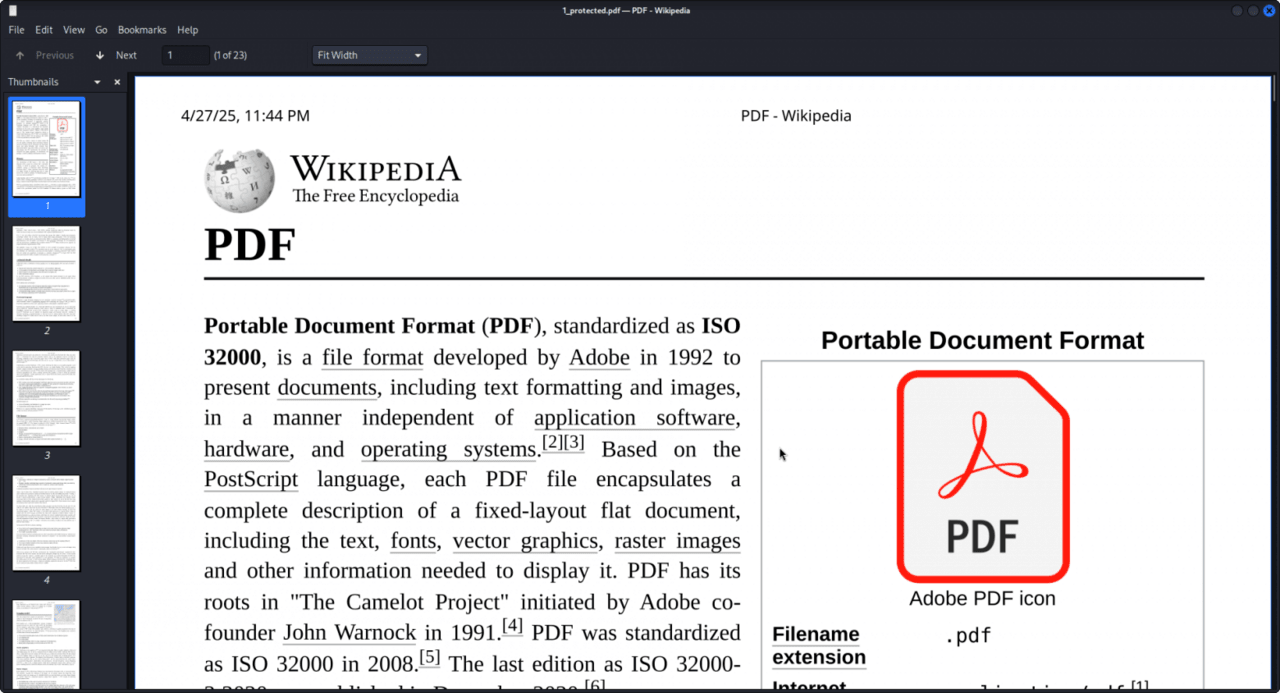
The file was successfully opened.
A RAR archive with a password was created from a PDF document (1.pdf), which was not encrypted.
The next step is to try to find the password for this archive.
The following command syntax was used for the rarcrack tool in this case:
rarcrack 1.pdf.rar
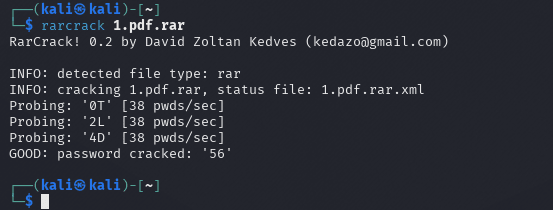
As you can see from the screenshot, the program picked up the password – 56 (although it is elementary).
Next, we go into the archive, see that the contents are encrypted (a lock on the file), try to open the file – a password requirement, enter the password and get the result:
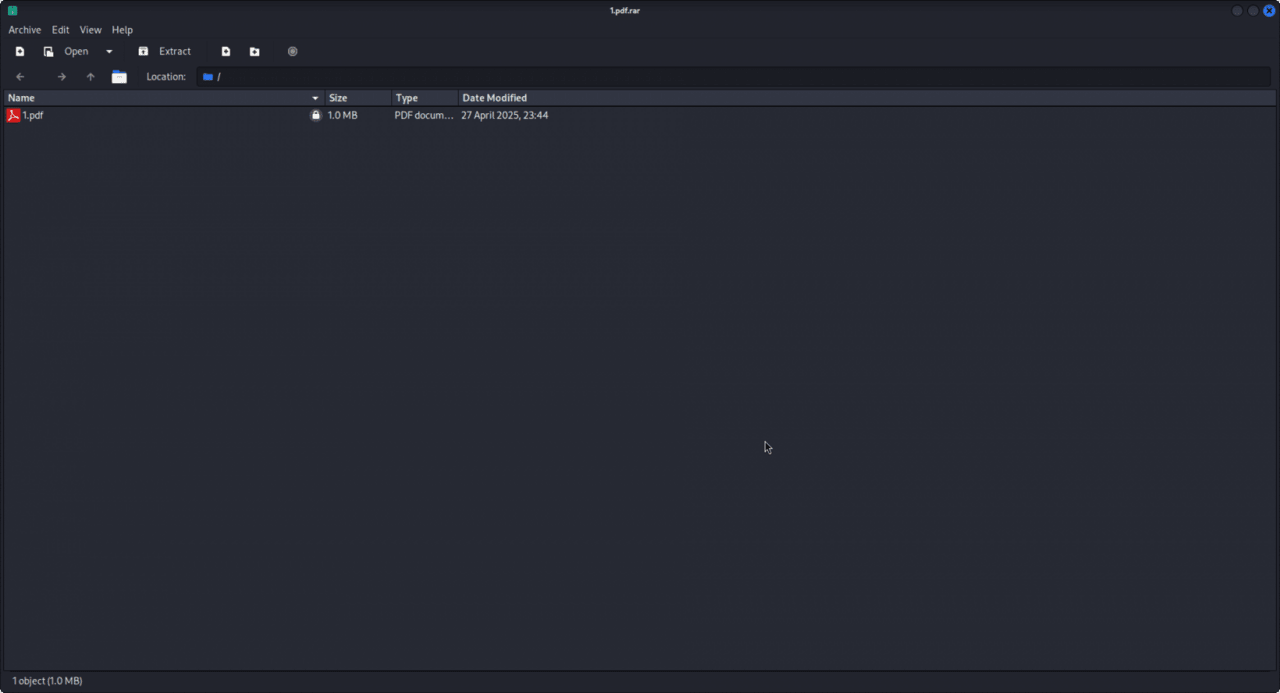
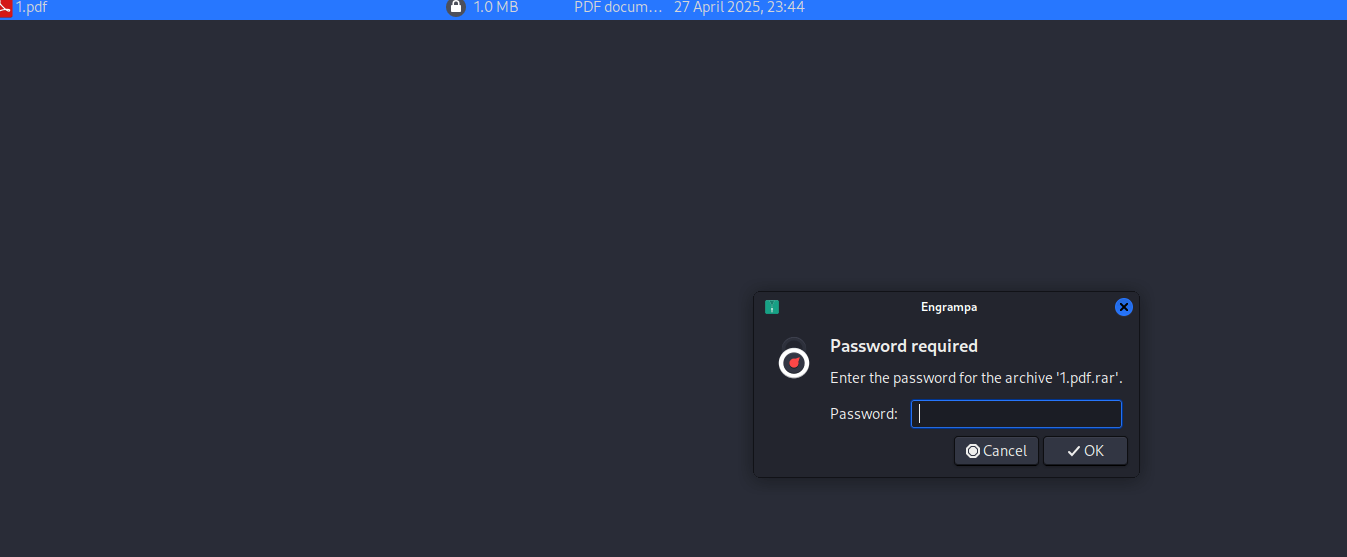
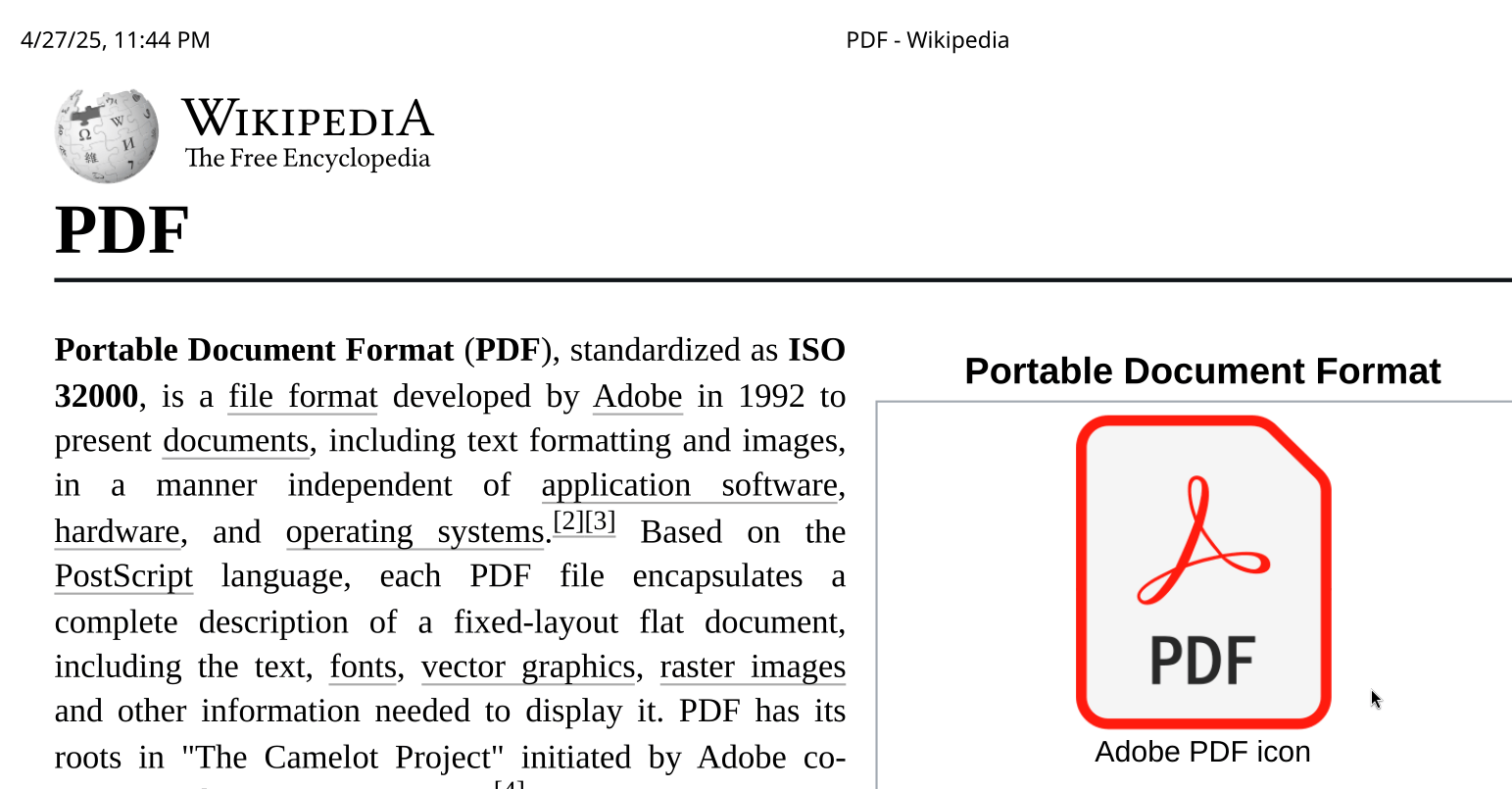
An attempt is being made to pick a three-digit password. An encrypted archive 2.rar with a three-character password has been created.
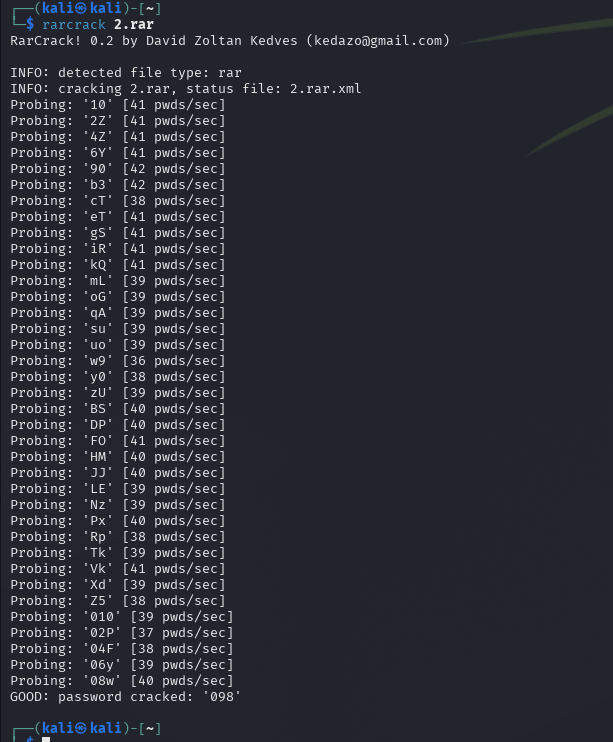
The algorithm of operations is the same
rarcrack 2.rar
Enter the selected password again (in this case 098)
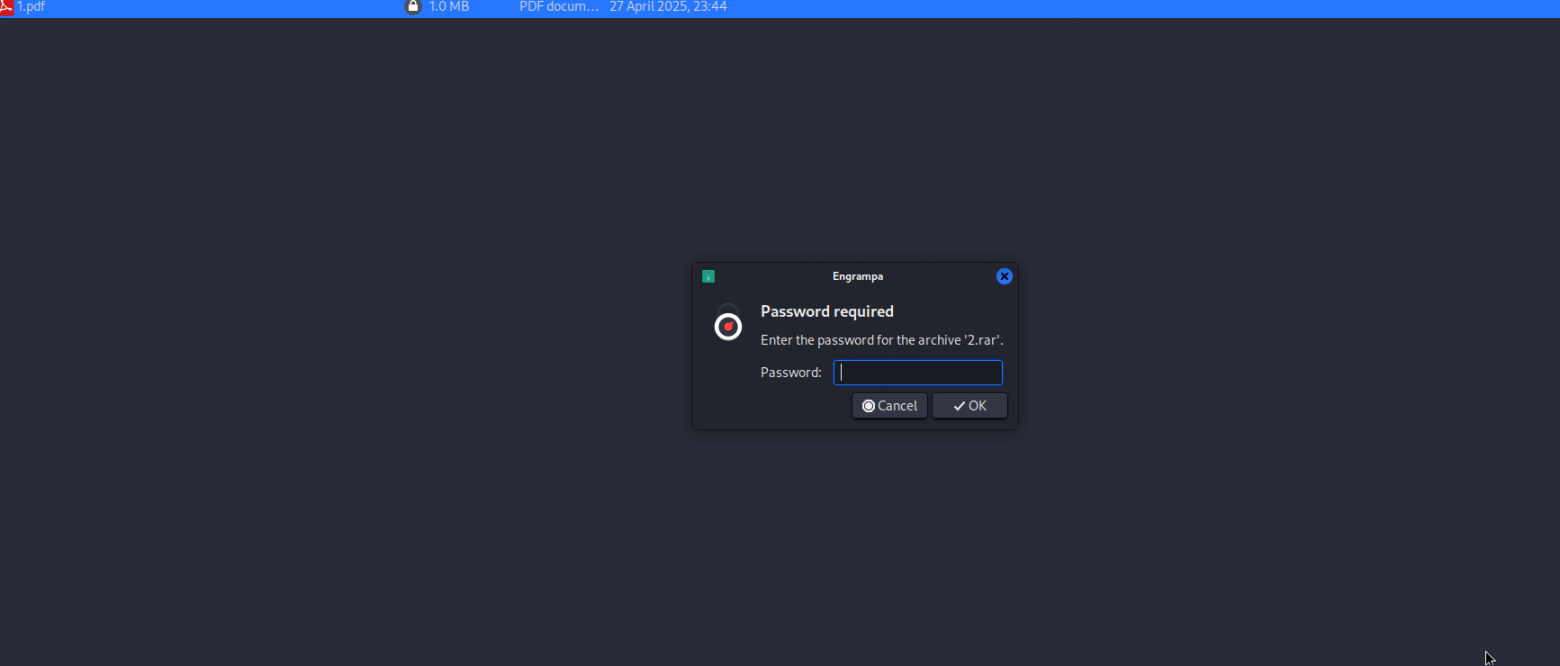
Result:
The rarcrack program does not support dictionary search. Its algorithm is based on a complete search of all possible combinations, starting with two-digit passwords. Therefore, when using a complex password, it is necessary to take into account significant time, system resources and computing power.
The help (rarcrack –help) states that the tool is able to pick passwords not only for RAR archives, but also for ZIP and 7Z. However, despite numerous attempts to pick passwords for archives in ZIP and 7Z formats (even with simple two-digit passwords), the result was not achieved – rarcrack could not decrypt any of them.
Instead, for picking passwords for ZIP and 7Z archives, an effective solution is the John the Ripper utility, which is pre-installed in the Kali Linux operating system. Instructions for installing on other distributions are available in the public domain.
Two archives were prepared for demonstration – 3.zip and 4.7z – both encrypted:

Далі алгоритм такий
We create a hash of the archive file with the utility
We sort passwords with a hash utility
So, the syntax in my case is as follows (open the terminal in the same folder where the archives are located):
zip2john 3.zip > hash.txt
At this stage, the decision was made to review the hash. In response, the system displayed a typical, from a cryptographic point of view, “abracadabra” — this is exactly what a hash should look like, because it is an encrypted sequence of characters that cannot be decoded in reverse.
cat hash.txt
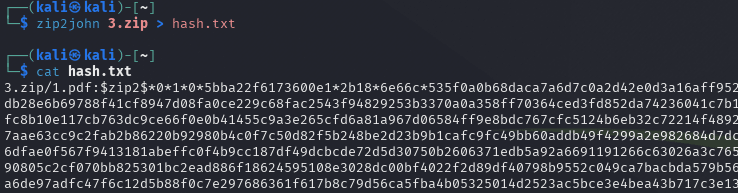
The next step is to select a password based on the hash. This is done using a dictionary attack using a pre-prepared dictionary.
In this case, the command syntax looked like this:
john --wordlist=/usr/share/wordlists/rockyou.txt --format=zip hash.txt
And the password was successfully selected:
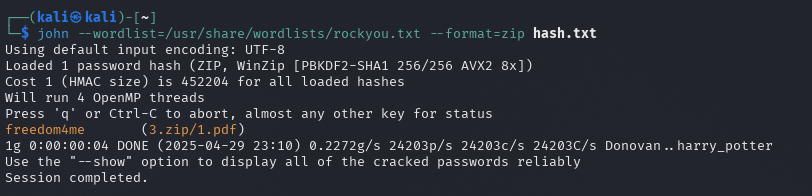
We do the same with the second archive:
7z2john 3.zip > 7z.hash
john --wordlist=/usr/share/wordlists/rockyou.txt --format=7z 7z.hash
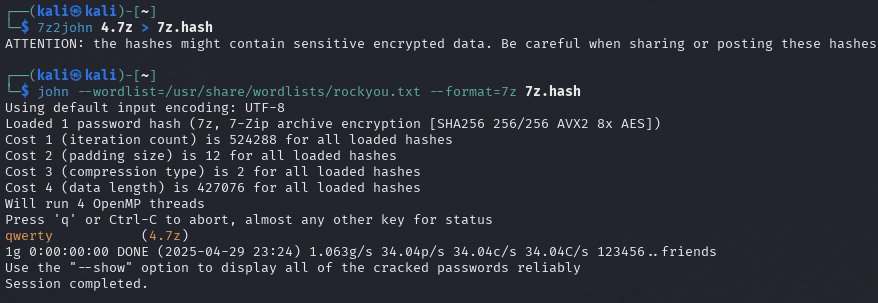
Password successfully selected
Now all that’s left is to try to unzip the files, naturally you will be prompted for a password, which we will enter:
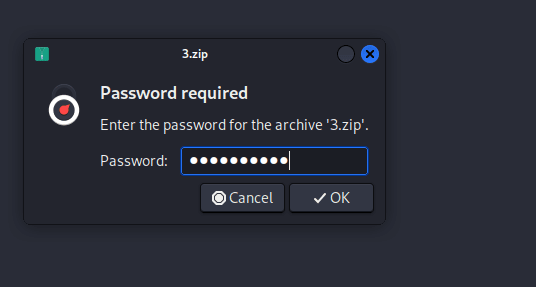
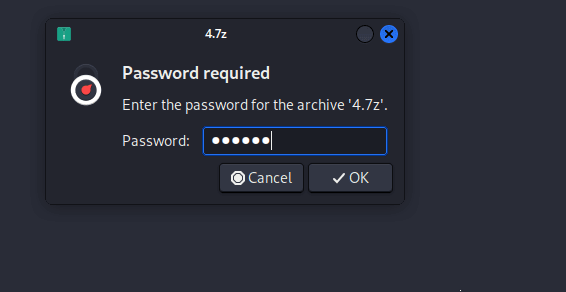
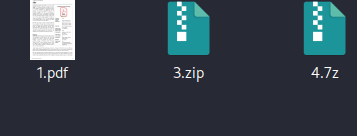
Successfully.
As practice shows, even basic password cracking tools like pdfcrack, rarcrack, and John the Ripper can effectively restore access to encrypted files — provided that simple or common passwords are used. It is important to understand the limitations of each tool: for example, rarcrack does not support dictionary attacks, while John the Ripper allows for targeted hash cracking using a dictionary.