Explanation of return values ​​in Bash functions for beginners

26.10.2025 17 minutes

In this article, you’ll learn how to return a value from a function in Bash, how the return command differs from regular echo output, and how to properly handle exit codes. The material explains how to pass results between functions in Bash scripts, avoid common errors, and use local variables for safe code. You’ll learn how to create functions that return not just a success status, but also actual data — strings, numbers, or even multiple values ​​at once.

Creating Your First Bash Function

Bash functions are blocks of reusable code that help you organize your scripts better. Before we dive into return values, let’s first look at how to create and call a function.

Creating a Basic Function

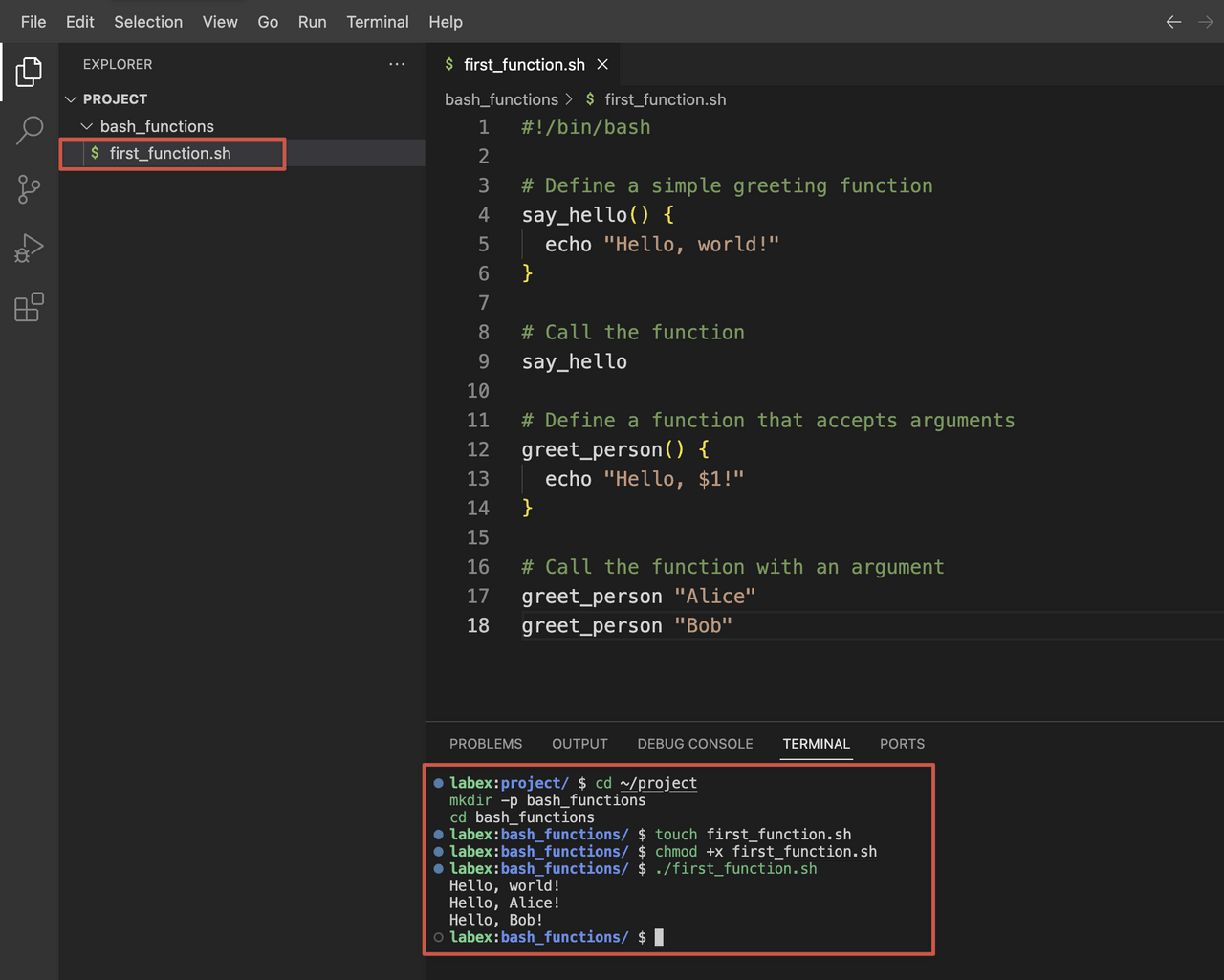
Let’s create our first Bash function. Open a terminal window and type:

cd ~/project
mkdir -p bash_functions
cd bash_functions

Now let’s create a simple function in a new script. Create a file called first_function.shnano:

touch first_function.sh

Add the following content to the file:

#!/bin/bash

## Define a simple greeting function
say_hello() {
  echo "Hello, world!"
}

## Call the function
say_hello

## Define a function that accepts arguments
greet_person() {
  echo "Hello, $1!"
}

## Call the function with an argument
greet_person "Alice"
greet_person "Bob"

Make the script executable:

chmod +x first_function.sh

Now run the script:

./first_function.sh

Ви повинні побачити цей вивід:

Hello, world!
Hello, Alice!
Hello, Bob!

Function Syntax Explanation

There are two ways to define functions in Bash:

  1. Using the standard syntax:

function_name() {
  ## Commands
}
  1. Using the function keyword:

function function_name {
  ## Commands
}

Both styles work the same, but the former is more commonly used and is POSIX-compliant.

Accessing Function Arguments

Inside a function, you can access the arguments passed to the function using positional parameters:

  • $1, $2, $3, etc. refer to the first, second, third argument, etc.

  • $0 refers to the function name or script name

  • $# gives the number of arguments

  • $@ contains all arguments as separate lines

  • $* contains all arguments as one line

Let’s create a new file to practice with function arguments:

touch function_args.sh

Add the following content:

#!/bin/bash

show_args() {
  echo "Function name: $0"
  echo "First argument: $1"
  echo "Second argument: $2"
  echo "Number of arguments: $#"
  echo "All arguments: $@"
}

echo "Calling function with three arguments:"
show_args apple banana cherry

Save, make it executable, and run the script:

chmod +x function_args.sh
./function_args.sh

You should see a result similar to:

Calling function with three arguments:
Function name: ./function_args.sh
First argument: apple
Second argument: banana
Number of arguments: 3
All arguments: apple banana cherry

This basic understanding of function definitions and argument handling provides the foundation for working with function return values ​​in the following steps.

Understanding Function Return Codes

Every command in Bash, including functions, generates a return code (also called an exit code). This numeric value indicates whether the command was successful or not. This return code is fundamental to error handling in Bash scripts.

Basic Return Codes

In Bash:

  • A return code of 0 indicates success.

  • Any non-zero value (1-255) indicates an error or abnormal condition.

Let’s create a script to demonstrate this:

cd ~/project/bash_functions
touch return_codes.sh

Add the following content:

#!/bin/bash

## Function that always succeeds
succeed() {
  echo "This function succeeds"
  return 0
}

## Function that always fails
fail() {
  echo "This function fails"
  return 1
}

## Call the functions and check their return codes
succeed
echo "Return code of succeed: $?"

fail
echo "Return code of fail: $?"

Save, make it executable, and run the script:

chmod +x return_codes.sh
./return_codes.sh

You should see:

This function succeeds
Return code of succeed: 0
This function fails
Return code of fail: 1

Capturing Return Codes

The special variable $? contains the return code of the last executed command or function. This value is important for conditional execution and error handling.

Let’s create another script to practice using return codes for conditional logic:

touch check_file.sh

Add the following content:

#!/bin/bash

## Function to check if a file exists
file_exists() {
  local filename="$1"

  if [ -f "$filename" ]; then
    echo "File $filename exists"
    return 0
  else
    echo "File $filename does not exist"
    return 1
  fi
}

## Test the function with files that exist and don't exist
file_exists "return_codes.sh"
if [ $? -eq 0 ]; then
  echo "Great! The file was found."
else
  echo "Too bad. The file was not found."
fi

echo ""

file_exists "non_existent_file.txt"
if [ $? -eq 0 ]; then
  echo "Great! The file was found."
else
  echo "Too bad. The file was not found."
fi

Save, make it executable, and run the script:

chmod +x check_file.sh
./check_file.sh

You should see a result similar to:

File return_codes.sh exists
Great! The file was found.

File non_existent_file.txt does not exist
Too bad. The file was not found.

Using return codes in conditional statements

You can use the return code directly in conditional expressions using the && (AND) and || (OR) operators:

touch conditional_return.sh

Add the following content:

#!/bin/bash

check_number() {
  local num=$1

  if [ $num -gt 10 ]; then
    return 0 ## Success if number is greater than 10
  else
    return 1 ## Failure if number is not greater than 10
  fi
}

## Using conditional operators with return codes
check_number 15 && echo "Number is greater than 10"
check_number 5 || echo "Number is not greater than 10"

## This line runs only if check_number succeeds
check_number 20 && {
  echo "Number is greater than 10"
  echo "Performing additional operations..."
}

## This line runs only if check_number fails
check_number 3 || {
  echo "Number is not greater than 10"
  echo "Taking alternative actions..."
}

Save, make it executable, and run the script:

chmod +x conditional_return.sh
./conditional_return.sh

The output should be like this:

Number is greater than 10
Number is not greater than 10
Number is greater than 10
Performing additional operations...
Number is not greater than 10
Taking alternative actions...

Understanding how return codes work is essential for writing robust scripts that can properly handle errors and make decisions based on the success or failure of operations.

Working with Custom Return Values

While return codes are useful for indicating success or failure, they are limited to numbers between 0 and 255. To return actual data from functions, we need to use other methods.

Method 1: Using Echo to Return Values

The most common way to return actual values ​​from functions is to use echo or other output commands and then capture that output.

Let’s create a script to demonstrate this technique:

cd ~/project/bash_functions
touch return_values.sh

Add the following content:

#!/bin/bash

## Function that returns a value using echo
get_username() {
  echo "labex"
}

## Function that returns a calculated value
add_numbers() {
  local sum=$(($1 + $2))
  echo $sum
}

## Capture the returned values
username=$(get_username)
echo "The username is: $username"

result=$(add_numbers 5 7)
echo "The sum of 5 and 7 is: $result"

## You can also use the returned value directly
echo "Calculating again: $(add_numbers 10 20)"

Save, make it executable, and run the script:

chmod +x return_values.sh
./return_values.sh

You should see:

The username is: labex
The sum of 5 and 7 is: 12
Calculating again: 30

Method 2: Using Global Variables

Another approach is to change the global variables in the function:

touch global_return.sh

Add the following content:

#!/bin/bash

## Declare global variables
FULL_NAME=""
USER_AGE=0

## Function that sets global variables
set_user_info() {
  FULL_NAME="$1 $2"
  USER_AGE=$3

  ## Return success
  return 0
}

## Call the function
set_user_info "John" "Doe" 30

## Use the global variables that were set by the function
echo "Full name: $FULL_NAME"
echo "Age: $USER_AGE"

Save, make it executable, and run the script:

chmod +x global_return.sh
./global_return.sh

Entrance:

Full name: John Doe
Age: 30

Method 3: Returning Multiple Values

Let’s look at how to return multiple values ​​from a function:

touch multiple_returns.sh

Add the following content:

#!/bin/bash

## Function that returns multiple values separated by a delimiter
get_system_info() {
  local hostname=$(hostname)
  local kernel=$(uname -r)
  local uptime=$(uptime -p)

  ## Return multiple values separated by semicolons
  echo "$hostname;$kernel;$uptime"
}

## Capture the output and split it
system_info=$(get_system_info)

## Split the values using IFS (Internal Field Separator)
IFS=';' read -r host kernel up <<< "$system_info"

## Display the values
echo "Hostname: $host"
echo "Kernel version: $kernel"
echo "Uptime: $up"

## Alternative method using an array
get_user_details() {
  local details=("John Doe" "[email protected]" "Developer")
  printf "%s\n" "${details[@]}"
}

## Capture the output into an array
mapfile -t user_details < <(get_user_details)

echo ""
echo "User information:"
echo "Name: ${user_details[0]}"
echo "Email: ${user_details[1]}"
echo "Role: ${user_details[2]}"

Save, make it executable, and run the script:

chmod +x multiple_returns.sh
./multiple_returns.sh

The output should display information about your system, as well as user data:

Hostname: ubuntu
Kernel version: 5.15.0-1033-azure
Uptime: up 2 hours, 15 minutes

User information:
Name: John Doe
Email: [email protected]
Role: Developer

The actual hostname, kernel version, and uptime will depend on your system.

These methods demonstrate different ways to return values ​​from functions beyond simple return codes. Each approach has its own advantages depending on your specific needs.

Practical Use of Functions in a Script

Now that we understand how to define functions and handle the values ​​they return, let’s create a practical script that demonstrates these concepts in action. We will create a file management utility that uses functions with different return methods.

Creating a File Management Utility

Let’s create a complex script that performs various file operations:

cd ~/project/bash_functions
touch file_manager.sh

Add the following content:

#!/bin/bash

## Function to check if a file exists
## Returns 0 if file exists, 1 if it doesn't
file_exists() {
  if [ -f "$1" ]; then
    return 0
  else
    return 1
  fi
}

## Function to get file size in bytes
## Returns the size via echo
get_file_size() {
  if file_exists "$1"; then
    ## Use stat to get file size in bytes
    local size=$(stat -c %s "$1")
    echo "$size"
  else
    echo "0"
  fi
}

## Function to count lines in a file
## Returns line count via echo
count_lines() {
  if file_exists "$1"; then
    local lines=$(wc -l < "$1")
    echo "$lines"
  else
    echo "0"
  fi
}

## Function to get file information
## Returns multiple values using a delimiter
get_file_info() {
  local filename="$1"

  if file_exists "$filename"; then
    local size=$(get_file_size "$filename")
    local lines=$(count_lines "$filename")
    local modified=$(stat -c %y "$filename")
    local permissions=$(stat -c %A "$filename")

    ## Return all info with semicolons as delimiters
    echo "$size;$lines;$modified;$permissions"
  else
    echo "0;0;N/A;N/A"
  fi
}

## Function to create a test file
create_test_file() {
  local filename="$1"
  local lines="$2"

  ## Create or overwrite the file
  > "$filename"

  ## Add the specified number of lines
  for ((i = 1; i <= lines; i++)); do
    echo "This is line $i of the test file." >> "$filename"
  done

  ## Return success if file was created
  if file_exists "$filename"; then
    return 0
  else
    return 1
  fi
}

## Main script execution starts here
echo "File Management Utility"
echo "----------------------"

## Create a test file
TEST_FILE="sample.txt"
echo "Creating test file with 10 lines..."
if create_test_file "$TEST_FILE" 10; then
  echo "File created successfully."
else
  echo "Failed to create file."
  exit 1
fi

## Check if file exists
echo ""
echo "Checking if file exists..."
if file_exists "$TEST_FILE"; then
  echo "File '$TEST_FILE' exists."
else
  echo "File '$TEST_FILE' does not exist."
fi

## Get file size
echo ""
echo "Getting file size..."
size=$(get_file_size "$TEST_FILE")
echo "File size: $size bytes"

## Count lines
echo ""
echo "Counting lines in file..."
lines=$(count_lines "$TEST_FILE")
echo "Line count: $lines"

## Get all file information
echo ""
echo "Getting complete file information..."
file_info=$(get_file_info "$TEST_FILE")

## Split the returned values
IFS=';' read -r size lines modified permissions <<< "$file_info"

echo "File: $TEST_FILE"
echo "Size: $size bytes"
echo "Lines: $lines"
echo "Last modified: $modified"
echo "Permissions: $permissions"

echo ""
echo "File content preview:"
head -n 3 "$TEST_FILE"
echo "..."

Save, make it executable, and run the script:

chmod +x file_manager.sh
./file_manager.sh

You should see a result similar to:

File Management Utility
----------------------
Creating test file with 10 lines...
File created successfully.

Checking if file exists...
File 'sample.txt' exists.

Getting file size...
File size: 300 bytes

Counting lines in file...
Line count: 10

Getting complete file information...
File: sample.txt
Size: 300 bytes
Lines: 10
Last modified: 2023-11-04 12:34:56.789012345 +0000
Permissions: -rwxrwxr-x

File content preview:
This is line 1 of the test file.
This is line 2 of the test file.
This is line 3 of the test file.
...

The exact values ​​for file size, modification time, and permissions will vary.

Script Breakdown

Our file management utility demonstrates several key concepts:

  1. Return codes – The file_exists() and create_test_file() functions return 0 on success and 1 on failure.

  2. Returning values ​​using echo – The get_file_size() and count_lines() functions return numeric values ​​via echo

  3. Returning multiple values ​​- The get_file_info() function returns multiple values ​​using a separator

  4. Function composition – Some functions call other functions, demonstrating how to create complex functionality.

  5. Conditional execution – The script uses if statements with return codes to control the flow of the program.

This practical example shows how to combine different methods of working with functions to create a useful utility. The script demonstrates proper error handling, function composition, and various return methods.

Error Handling and Best Practices for Working with Functions

In our final section, let’s look at error handling methods and best practices for Bash functions. Proper error handling is crucial to creating robust and maintainable scripts.

Creating a Script with Error Handling

Let’s create a new script that demonstrates robust error handling:

cd ~/project/bash_functions
touch error_handling.sh

Add the following content:

#!/bin/bash

## Enable error handling
set -e ## Exit immediately if a command exits with non-zero status

## Define a function to log messages
log_message() {
  local level="$1"
  local message="$2"
  echo "[$(date '+%Y-%m-%d %H:%M:%S')] [$level] $message"
}

## Function to validate a number is positive
validate_positive() {
  local num="$1"
  local name="$2"

  ## Check if the argument is a number
  if ! [[ "$num" =~ ^[0-9]+$ ]]; then
    log_message "ERROR" "$name must be a number"
    return 1
  fi

  ## Check if the number is positive
  if [ "$num" -le 0 ]; then
    log_message "ERROR" "$name must be positive"
    return 2
  fi

  return 0
}

## Function that divides two numbers
divide() {
  local numerator="$1"
  local denominator="$2"

  ## Validate inputs
  validate_positive "$numerator" "Numerator" || return $?
  validate_positive "$denominator" "Denominator" || return $?

  ## Check for division by zero
  if [ "$denominator" -eq 0 ]; then
    log_message "ERROR" "Division by zero is not allowed"
    return 3
  fi

  ## Perform division
  local result=$(echo "scale=2; $numerator / $denominator" | bc)
  echo "$result"
  return 0
}

## Function to safely get user input
get_number() {
  local prompt="$1"
  local input

  while true; do
    read -p "$prompt: " input

    if validate_positive "$input" "Input"; then
      echo "$input"
      return 0
    else
      log_message "WARN" "Invalid input. Please try again."
    fi
  done
}

## Disable automatic exit on error for the main script
set +e

## Main script logic
log_message "INFO" "Starting division calculator"

## Test with valid values
result=$(divide 10 2)
exit_code=$?

if [ $exit_code -eq 0 ]; then
  log_message "INFO" "10 / 2 = $result"
else
  log_message "ERROR" "Division failed with code $exit_code"
fi

## Test with invalid values
echo ""
log_message "INFO" "Testing with invalid values"
divide 0 5
log_message "INFO" "Exit code: $?"

divide 10 0
log_message "INFO" "Exit code: $?"

divide abc 5
log_message "INFO" "Exit code: $?"

## Interactive mode
echo ""
log_message "INFO" "Interactive mode"
echo "Let's perform a division. Enter positive numbers."

## Get user input safely
num1=$(get_number "Enter first number")
num2=$(get_number "Enter second number")

## Perform division
result=$(divide "$num1" "$num2")
exit_code=$?

if [ $exit_code -eq 0 ]; then
  log_message "INFO" "$num1 / $num2 = $result"
else
  log_message "ERROR" "Division failed with code $exit_code"
fi

log_message "INFO" "Calculator finished"

Save, make it executable, and run the script:

chmod +x error_handling.sh
./error_handling.sh

You will see a result similar to the one below and you will be prompted to enter numbers:

[2023-11-04 13:45:23] [INFO] Starting division calculator
[2023-11-04 13:45:23] [INFO] 10 / 2 = 5.00

[2023-11-04 13:45:23] [INFO] Testing with invalid values
[2023-11-04 13:45:23] [ERROR] Numerator must be positive
[2023-11-04 13:45:23] [INFO] Exit code: 2
[2023-11-04 13:45:23] [ERROR] Division by zero is not allowed
[2023-11-04 13:45:23] [INFO] Exit code: 3
[2023-11-04 13:45:23] [ERROR] Numerator must be a number
[2023-11-04 13:45:23] [INFO] Exit code: 1

[2023-11-04 13:45:23] [INFO] Interactive mode
Let's perform a division. Enter positive numbers.
Enter first number:

Enter a number, such as 20. You will then be prompted to enter a second number:

Enter second number:

Enter another number, such as 4, and you should see:

[2023-11-04 13:45:30] [INFO] 20 / 4 = 5.00
[2023-11-04 13:45:30] [INFO] Calculator finished

Best practices for Bash functions

Based on our examples, here are some best practices for working with Bash functions:

  1. Add descriptive comments – document what each function does, its parameters, and return values

  2. Use meaningful function names – choose names that clearly indicate the function’s purpose

  3. Input parameter validation – validate input data to prevent errors

  4. Use local variables – prevent variable name collisions with the local keyword

  5. Return appropriate exit codes – use normal return codes (0 for success, nonzero for errors)

  6. Implement proper error handling – log errors and handle them correctly

  7. Focus on functions – each function should do one thing well

  8. Use function composition – create complex functionality by combining simpler functions

  9. Document return values ​​– clearly document how values ​​are returned (via echo, return code, etc.)

  10. Border case testing – make sure functions handle unusual cases correctly input data

By following these practices, you can create more robust, maintainable, and reusable Bash functions.

Creating a Function Library

For the final exercise, let’s create a reusable function library:

touch math_functions.lib

Add the following content:

#!/bin/bash
## math_functions.lib - A library of mathematical functions

## Add two numbers
add() {
  echo $(($1 + $2))
}

## Subtract second number from first
subtract() {
  echo $(($1 - $2))
}

## Multiply two numbers
multiply() {
  echo $(($1 * $2))
}

## Divide first number by second (with decimal precision)
divide() {
  if [ "$2" -eq 0 ]; then
    return 1
  fi
  echo "scale=2; $1 / $2" | bc
  return 0
}

## Calculate power: first number raised to second number
power() {
  echo $(($1 ** $2))
}

## Check if a number is even
is_even() {
  if (($1 % 2 == 0)); then
    return 0
  else
    return 1
  fi
}

## Check if a number is odd
is_odd() {
  if is_even "$1"; then
    return 1
  else
    return 0
  fi
}

Now create a script that uses this library:

touch use_library.sh

Add the following content:

#!/bin/bash

## Source the math functions library
source math_functions.lib

## Display a header
echo "Math Functions Demo"
echo "------------------"

## Test the functions
echo "Addition: 5 + 3 = $(add 5 3)"
echo "Subtraction: 10 - 4 = $(subtract 10 4)"
echo "Multiplication: 6 * 7 = $(multiply 6 7)"

## Test division with error handling
div_result=$(divide 20 5)
if [ $? -eq 0 ]; then
  echo "Division: 20 / 5 = $div_result"
else
  echo "Division error: Cannot divide by zero"
fi

## Test division by zero
div_result=$(divide 20 0)
if [ $? -eq 0 ]; then
  echo "Division: 20 / 0 = $div_result"
else
  echo "Division error: Cannot divide by zero"
fi

echo "Power: 2 ^ 8 = $(power 2 8)"

## Test the even/odd functions
echo ""
echo "Number properties:"
for num in 1 2 3 4 5; do
  echo -n "Number $num is "

  if is_even $num; then
    echo "even"
  else
    echo "odd"
  fi
done

Save, make it executable, and run the script:

chmod +x use_library.sh
./use_library.sh

You should see:

Math Functions Demo
------------------
Addition: 5 + 3 = 8
Subtraction: 10 - 4 = 6
Multiplication: 6 * 7 = 42
Division: 20 / 5 = 4.00
Division error: Cannot divide by zero
Power: 2 ^ 8 = 256

Number properties:
Number 1 is odd
Number 2 is even
Number 3 is odd
Number 4 is even
Number 5 is odd

This approach to libraries demonstrates how you can create collections of reusable functions that can be imported into multiple scripts, which helps to make your code reusable and maintainable.

Conclusion

This article has been a step-by-step guide to the world of Bash functions, from creating a simple structure to building full-fledged reusable libraries. You learned how to properly define functions, pass arguments, work with return codes, and return your own values. You learned when to use return and when to echo, how to use local variables to avoid conflicts, and how to organize code logic into convenient, understandable blocks.

You also saw how functions can be used to create practical utilities, implement error checking, and improve the reliability of scripts. Knowing about functions is the foundation of good Bash programming. Understanding how they work will help you write efficient, flexible, and easily maintainable scripts that look professional and run consistently under any conditions.


Subscribe
Notify of
0 Коментарі
Oldest
Newest Most Voted
Found an error?
If you find an error, take a screenshot and send it to the bot.