
30.08.2026
26 min
299



Windows performs thousands of operations every second, most of which remain invisible to users. Applications launch additional processes, load libraries, access the system registry, and modify files. When a computer starts running slowly, an application fails to launch, or suspicious activity appears in the system, standard Windows tools are often not enough.
This is where Microsoft Sysinternals comes in – a free suite of utilities designed for in-depth operating system analysis. In this guide, we’ll explore three essential tools: Process Explorer, Process Monitor, and Autoruns, and explain how to use them to troubleshoot system issues and investigate potential security threats.
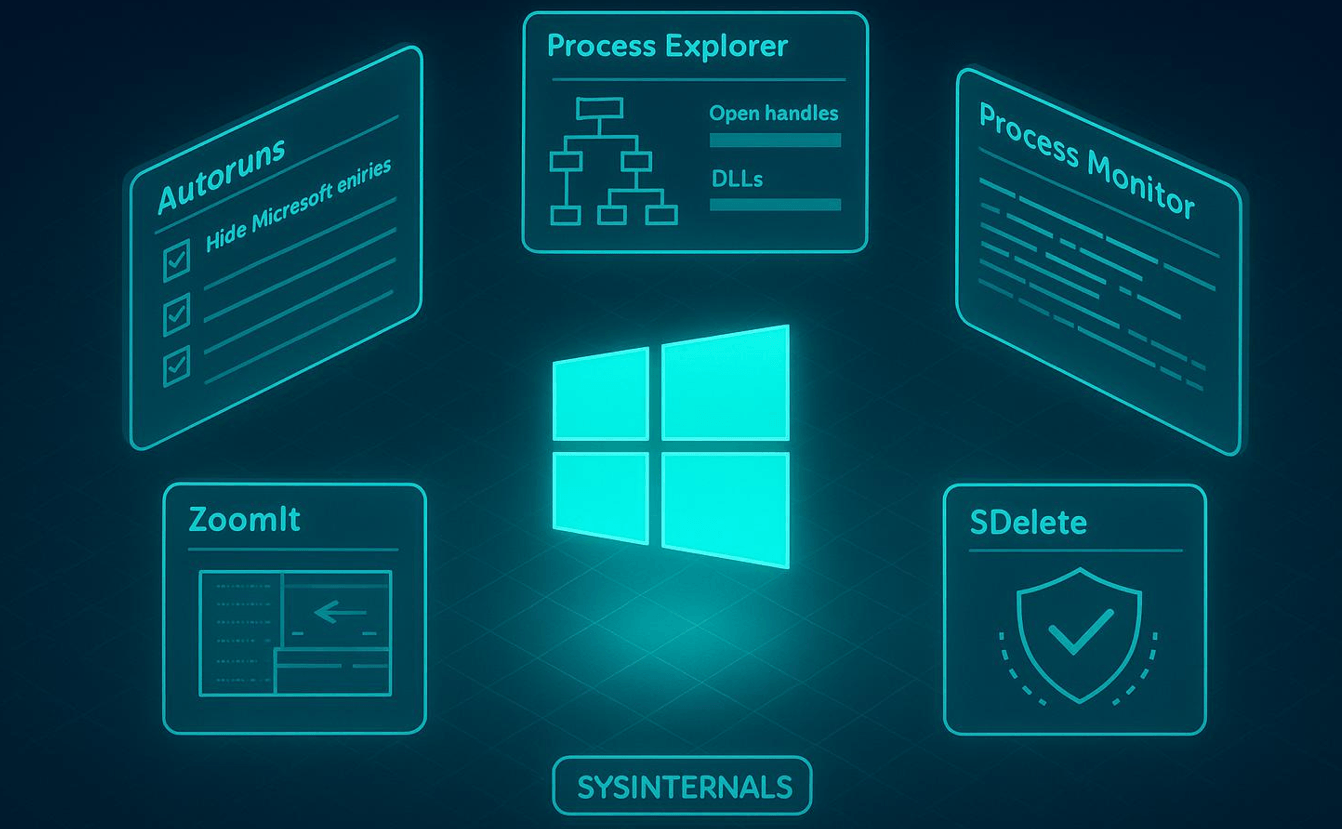
Unlike the standard Windows Task Manager, Sysinternals allows users to examine the operating system’s internal processes in much greater detail. For example, you can identify which process is locking a file, which libraries an application uses, which registry settings it accesses, and why it launches automatically. These capabilities are particularly useful for system administrators, developers, cybersecurity analysts, and users who want to better understand how their computers work.
The suite includes dozens of tools, but the best place to start is with three essential utilities:
Process Explorer – analyzes running processes, system resource usage, and loaded libraries.
Process Monitor – tracks file system operations, registry activity, and process behavior in real time.
Autoruns – examines applications, services, and other components that automatically launch with Windows.
These tools complement each other. Process Explorer helps identify suspicious processes, Process Monitor reveals their activities, and Autoruns determines whether they have an automatic startup mechanism.
The suite is available for free from the official Microsoft website. You can download either the complete Sysinternals Suite or individual utilities. Most tools do not require traditional installation: simply download the ZIP archive, extract it, and launch the appropriate executable file.
Useful links:
Sysinternals Suite – the complete collection of Microsoft Sysinternals utilities.
Process Explorer – a tool for detailed analysis of running Windows processes.
Process Monitor – a utility for monitoring system operations in real time.
Autoruns – a tool for viewing and managing Windows startup entries.
Microsoft also offers Sysinternals Live, which allows users to launch utilities without downloading the archive beforehand. To use it, press Win + R and enter the appropriate network path:
\\live.sysinternals.com\tools\procexp.exe
This command launches Process Explorer through Microsoft’s network resource, provided it is accessible in the current environment. For a comprehensive analysis of system processes and services, running the tool with administrator privileges is recommended.
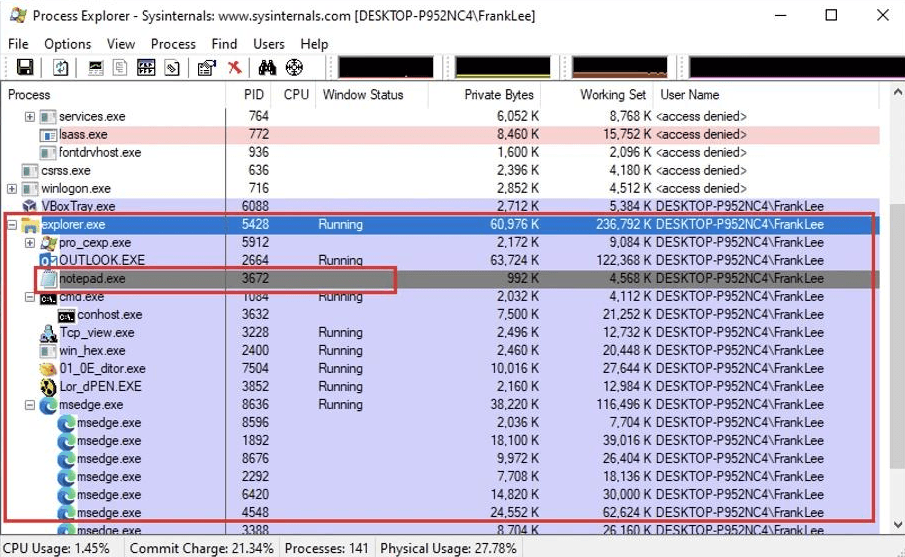
Process Explorer is an advanced alternative to the standard Windows Task Manager, providing detailed information about running processes. The application displays processes in a hierarchical tree structure, allowing users to examine relationships between parent and child processes, monitor CPU and memory usage, and inspect open files and loaded DLL libraries.
After launching the tool, a list of active processes appears in the upper section of the window. For each process, users can view its process ID (PID), resource consumption, executable file path, digital signature, and command-line arguments. Double-clicking a process opens its properties, including information about threads, memory usage, and other characteristics.
One of the most useful features of Process Explorer is its ability to identify applications that consume excessive system resources. For example, if your computer starts running slowly, open the utility and sort the processes by the CPU column. The processes consuming the most CPU resources will appear at the top of the list.
You can then open the properties of a specific process and navigate to the Threads tab to examine its execution threads. This helps identify which parts of the application are responsible for high resource usage. Similarly, memory consumption can be analyzed using the Private Bytes and Working Set columns.
Keep in mind that high resource usage does not necessarily indicate a malware infection. Windows updates, antivirus scans, web browsers, and other legitimate processes can also cause significant system load.
Sometimes Windows prevents you from deleting or renaming a file because another application is using it. Process Explorer helps identify exactly which process is keeping the file open.
To find it, open Find → Find Handle or DLL or press Ctrl + F, then enter the file name. For example:
report.xlsx
The application will display the handles associated with the specified file and the processes that own them. This helps determine why the file remains locked, even if the corresponding application window has already been closed.
However, forcibly closing handles without understanding their purpose is not recommended. Doing so may corrupt data or cause an application to crash.
Process Explorer is also useful for investigating suspicious activity. For example, malware may disguise itself as legitimate Windows system processes by using names such as svchost.exe or explorer.exe. A process name alone is not enough to verify its authenticity, so it is important to examine the executable file path, digital signature, and command-line arguments.
The application also supports integration with VirusTotal. Through Options → VirusTotal.com, you can configure file checks using multiple antivirus engines. This helps identify files that require further investigation, although even a clean scan result does not guarantee that a file is completely safe.
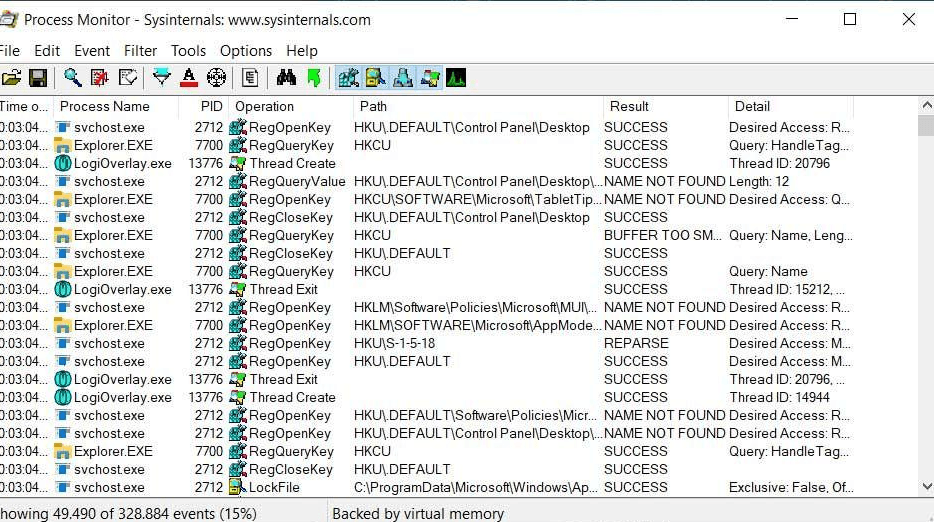
Process Monitor, also known as Procmon, allows users to monitor system operations in real time. Unlike Process Explorer, which displays the current state of processes, Process Monitor records their activities, including opening files, reading and modifying registry settings, creating processes, and performing many other operations.
It is one of the most effective tools for troubleshooting applications that malfunction or fail to launch entirely. For example, an application may crash because a required file is missing, access to a directory is denied, or registry settings are incorrectly configured. Process Monitor helps investigate these issues without modifying the application’s code.
Once launched, Process Monitor begins collecting system events. Each event contains information about the execution time, process name, operation type, resource path, and result. Windows can generate thousands of these entries in a short period, so using filters is essential for effective analysis.
The main types of operations include:

The log also displays operation results, such as SUCCESS, ACCESS DENIED, or NAME NOT FOUND. However, an error in an individual entry does not necessarily indicate a problem. Applications frequently check for the existence of various files and settings, so some failed operations are a normal part of their behavior.
To avoid getting overwhelmed by the large number of events, you need to configure filters to display only the operations related to a specific application.
To do this, open Process Monitor and press Ctrl + E to stop capturing events, then press Ctrl + L to open the filter settings. In the filter window, select the process name and add the following condition:
Process Name | is | example.exe | Include
After that, press Ctrl + E to resume capturing events and repeat the action you want to investigate. The log will display only the events that match the specified filter.
Consider a situation where an application starts, runs for a few seconds, and then closes without displaying an error message. Using Process Monitor, you can capture its activity and examine the last operations performed before the process terminates.
For example, the log might contain the following entries:
example.exe CreateFile C:\ProgramData\ExampleApp\config.ini ACCESS DENIED
 example.exe Process Exit SUCCESS
This may indicate a permissions issue with the configuration file. In this case, you should check the access permissions for the corresponding directory and determine whether the user has the necessary rights.
However, not every ACCESS DENIED result is the cause of a failure. To reach an accurate conclusion, you need to analyze the sequence of events and, whenever possible, compare them with the application’s normal behavior.
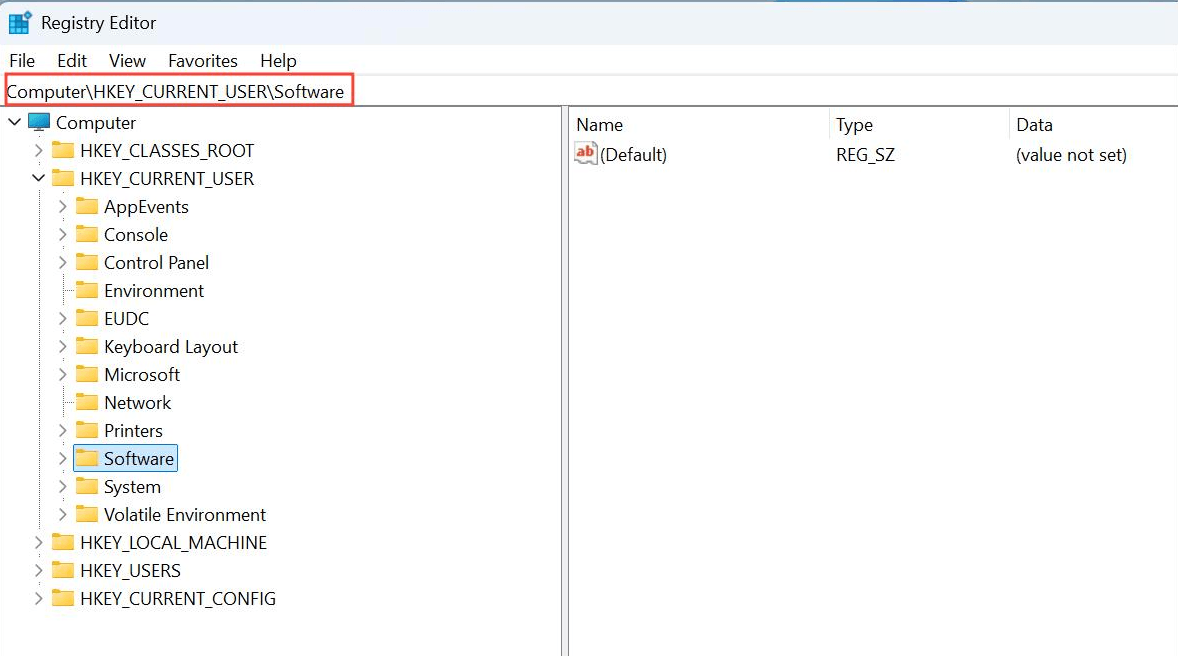
Another useful feature of Process Monitor is its ability to track system registry activity. Many applications store settings in the registry that are not visible in their standard settings interface. Procmon allows you to see exactly which registry keys an application reads, creates, or modifies.
To do this, simply configure a filter for the specific process and display only registry-related events. Then, change a setting in the application or perform the action you want to investigate.
For example, an application may access the following registry key:
HKEY_CURRENT_USER\Software\ExampleApp
If the application performs a RegSetValue operation when a setting is changed, this can help identify where that setting is stored. However, the fact that an application accesses a registry key does not necessarily mean it can be safely edited manually. It is recommended to create a backup before making any changes to the registry.
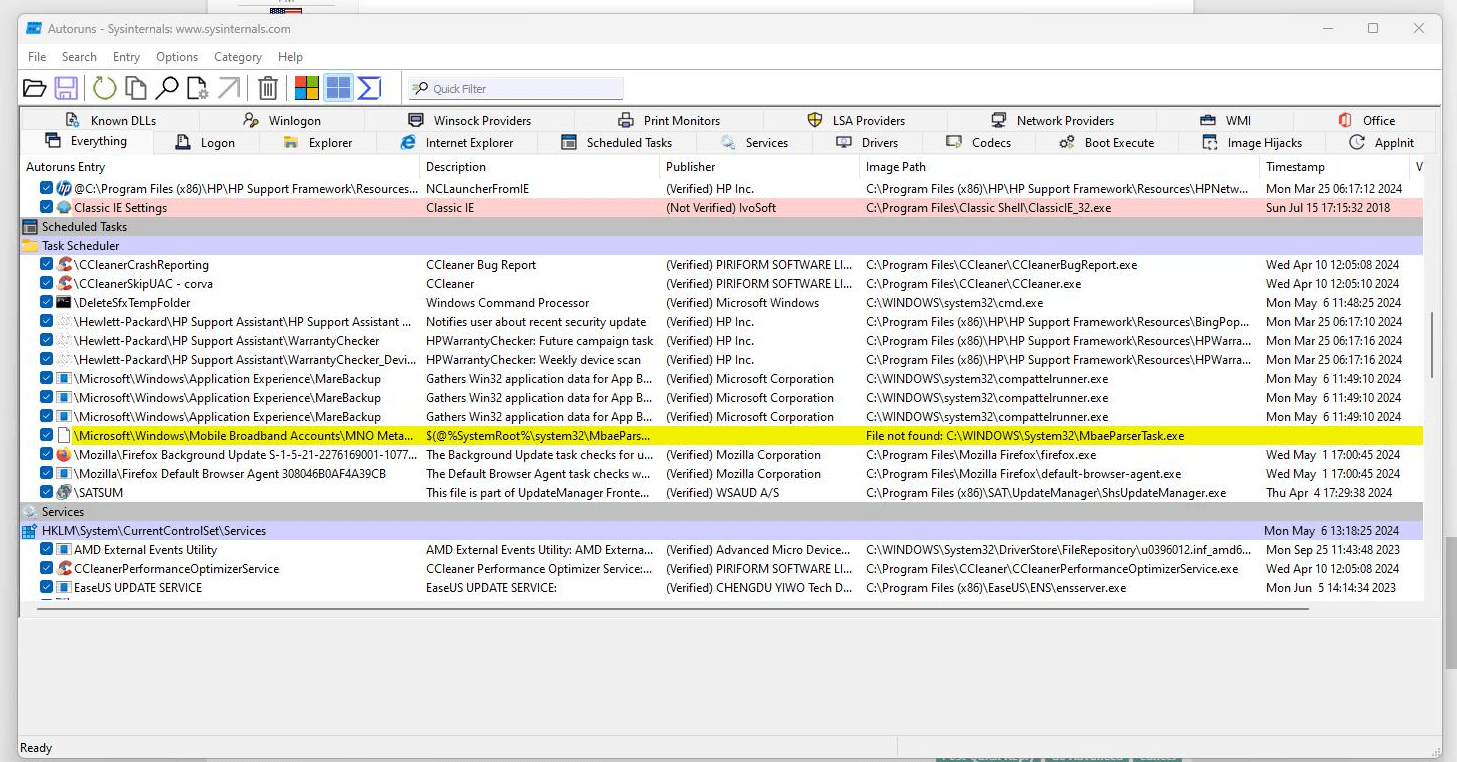
Autoruns allows users to examine the mechanisms responsible for automatically launching applications and system components. Unlike the standard Windows startup management section, this utility analyzes a much wider range of sources, including scheduled tasks, system services, drivers, File Explorer extensions, and registry entries.
This tool is particularly useful when an unknown application appears after every restart, the computer takes a long time to boot, or there is a suspicion that malware has established persistence in the system.
All detected entries are organized into separate tabs. The most important ones include:
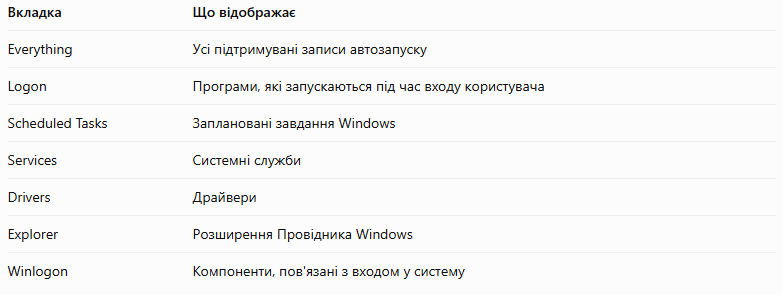
For an initial analysis, you can enable the option to hide signed Microsoft components through the Options menu. This helps you focus on third-party applications, although it does not guarantee that all suspicious entries will be detected.
After launching Autoruns, you should examine entries with unknown publishers, unusual file paths, and unsigned executable files. Pay particular attention to applications that launch from temporary directories or use unfamiliar command-line arguments.
For example, if an unknown application launches every time you sign in to Windows, its entry may appear under the Logon tab. If the program runs on a schedule, you should look for it under Scheduled Tasks.
Autoruns allows you to temporarily disable an entry by unchecking the box next to it. This is more convenient and safer than deleting the entry immediately, as you can re-enable it if necessary.
However, you should avoid disabling unknown drivers or services without investigating them first. Some may be essential for the proper functioning of Windows, hardware components, or security software.
Autoruns also includes a command-line utility called Autorunsc, which allows you to retrieve information about startup entries without using a graphical interface.
For example, to display all supported categories and verify digital signatures, you can use the following command:
.\autorunsc.exe -a * -s
And to generate a CSV report:
.\autorunsc.exe -a * -c -s > autoruns-report.csv
These reports are useful for documenting a computer’s system state, comparing configurations, and performing regular security checks.
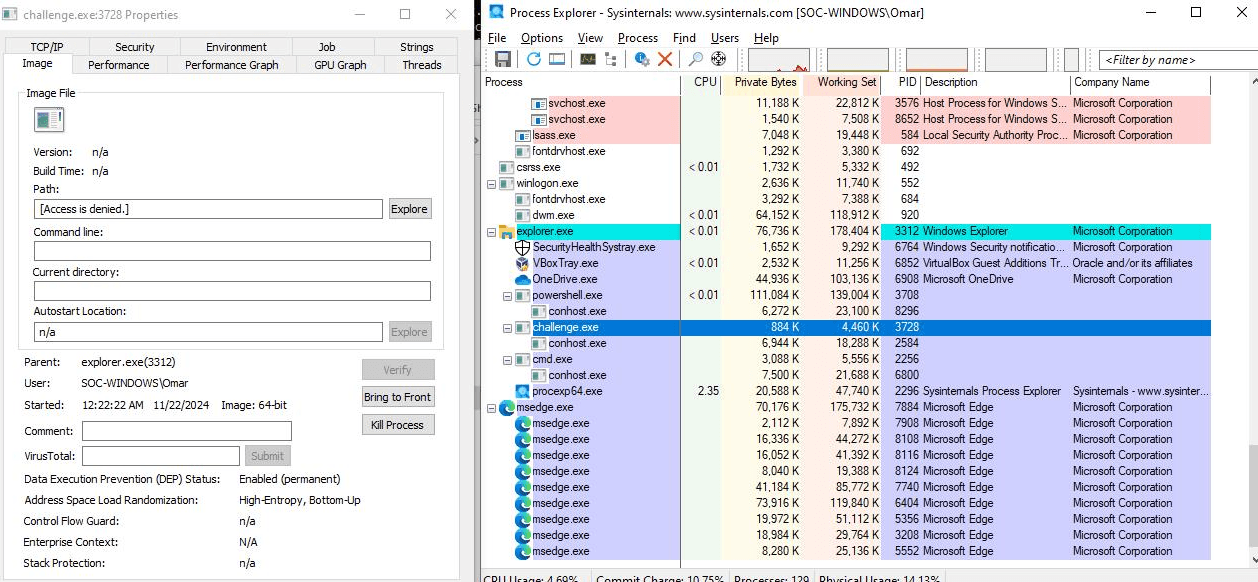
The greatest advantage of Sysinternals is the ability to use multiple tools together. For example, if an unknown process repeatedly appears after starting your computer, you can first investigate it using Process Explorer. The utility helps identify the executable file path, verify its digital signature, examine command-line arguments, and inspect related processes.
The next step is to check Autoruns. If the process starts automatically, the utility may reveal a corresponding registry entry, scheduled task, or system service. This helps determine how the unknown component maintains persistence after Windows restarts.
If you need to investigate the process’s activity, you can use Process Monitor. It allows you to see which files and registry settings the application accesses. However, analyzing potentially malicious software is best done in an isolated environment, as running a suspicious file again may be dangerous.
For network activity analysis, you can also use TCPView, while Sysmon is useful for long-term system event collection. Keep in mind that no single tool can guarantee the detection of every threat, so results should always be evaluated together.
In addition to the three main utilities, Microsoft’s Sysinternals suite includes other tools that can assist with Windows diagnostics and incident investigations.
TCPView – displays active TCP and UDP endpoints, helping investigate network activity associated with running processes.
Sysmon – records Windows system events for security monitoring and incident analysis.
Sigcheck – verifies digital signatures, file versions, and other file characteristics.
RAMMap – allows users to analyze physical memory usage.
ProcDump – creates process memory dumps for analyzing crashes, application hangs, and other issues.
These tools extend the capabilities of the core Sysinternals utilities. For example, if Process Explorer helps identify a suspicious process, TCPView can be used to examine its network activity, while Sigcheck provides additional information about the digital signature of the corresponding executable file.
Sysinternals provides detailed information about how Windows operates, but correctly interpreting the results remains the user’s responsibility. An unfamiliar process is not necessarily malicious, the absence of a digital signature does not prove an infection, and errors in Process Monitor logs may be part of an application’s normal behavior.
Changes to system settings require particular caution. Forcibly terminating processes, closing handles, disabling services, or modifying the registry can cause data loss or disrupt Windows functionality. Before making significant changes, it is advisable to back up important files and verify the purpose of the components you intend to modify.
For beginners, the best approach is to learn how to interpret the information provided by these tools without making changes to the system. This helps establish an understanding of normal Windows behavior and gradually develop the ability to recognize unusual activity.
Microsoft Sysinternals is a powerful, free collection of utilities that helps users understand the internal workings of Windows, identify the causes of system problems, and investigate suspicious activity. Process Explorer provides detailed information about running processes, Process Monitor tracks system operations, and Autoruns helps manage the mechanisms responsible for automatically launching applications.
Combining these tools is particularly useful for system administrators, cybersecurity professionals, and users who want to troubleshoot Windows problems independently. By mastering their core features, you can identify the causes of errors more quickly, investigate unfamiliar processes, and gain a deeper understanding of what happens inside the operating system.