Everything You Need to Know About Wi-Fi
In recent years, Wi-Fi has become such a routine part of everyday life that most people rarely stop to think about how wireless networks actually work. Internet access is simply expected — at home, in the office, in a café, or on the go. But as soon as something goes wrong with speed, signal strength, or connectivity, a lot of questions immediately appear: why the signal looks strong but pages load slowly, what affects network stability, how to configure a router properly, and what really determines the quality of a connection.
In reality, most of these situations have fairly clear explanations. They are often related to the way radio signals behave, equipment settings, or small technical details that usually go unnoticed during everyday use. That’s why it makes sense to gather the most common questions in one place and explain them in clear language — without complex theory, but with enough practical context to understand what’s really happening.
This material brings together answers to typical questions that arise when working with Wi-Fi. Some of them deal with basic concepts, while others touch on more technical aspects that help explain how wireless networks behave under different conditions. This format allows complex or confusing topics to be broken down step by step in a way that is easier to understand.
To make navigation easier, the questions are organized into separate thematic categories. This structure helps readers quickly find the information they need without getting lost in a large number of topics. The focus throughout the material is on practical details and technical nuances that help clarify how wireless networks operate, without unnecessary digressions.
In several sections, additional explanations and commentary are included where certain points require a bit more context. These notes help shed light on details that are often overlooked in standard guides or brief instructions, offering a broader understanding of how Wi-Fi works in real-world situations.
Fluidity and stability
1. Why does Wi-Fi internet typically run at slower speeds than a wired connection?
Wi-Fi has limited range, and the signal is weakened when traveling longer distances and/or traveling through walls or other barriers (e.g., solid brick walls). Wired connections are better since data travels straight down the length of the wire and does not lose power in the air.
Common causes of slow Wi-Fi speeds are:
You are too far from the router
Interference from other devices on the same frequency
Congested frequencies
Older drivers
Signal loss due to physical obstructions
2. Why does my Wi-Fi keep dropping/disconnecting?
One of the most common causes of dropped/lost connections are when a device is located at the edge of the coverage area. Even though the device still shows a signal, the signal’s strength is likely weak.
Anything that interferes with the line of sight between the router and the device can create lost connections. This could be anything from a piece of furniture to a mirror to another person walking in front of the router. Expanding the coverage area of the router using a Wi-Fi extender or mesh system will usually resolve the issue.
Router overheating is another common cause of connection issues. Routers will occasionally malfunction when running continuously for extended time periods and/or when poorly ventilated. To diagnose this simply restart the router and see if the problem goes away.
Unstable connections can also be caused by power saving modes. Some laptops’ wireless adapters do not always immediately turn back on after exiting a power-saving state. Manually turning off the power-saving feature or changing the power management options for the Wi-Fi adapter to not aggressively save power will usually resolve the issue.
Lastly, unstable network performance can be caused by out-dated drivers or out-dated router firmware. To resolve these issues, you need to update the drivers for the wireless adapter and the firmware for the router. This is usually resolved quickly once done.
3. I am able to connect to my Wi-Fi network but I don’t have any Internet access, why?
If you are able to connect to your Wi-Fi network but you’re unable to get online, then your computer/device is connecting to the router, but the router is not getting access to the internet.
There are a few possible reasons for this:
A faulty Ethernet cable may be preventing the router from getting access to the Internet. Make sure the Ethernet cable is securely connected to both ends, and test with a different cable if necessary.
An incorrect configuration setting on the router may be causing it to fail to get access to the Internet. Reboot all of your devices, and make sure that the Internet Service Provider (ISP) is configured to allow access to the router.
Your router and ISP are probably configured to assign IP addresses dynamically. Conflicting IP addresses may prevent your router from getting access to the Internet. Also, DNS server issues can prevent access to the Internet.
4. Why does my Internet speed decrease in the evenings or during heavy usage?
There are generally two major factors to blame.
Firstly, bandwidth congestion. Bandwidth is typically shared across multiple users in multi-unit dwellings. If multiple users attempt to download large amounts of data simultaneously in the evening, the total amount of bandwidth available may become overwhelmed. While this is much less common in modern times as Internet Service Providers are trying to ensure their services meet advertised levels of performance, in areas where multiple units share the same connection, the only viable solution would be to move to a separate ISP.
Secondly, wireless interference. More people tend to use Wi-Fi in the evenings, especially in residential environments, and the majority of devices use the 2.4GHz band. As more devices use the same frequency bands, the number of devices competing for airtime increases, resulting in decreased throughput. This is more prevalent in high-density environments, such as apartment buildings.
Potential solutions include upgrading to newer routers that support newer standards, changing to less congested channels or using the 5GHz band (which supports fewer simultaneous connections), and configuring Quality of Service (QoS) to prioritize specific types of traffic.
5. What can I do to improve my Wi-Fi speed and coverage?
Several strategies will help you improve your Wi-Fi speed and coverage. They include:
Placing your router in the middle of your home at approximately 1–2m off the ground.
Upgrading the firmware of your router
Using the 5GHz band instead of 2.4GHz
Optimizing your channels
Adding Wi-Fi extenders or mesh systems to cover larger spaces.
6. Why do “dead zones” exist in some areas of my home, even though the rooms are relatively close to each other?
Wi-Fi signals weaken when they travel through walls. Walls made of metal or concrete tend to weaken the signal more than those constructed with drywall. Mirrors can either severely disrupt or amplify Wi-Fi signals depending on the orientation of the mirror relative to the router. Finally, the farther you are from the router, the weaker the signal.
Potential solutions include relocating your router to the center of your home or using a Wi-Fi repeater/mesh system.
7. Is it important how I place my router? Are there locations that are better than others?
Yes, where you position your router is very important. Ideally, the router should be positioned centrally in your home, at approximately 1–2m off the ground and in an unobstructed environment.
Do not place the router in corners, enclosed areas, or behind large metal objects or household appliances, such as microwaves or cordless phones. Hallways and central rooms are ideal locations.
8. Will Wi-Fi repeaters, extenders, and mesh systems help me? What should I look for?
Repeaters increase coverage, but will generally halve the speed. Mesh systems provide full coverage, allowing your devices to seamlessly switch between access points.
Depending upon the size of your living space, one type of product will be more suitable than the other. For smaller spaces, a repeater is sufficient; however, for larger spaces, mesh systems will give you the coverage you need. Many manufactures are currently creating routers that can act as mesh nodes, and well-known companies such as TP-Link, Xiaomi, Tenda, and Eltex manufacture products that fit into this category.
Some products function as both repeaters and mesh nodes. An example is the TP-Link RE650.
9. Should I update my router firmware and Wi-Fi driver?
Yes, you should update both your router firmware and Wi-Fi drivers. Updates to the firmware will normally fix security holes, improve the router’s performance, support new Wi-Fi protocols, and potentially improve compatibility with other devices. Updates to your Wi-Fi driver can be downloaded from the manufacturer’s website or via your device manager.
10. Why does my ping or latency vary when playing games using Wi-Fi?
Latency or ping variability when playing games using Wi-Fi is primarily caused by the inherent instability of Wi-Fi compared to a hard-wired connection. Interference from other devices and/or nearby physical obstacles, such as a person walking between the router and the device, can cause latency spikes.
Frequencies, channels, changes

11. 2.4GHz vs 5GHz – Which One To Choose And When?
The 2.4 GHz frequency range has approximately 50% more range than 5 GHz and passes through walls more easily; however, 2.4 GHz is slower (approximately 600 Mbps) and is often more crowded since there are so many devices that operate in this band.
The 5 GHz frequency range can reach higher speeds (about 1300 Mbps) and has less interference than 2.4 GHz; however, it has a smaller range and signals become weaker faster with walls and other obstructions.
As a practical matter, 2.4 GHz is preferred for IoT devices and for extending connectivity across long distances; whereas, 5 GHz is ideal for streaming video, online gaming, and bandwidth-intensive activities when the device is relatively close to the router.
12. What Are Wi-Fi 6, 6E, and 7 and How Will They Affect Speed?
Wi-Fi 6 (802.11ax), Wi-Fi 6E (802.11be), and Wi-Fi 7 (802.11be) are new standards that specify how modern wireless networks will function and at what speeds.
There were prior standards including Wi-Fi 5 (802.11ac).
Wi-Fi 6 can support speeds of up to 9.6 Gbps, improve the performance of wireless networks with multiple connected devices, and offer improved energy efficiency compared to previous generations of Wi-Fi.
Wi-Fi 6E extends this standard by allowing operation in the 6 GHz frequency band and thus providing up to 14 additional 80 MHz channels or seven channels with a 160 MHz width.
Wi-Fi 7 is expected to support speeds up to 46 Gbps and 320 MHz wide channels.
It is worth noting that the achievable speed of a wireless network will depend upon the capability of every device in the network. If older devices are present, the network may continue to run at lower speeds.
13. Which Channels Are Best for 2.4 GHz and 5 GHz Networks? Should I Select Automatically or Manually?
Generally speaking, the best channels to use are those that have the least amount of congestion. In addition, if all the channels appear to be equally congested, it is best to choose those that are least likely to overlap with each other.
On a 2.4 GHz wireless network, channels 1, 6, and 11 are normally the only channels that should be used since they do not overlap with each other.
For 5 GHz wireless networks, commonly recommended channels when using an 80 MHz channel width are 36-48 or 149-165.
Automatic channel selection is generally sufficient in most circumstances, however in very crowded environments, analyzing the use of channels manually and selecting the least congested channel may prove beneficial.
14. What Interferes With Wi-Fi Signals? (Microwave Ovens, Bluetooth, Walls)
The 2.4 GHz band is especially prone to interference from household devices that also operate in the 2.4 GHz frequency range. Examples of devices that produce interference in this band include microwave ovens (operates at approximately 2.45 GHz), Bluetooth devices, cordless phones, and baby monitors.
Physical barriers can also degrade Wi-Fi signals. Concrete walls, metal structures, and excessive water can severely impact the strength of Wi-Fi signals.
Household interference is much less common on the 5 GHz band, but 5 GHz signals have greater difficulty passing through solid objects.
15. Why Don’t My Devices Show More Than 2.4 GHz or See 5 GHz?
Most older devices (i.e., manufactured before approximately 2013) only support the 2.4 GHz frequency band.
An alternative explanation could be that the 5 GHz frequency band has been disabled in the router’s settings, the device does not support the local channel(s) utilized by the router, or the 5 GHz network is too weak for the device to see due to the physical distance from the router.
Reviewing the device specifications and checking the router configuration will help determine why some devices only show the 2.4 GHz frequency band.
16. Should I Have Separate SSIDs for 2.4 GHz and 5 GHz?
This depends on the type of network you want to establish and your preference.
Having a single SSID with band steering allows the router to automatically direct devices to the most optimal frequency band based on their needs. This method is simple to implement and will work with most newer routers.
Having separate SSIDs can give you more flexibility in directing devices to different frequency bands. For example, you can force a gaming device to connect to the 5 GHz frequency band to increase the speed of the game; likewise, you can keep IoT devices connected to the 2.4 GHz frequency band to increase the range.
17. What is the difference between Wi-Fi 6 and Wi-Fi 6E?
Wi-Fi 6 (IEEE 802.11ax) uses the traditional 2.4 GHz and 5 GHz frequency bands. It improves efficiency, reaches speeds of up to 9.6 Gbps, and enhances performance in crowded environments via features like OFDMA, MU-MIMO, and BSS Coloring.
Wi-Fi 6E adds to Wi-Fi 6 by providing support for the 6 GHz band. Wi-Fi 6E introduces up to 14 additional 80 MHz channels or seven 160 MHz channels. This means there is less interference and potentially more throughput.
However, only devices capable of Wi-Fi 6E can utilize the 6 GHz band.
18. What are DFS Channels and Should They Be Enabled?
DFS (Dynamic Frequency Selection) channels are part of the 5 GHz frequency band (channels 52-144) that are shared with radar systems.
If a router detects radar activity on a DFS channel, the router must automatically switch to a different channel. This can sometimes result in temporary disruptions to the Wi-Fi connection.
If the normal channels are overcrowded, enabling DFS channels may be beneficial for Wi-Fi networks as they add additional spectrum for Wi-Fi.
19. How Do You Determine a Free Wi-Fi Channel?
Tools exist to allow you to view and analyze nearby wireless networks to determine the least congested channels.
Commonly used tools for viewing and analyzing nearby wireless networks include WiFi Analyzer on Android, WiFi Explorer on macOS, built-in diagnostic tools provided by many routers, or programs like Acrylic Wi-Fi on Windows.
To view which channels are the least congested, examine the number of networks utilizing each channel and the strength of the surrounding signals. On the 2.4 GHz band, it is especially important to avoid channels that would interfere with each other.
20. Does Increasing the Power Output of the Transmitter Improve Anything?
Yes, but only slightly. While increasing the output of the transmitter may create more interference for nearby wireless networks and possibly even for your own devices, the primary factor limiting the overall performance of the Wi-Fi connection is the ability of the receiver to send data back to the transmitter.
Wi-Fi communication is a two-way process. Even if the transmitter sends a strong signal, the receiver still has to be able to send data back.
Therefore, improving Wi-Fi performance is generally accomplished by optimizing the placement of the router or by adding additional access points rather than simply increasing the power output of the transmitter.
Security and encryption

21. WPA2 vs WPA3: Which should you use for encryption?
WPA3 is better than WPA2 in terms of encryption strength. It is able to encrypt data at a rate of 192 bits per second while WPA2 encrypts at 128 bits per second. Additionally, WPA3 protects against KRACK-type attacks, allows for encryption of each individual device, and provides improved protection against guessing your password.
However, at present not all devices support WPA3. Therefore, if you have all modern devices, you will likely want to turn on WPA3. On the other hand, since WPA3 is available on very few devices, turning on a WPA2/WPA3 mixed mode is likely to be your best option.
22. Do you need to change your Wi-Fi password or SSID? And how often?
You will definitely need to change your Wi-Fi password and possibly your SSID. The longer you wait to change them the greater your chance of someone stealing them. Ideally, you should change your password every year. At the least you should change it if you suspect that someone has stolen your password.
Changing your SSID may be necessary if you are concerned about security. You should avoid putting your name, street number, or phone number in your SSID.
23. Can anyone see where you are searching on the Internet if you use someone else’s Wi-Fi?
Typically, the person who owns the Wi-Fi will know what sites you visit, but they won’t know what you are doing on those sites. However, if the site you are using doesn’t provide a secure connection (HTTPS), then the owner of the Wi-Fi can see everything.
When using free public Wi-Fi (open networks), it is possible that an attacker could intercept unsecured communications. To protect yourself when using public Wi-Fi, use a VPN and never send any private information such as passwords or financial information.
24. How can you limit the access of devices to your network (MAC filtering/guest access)?
MAC filtering lets you limit which devices can access your network based upon their MAC (hardware) address. Unfortunately, MAC filtering can be fairly easy to circumvent and therefore shouldn’t be considered a robust form of security.
Guest access is a much easier way to limit the access of visitors to your network. Since guest access creates a separate network for visitors, they will not have access to your personal devices such as computers, printers, etc.
Other tools, such as scheduling access limits and parental controls, can also assist in limiting access to your network.
25. What is a guest network? When should you use it?
A guest network is a separate network created for visitors. It is totally separated from your primary network and limits the visitor’s access to your devices. Visitors will not be able to view your computers, printers, file servers, etc.
Therefore, enabling a guest network is a good idea as it helps improve security while reducing inconvenience. You can even limit the speed of the guest network and/or set time limits for access.
26. How do you create parental controls and traffic priorities (QoS)?
QoS (Quality of Service) gives certain types of traffic higher priority. For example, you can give online gaming or video calls higher priority than large downloads.
Parental control features let you deny access to certain websites, deny access to certain services, or limit when/what time children can use the internet.
Typically these options are configurable using either your router’s web-based interface or your router manufacturer’s mobile app.
27. What do you do if there is an IP address conflict?
IP conflicts occur when two devices get the same IP address.
One solution to an IP conflict is to reboot your router. This causes the DHCP server to assign new IP addresses. The other solution is to manually reset your IP address on your device. Most devices accomplish this by using the following commands: ipconfig /release and ipconfig /renew on Windows.
Additionally, you should review your DHCP pool settings in your router configuration. If you are assigning static IP addresses to devices, ensure they are being assigned above the range of your DHCP pool.
28. Why does double NAT or bridge mode cause weird behavior with the internet?
Double NAT is typically caused by having a second router in front of your first router. This is most often caused when users add their own router in front of the router provided by their internet service provider.
Double NAT can affect several aspects of internet connectivity including online gaming, port forwarding, and peer-to-peer applications.
Typically the fix is to put one of your routers into bridge mode, thus only allowing one device to perform NAT (network address translation).
29. What is a captive portal? How do you get past it?
A captive portal is an authorization page that is often displayed when you log onto a public network such as a hotel, airport, or café.
Typically, a captive portal displays automatically when you log onto the network or when you attempt to go to a website.
If the captive portal doesn’t display automatically, try going to a non-secure website (HTTP) using your browser. Sometimes, going to an IP address such as 8.8.8.8 in your browser will bring up the captive portal login page.
30. Why does there seem to be no internet when I am connected to public Wi-Fi?
Many public wireless networks require authentication before providing access to the internet. Typically, this requires the user to confirm their phone number and/or enter a verification code received via SMS.
A common problem when logging onto public Wi-Fi is that the authorization page does not display automatically. In that case, simply go to a website using a non-secure connection (HTTP). This usually will trigger the captive portal login page and allow you to complete the authorization process.
Installation and operating systems
31. Why doesn’t Windows discover any Wi-Fi connections or the adapter?
Does your laptop have a Wi-Fi switch or button? If so, check to make sure that Wi-Fi is enabled. Additionally, confirm that your Wi-Fi adapter is both present and working properly in Device Manager and that the WLAN AutoConfig service is running.
If your Wi-Fi adapter does not appear at all, try reinstalling the drivers from the manufacturer’s site. And, if you still can’t get it to work, you can always reset your network settings in Windows.
32. Why will my phone or tablet not connect to Wi-Fi?
There are many possible causes; including but not limited to; an incorrect password entered when trying to connect; that the network encryption type supported by the router does not match that supported by your device; the router has reached its maximum number of concurrent devices; or there is an IP address conflict.
Possible ways to solve these issues; include; forgetting the network and then connecting back to it; verifying the network encryption type is compatible with your device; and/or restarting your router.
33. Will old devices be able to connect to new WPA3 encrypted Wi-Fi networks?
Older devices that do not support WPA3 will not be able to connect to WPA3-only networks.
Try enabling WPA2/WPA3 mixed mode on your router. If you have extremely old devices (prior to approximately 2006), you may have to create a new network that uses WPA2 or possibly WEP.
34. Why does a laptop report a Wi-Fi speed that is significantly slower than a smartphone?
Wi-Fi adapters in laptops and smartphones come in different generations. A current laptop may only be able to support Wi-Fi 4 (802.11n). On the other hand, a current smartphone can support Wi-Fi 6.
There are many other factors that impact how fast Wi-Fi is performed, including the number of antennas (1×1, 2×2, 4×4); the quality of the Wi-Fi adapter drivers installed on the device; and the physical location of the antennas within the device itself.
35. Why does Wi-Fi stop working when my laptop goes to sleep or restarts?
By default, Windows turns off Wi-Fi adapters to conserve energy when going to sleep.
You can disable this default behavior by accessing Device Manager > Wi-Fi Adapter > Properties > Power Management. Then, un-check the box next to Allow the computer to turn off this device to save power.
Upgrading the drivers for your wireless adapters may also fix the problem.
36. How do I “unlearn” a network to reconnect?
In Windows: Settings > Network & Internet > Wi-Fi > Manage Known Networks > Select the network > Forget
In Android: Settings > Wi-Fi > Select the network > Tap Forget
Once you remove the previously stored information about the network, locate the network again in the list and attempt to reconnect by typing in the password.
37. Why am I seeing fewer SSIDs listed than what the system has found?
Wi-Fi scanning tools will generally display all detected networks, regardless of whether they are hidden networks, weak signals, or networks that are unavailable for connection.
Generally, however, the user interface will filter out weaker signals and networks with insufficient signal strength to display only those with acceptable signal levels. Some networks may also be configured to hide their SSIDs, making them invisible to users.
38. What methods exist to convert a device into an Access Point or Repeater?
In Windows: Settings > Network & Internet > Mobile Hotspot
In Android: Settings > Connections > Mobile Hotspot
Many routers can also be converted to Access Point (AP) or Repeater modes through their Web interfaces. Using specialized networking equipment (such as APs or Repeaters) is generally preferable to converting a device to a hotspot for long-term use.
39. Can a Smartphone be used as a Wi-Fi Repeater or Access Point?
Typically a standard mobile hotspot simply shares the internet connectivity provided by the mobile network rather than repeating an existing Wi-Fi connection.
However, depending upon the version of Android you are running, if your phone is currently connected to a Wi-Fi network with an active internet connection, it should be possible to share that connection via the mobile hotspot feature. The behavior will depend upon the specific version of the OS, hardware and software configurations.
Using a third party app is often the best way to repeat Wi-Fi signals directly and, to do so, you’ll likely need to have root or jailbroken your phone. Dedicated Wi-Fi Repeaters are far more stable, don’t consume battery power in your phone and provide a far superior experience.
40. Why do Smart Home/IoT Devices almost exclusively require 2.4 GHz and special settings?
Most IoT devices only have low-cost wireless chips that are capable of supporting only the 2.4 GHz band. This band provides greater distance capabilities and the ability to penetrate walls better than the 5 GHz band, which is why it is ideal for applications involving sensors and smart home devices.
Many of these devices also require WPA2 instead of WPA3. Some of these devices may not operate properly if their SSID includes any special characters.
As a result, it is highly recommended to set up a separate 2.4 GHz network for IoT devices to ensure that they have the most reliable experience possible.
Stuck in those and terminology

41. What does Wi-Fi mean?
Wi-Fi is a trademark for wireless networking technology that uses the IEEE 802.11 family of standards. The term Wi-Fi was created in August 1999 by the marketing firm Interbrand for the Wireless Ethernet Compatibility Alliance (now the Wi-Fi Alliance).
Ten names were suggested and Wi-Fi was chosen because it is a play on “Hi-Fi” (High Fidelity). Wi-Fi does NOT stand for “Wireless Fidelity.” It was created to replace the technical designation “IEEE 802.11b Direct Sequence.”
42. What are SSID, BSSID, Channel and Channel Width?
SSID is the name of a network that appears in a list of available Wi-Fi networks. BSSID is the MAC address of a particular access point. Channels refer to the frequency bands used for transmitting. In general, the 2.4GHz band has 11 possible non-overlapping channels, and the 5GHz band generally has 123 possible non-overlapping channels.
Channel Width refers to the bandwidth of a particular frequency band, and can be 20MHz, 40MHz, 80MHz, or 160MHz. While wider channel widths can potentially allow for faster speeds, they are also more vulnerable to interference.
43. What are MIMO, MU-MIMO, and Beamforming? Do these really make a difference in terms of speed?
MIMO (Multiple Input Multiple Output) uses multiple antennas to send and receive data simultaneously in order to increase the total amount of data being transmitted. MU-MIMO (Multi User MIMO) is similar to traditional MIMO in that it allows a router to communicate with multiple devices at the same time, however, it only communicates with each device one at a time.
Beamforming is a technique that concentrates the wireless signal in a particular direction, rather than sending it out in all directions. All three of these technologies can greatly improve performance, although the actual improvement depends on the capabilities of the devices being used, as well as the environment in which the devices are operating.
44. What is Quality of Service (QoS)? How can QoS prioritize gaming, or video calls over other tasks?
QoS is a way to control the bandwidth of a network so that certain kinds of traffic, such as online gaming or video conferencing, get priority, while less important tasks, such as downloading files or updating software, get lower priority. QoS settings are usually found in the web interface of a router and can be configured to give priority to traffic from particular devices, applications or types of network traffic.
46. How can I find the least busy channel in my neighborhood’s Wi-Fi networks?
Wi-Fi Analysis Tools, such as WiFi Analyzer (Android), Acrylic Wi-Fi (Windows), and WiFi Explorer (macOS), can be used to analyze the nearby Wi-Fi networks and determine which channels are least used.
When evaluating the surrounding networks, we recommend looking for the channel with the fewest number of nearby networks and the strongest neighbor signals. The 2.4 GHz band is divided into 3 non-overlapping channels: 1, 6, and 11. The 5 GHz band has many overlapping channels and thus requires more careful planning to avoid channel overlap.
47. What is IEEE 802.11?
IEEE 802.11 is a family of standards for wireless local area networks developed by the Institute of Electrical and Electronics Engineers (IEEE). The first IEEE 802.11 standard was released in 1997, allowing for speeds of up to 2 Mbps on the 2.4 GHz band.
IEEE 802.11 is named according to IEEE standards naming convention:
“802” denotes the LAN working group and “11” denotes the wireless LAN working group. Vic Hayes, who is often called the “Father of Wi-Fi,” was instrumental in developing the standard.
The evolution of the standard has been:
1997 — 802.11: up to 2 Mbps
1999 — 802.11b: up to 11 Mbps (First major commercial success)
1999 — 802.11a: up to 54 Mbps (5 GHz band)
2003 — 802.11g: up to 54 Mbps (2.4 GHz band)
2009 — 802.11n (Wi-Fi 4): up to 600 Mbps with MIMO
2013 — 802.11ac (Wi-Fi 5): up to 3.5 Gbps
2019 — 802.11ax (Wi-Fi 6): up to 9.6 Gbps
48. What is Wi-Fi Direct?
Wi-Fi Direct is a feature that enables devices to connect directly to each other, eliminating the need for a router or access point. Wi-Fi Direct is often used for file transfer, wireless printing, screen sharing, and media streaming between devices that support this feature.
49. What are RTT and FTM?
RTT (Round-Trip Time) is a method of measuring the time it takes for a signal to be sent from one device to another and then returned. RTT can be used to estimate the distance between two devices with great precision, making it suitable for indoor location tracking with an accuracy of about 1-2 meters. FTM (Fine Timing Measurement) is a protocol used for precise indoor locationing and navigation. These technologies are used in various applications of IoT, Smart Buildings and Indoor Navigation Services.
50. Does swapping antennas for your Wi-Fi router increase the range of your Wi-Fi?
Replacing your router’s antennas with antennas that have a higher gain can potentially extend the range of your Wi-Fi, assuming that the connector type is compatible. Typically the highest gain is obtained with directional antennas which direct the signal towards a particular area, rather than broadcasting the signal in all directions.
50.1 Does swapping the antenna position of your Wi-Fi router affect the quality of your Wi-Fi signal?
Yes. The direction that your antennas face affects the radiation pattern of your signal. Most omni-directional antennas work best when their antennas are oriented vertically, providing the most symmetrical coverage. However, directional antennas are capable of focusing the signal in a particular direction, which can be beneficial in terms of coverage and reducing interference. Many routers today come equipped with omni-directional antennas, therefore understanding how the signal strength varies relative to the antenna’s orientation is very helpful.
51. Will upgrading your internet service provider’s plan increase your Wi-Fi speed?
Upgrading your internet plan will only result in increased Wi-Fi speed if your current Wi-Fi speed is currently being limited by your internet plan. Many times, Wi-Fi itself becomes the bottleneck due to interference, distance, and/or outdated hardware. Therefore, before upgrading your internet plan, we recommend optimizing your Wi-Fi network first by changing channels, relocating your router, and/or upgrading your router. Also, a wired Ethernet connection is virtually always going to be more reliable than a wireless connection.
52. What is WEP?
WEP (Wired Equivalent Privacy) was the first encryption protocol intended to protect wireless networks. It was included with the original IEEE 802.11 standard and utilized the RC4 encryption algorithm along with 64-bit and 128-bit keys. Due to U.S. export regulations on cryptography, WEP’s key length was originally limited to 64-bits. In 2001, significant vulnerabilities were identified and in 2004, the IEEE officially stated that WEP should no longer be used.
Useful Timeline:
-
1997 — 2003: Primary method of securing Wi-Fi connections
-
2003 — 2006: Gradual replacement by WPA
-
Since 2010: Essentially obsolete and still only supported for backwards compatibility.
53. What are WPA, WPA2, and WPA3?
WPA, WPA2 and WPA3 are a series of wireless security protocols developed by the Wi-Fi Alliance as alternatives to the insecure WEP protocol.
-
WPA (2003): Transitional method using TKIP protocol to allow for WEP-enabled hardware to be upgraded via firmware.
-
WPA2 (2004): Complete implementation of IEEE 802.11i standard utilizing AES encryption with robust security keys.
-
WPA3 (2018): Newest standard featuring enhanced encryption, better protection against attacks such as KRACK, and individualized encryption for each connected device.
Useful Timeline:
-
2003 — 2006: Transition period with WPA
-
2006 — 2020: WPA2 becomes the predominant security standard and mandatory for Wi-Fi certification
-
Since 2019: WPA3 starts to become more prevalent and will be a requirement for new Wi-Fi 6/7 devices
54. What is Quality of Service (QoS)?
QoS is a collection of techniques and methods to manage network traffic so that critical applications operate reliably. Using QoS, network administrators can assign priorities to different types of network traffic, ensuring that essential services operate efficiently.
55. What is Beamforming?
Beamforming is a technology that directs a wireless signal to a specific receiver by using multiple antennas to concentrate the radio energy in a particular direction. The principle of beamforming was first applied in radio engineering in 1905, and was employed with basic analog phase shifters and a single RF chain. Beamforming evolved significantly in the 1940s when it was widely applied to radar systems.
With the introduction of 802.11n (2009) Wi-Fi networks had the option to implement “Implicit Beamforming”, and with 802.11ac (2013) Wi-Fi networks could implement “Explicit Beamforming”, in which the client would provide feedback to help optimize the direction of the wireless signal.
Appendices
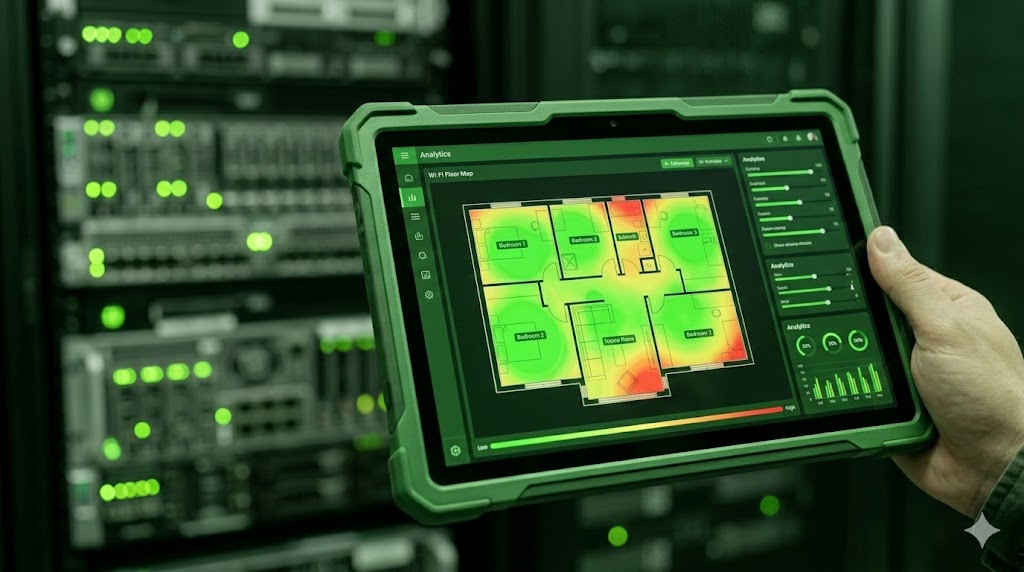
56. What Wi-Fi transmission power is allowed in different regions?
Globally, allowed Wi-Fi transmission power typically ranges from 10 to 36 dBm, depending on local regulatory standards. When DFS is enabled, slightly higher power levels may sometimes be permitted.
In many European-style regulatory frameworks, the 2.4 GHz band is limited to 20 dBm (100 mW) EIRP, using channels 1–13.
For the 5 GHz band, the limits vary by sub-band.
Band 1 usually allows 20 dBm for indoor use, while bands 2 and 3 may allow up to 23 dBm with DFS and TPC enabled.
Band 4 is typically limited to 20 dBm, and higher power levels may require special certification.
In some regions, such as the United States, Brazil, and parts of South America, maximum transmission power may reach 36 dBm. At the same time, countries like China and Japan often have stricter regulations both in terms of power limits and channel control.
57. What antenna angle should be used between router antennas (omnidirectional)?
A common mistake is positioning the antennas like “rabbit ears”, where two antennas form a sharp V shape.
If your router has fewer than four antennas and sits on a desk, the most reliable configuration is to position all antennas vertically upward.
For a more advanced antenna setup, it is useful to study the concept of the Fresnel Zone, which describes how radio waves propagate and how obstacles affect signal strength.
58. How can you measure real Wi-Fi speed at an expert level?
A simple speed test does not always reveal the full picture and cannot always pinpoint the exact source of a performance issue.
For basic troubleshooting, a practical approach is to run several tests from different devices — both Wi-Fi devices and devices connected via Ethernet cable.
If speeds are consistently lower than expected on both wired and wireless connections, the issue may be located outside your local network, possibly on the provider’s side. If the wired connection performs significantly better than Wi-Fi, it usually indicates that the wireless network itself requires deeper analysis using specialized diagnostic tools or professional assistance.
59. Is a radio frequency survey necessary when planning Wi-Fi router and access point placement?
For large deployments, a radio frequency survey is considered essential. It helps determine optimal access point placement and prevents coverage gaps or interference problems.
For smaller installations, a more practical approach is to follow the principle of reasonable sufficiency and redundancy. If you are unsure whether to place an additional access point in a nearby room, it is often easier and more cost-effective to simply install one rather than invest time and money in a detailed RF survey.
60. Does the number of antennas affect Wi-Fi speed? Is it true that more antennas are better?
In general, yes — more antennas can improve performance and potentially increase speed.
However, the internal antenna configuration used by manufacturers can vary. For example, a single external plastic antenna housing may contain either one antenna element or multiple antenna elements supporting different frequency bands.
To properly evaluate router performance, it is important to consider not only the number of antennas but also features such as MU-MIMO support, which allows the router to communicate with multiple devices simultaneously.