
This directory contains the default service block files that come with your system.
Now that you understand the basics of systemd and how to check the status of services, you are ready to create and modify service files in the next step.



In this article, you will learn why a service may not start immediately after changing it in Linux, how the systemctl daemon-reload command works, and why you should run it before restarting services. The material explains the process in simple language, helps you understand how systemd updates configurations without a reboot, and what to do to make your changes take effect instantly.

Systemd is the service and system manager for most modern Linux distributions, including Ubuntu 22.04, which we are using in this lab. It is responsible for starting and managing system services, and systemctl is the main command line tool used to interact with systemd.
A daemon is a background process that runs continuously on your Linux system. These processes perform various tasks, such as serving web pages (Apache, Nginx), managing databases (MySQL, PostgreSQL), or handling system events. Systemd manages these daemons using standardized configuration files called “module files.”
Let’s start by looking at some basic systemctl commands to understand the current state of your system:
Open the terminal by clicking on the Terminal icon.
List all active system services using the following command:
systemctl list-units --type=service
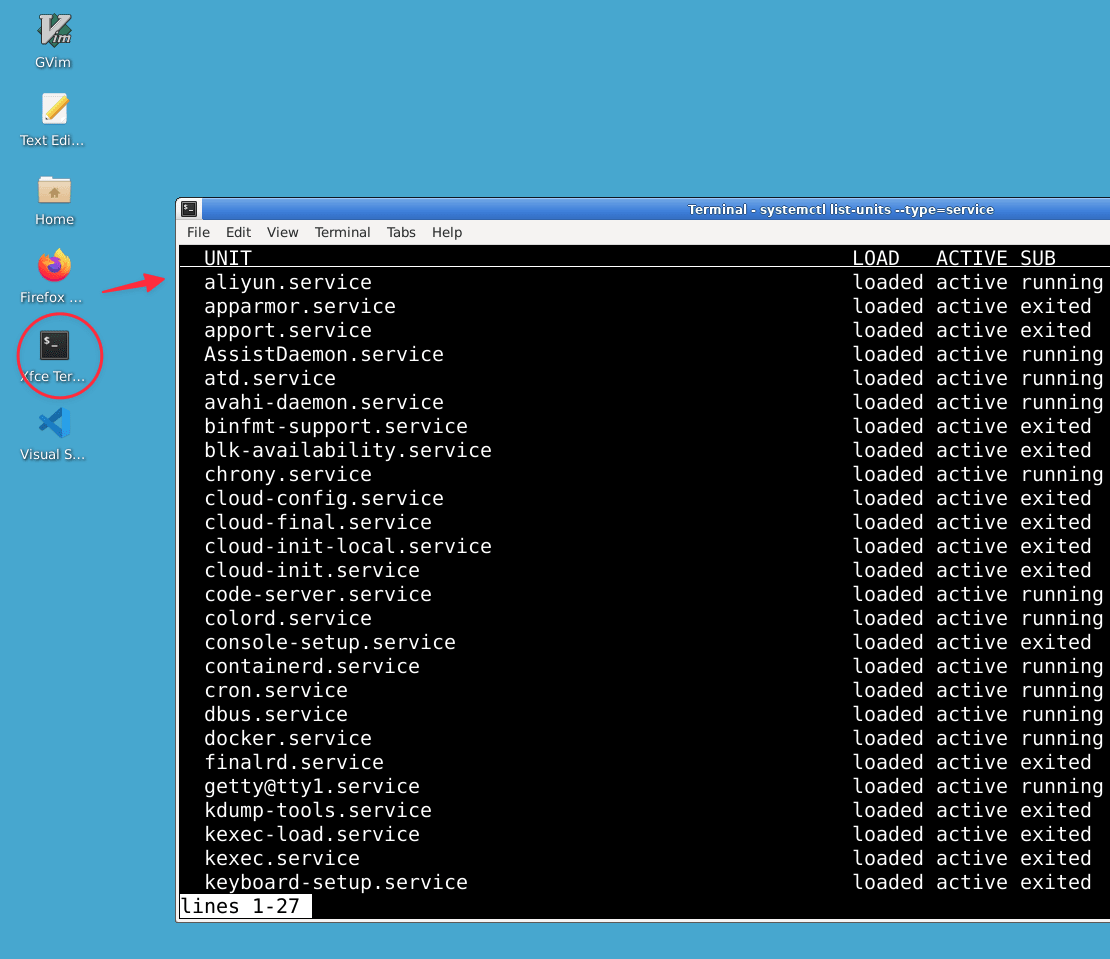
This command displays all active services on your system. You should see output similar to:
UNIT                                      LOAD   ACTIVE SUB     DESCRIPTION
accounts-daemon.service                   loaded active running Accounts Service
apparmor.service                          loaded active exited  AppArmor initialization
avahi-daemon.service                      loaded active running Avahi mDNS/DNS-SD Stack
...
Press Ctrl+C or Q to exit the command.
Check the status of a specific service, such as the SSH service:
systemctl status ssh
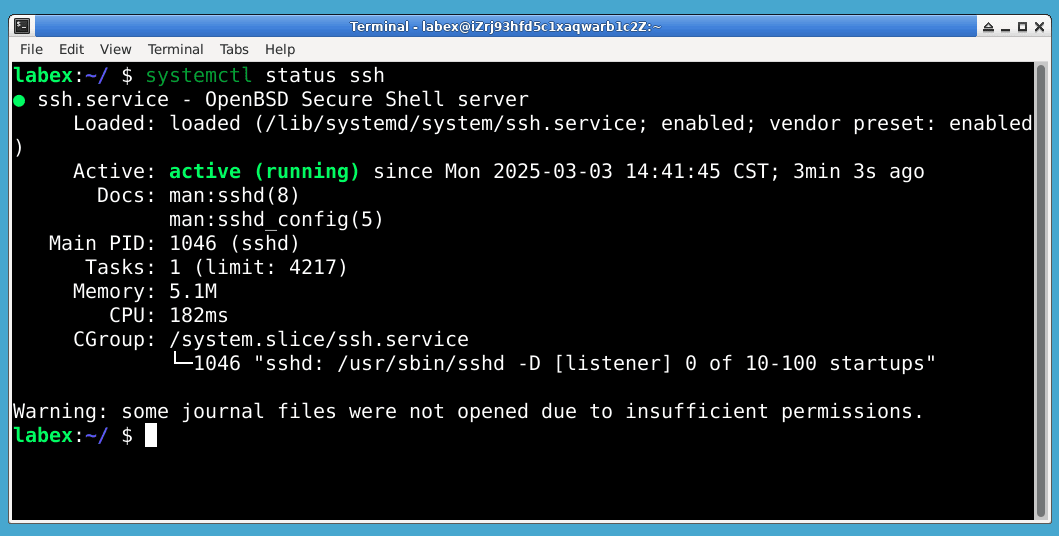
You should see detailed information about the SSH service, including whether it is active, its process ID, and the latest log entries:
● ssh.service - OpenBSD Secure Shell server
     Loaded: loaded (/lib/systemd/system/ssh.service; enabled; vendor preset: enabled)
     Active: active (running) since Tue 2023-06-13 12:34:56 UTC; 3h 25min ago
       Docs: man:sshd(8)
             man:sshd_config(5)
    Process: 1234 ExecStartPre=/usr/sbin/sshd -t (code=exited, status=0/SUCCESS)
   Main PID: 1235 (sshd)
      Tasks: 1 (limit: 4915)
     Memory: 5.6M
        CPU: 236ms
     CGroup: /system.slice/ssh.service
             └─1235 "sshd: /usr/sbin/sshd -D [listener] 0 of 10-100 startups"
Let’s take a look at where the systemd service files are stored. Here are the files we’ll be working with in the next steps:
ls -l /etc/systemd/system/
This directory contains service module files that define how systemd manages services. You should see several .service files and symbolic links.
The system-provided module files are located in a different directory. Let’s take a look at them:
ls -l /lib/systemd/system/
This directory contains the default service block files that come with your system.
Now that you understand the basics of systemd and how to check the status of services, you are ready to create and modify service files in the next step.
In this step, you will create a simple systemd service file that will run your own script. This will help you understand how service files work and how to modify them.
First, let’s create a simple script that will run our service:
Create a directory for your script:
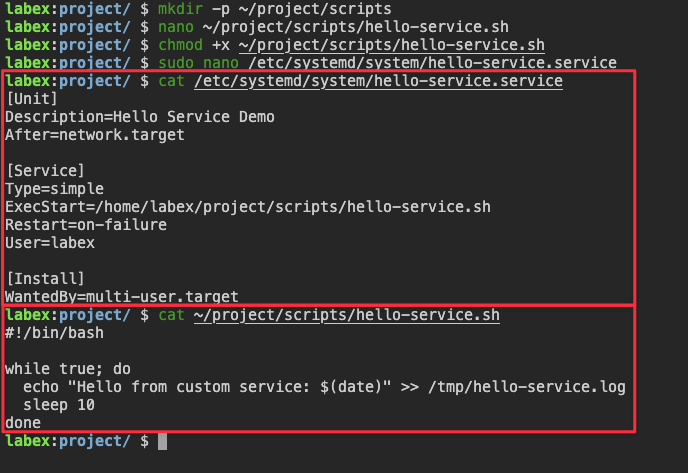
mkdir -p ~/project/scripts
Use the nano text editor to create a simple script:
nano ~/project/scripts/hello-service.sh
Add the following content to the script:
#!/bin/bash

while true; do
  echo "Hello from custom service: $(date)" >> /tmp/hello-service.log
  sleep 10
done
Press Ctrl+X to exit the editor, then Y to save the file, then Enter to confirm the file name. This script simply writes a message with the current date to a log file every 10 seconds.
Make the script executable:
chmod +x ~/project/scripts/hello-service.sh

Now let’s create a systemd service file that will run this script:
Create a new service file using sudo privileges:
sudo nano /etc/systemd/system/hello-service.service
Add the following content to the service file:
[Unit]
Description=Hello Service Demo
After=network.target

[Service]
Type=simple
ExecStart=/home/labex/project/scripts/hello-service.sh
Restart=on-failure
User=labex

[Install]
WantedBy=multi-user.target
Let’s take a look at each section of this file:
[Unit] : Contains metadata and dependencies: Description A human-readable description of the service. After: Specifies that this service should start after the network is ready
[Service] : Specifies how the service should work: Type=simple: The service starts immediately. ExecStart The command to start (our script). Restart: Automatically restart the service if it fails. User The user account to start the service
[Set] : Specifies when and how the service should be enabled: WantedBy Specifies when the service should be started (multi-user.target means normal system operation)
Save the file and exit the editor (press Ctrl+X, then Y, then Enter in nano).
Let’s take a look at our newly created service file:
cat /etc/systemd/system/hello-service.service
You should see the content you just added to the file.
In the next step, you will learn how to load and start this service using the systemctl daemon-reload command.
Now that you have created the systemd service file, you need to tell systemd about this new service. This is where the systemctl daemon-reload command comes in.
The systemctl daemon-reload command tells systemd to reload all service files and update its internal configuration.
This is necessary whenever you:
Create a new service file
Modify an existing service file
Delete a service file
Without running this command, systemd will not recognize your changes.
Run the following command to reload the systemd configuration:
sudo systemctl daemon-reload
This command does not output any data on success, but updates the internal systemd configuration.
Now let’s check if systemd recognizes our new service:
systemctl status hello-service
You should see output showing that the service is loaded but inactive:
● hello-service.service - Hello Service Demo
     Loaded: loaded (/etc/systemd/system/hello-service.service; disabled; vendor preset: enabled)
     Active: inactive (dead)
Let’s start our service:
sudo systemctl start hello-service
Check the status again to see if it works:
systemctl status hello-service
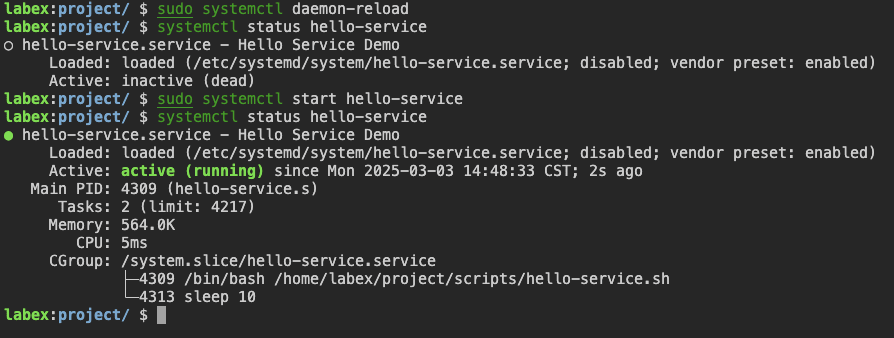
You should now see that the service is up and running:
● hello-service.service - Hello Service Demo
     Loaded: loaded (/etc/systemd/system/hello-service.service; disabled; vendor preset: enabled)
     Active: active (running) since [timestamp]; [time] ago
   Main PID: [pid number] (hello-service.sh)
      Tasks: 2 (limit: 4915)
     Memory: 592.0K
        CPU: 5ms
     CGroup: /system.slice/hello-service.service
             └─[pid number] /bin/bash /home/labex/project/scripts/hello-service.sh
Verify that our service is actually running by checking the log file it generates:
cat /tmp/hello-service.log
You should see a few lines of output similar to:
Hello from custom service: Wed Jun 14 15:30:45 UTC 2023
Hello from custom service: Wed Jun 14 15:30:55 UTC 2023
Hello from custom service: Wed Jun 14 15:31:05 UTC 2023
The log entries will show the current date and time, confirming that our service is running and executing the script properly.
Enable the service to start automatically at boot time:
sudo systemctl enable hello-service
You should see a result similar to:
Created symlink /etc/systemd/system/multi-user.target.wants/hello-service.service → /etc/systemd/system/hello-service.service.
This means that the service is now enabled and will start automatically after system boot.
You have now successfully created the service, used systemctl daemon-reload to inform systemd about it, and started the service. In the next step, you will modify the service and apply the changes.

In this step, you will change the service configuration and apply the changes using systemctl daemon-reload. This will demonstrate the importance of this command when updating service configurations.
Let’s modify our service to change the frequency of logging messages:
Edit the service file:
sudo nano /etc/systemd/system/hello-service.service
Add a new environment variable to the [Service] section to control the sleep interval. Add this line after the User=labex line:
Environment="SLEEP_INTERVAL=5"
Save the file and exit (press Ctrl+X, then Y, then Enter in nano).
Now edit the script to use this environment variable:
nano ~/project/scripts/hello-service.sh
Modify the script to use the environment variable (replace all contents with this one):
#!/bin/bash

## Default to 10 seconds if environment variable is not set
INTERVAL=${SLEEP_INTERVAL:-10}

while true; do
  echo "Hello from custom service: $(date) - Interval: ${INTERVAL}s" >> /tmp/hello-service.log
  sleep $INTERVAL
done
Save your changes and exit the editor (press Ctrl+X, then Y, then Enter in nano).
Now that you have made changes to both the service file and the script, you need to apply those changes:
First, reload the systemd configuration:
sudo systemctl daemon-reload
Then restart the service to apply the changes:
sudo systemctl restart hello-service
Check the service status:
systemctl status hello-service
You should see the service running with the updated configuration.
Check the log file to make sure the changes took effect:
sleep 15 ## Wait to collect a few log entries
cat /tmp/hello-service.log | tail -5
You should now see that the service is logging messages every 5 seconds instead of 10, and the log entries should contain the new interval information:
Hello from custom service: Wed Jun 14 15:45:10 UTC 2023 - Interval: 5s
Hello from custom service: Wed Jun 14 15:45:15 UTC 2023 - Interval: 5s
Hello from custom service: Wed Jun 14 15:45:20 UTC 2023 - Interval: 5s
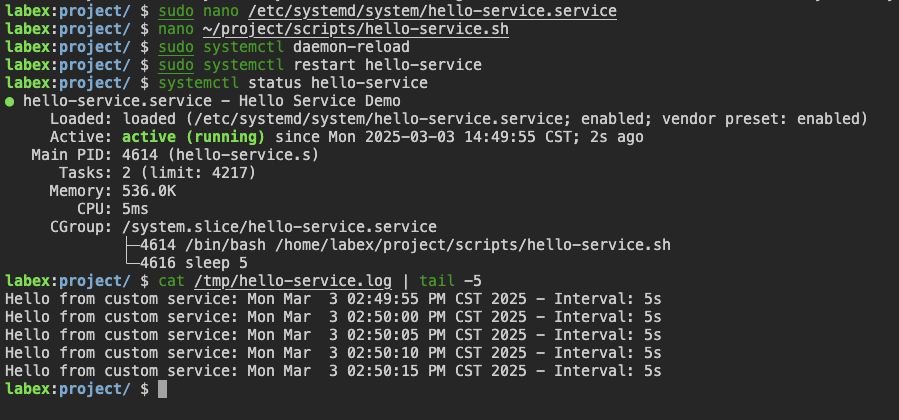
Let’s take a look at what just happened:
You modified the service file to add an environment variable.
You updated the script to use that environment variable.
You ran the command, systemctl daemon-reload, to notify systemd of the changes to the service file.
You restarted the service to apply those changes.
Without this systemctl daemon-reload command, systemd would not recognize the changes to the service file, and the environment variable would not be passed to the script when the service was restarted.
This demonstrates why systemctl daemon-reload is important whenever you change service files – it ensures that systemd is aware of your changes before you try to apply them by starting or restarting the services.
In this final step, you will learn about common problems that can occur when working with systemd services and how to resolve them. You will also learn some best practices for working with systemctl daemon-reload.
If your service is not starting, the first step is to check its status:
systemctl status hello-service
This often provides detailed information about the error. Let’s intentionally create an error to see how to fix it:
Edit the service file:
sudo nano /etc/systemd/system/hello-service.servic
Change the ExecStart line to point to a non-existent script:
ExecStart=/home/labex/project/scripts/non-existent.sh
Save and exit the editor.
Reload the systemd configuration and try restarting the service:
sudo systemctl daemon-reload
sudo systemctl restart hello-service
Check the status to see the error:
systemctl status hello-service
You should see error messages indicating that the script does not exist:
● hello-service.service - Hello Service Demo
     Loaded: loaded (/etc/systemd/system/hello-service.service; enabled; vendor preset: enabled)
     Active: failed (Result: exit-code) since [timestamp]; [time] ago
    Process: [pid] ExecStart=/home/labex/project/scripts/non-existent.sh (code=exited, status=203/EXEC)
   Main PID: [pid] (code=exited, status=203/EXEC)
        CPU: 5ms

[timestamp] systemd[1]: Started Hello Service Demo.
[timestamp] systemd[pid]: hello-service.service: Failed to execute command: No such file or directory
[timestamp] systemd[pid]: hello-service.service: Failed at step EXEC spawning /home/labex/project/scripts/non-existent.sh: No such file or directory
[timestamp] systemd[1]: hello-service.service: Main process exited, code=exited, status=203/EXEC
[timestamp] systemd[1]: hello-service.service: Failed with result 'exit-code'.
Fix the service file so that it points to the correct script:
sudo nano /etc/systemd/system/hello-service.service
Fix the service file so that it points to the correct script:
ExecStart=/home/labex/project/scripts/hello-service.sh
Save and exit, then reboot and restart:
sudo systemctl daemon-reload
sudo systemctl restart hello-service
Check if the service is running again:
systemctl status hello-service
When troubleshooting, you can use journalctl to view detailed logs:
sudo journalctl -u hello-service
This displays all logs for the hello-service block, which can be invaluable for diagnosing problems.
To view only the most recent logs:
sudo journalctl -u hello-service -n 20
To monitor logs in real-time (similar to tail -f):
sudo journalctl -u hello-service -f
Press Ctrl+C to exit log tracking mode.

Here are some best practices to follow when working with systemd and the daemon-reload command:
Always reload after changes: Always run systemctl daemon-reload after changing, adding, or removing any system module files.
Check syntax before applying: You can use the following command to check for syntax errors in the service files before restarting:
sudo systemd-analyze verify /etc/systemd/system/hello-service.service
If there are no errors, this command will output nothing. Any syntax errors will be reported.
Use service templates: For services that require multiple instances, use service templates (files with names like [email protected]) to avoid duplication.
Review service dependencies: Make sure your services have the correct After= and Requires= directives to ensure they run in the correct order.
Proper cleanup: When removing a service, be sure to stop and disable it before deleting the service file:
sudo systemctl stop hello-service
sudo systemctl disable hello-service
sudo rm /etc/systemd/system/hello-service.service
sudo systemctl daemon-reload
Let’s now clean up our example service:
sudo systemctl stop hello-service
sudo systemctl disable hello-service
You should see output indicating that the symbolic link has been removed:
Removed /etc/systemd/system/multi-user.target.wants/hello-service.service.
We won’t delete the service file yet, as we still need it for testing.
Now you understand how to create, modify, and troubleshoot system services, and the importance of the systemctl daemon-reload command in managing these services.



гарна стаття, дуже сподобалось