09.09.2026
25 min
282



The stock Google Pixel system is more convenient for users who want Google services ready to go, Pixel-exclusive features, and predictable app compatibility. GrapheneOS gives you more control over app permissions and adds stronger protection against vulnerability exploitation, but it requires more deliberate setup and checking that your essential apps work properly. We compare both options on the same Pixel and explain what actually changes after switching.
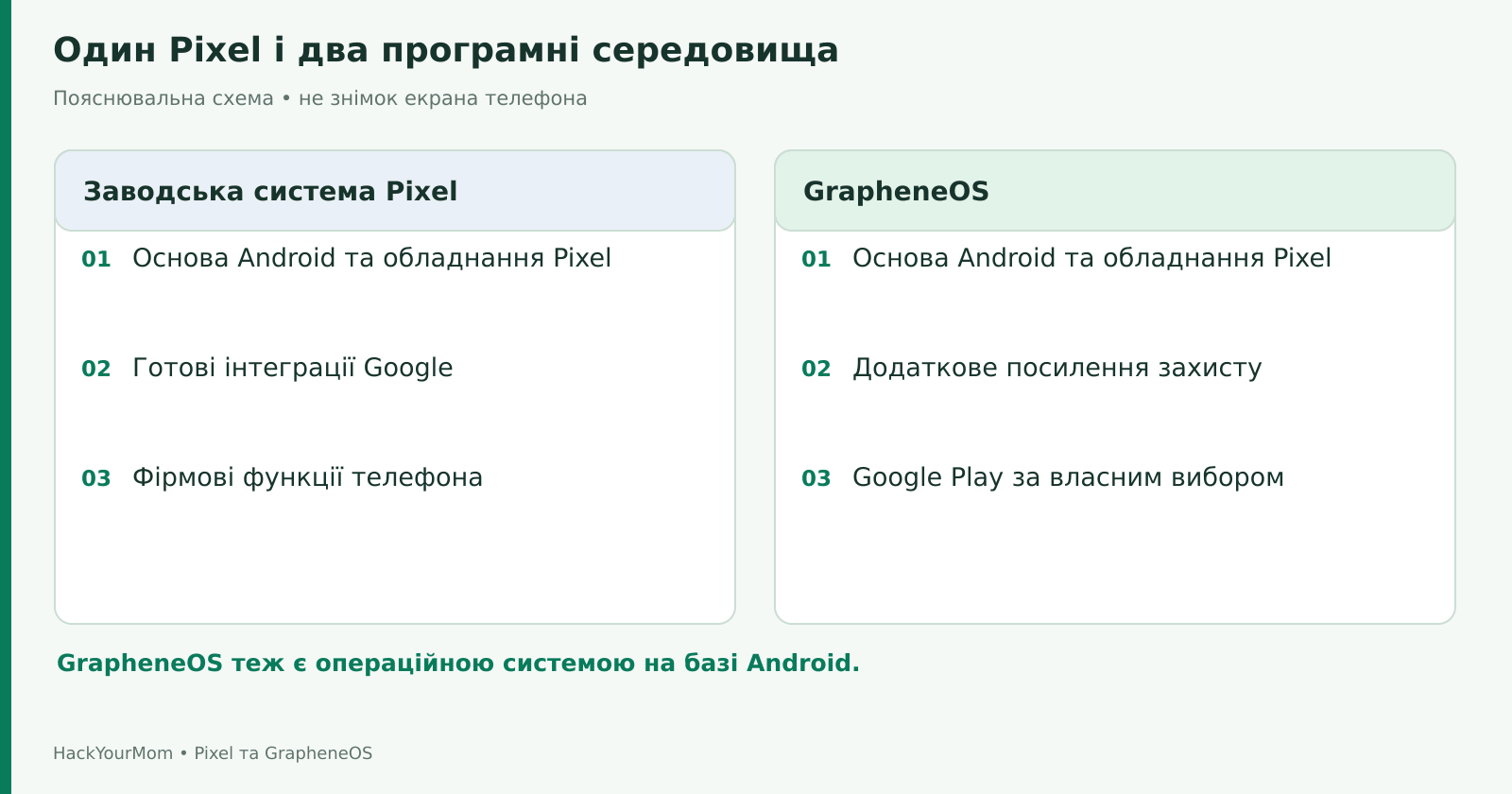
There is no need to buy another smartphone for this comparison. The same Google Pixel can run either Google’s stock software or GrapheneOS, as long as the specific model is officially supported and allows the bootloader to be unlocked. The cameras, processor, display, and battery remain the same. What changes is the software environment, the set of installed components, certain security mechanisms, and the way the device interacts with services.
In this article, by the stock system we mean the version of Android that Google ships on Pixel devices, together with its own apps and integrations. GrapheneOS is also based on Android, more specifically on the Android Open Source Project, or AOSP. So the title “Android vs. GrapheneOS” is a convenient shorthand, but technically this is a comparison between two implementations of Android.
For reference, we are using a supported Google Pixel, including the Pixel 10 featured in earlier articles in this series. The conclusions here apply to the general principles of how the systems work and do not guarantee identical behavior across every model, build, or app. This is especially important for payments, carrier features, and functionality that Google enables gradually or only in certain countries.
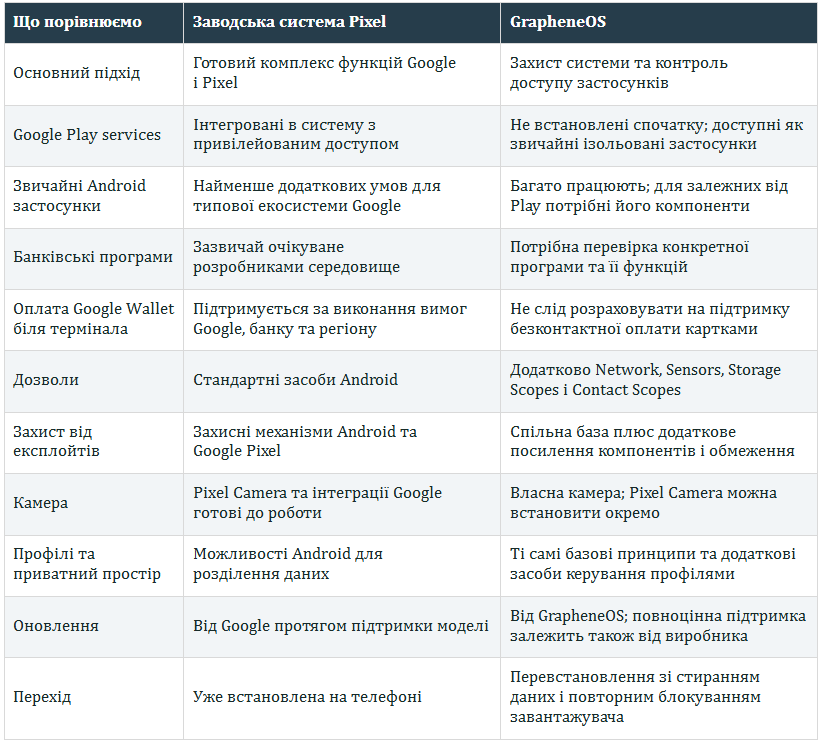
This table helps you identify which sections matter most to you. If you primarily use your phone for banking, payments, and in-car features, start with compatibility. If you store sensitive information on it, pay close attention to permissions, device locking, updates, and backups. The number of green check marks in the table alone does not determine which system is better.
GrapheneOS retains the familiar Android experience: apps, notifications, Quick Settings, gestures, switching between apps, and installing APK files. It is not desktop Linux running on a phone, nor is it a system that requires a terminal for everyday use. Anyone familiar with a modern Pixel will generally recognize the core navigation and interface.
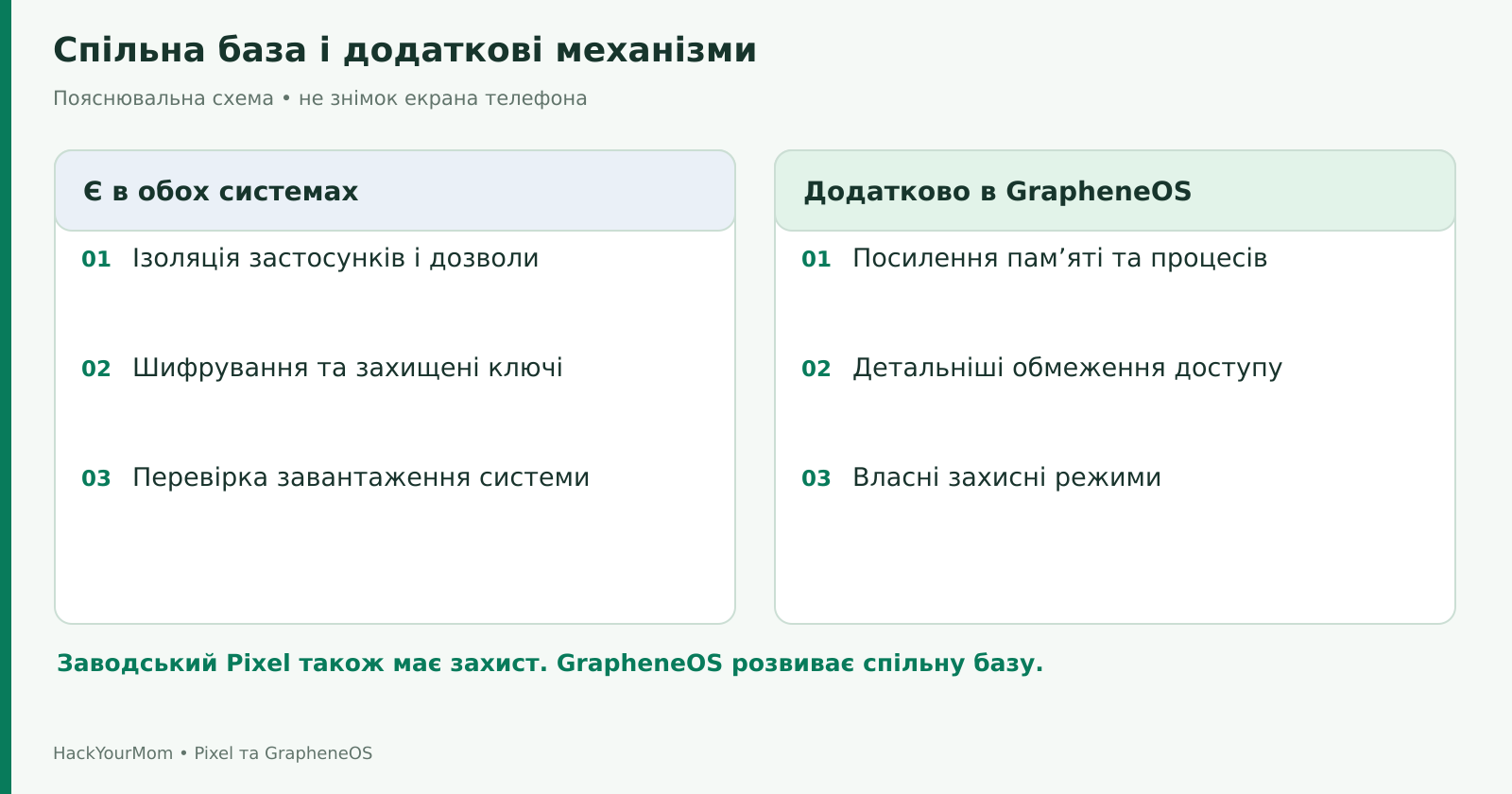
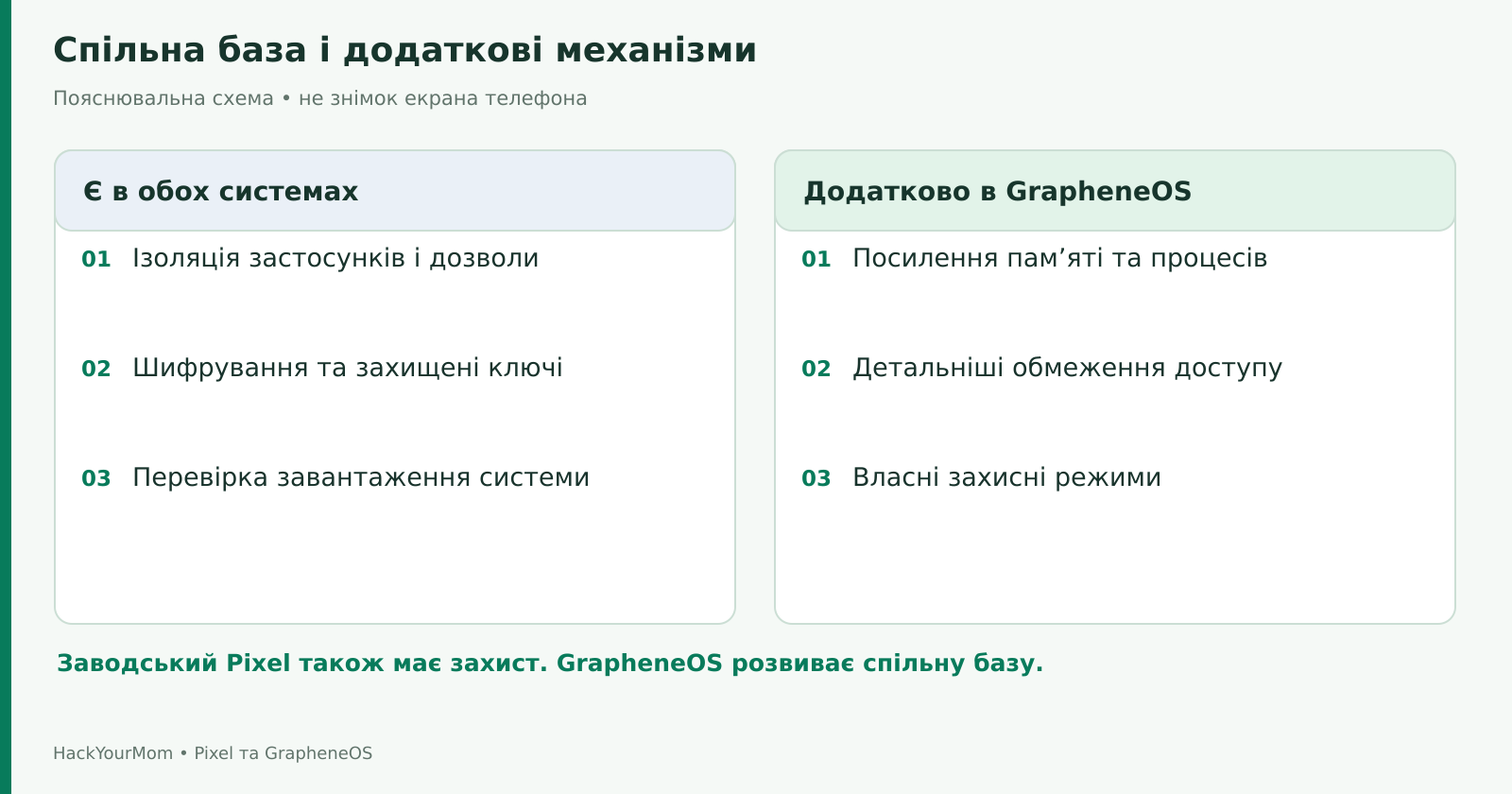
It would also be inaccurate to portray a stock Pixel as an unprotected phone. Android includes app sandboxing, permission controls, encryption, secure key storage, and Verified Boot. The latter checks the boot chain to detect unauthorized modifications to system components. These security foundations are described in the Android security documentation.
GrapheneOS builds on this foundation and extends it further. The Pixel’s hardware security features are also important to both systems. The purpose of the comparison is to explain what additional protections and capabilities users gain and what trade-offs come with them, rather than creating the impression that one system provides encryption while the other leaves all files exposed.
A practical example: if you install the same messaging app and sign in to the same account, its servers will still know that account. GrapheneOS can restrict the app’s local permissions, but it does not change the service’s server-side logic or make your existing registration appear as a new identity.
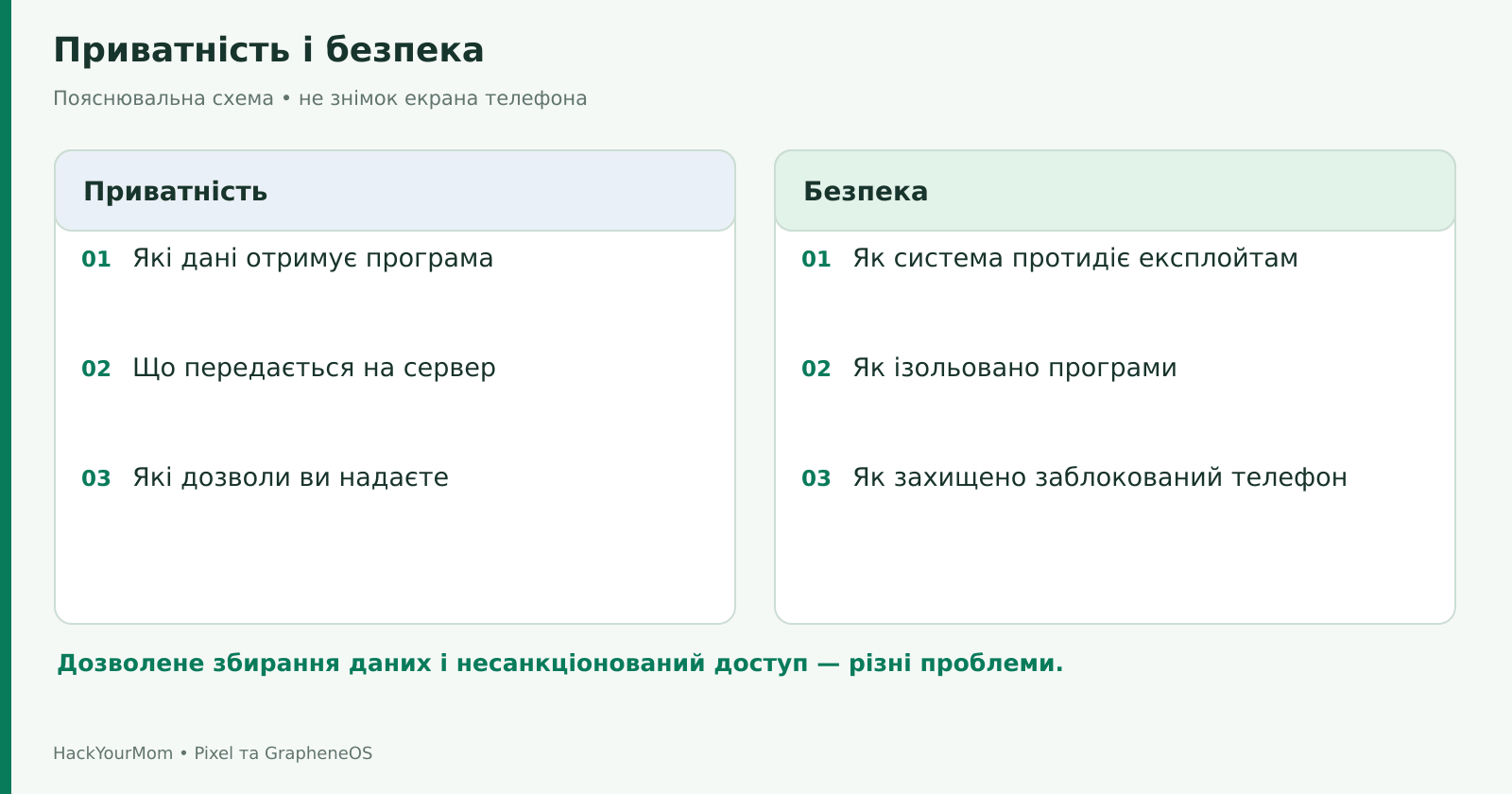
Security is about protecting against unauthorized access. For example, a malicious file may try to exploit a software flaw to execute code. Privacy is about what information other parties can access, including through features you have explicitly allowed. An app may have no known vulnerabilities while still sending contacts to its servers if you have granted it permission to read them.
GrapheneOS addresses both areas. Additional security mechanisms make certain classes of vulnerabilities harder to exploit, while extra permission controls help reduce the amount of data available to apps. The absence of preinstalled Google Play services also removes the mandatory integration of these components found on a typical Pixel. At the same time, online services that a person chooses to use voluntarily do not disappear.
On a stock Pixel, you can also restrict permissions, change account settings, disable optional synchronization, and use alternative apps. However, this does not turn privileged Google system components into ordinary apps. That distinction matters more than the number of preinstalled icons.
This leads to a simple way to decide. If your main goal is to reduce unnecessary permissions in a few apps, start by checking the settings already available. If you want system-level control over Google components and additional security hardening, GrapheneOS offers deeper changes. The official feature list explains these mechanisms individually rather than reducing them to simply “removing Google.”
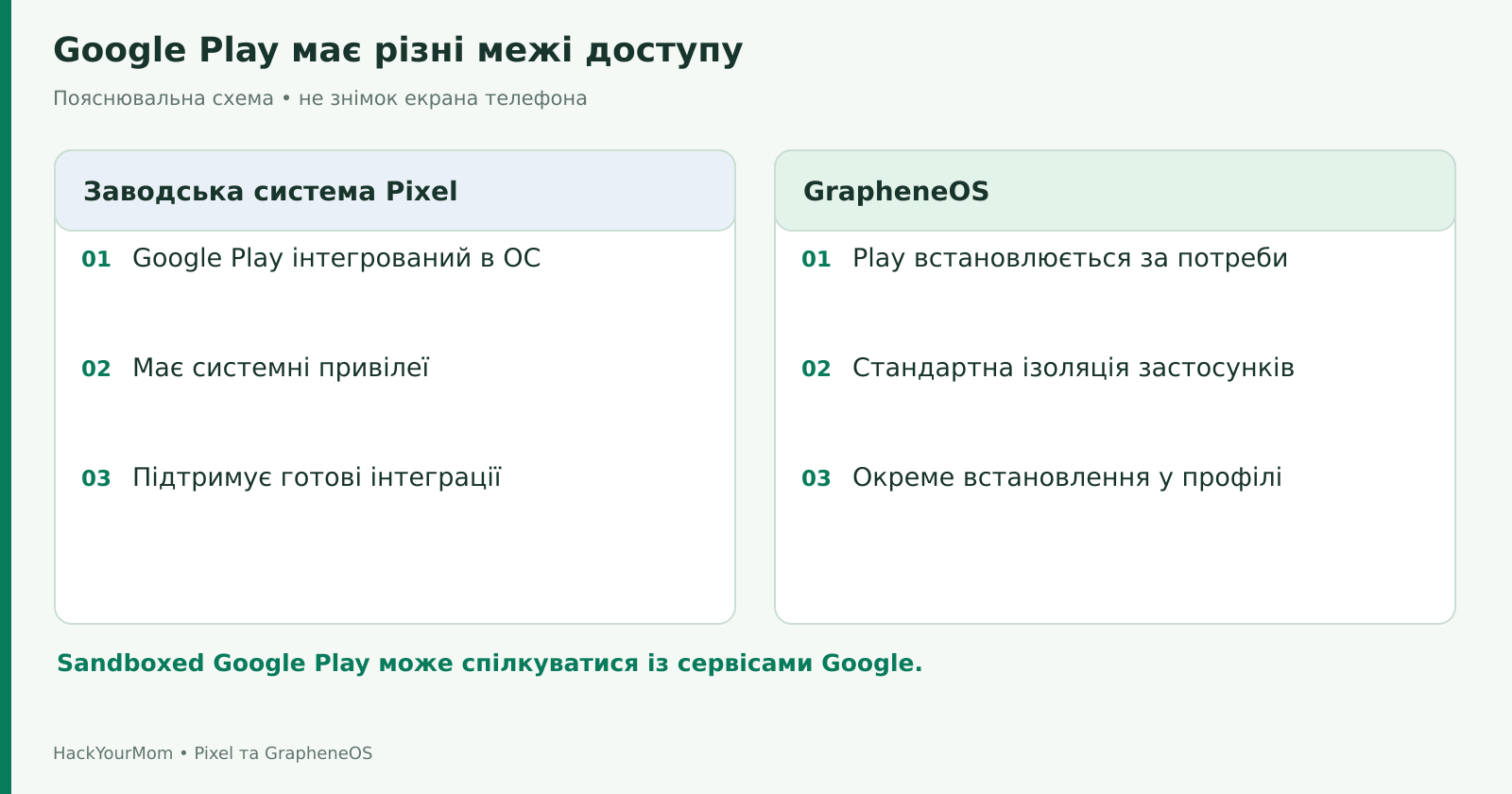
On the stock Pixel system, Google Play services are part of the integrated software environment. They are a set of background services used by many apps for features such as notifications, sign-in, location, and other APIs. The Google Play Store is a separate app store. A Google Account is another separate component. These three concepts are related, but they are not interchangeable.
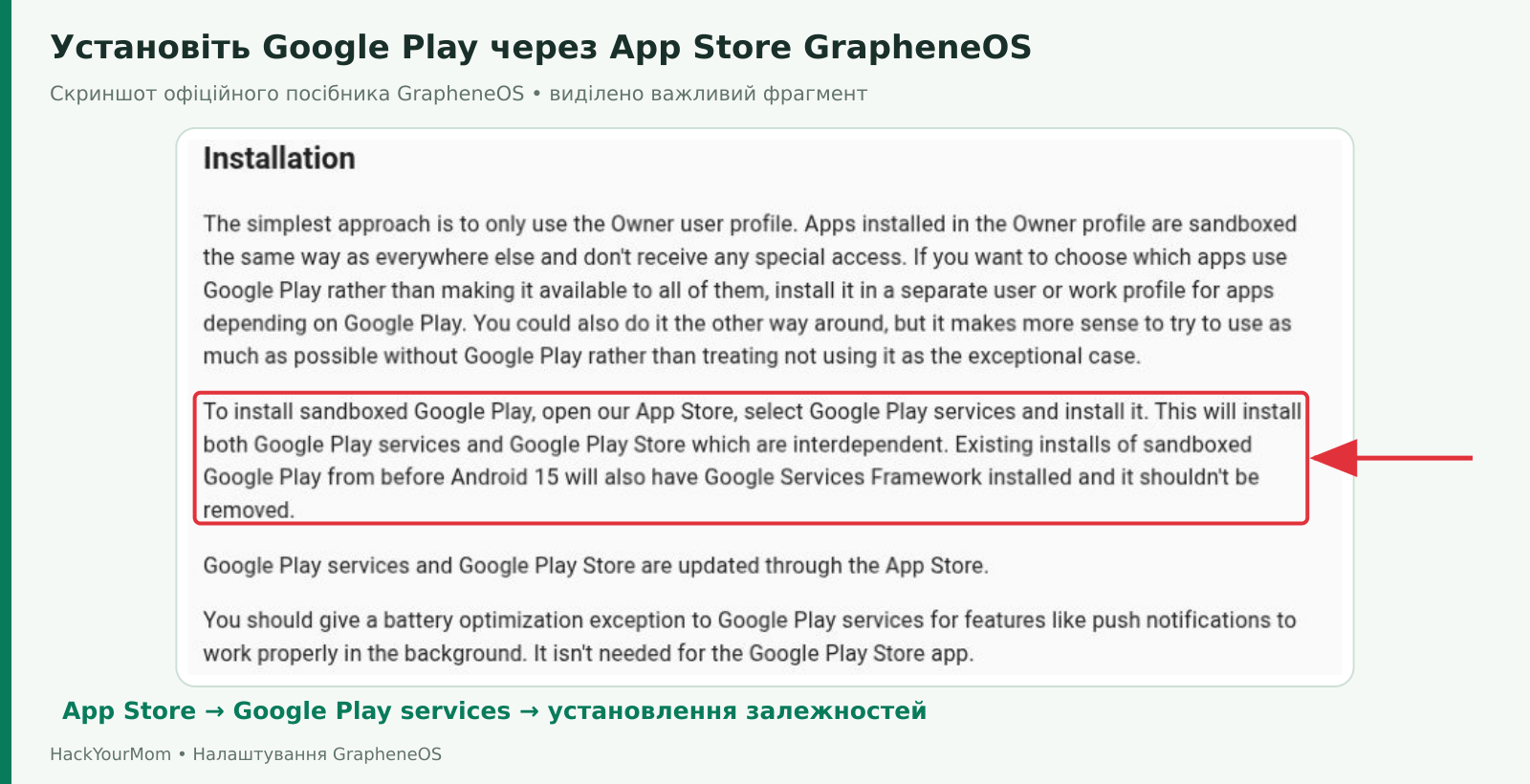
On GrapheneOS, Google Play is not installed by default. If needed, its official components can be installed through GrapheneOS’s built-in App Store. The system includes a compatibility layer that allows them to run inside the standard app sandbox, without the privileged access they normally have on the stock system. This approach is called Sandboxed Google Play.
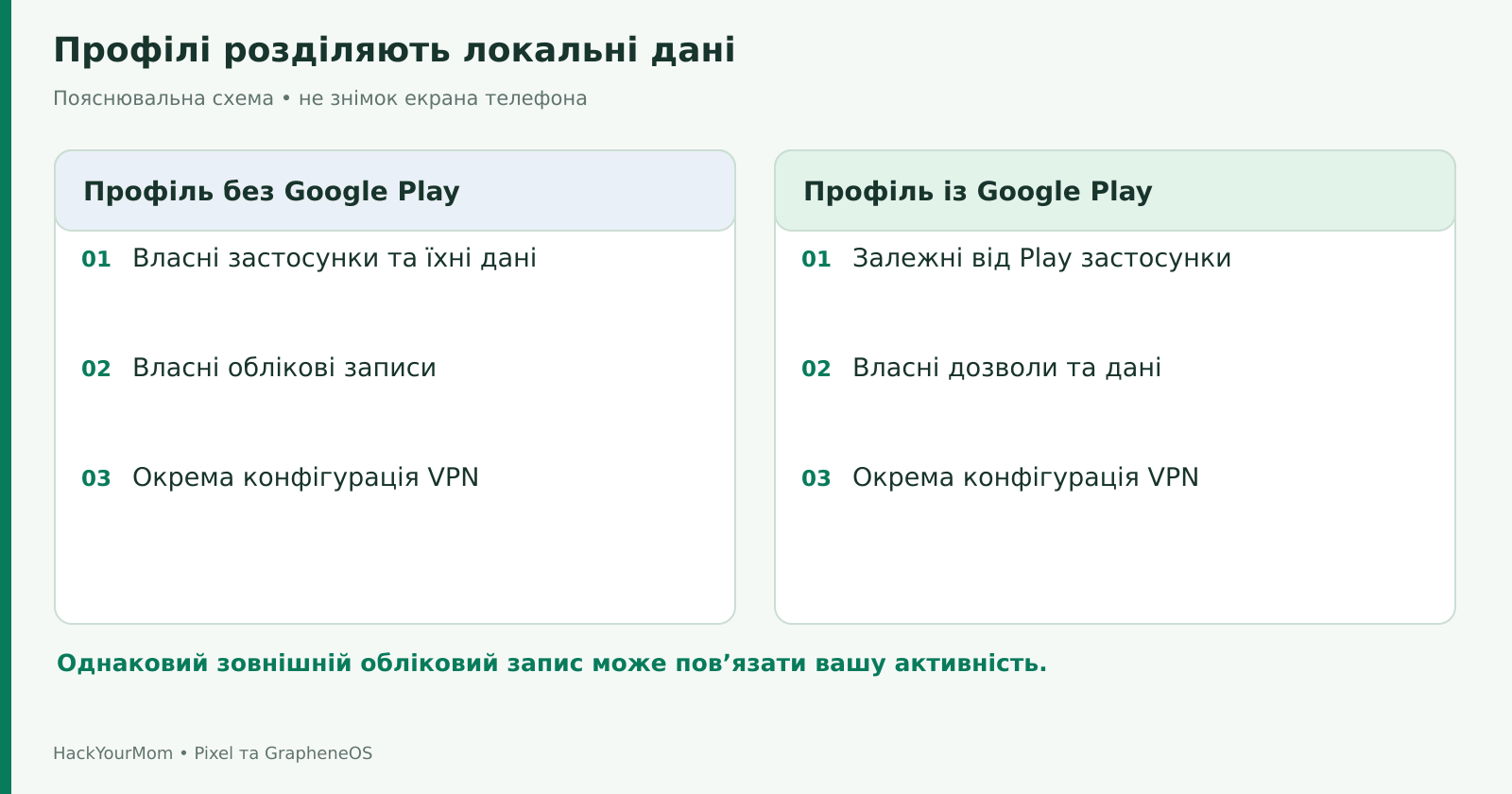
Sandboxed Google Play is installed within a specific user profile. If it is present in one profile, that does not mean it is available in another. Apps that depend on it must be installed in the same profile. This allows the owner to use an environment without Google Play, an environment with Google Play, or combine both approaches through separate profiles.
There is an important limitation: sandboxing does not make Google Play invisible to Google. Its components can still access the network, process requests from apps, and interact with a Google Account. Apps within the same profile can also exchange data when both sides explicitly allow it. The advantage of GrapheneOS lies in restricting the scope of access, not in promising that Google will never receive any data.
Signing in to a Google Account is not required for Google Play services themselves to function. However, for normal app installation through the Play Store, signing in is generally required. The setup order and dependencies are described in the Sandboxed Google Play guide.
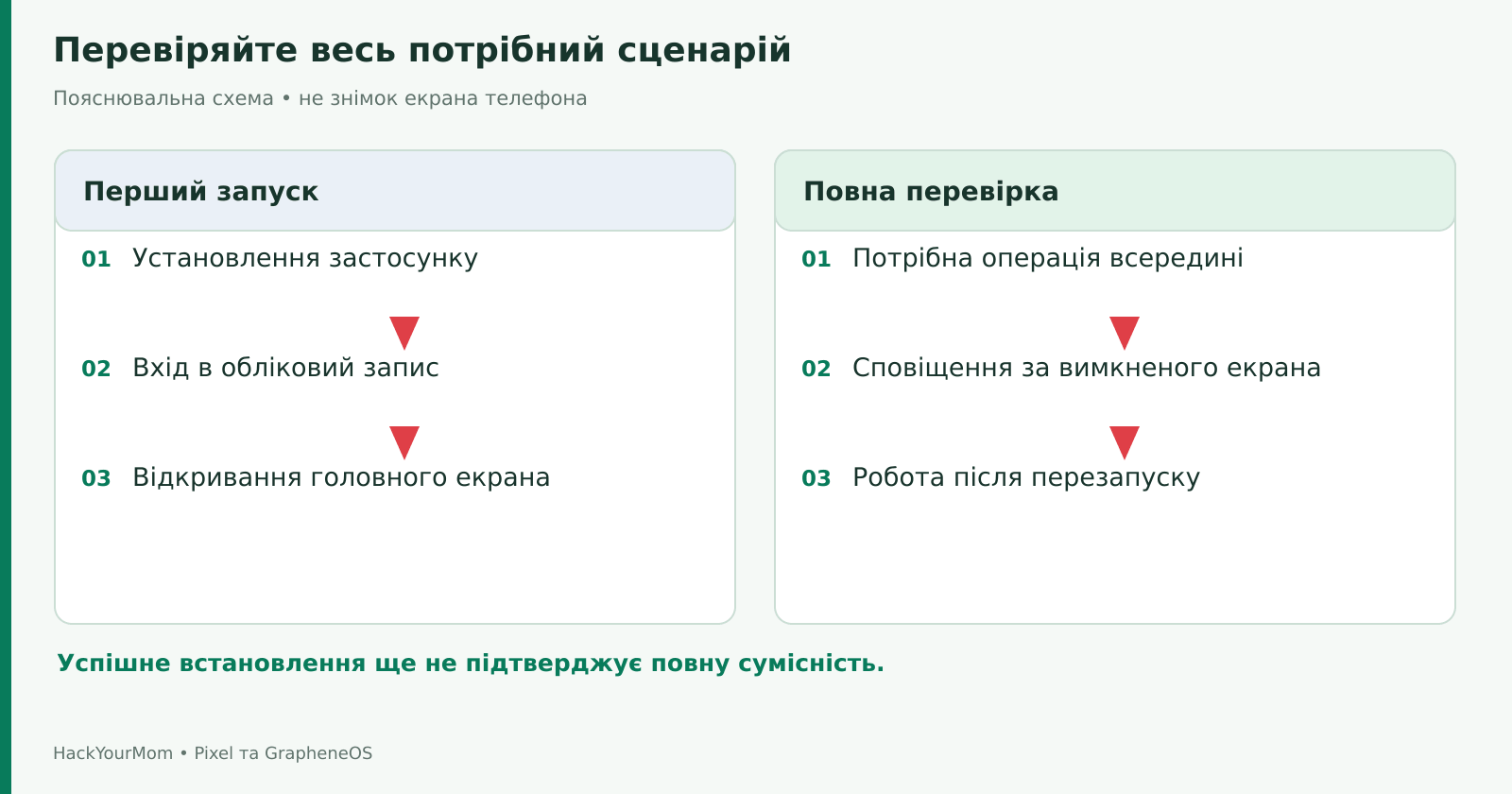
GrapheneOS runs Android apps, but saying that “Android apps work” does not guarantee identical behavior for every service. One app may rely only on standard APIs, another may depend on Google Play, while a third may check system certification. Sometimes an app installs successfully but sign-in, purchases, push notifications, or a specific device verification step still fails.
For many apps that depend on Google services, Sandboxed Google Play is enough. However, compatibility should not be judged only by whether the app launches. A messaging app needs to receive notifications while the screen is locked, navigation needs to keep working while you are on the move, and a work app may need to sign in through corporate authentication. Successfully opening the first screen is not a complete compatibility test.
Notifications work on GrapheneOS. If an app uses Google’s push notification system, Play services need to be installed in the same profile and allowed to meet the required background-running conditions. GrapheneOS recommends allowing Play services to run without battery optimization to improve the reliability of these functions; the Play Store itself does not need the same exception. Apps that use their own notification delivery system can work without Google Play.
A separate case is a locked Private Space or a signed-out secondary user profile. Apps in such an environment may not be able to run in the background, so notifications will not arrive regardless of how well Google Play is configured. It is also a bad idea to change every permission and battery setting at the same time, because that makes it much harder to identify the cause of a problem.
GrapheneOS security features can also expose bugs that may not cause an obvious failure on another system. For individual apps, there is an exploit protection compatibility mode. Its purpose and the specific protections it relaxes are explained in the compatibility section. It is a diagnostic tool for a specific app, not a recommendation to disable protections across the system.
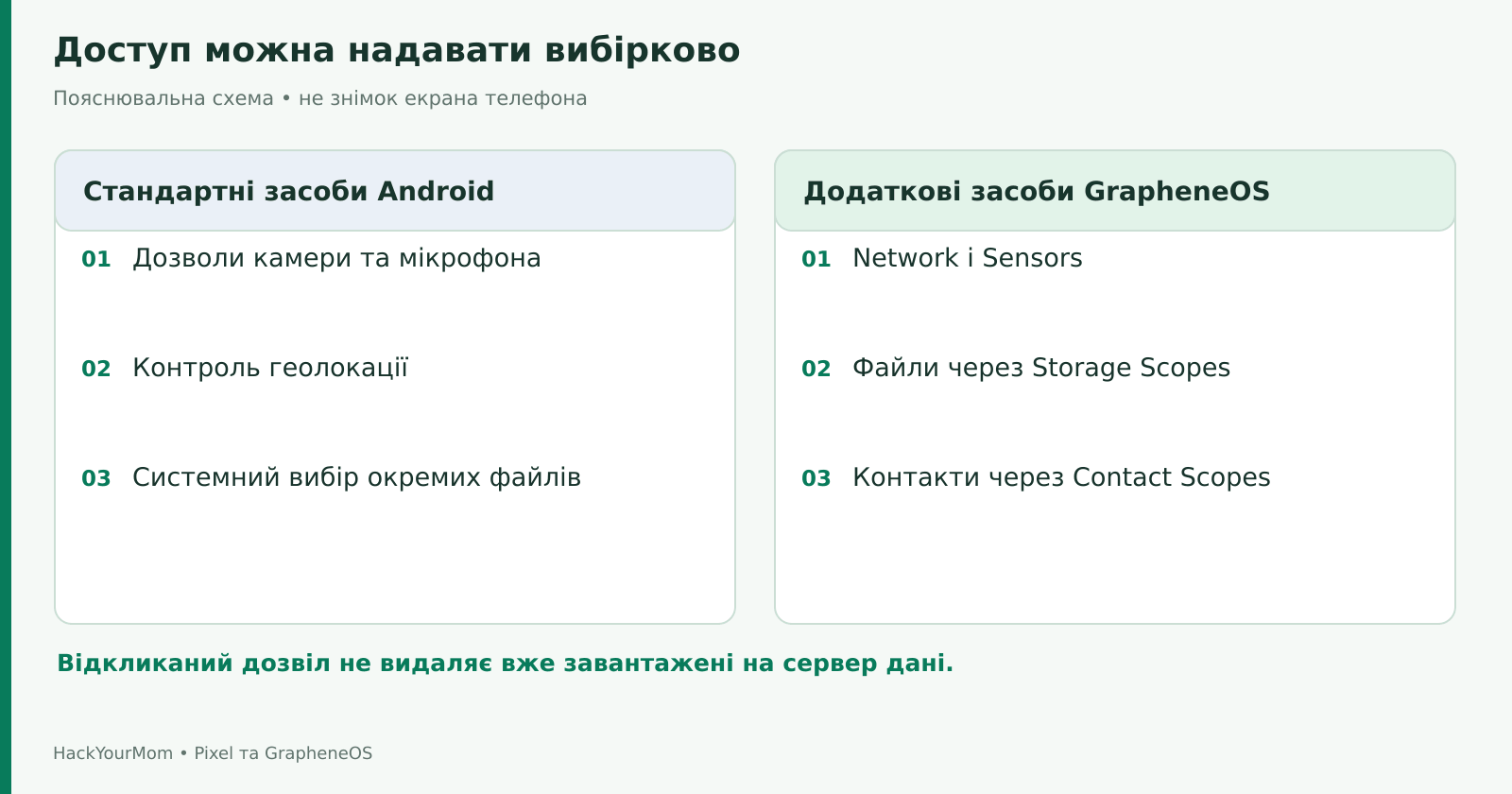
Standard Android already lets users control access to the camera, microphone, and location. Depending on the situation, apps can be limited to access only while in use, given only an approximate location, or allowed to see only selected photos. So the claim that “every app on a regular Pixel can read everything” is inaccurate. The actual level of access depends on permissions, APIs, the Android version, and how the app itself behaves.
GrapheneOS adds extra controls for situations where the standard Android options are not enough. The clearest examples are Network, Sensors, Storage Scopes, and Contact Scopes. There is no need to enable all of them at once: each feature serves a specific purpose and may affect how an app works.
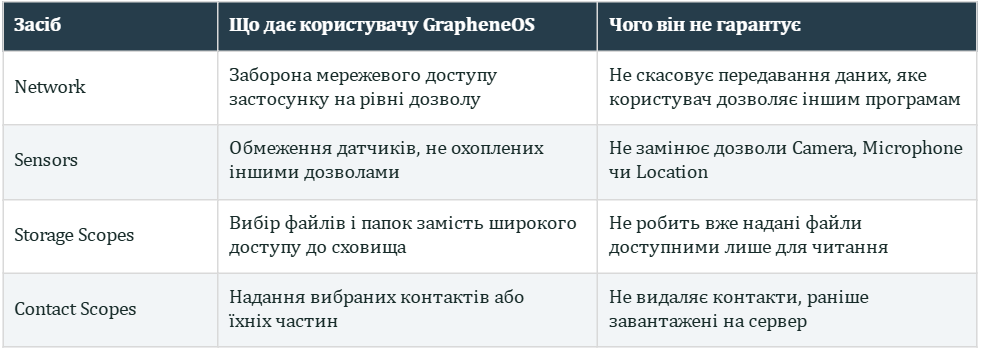
Network is useful, for example, for an offline tool that genuinely does not need internet access. The implementation blocks direct access through network sockets as well as indirect paths through components that check the relevant permission. This goes beyond simply blocking network packets. At the same time, arbitrary communication between apps within the same profile and explicit data sharing through the “Share” function need to be considered separately. The Network documentation explains the limits of this mechanism.
Sensors covers hardware such as the accelerometer, gyroscope, and compass. Disabling it may break features that depend on motion or device orientation. Compatibility matters by default: the presence of a toggle does not mean the system automatically blocks sensor access for every newly installed app. The Sensors documentation also explains how blocked requests are handled.
Storage Scopes allows an app to behave as if the requested storage permissions had been granted without giving it access to all files belonging to other apps or the user. The app retains access to files it creates itself, while the user can explicitly add specific files and folders. For example, a music player can be given access to a music folder without receiving broad access to documents. If the standard system file picker already works for the app, the additional mechanism may not be necessary.
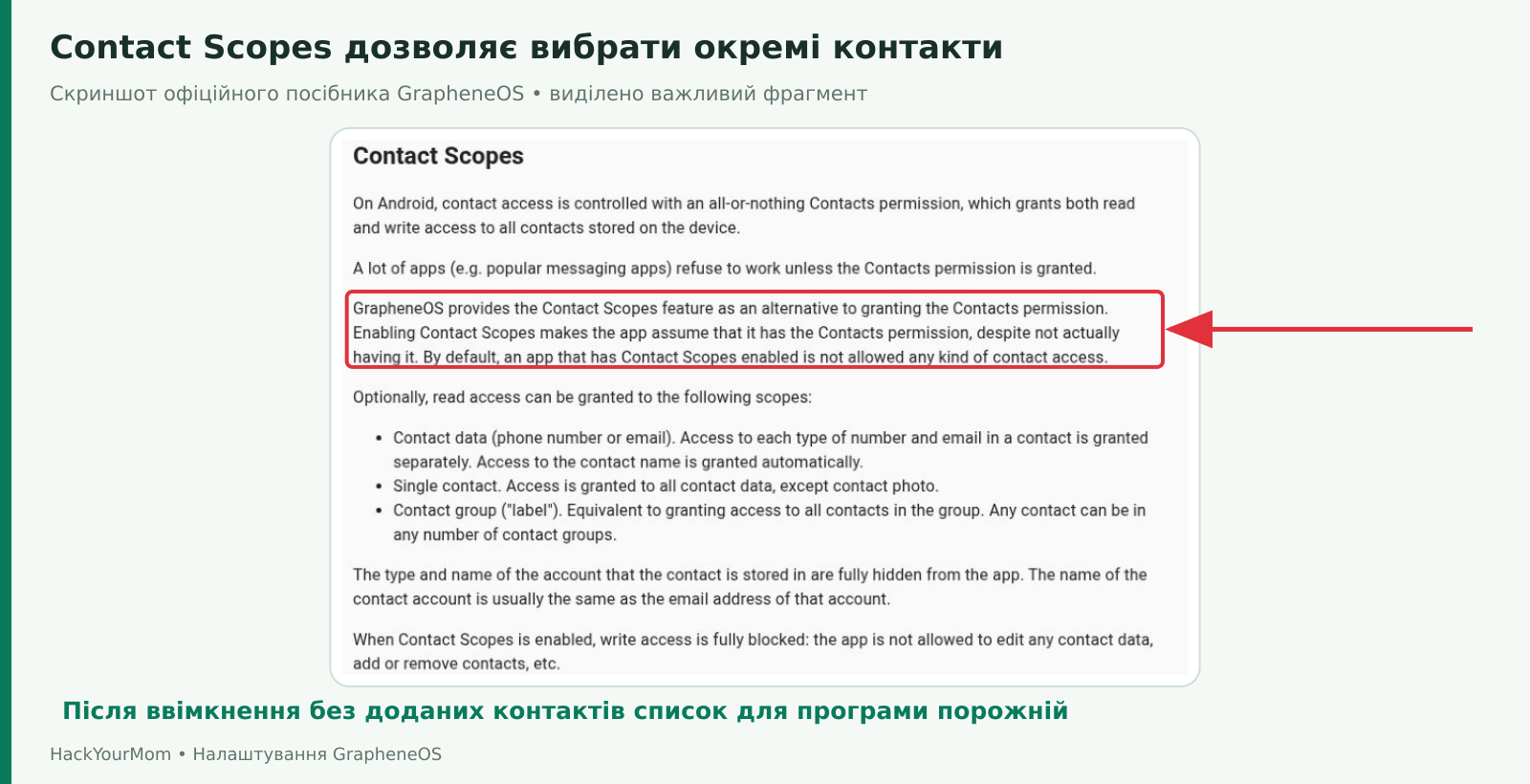
Contact Scopes is useful for a messaging app that only needs access to a few contacts. Without any contacts added, the app receives an empty list; the user can then select specific entries or fields to make available. The mechanism provides controlled read access, so a full-featured address book editor may still require the standard contacts permission. More details are available in the Storage Scopes documentation and the Contact Scopes documentation
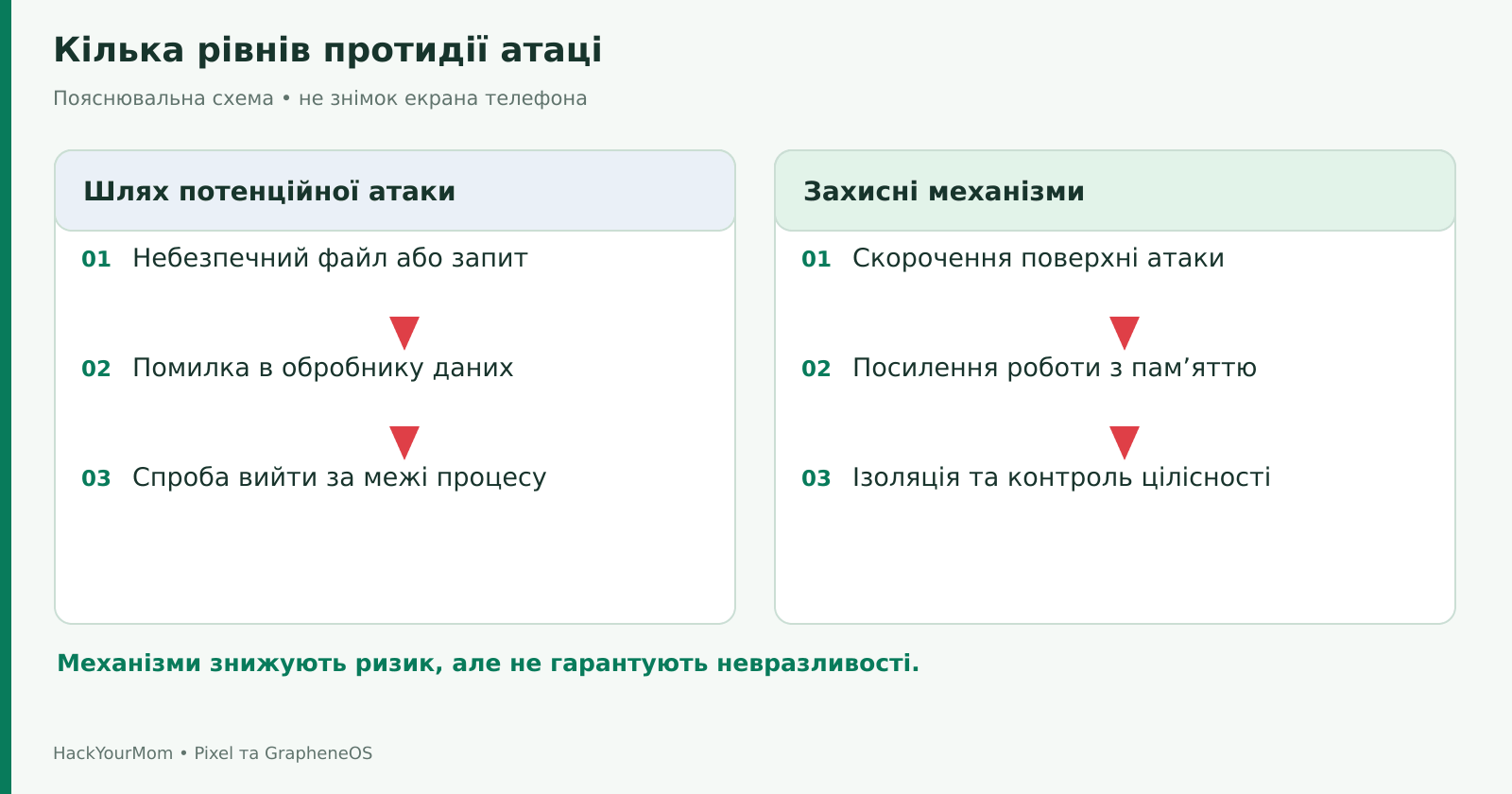
An exploit takes advantage of a software flaw to perform an action that the program’s normal logic should not allow. For example, a specially crafted file may target an image-processing component. Camera permission is not necessarily relevant in this case: the vulnerability may be in the code that parses data the app has already received.
GrapheneOS strengthens memory allocation through hardened_malloc, process isolation, and a range of other protections. On compatible hardware, it also makes use of hardware-based security features such as Memory Tagging Extension. Additional controls are applied to dynamic code loading and process execution. The goal of these changes is to make it harder to turn a software bug into a successful attack, or to stop an app when a dangerous memory state is detected.
This does not mean that every exploit stops working or that the phone becomes impossible to compromise. Different protections address different classes of vulnerabilities, depend on the hardware, and evolve together with the operating system. It would also be inaccurate to suggest that stock Android has no memory-protection mechanisms of its own: Android already includes such defenses, and some improvements eventually make their way into the broader platform.
For the user, the practical difference is that a significant part of GrapheneOS’s protection works automatically, without requiring daily interaction with security toggles. You do not need to be a developer to benefit from these features. At the same time, individual compatibility issues should be handled carefully rather than weakening the entire environment for the sake of a single app. Technical details are available in the overview of additional exploit protections.
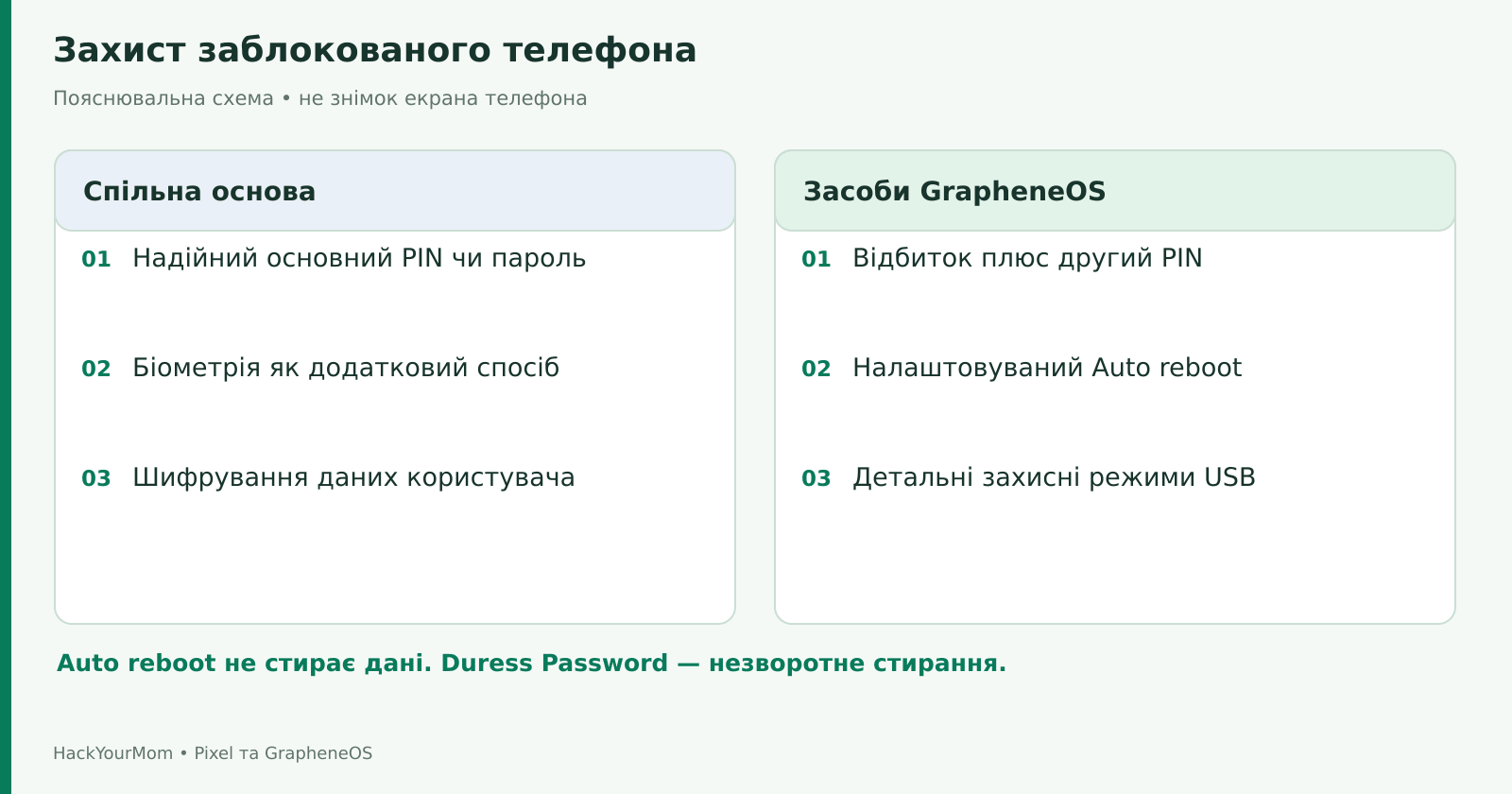
On both systems, a strong PIN or password remains the foundation of device security. After a reboot, the primary credential is required to unlock the user’s protected data. Biometrics make subsequent unlocks more convenient, but they do not replace knowing the password. A short, obvious PIN does not become strong simply because GrapheneOS is installed.
GrapheneOS adds options such as PIN scrambling and the ability to require an additional PIN after a successful fingerprint scan. This two-factor biometric setup differs from the usual “fingerprint or PIN” model: both factors are required for quick secondary unlocking. It can work well alongside a strong primary password, but the user needs to understand the sequence and remember the main credential.
Another feature is Auto reboot. According to GrapheneOS documentation, the default interval is 18 hours without a successful unlock, and the setting can be changed. A reboot returns the phone to the state before the first unlock; it does not erase data. It would be misleading to assume that every current stock Android build lacks any form of automatic protective reboot, as Google’s security features continue to evolve as well. What matters here is the specific implementation, the level of user control, and how your particular build behaves.
GrapheneOS also provides detailed USB controls. The default Charging-only when locked mode blocks new USB connections after the device is locked and stops data transfer once already active connections are terminated. This does not mean the port has to be permanently disabled: after unlocking the phone, normal file transfers are still possible. The behavior is explained in the USB security guide.
Duress PIN/Password is a potentially dangerous optional feature. Entering the specially configured credential triggers irreversible data erasure, including installed eSIMs. It is not a cosmetic “panic mode” or a fake lock screen. It should not be enabled merely to complete a feature checklist or tested on a phone containing important data. Details are provided in the official documentation.
The stock Pixel has an important advantage in the form of a ready-made ecosystem. Google provides Find Hub, remote locking, and theft-protection features. Depending on the model and settings, the system can respond to signs of theft or require additional biometric verification for sensitive actions. Finding the device and using remote controls requires certain conditions to be set up in advance, including account and connectivity requirements. These are described in Google’s theft protection help documentation.
Installing Sandboxed Google Play on GrapheneOS does not automatically recreate the full set of privileged Google system integrations. After switching, you should not assume that the phone can be located, locked, or erased remotely in exactly the same way as before. The specific recovery and remote-control workflow you rely on should be tested separately before the device is ever lost.
It is important to distinguish between two goals: recovering a lost phone and protecting the data on a phone that has already fallen into someone else’s hands. A device-finding network helps with the first. Strong device locking, encryption, and reducing the time before a protective reboot help with the second. One mechanism does not replace the other. For someone who regularly misplaces their phone and relies heavily on Google’s recovery services, this is a genuine advantage of the stock system.
User separation is part of Android itself, not something invented by GrapheneOS. Each user profile has its own app data and settings. Private Space also comes from the standard Android platform: it allows sensitive apps to be placed in a separate area with an additional lock. Google notes that apps inside a locked Private Space do not run in the background. The Private Space help page also explains the limitations of how well this space can be hidden.
GrapheneOS expands profile management. For example, the End session feature stops another user session and removes its encryption keys from memory. Simply switching users is not the same as ending a session. GrapheneOS also provides additional options for handling notifications across profiles. The GrapheneOS user profiles documentation explains these differences in more detail.
For everyday use, this makes it possible, for example, to keep apps that depend on Google services in one environment and sensitive material in another. However, extra profiles also require maintenance: checking notifications, managing backups and VPN settings, and sometimes signing in again. Ten empty profiles do not provide more value than two well-planned ones.
A profile does not create a new identity in the eyes of an external service. The same login, phone number, or other identifying information can still link activity across profiles. Likewise, your mobile carrier does not stop seeing the connected device simply because you switch users. Profile separation primarily protects local data boundaries.
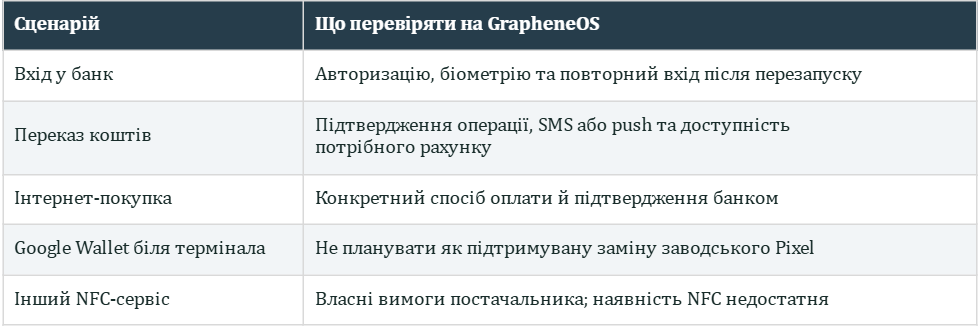
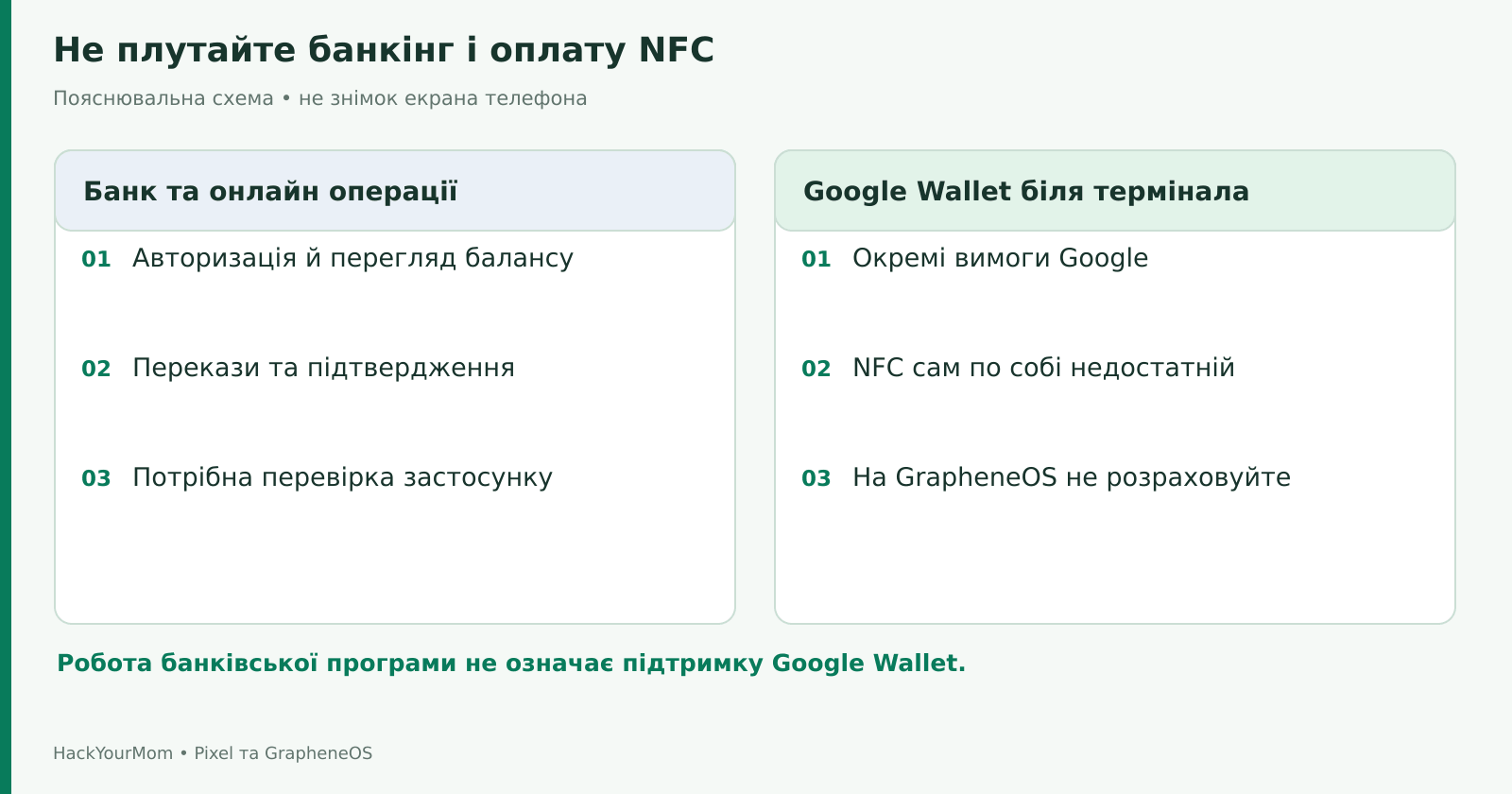
This section is worth reading before reinstalling the operating system. A banking app, an online payment, and tapping your phone on a payment terminal are three different scenarios. If your bank lets you sign in and check your balance, that does not automatically mean Google Wallet will work.
On GrapheneOS, many banking apps can work with Sandboxed Google Play. Others use their own environment or certification checks and may refuse to run. The result depends on the specific bank, the app version, and its server-side policies. For that reason, it would be misleading to promise compatibility with “all Ukrainian banks” without testing every scenario you actually need.
Modern apps may use the Play Integrity API, which returns signals about the app and the device. The service itself decides what access to allow based on those signals. This helps explain why a secure alternative operating system may still fail the requirements of a particular app: certification and access assessment are not a universal ranking of every security mechanism. The purpose of the API is described in Google’s documentation.
On GrapheneOS, you should not expect contactless bank card payments through Google Wallet to work. Google requires an approved software environment and explicitly notes limitations for modified systems. Having NFC, Google Wallet installed, and a locked bootloader is not enough on its own. The current requirements are listed in the Google Wallet help documentation.
On a stock Pixel, this use case is officially supported as long as the requirements for the bank, card, region, screen lock, and device certification are met. If paying by phone is essential to you, it may be better to stay with the stock system or have a tested alternative ready in advance, such as a physical bank card. Do not rely on random modules designed to bypass integrity checks: they may require weakening security protections and can stop working after an update.
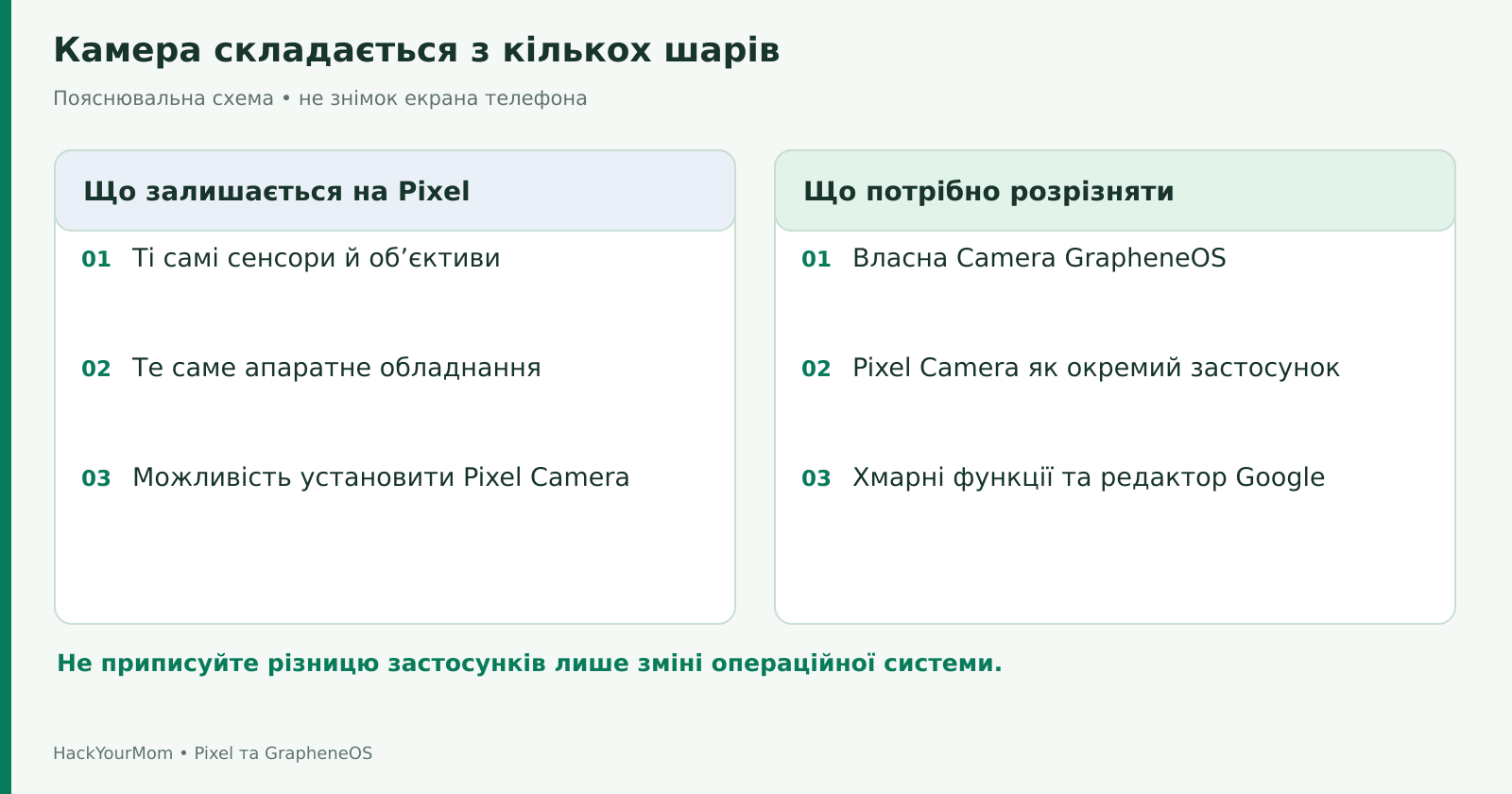
Switching to GrapheneOS does not change the Pixel’s camera sensors or lenses. However, the final result also depends on the app, image-processing algorithms, and shooting mode. This means that a simple “before and after” photo comparison without specifying the app may actually be comparing two camera apps rather than two operating systems.
GrapheneOS includes its own Camera app, with an emphasis on privacy and straightforward use. At the same time, Pixel Camera can be installed on GrapheneOS. According to the official documentation, it can use the available cameras and hardware image processing, and it does not require GSF or Sandboxed Google Play to function. This disproves the common claim that switching to GrapheneOS automatically means losing access to Pixel Camera.
However, the camera app, Google Photos, editing tools, cloud-based processing, and system integrations are separate things. The fact that Pixel Camera works does not mean that every Google Photos feature or every new Pixel camera mode will also work without additional components or an internet connection. You need to test the specific features you actually rely on.
Metadata is another important point. GrapheneOS’s own Camera app removes some EXIF metadata from photos by default, but this behavior should not be assumed to apply to every video or image created by other apps. If the user manually enables location tagging, that also changes the result. The behavior of both camera apps is described in the official guide.
Without photos of the same scene taken with the same app and the same shooting mode, there is no solid basis for assigning a percentage advantage in image quality. The stock system has the advantage of ready-made integration, while GrapheneOS gives users more choice over which camera app to use, though some compatibility checks need to be done manually.
People buy a stock Pixel for more than just its hardware specifications. Some rely on call-related features, others on convenient photo editing, voice capabilities, or Gemini integrations. Some of these features depend on individual apps, while others rely on system services, the phone model, language, country, or subscription.
GrapheneOS is not designed to replicate the entire consumer feature set of a Pixel. A particular Google app may install and work, but that does not guarantee access to all of its system-level integrations. For example, opening an assistant’s chat interface and allowing that assistant to control phone functions are two different capabilities. The limitations of privileged integrations are explained in the Sandboxed Google Play guide.
Before switching, it is useful to write down the names of five Pixel features you use every week. Those are the features you should test, rather than asking the broad question, “Does Google work?” If a key convenience depends on stock system integration, staying with the factory software may be a perfectly reasonable choice.
The term “on-device AI” also does not remove the need to check how a feature actually works. One action may be processed locally on the device, while another may send a request to the cloud. The operating system, the app, and the specific feature can each determine a different part of that process. Simply installing GrapheneOS does not change the policy of an online service.
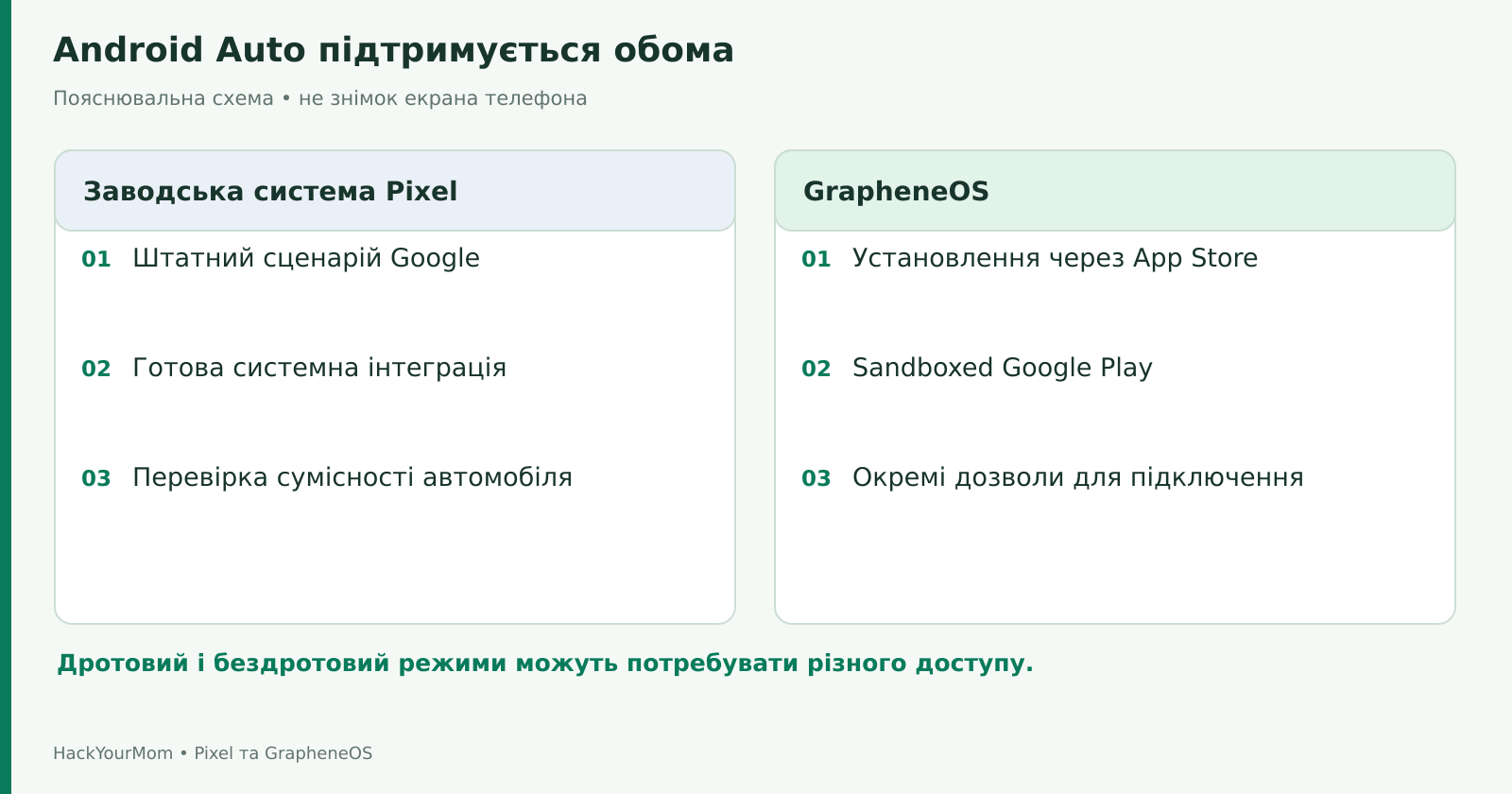
Android Auto is supported on GrapheneOS, but it is installed through the GrapheneOS App Store and requires separate permissions. The system uses extensions to its compatibility layer to provide the necessary access. Wired mode generally requires fewer privileges than wireless mode, although some vehicles may still require wireless-mode permissions even when connected by cable.
On a stock Pixel, users get Google’s standard integrated experience. On GrapheneOS, users deliberately enable the capabilities they need and separately test notifications, calls, and navigation. Simply connecting the phone with a cable does not prove that every feature works. The setup process is described in the Android Auto section.
The same approach applies to smartwatches, digital car keys, and other accessories. A basic Bluetooth connection is not the same as full proprietary integration. Headphones may play audio normally while a separate feature in their companion app requires additional components. A successful test with one accessory should not be treated as proof that every device from the same brand will work identically.
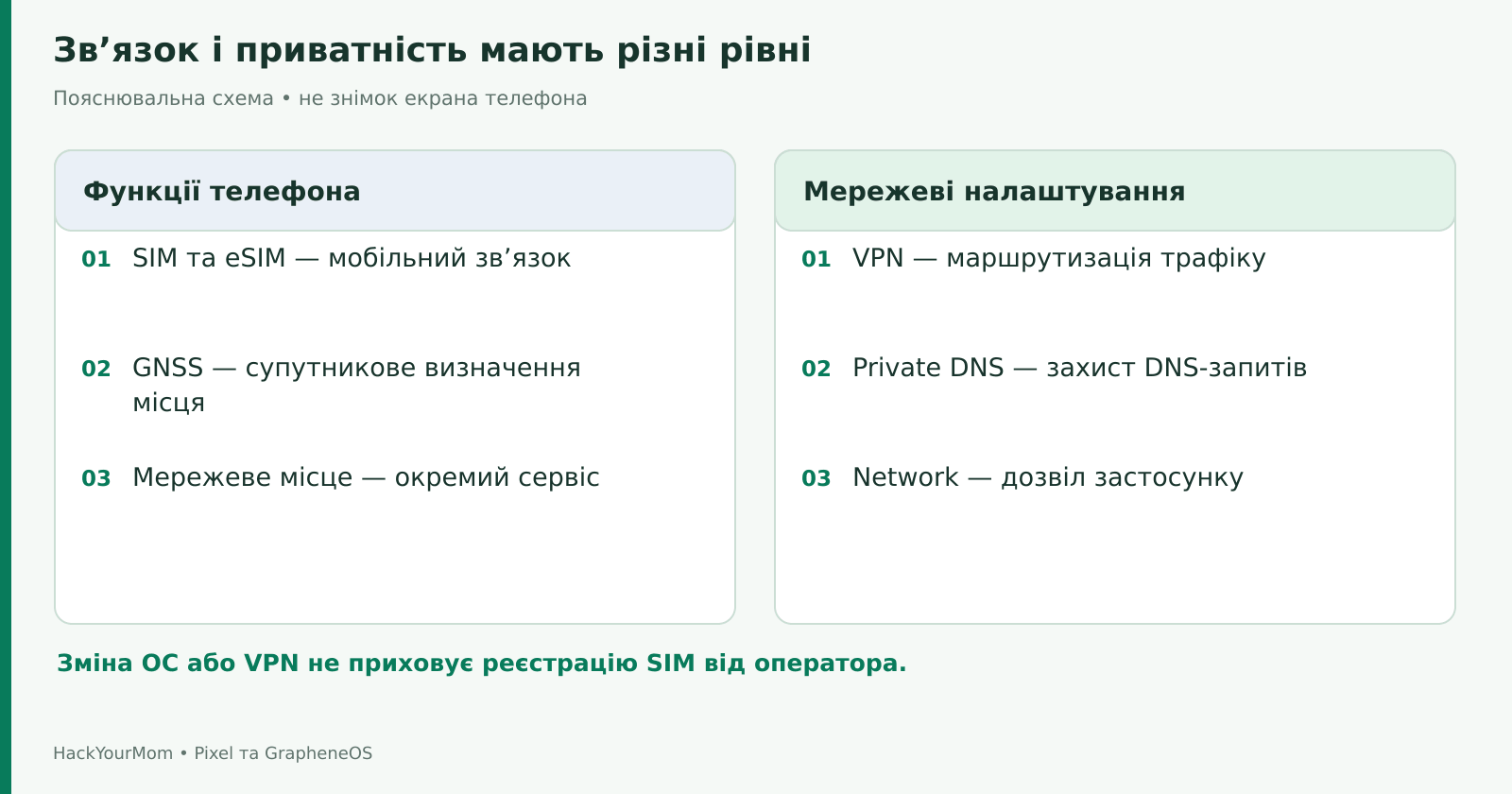
GrapheneOS supports standard phone functions and uses carrier configurations derived from the stock system. However, features such as VoLTE, Wi-Fi Calling, visual voicemail, and other carrier-specific services also depend on the mobile operator and region. You cannot judge overall connectivity simply by whether mobile data works. After switching, you should test incoming and outgoing calls, SMS, and any additional carrier features you rely on. The carrier functionality section explains the relevant limitations.
eSIM support does not require installing the full Google Play stack. To add and manage eSIM profiles, GrapheneOS provides a separate eSIM support toggle that enables the required proprietary functionality. This is a good example of why “without Google Play” does not mean “without any proprietary components.” On a stock Pixel, the same capability is integrated into the standard setup flow. The eSIM documentation explains the details and includes important notes about the SIM PIN.
For location services, both systems use the phone’s built-in capabilities, including satellite positioning. GrapheneOS also provides its own optional network location service and, by default, redirects typical Google Play location requests to the system implementation. According to the current documentation, the network location provider can use Apple’s service either directly or through a GrapheneOS proxy. This is not a fully self-contained database of all nearby access points. The network location documentation distinguishes currently available functionality from future development plans.
VPN and Private DNS are available on both systems. GrapheneOS adds protection against specific leak paths when the option to block connections outside the VPN is enabled. However, a VPN does not become automatically installed or configured after switching systems. VPN settings may also be se
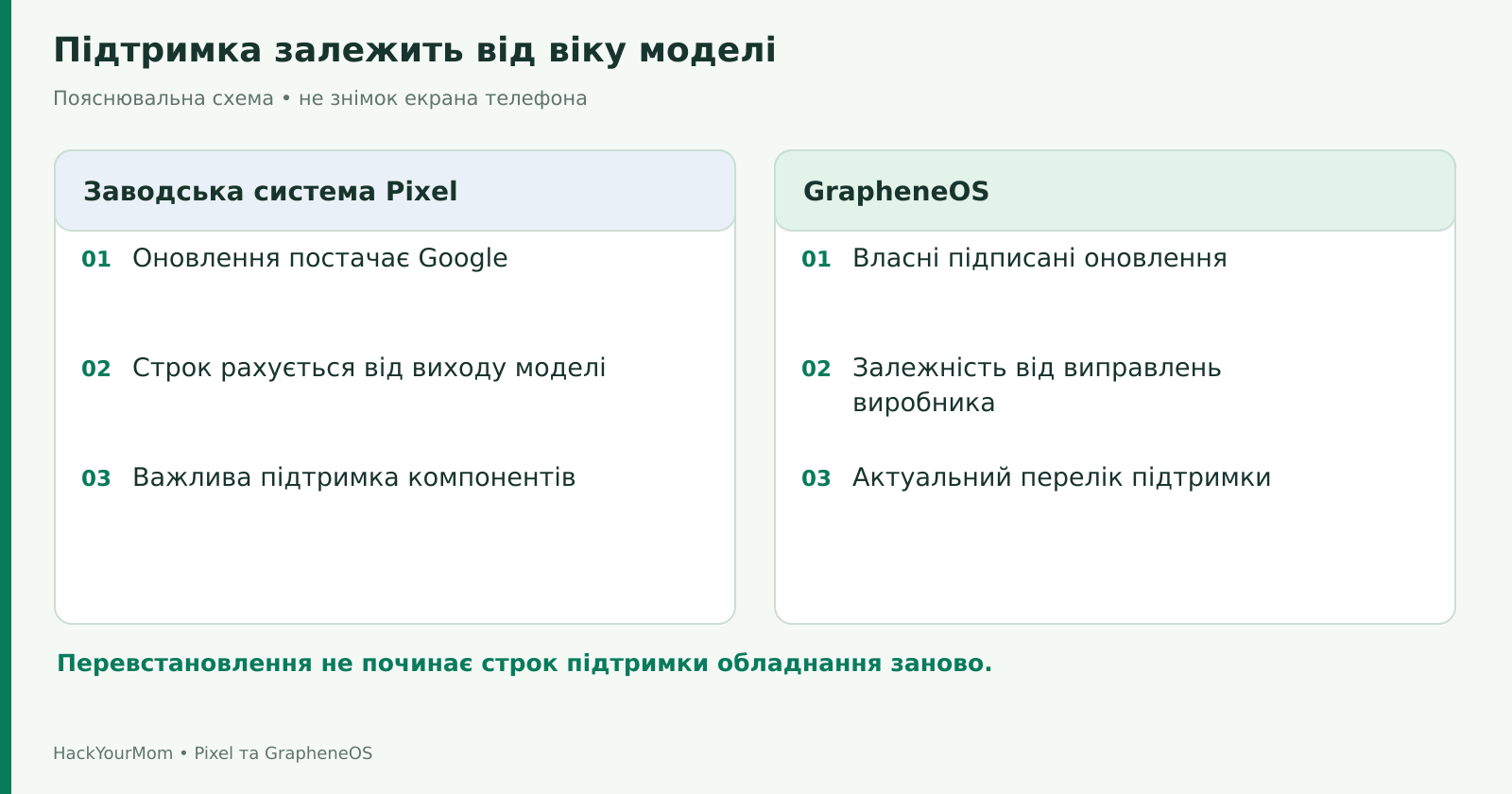
For stock Pixel 8 models and newer, Google promises seven years of operating system and security updates starting from when the device first becomes available in the Google Store in the United States. This period does not begin on the day you purchase the phone. The current terms are listed in the Pixel update policy. Buying an older model at a discount does not reset its support period.
GrapheneOS delivers its own signed updates, including AOSP changes, required device-specific components, and its own improvements. Updates are installed automatically; once the initial installation is complete, there is no need to use the Web Installer again for every update. In normal use, users should keep automatic updates enabled and reboot the phone when required.
Full support also depends on the manufacturers of the device’s hardware components. An alternative operating system cannot indefinitely replace missing firmware fixes for the modem and other proprietary components. Extended or partial support should not be treated as equivalent to receiving the full set of current security patches. The exact status of each device should be checked in the GrapheneOS supported devices list.
Update speed should not be judged solely by the Android version number or a single security patch level entry. What matters is the content of the specific build, its release date, and the accompanying release notes. An older example from the documentation showing GrapheneOS being ahead on a particular kernel update does not prove that every future build will always stay ahead of Google by the same amount of time.
GrapheneOS includes Vanadium, a Chromium-based browser with additional security hardening. It also provides the system WebView used by other apps to display web content. This means keeping Vanadium updated is important even for users who choose a different browser as their primary one.
A stock Pixel comes with the familiar integration of Chrome and Google services. For users who rely on Chrome synchronization across multiple devices, this may be more convenient. At the same time, changing your default browser does not automatically change the browser component used inside every other app. The role of Vanadium is explained in the official guide.
Incognito mode does not hide your IP address, and a hardened browser cannot stop you from voluntarily entering a password on a phishing site. The source of a file remains just as important when opening documents or installing APKs. A hardened PDF viewer or sandboxed process can reduce certain risks, but it cannot verify whether the information inside a document is genuine.
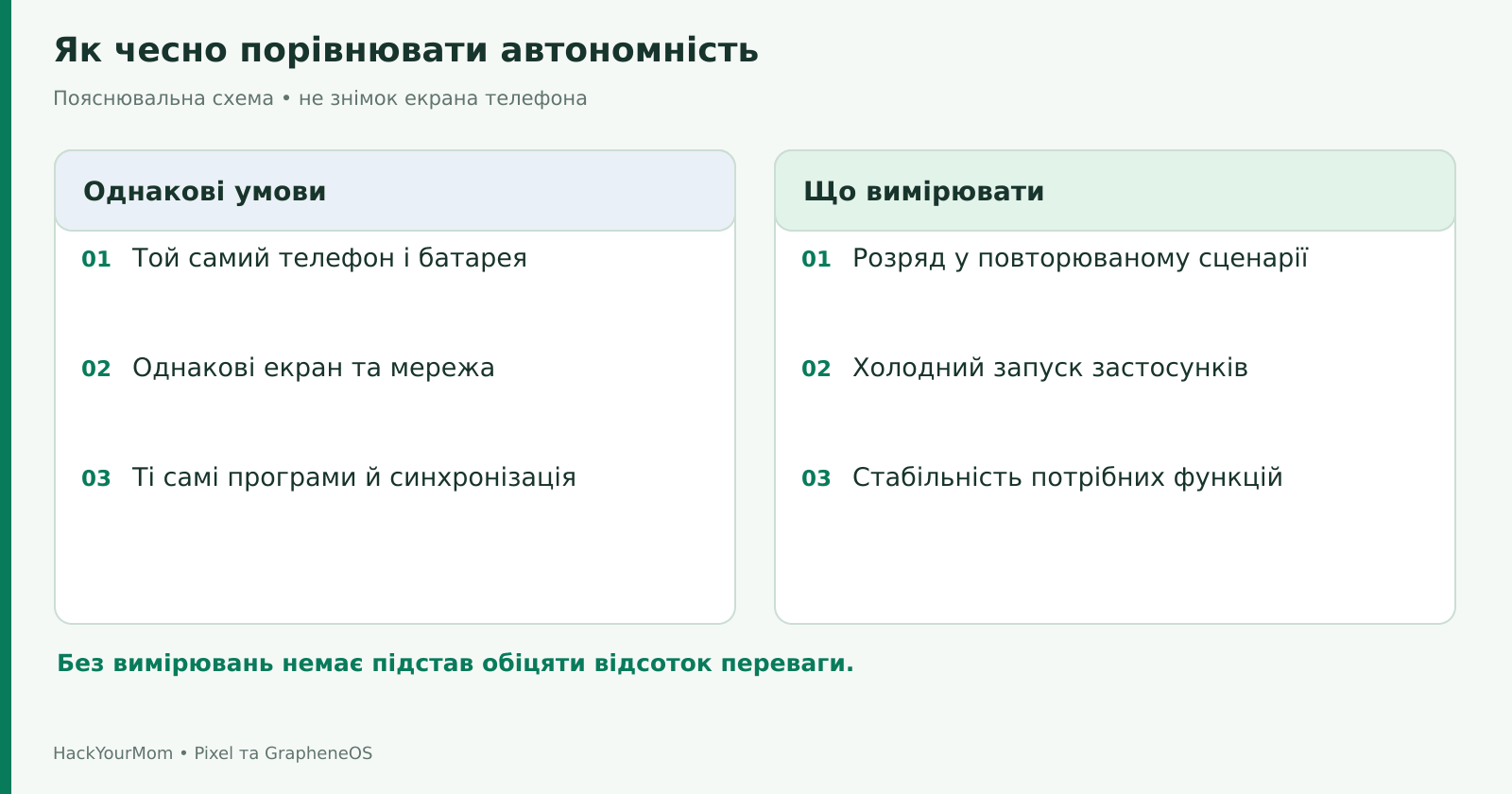
Without controlled testing, it would be misleading to claim that GrapheneOS lasts a specific percentage longer on battery or runs a specific percentage faster. If you compare a stock Pixel with dozens of active sync tasks against a fresh GrapheneOS installation with almost no apps, the biggest difference will be the workload itself. Network conditions, screen brightness, user profiles, VPN usage, background activity, and battery health can all affect the result.
Additional security also comes with trade-offs. For example, GrapheneOS’s hardened method of launching apps can increase cold-start times and initial memory usage. This does not mean that an app remains permanently slower once it is already running. The developers explain this trade-off separately in the Secure app spawning section.
Running without Google Play does not automatically guarantee better battery life. If several apps instead maintain their own persistent background connections, the result will depend on how those apps are implemented. On the other hand, a less heavily loaded system may consume fewer resources simply because fewer background tasks are running. That is a property of a specific configuration, not a universal characteristic of one operating system.
A meaningful comparison requires the same Pixel, the same apps, the same brightness, the same connectivity mode, and the same usage pattern. After the initial setup and synchronization, the system should be given time to finish background operations. Do not draw conclusions from the first few hours after installation or from a single unusually fast battery drain.
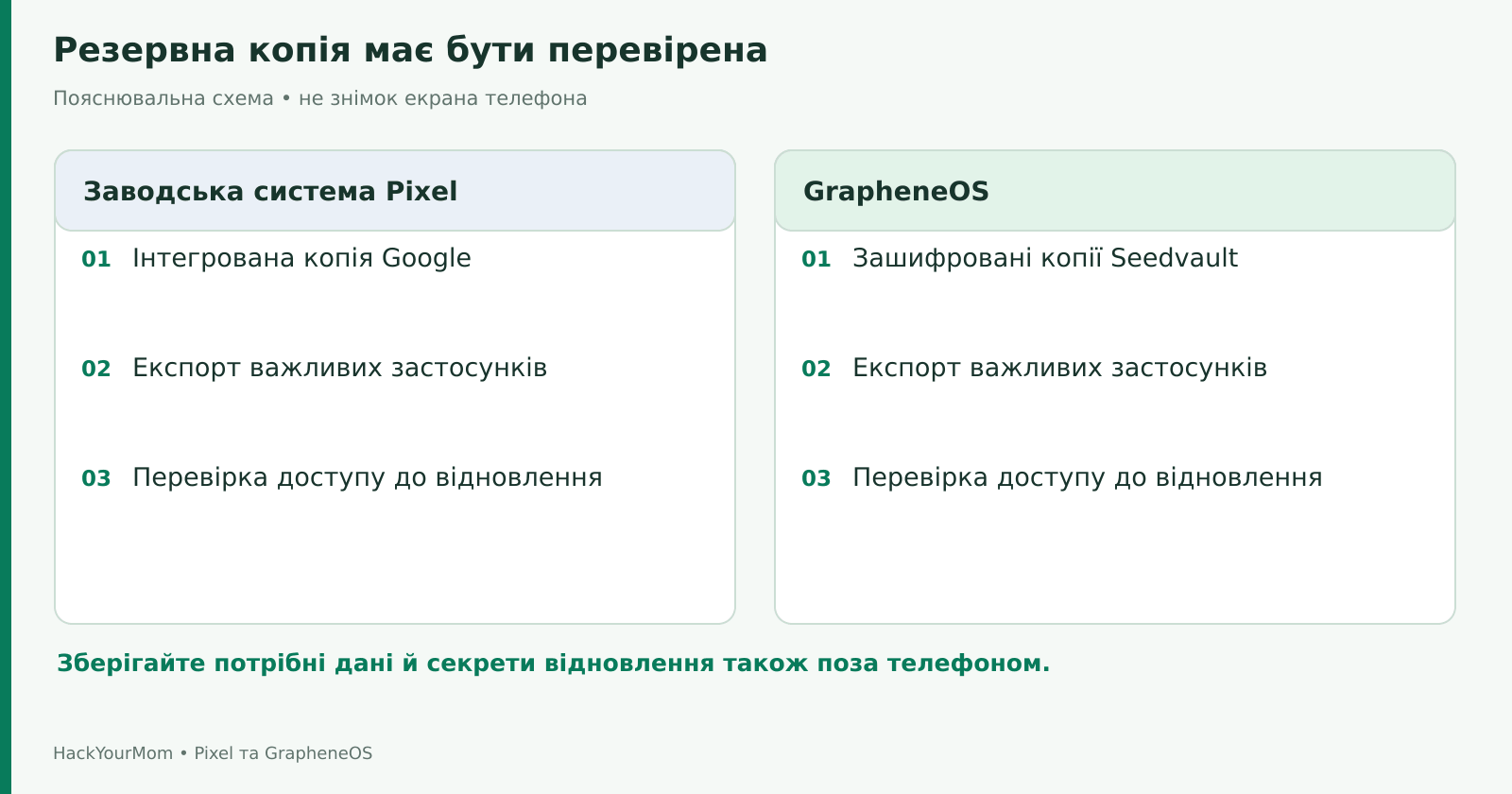
A stock Pixel offers integrated backups through your Google Account. This is convenient when moving between compatible devices, but it is not a complete copy of everything on your phone. Google separately explains which data is included and the limitations of restoring it in the Pixel backup help documentation.
GrapheneOS integrates Seedvault for encrypted backups. It supports local storage as well as compatible storage providers. This provides a different way to organize backups, but it does not guarantee that the internal data of every app can be restored. You should review backup results and use the built-in export options of important apps where available. The current integration is described in the GrapheneOS feature overview.
You should not assume that a Google system backup will fully restore onto GrapheneOS, or that a Seedvault backup will automatically transfer everything back to the stock system. Photos, documents, contacts, chats, and recovery codes are best checked separately by category. Password managers and two-factor authentication apps should have their own reliable recovery method that does not depend on this particular Pixel.
A backup stored only in the phone’s internal memory does not protect you if the device is lost or wiped during reinstallation. Open a few backed-up files on another device, verify that you can still access your accounts, and store recovery secrets separately. Do not publish eSIM QR codes or backup codes in screenshots, illustrations, or support requests.
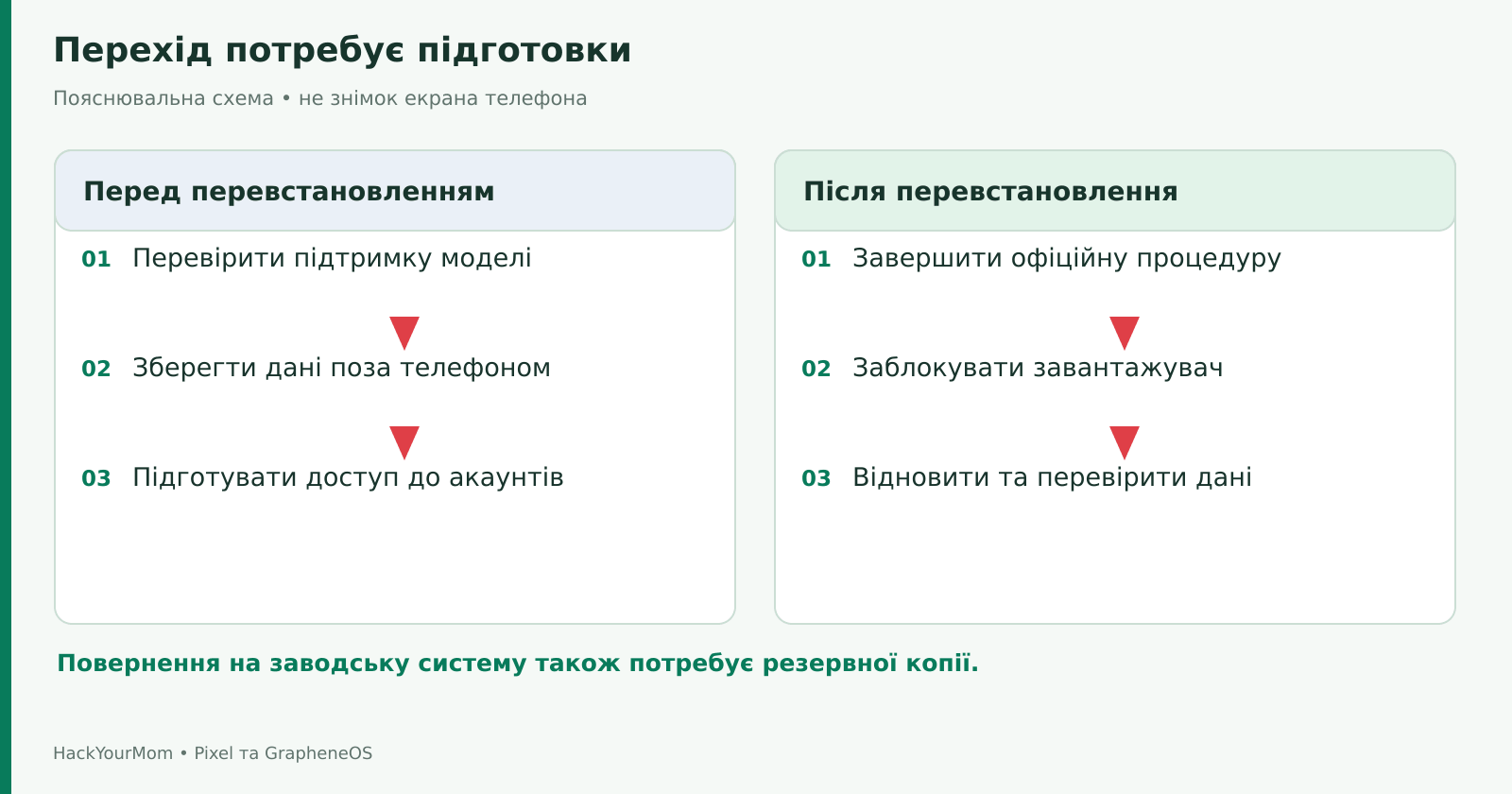
GrapheneOS is not installed over the stock system like a regular app. Switching requires reinstalling the operating system and wiping the device. A compatible Pixel must support OEM unlocking; carrier SIM unlocking and bootloader unlocking are two different things. If you are buying a phone specifically for GrapheneOS, you should check the exact device variant rather than relying only on the model name.
After installation, the bootloader should be locked again according to the official procedure. GrapheneOS does not require root access for normal use. Leaving the bootloader unlocked means the installation is incomplete; it is not an inherent requirement of running an alternative operating system. The official Web Installer should be used as the primary reference.
Returning to the stock system is possible, but it is also a reinstallation process rather than an undo button that automatically preserves all your data. You need a current official image, the correct procedure, and a verified backup. Do not relock the bootloader at random before a compatible signed operating system has been fully installed. The process is explained in the section on replacing GrapheneOS with another operating system.
Once GrapheneOS is installed correctly, everyday use can be completely normal: updates, calls, and apps work as usual. The extra time commitment mainly comes from handling compatibility, managing profiles, and organizing your own backup strategy. There is no reason to reflash the phone every day, constantly wipe everything, or disable system components simply because their names are unfamiliar.
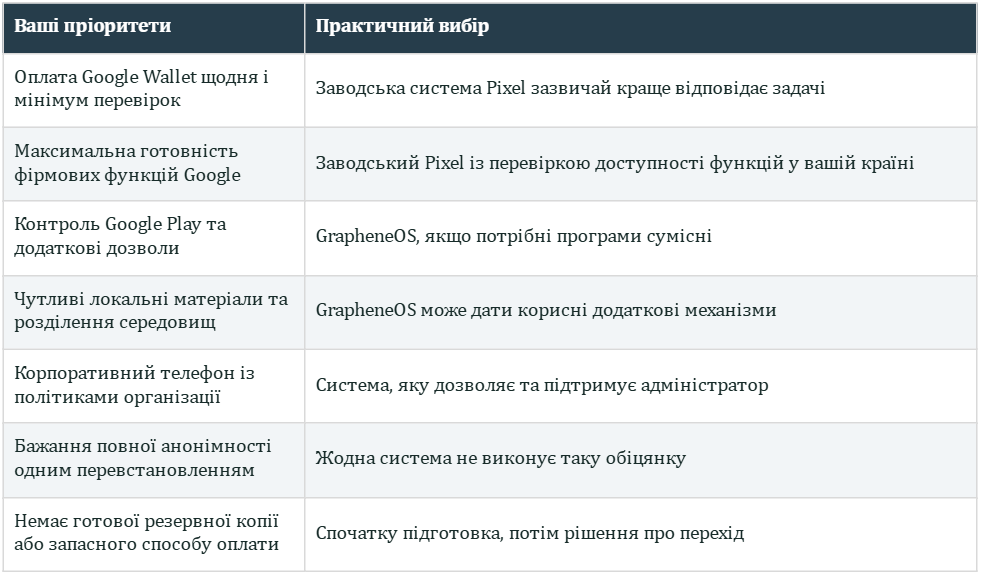
For a journalist, researcher, or anyone working with sensitive material, the additional protections offered by GrapheneOS can be valuable. But a person’s profession alone does not determine the right choice. What matters is which data needs to be protected, what threats you are trying to address, and which phone features you cannot afford to lose. On a corporate device, organizational policies and device-management compatibility are also important factors.
For someone who simply wants a ready-to-use Pixel with familiar Google services, the stock system is a fully valid choice. It can still be used responsibly by keeping it updated, limiting permissions, securing the account, and maintaining backups. The existence of GrapheneOS does not make every other option unacceptable.
If you decide to switch, start with a list of the scenarios you cannot do without. Test banking, payments, work access, messaging, navigation, the camera, and in-car use separately. An acceptable result does not mean having zero compromises. It means understanding exactly which compromises you are willing to accept.
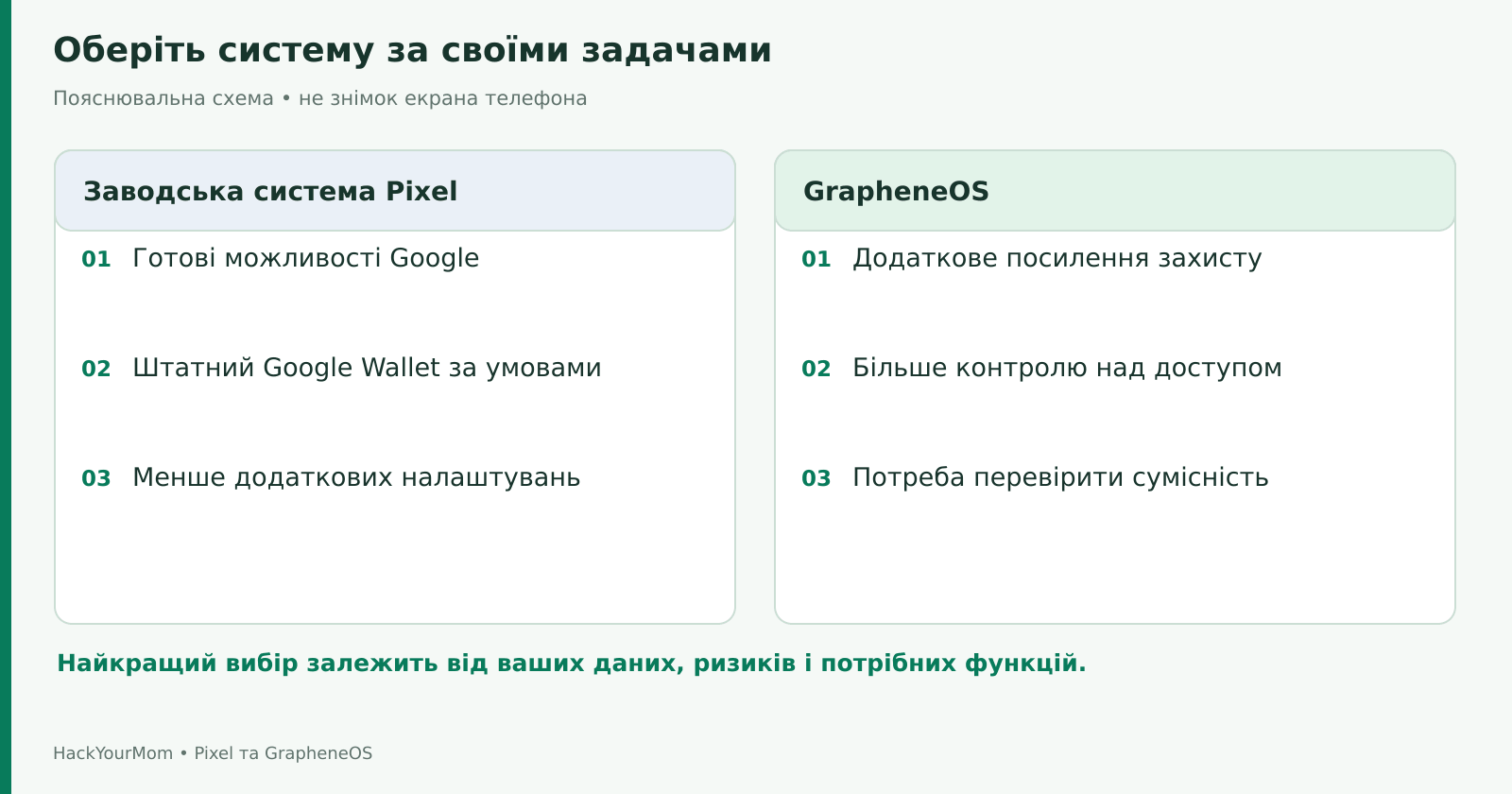
The main advantage of a stock Pixel is Google’s tightly integrated ecosystem, with ready-to-use services and the fewest extra requirements for typical consumer features. For users who want greater control, the most noticeable trade-off is the privileged integration of Google components and the absence of some of the additional controls and protections available in GrapheneOS.
GrapheneOS offers stronger security hardening, optional Sandboxed Google Play, and more granular control over certain types of access. Its main trade-offs include a reinstall process that wipes existing data, incompatibility with some services, limitations around Google Wallet, and the need to personally verify important integrations and recovery options.
The right choice depends on your specific needs. If GrapheneOS addresses real problems for you and the apps you rely on pass your compatibility checks, switching can make sense. If your main priority is keeping the full familiar Pixel experience with as little additional setup as possible, the stock system may be the better fit for you.