

16.01.2026
4 min
902



How does your browser store, encrypt, and autofill passwords? We explore Chrome, Firefox, and Safari, cross-device synchronization, and when to choose a dedicated password manager.
Your browser can autofill a password you haven’t seen in six months. The process behind it is simpler than it seems: the password manager finds the matching entry for the website, decrypts it, and fills in the login form. We explain where that information is stored, how it gets transferred to a new laptop, and what happens if someone else gains access to your device.
When you click “Save,” the password manager creates an entry containing at least the website address, username, and password. On your computer, this information may be stored in browser profile files or the operating system’s secure storage, depending on the browser. If account-based password storage or synchronization is enabled, the service also stores the relevant data on its servers. That’s why reinstalling a browser sometimes restores all your passwords, while other times you’re left with an empty list.

Where Different Browsers Store Passwords and How They Sync
| Browser | On a computer | Between devices |
| Chrome | On the desktop, it uses databases located within the profile, specifically *Login Data*. On Windows, Chromium utilizes App-Bound Encryption. On macOS, the encryption key is stored in the system Keychain. | Passwords can be stored in your Google Account. Specific protection modes are available, including a custom passphrase for encrypting Chrome data. |
| Firefox | In the profile directory, `logins.json` contains encrypted logins and passwords, while `key4.db` contains the key. The Firefox Primary Password adds protection to this key. | Firefox Sync uses end-to-end encryption. The Primary Password protects the local profile and is set separately on each device. |
| Safari на Mac | Safari works with the system Keychain. On modern versions of macOS, saved credentials can be viewed in the Passwords app. | iCloud Keychain synchronizes credentials across approved devices using end-to-end encryption. |
You can find the path to your Chrome profile by opening chrome://version and looking for the “Profile Path” field. This method is described in the official Chromium documentation. In Firefox, simply open about:support and look for “Profile Folder,” as explained in Mozilla’s support documentation. This helps explain why two browser profiles on the same computer may have different lists of saved logins. To view and edit the credentials themselves, it’s more convenient to use the built-in password manager. For example, Apple devices have a dedicated Passwords app for this purpose.
A browser needs to retrieve the original password; otherwise, it would have nothing to enter into the login form. That’s why password managers store passwords in encrypted form, allowing them to be decrypted when the appropriate key is available. A website’s server, on the other hand, doesn’t need to know the original password. It only needs to verify whether the entered password is correct. This is why OWASP recommends using password hashing algorithms designed to resist brute-force attacks, combined with a unique salt, such as Argon2id. As a result, reports of leaked passwords don’t always mean the same thing. If attackers steal password hashes from a server, they still need to crack them to recover the original passwords. However, access to an unlocked browser password vault may, under certain circumstances, allow attackers to obtain usable login credentials directly.
Equally important is where the encryption key is stored. In modern versions of Chrome for Windows, App-Bound Encryption ties key protection to the browser, making it harder for other applications to access the key. On macOS, Chrome stores encrypted password records in the browser profile, while the encryption key is protected by the system Keychain. This means Chrome and Safari on the same Mac may both rely on Keychain mechanisms while storing their actual passwords differently. These security mechanisms are explained in more detail in Chromium’s security documentation. Firefox offers an additional layer of protection through its Primary Password feature, which protects access to the encryption key stored in key4.db. You can configure it by following Mozilla’s official instructions. This becomes particularly important if someone obtains a copy of your entire browser profile. A system PIN or biometric authentication prompt before revealing a password can also provide an additional barrier, although interface-level authentication and file encryption serve different purposes.
However, even a well-protected password vault can become vulnerable during password migration. For example, Chrome allows users to export saved credentials to a CSV file, where usernames and passwords are stored in plain text. It’s easy to forget such a file in the Downloads folder, accidentally attach it to an email, or save it in a directory that automatically syncs with cloud storage. After successfully importing your passwords, delete the CSV file. If it has already been uploaded to the cloud, check for synchronized copies and previous file versions as well.
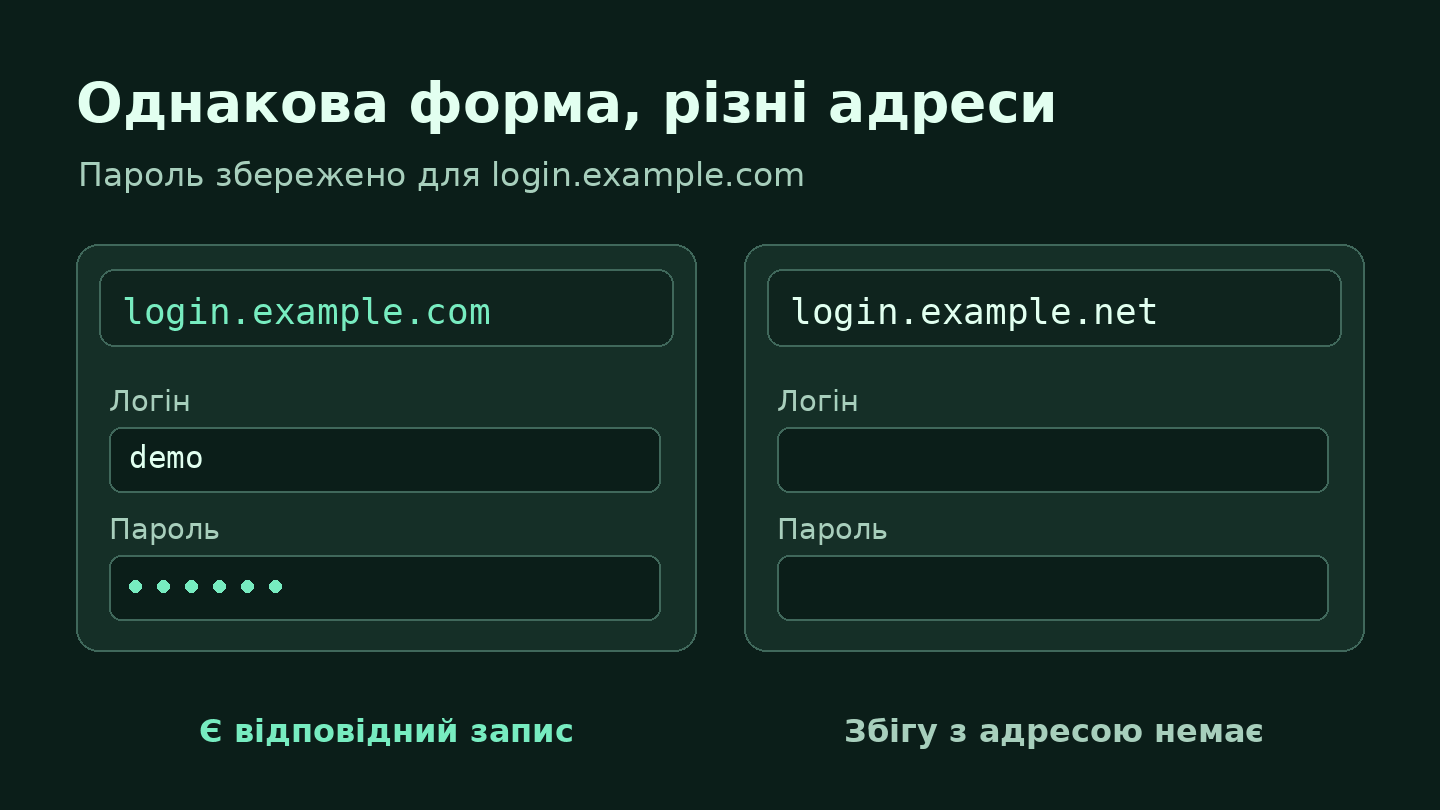
The browser identifies the address of the website you’re visiting and searches your saved credentials for matching entries. It then analyzes the login form to identify the username and password fields. Website developers can make this process easier by using HTML attributes. For example, autocomplete="current-password" tells the browser that a field is intended for entering an existing password. This mechanism is explained in more detail in the MDN Web Docs documentation. If multiple accounts are saved for the same website, the password manager may prompt you to choose one. When authentication takes place in two steps, only the username field may appear initially. However, autofill doesn’t always work as expected: its behavior depends on the website’s structure, browser settings, and the password manager itself. The Google Chrome Help Center explains why browsers sometimes fail to recognize login fields or suggest saved passwords.
Imagine two nearly identical login pages. The first is located at login.example.com, while the second is at login.example.net. If your password is saved for the first website, the visual similarity of the second page doesn’t mean the password manager will suggest the same credentials there. Password managers use URL matching rules that may account for subdomains, associated websites, and other parameters. For example, Bitwarden allows users to configure different URL matching methods, ranging from base domain matching to exact URL matching. So, if your usual login credentials suddenly don’t appear after following a link from an email or messaging app, it’s worth checking the website address carefully. However, the absence of autofill doesn’t automatically indicate phishing: the website may have changed its login form, you may be using a different browser profile, or autofill suggestions may simply be disabled.
Autofill becomes particularly useful when your password manager generates a long, unique password for every website. You don’t need to memorize it, type it manually, or repeatedly copy it through the clipboard. Moreover, if one service is compromised, attackers won’t automatically obtain a password they can use to access your other accounts. Passkeys take this concept even further. This technology, actively promoted by the FIDO Alliance, uses a cryptographic key pair instead of sending a password to the server. The private key remains under the user’s control, while the website verifies a digital signature using the public key. This mechanism is bound to the legitimate service’s domain, meaning a fake login page on an unrelated domain cannot simply trick users into entering the same secret into a conventional login form.
Password changes also deserve special attention. When you click “Change Password,” a website may ask for your current password to verify your identity, while your password manager may offer to generate a new one. After successfully changing your password, make sure the vault has updated the entry for the correct account. Otherwise, the next time you log in, your browser may autofill an outdated password that the website no longer accepts. The Google Password Manager settings also allow you to manage automatic sign-in, password saving, and other preferences. For example, disabling automatic sign-in lets you keep autofill enabled while requiring manual confirmation before signing in.
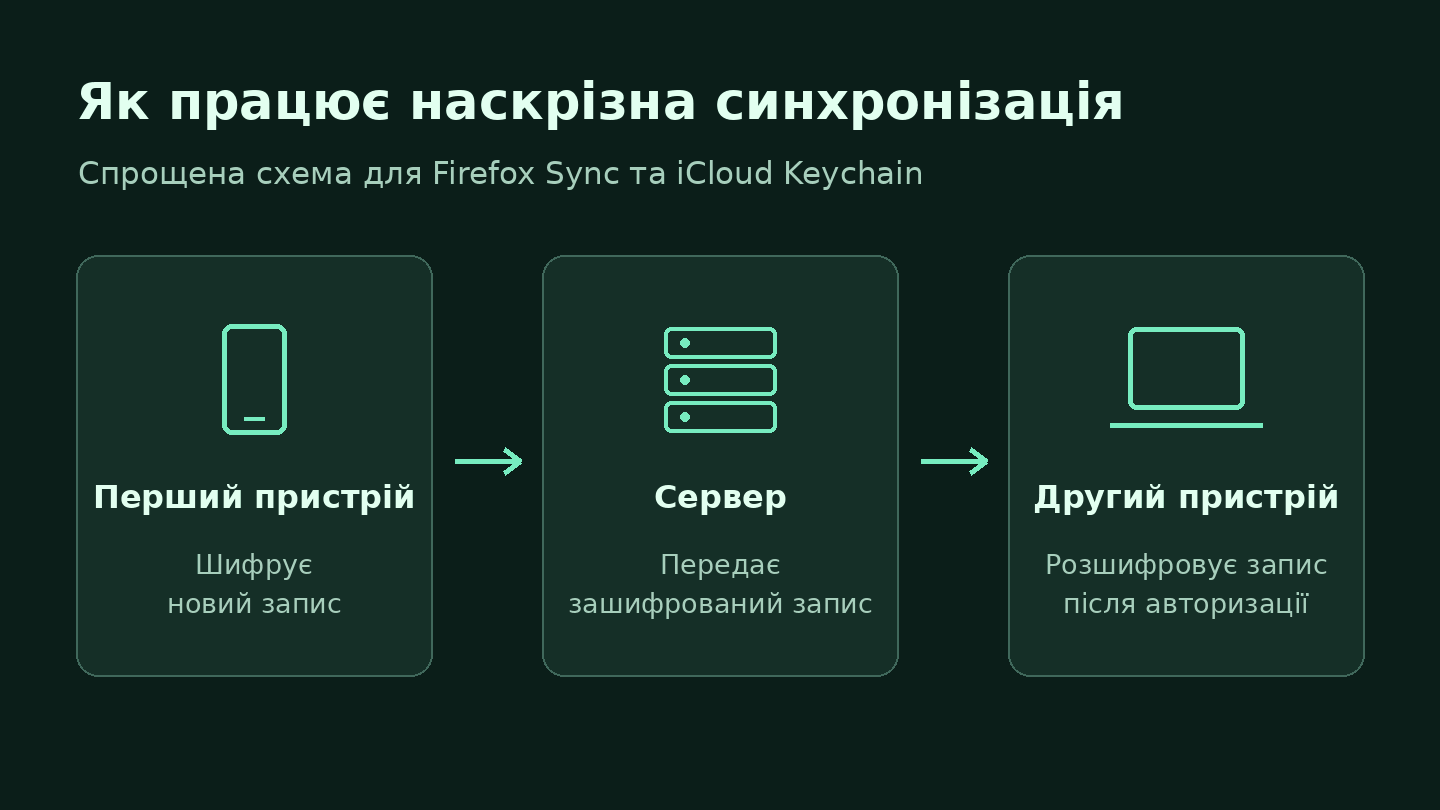
Imagine you’ve saved your email password on your phone. If synchronization is enabled or the password is stored in your account, it may also become available on another device once you’ve signed in and gained access to the password vault. However, it’s important to understand who can actually decrypt the data stored on the server. HTTPS protects information while it’s being transmitted over the network, while end-to-end encryption provides an additional layer of security: the server receives encrypted data that it cannot decrypt on its own without the appropriate key. This distinction becomes particularly important when you lose your smartphone or computer and need to recover access to your saved passwords.
In Chrome, passwords can be stored locally or in your Google Account. Several encryption mechanisms are available for additional protection. For example, Google Password Manager supports on-device encryption, which keeps decryption keys under the user’s control. Depending on the setup, you can access your passwords using your Google Account password or the screen lock of a compatible mobile device. Chrome also allows you to create a custom passphrase to encrypt synchronized data. In this case, you’ll need to know the passphrase to access that data on a new device, and viewing saved passwords through passwords.google.com becomes unavailable. If you reset the encryption passphrase, the data protected by it is deleted from Google’s servers, so it’s important to make sure you won’t lose any passwords you still need before proceeding.
In Firefox and Safari, end-to-end encryption is used by Firefox Sync and iCloud Keychain, respectively. This means synchronized passwords are protected by cryptographic keys required to decrypt them. However, their account recovery mechanisms differ. For example, Mozilla warns about the risk of losing synchronized data if you reset your account password without having previously created a recovery key. With Apple, accessing iCloud Keychain on a new device also involves additional verification procedures associated with trusted devices and account security. As explained in Apple’s iCloud Keychain security documentation, the system uses end-to-end encryption to protect passwords even while they’re stored in the cloud. That’s why, before resetting a password, switching devices, or wiping an old laptop, you should make sure all necessary recovery methods are available.
It’s also important not to confuse synchronization with backup. Synchronization is primarily designed to keep your password vault up to date across all connected devices, rather than maintain an independent backup of every password. If you accidentally delete a saved login from your password manager, that change may also be synchronized across your other devices. Therefore, when switching to a new password manager, first make sure all your passwords have been transferred successfully, test several important entries on another device, and understand how to recover access to the new vault. Only then should you clear your old browser profile to reduce the risk of losing access to your accounts.

There is no simple answer to the question, “Can someone steal all my passwords?” It depends on what exactly an attacker has gained access to. A powered-off laptop, an unlocked browser, and a compromised synchronization account pose different risks, which means they also require different security measures.
1. Someone stole your powered-off laptop. In this situation, disk encryption becomes one of the main lines of defense. For example, Microsoft BitLocker on Windows and Apple FileVault on Mac protect data against unauthorized access while the disk is properly locked. Even if an attacker physically removes the storage drive and connects it to another computer, accessing its contents without the decryption key becomes significantly more difficult. This also matters for browser profiles, since encrypting individual passwords doesn’t necessarily mean that every other file in the profile is equally protected.
2. Someone gains access to your unlocked computer. This scenario is considerably more dangerous because your email, social media accounts, or website administration panels may already be open. Even if your password manager requires a PIN or biometric verification before displaying a saved password, that doesn’t necessarily protect an active session in another browser tab. Someone could access your account without ever seeing the password itself. That’s why locking your screen whenever you step away from your computer remains one of the simplest and most effective security measures.
3. Attackers compromise your synchronization account. The consequences depend on how your password vault is protected and whether access to the account alone is enough to retrieve your passwords. Some password managers additionally require a separate encryption passphrase, recovery key, or verification through a trusted device. An account that synchronizes dozens or hundreds of logins therefore deserves particularly strong protection. The most important precautions include enabling two-factor authentication, using a strong and unique password, and setting up reliable account recovery methods in advance.
4. An infostealer infects your computer. This is one of the most dangerous scenarios because this type of malware can steal not only saved passwords but also session cookies. These cookies allow websites to recognize users after authentication, meaning that stealing a valid session may sometimes let attackers bypass the need to enter a password or one-time verification code again. As OWASP security experts explain in their guidance on mitigating cookie theft, such attacks require additional protective measures because conventional two-factor authentication doesn’t always prevent attackers from exploiting an already stolen session. If you suspect an infection, use a clean device to terminate suspicious active sessions, revoke access for unknown devices, and change the passwords for your most important accounts, starting with your primary email. The infected computer itself must also be cleaned of malware or have its operating system reinstalled; otherwise, your new passwords could be compromised as well.
Google Password Manager, Firefox’s built-in password manager, and Apple Passwords already offer everything you need for everyday password management: they store login credentials, suggest them during sign-in, and help generate unique passwords for different websites. If you primarily use one browser or Apple devices, these features may be more than enough. What matters most isn’t which password manager you use, but how you use it. Even the most secure password vault won’t protect you if you reuse the same password for your email, social media, and banking services.
– Bitwarden or 1Password are particularly useful for people who work across multiple operating systems and browsers. For example, you might use Windows and Firefox at work, a Mac at home, and a completely different browser on your smartphone. A dedicated password manager lets you access the same vault regardless of your browser profile and autofill passwords across different applications. Bitwarden uses a master password as one of its primary vault protection mechanisms, while 1Password adds an additional Secret Key that works alongside your account password to encrypt your data. This approach creates an additional barrier for attackers, even if they obtain an encrypted copy of your vault from the provider’s servers.
– KeePass is a good choice for users who want complete control over where their passwords are stored without relying on a specific provider’s cloud synchronization service. The application uses an encrypted database in the .kdbx format, whose technical structure is described in the official KeePass documentation. You can store this file exclusively on your computer, transfer it using an external drive, or set up synchronization between devices yourself. However, greater control also means greater responsibility: you’ll need to manage backups, protect your encryption keys, and plan for data recovery. If your only database file is lost or corrupted and you have no backup, recovering your passwords may be impossible.
If you manage a website or work with a team of editors, it’s also important to consider how your password manager handles shared access. A personal email password and credentials for a shared website administration panel should be managed differently. For example, Bitwarden allows you to create separate collections for teams, share credentials with employees, and manage access permissions. This is particularly useful when a new editor joins a project or someone leaves the team. However, if the website itself supports individual accounts with assigned roles, it’s better to give each employee their own login. This allows you to adjust permissions without sharing a common password and makes it easier to track user activity.
So, can you trust your browser with your passwords? Yes, provided you’re using a personal, up-to-date device, protecting it with a screen lock, and securing your synchronization account.
For most everyday tasks, a built-in password manager is perfectly sufficient. However, if you use multiple browsers, manage shared team credentials, or want direct control over your encrypted database and backups, a dedicated password manager may be a better fit. And you don’t necessarily need to switch services to improve your security. Start by opening the password manager you already use, checking for reused passwords, and changing your primary email password first if it’s weak or used elsewhere. After all, your email account is often the key to recovering access to your other accounts.