03.06.2025
17 min
2366



Screen Crab is a hardware HDMI interceptor designed for cybersecurity professionals, pentest engineers, and internal auditors. In this article, you will learn how the device works, how to configure it, where it is legally used in Ukraine, and get examples of ready-made configurations.
A lot of critical information is displayed on screens – logins, passwords, accounts, results of internal financial reports or state secrets. Because of this, screens are no less vulnerable than networks or file systems. In this context, there is a need for specialized solutions that allow you to discreetly monitor and document user visual activity.
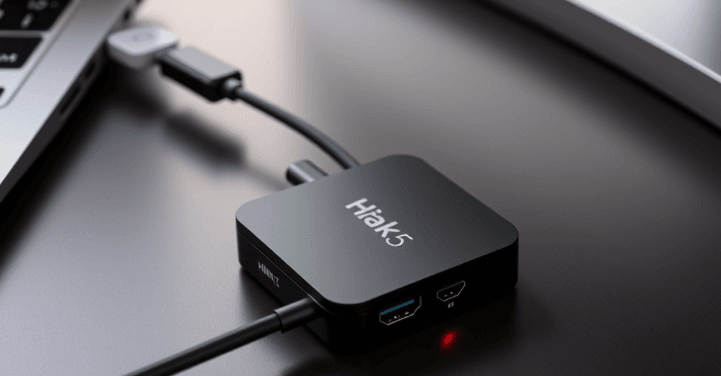
One such tool is Screen Crab from the well-known American company Hak5, which has been developing professional tools for information security, pentesting and Red Team operations for over a decade. Screen Crab is a hardware solution for discreetly intercepting the video signal between the HDMI source and the output, which can be used for monitoring, auditing, or during special checks of information systems.
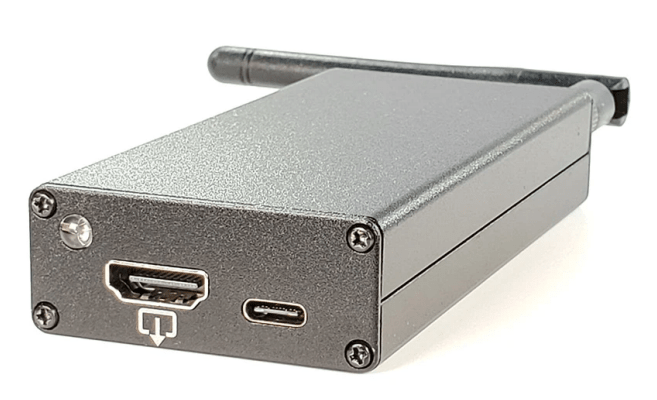
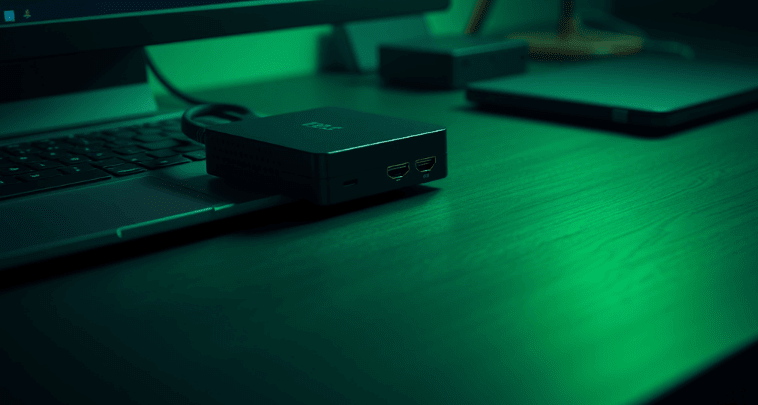
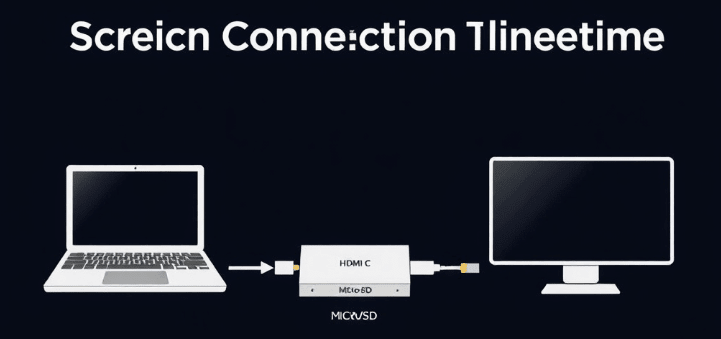
Screen Crab is a physical adapter device that is inserted between an HDMI video source (such as a laptop, media player, game console, or desktop) and a receiver (monitor, TV, projector). The uniqueness lies in the fact that the device does not cause any external changes or disturbances in the signal – the user working behind the device will not notice any changes in operation. Under the hood, it automatically captures an image from the video stream and saves it to an SD card or sends it to a remote server via Wi-Fi.
Thus, Screen Crab acts as an invisible “interframe” in the video chain, allowing a security professional to obtain real screenshots or video of the screen stream in real time. This capability is extremely valuable for detecting insider threats, confirming data leaks, or verifying the use of certain applications or systems.
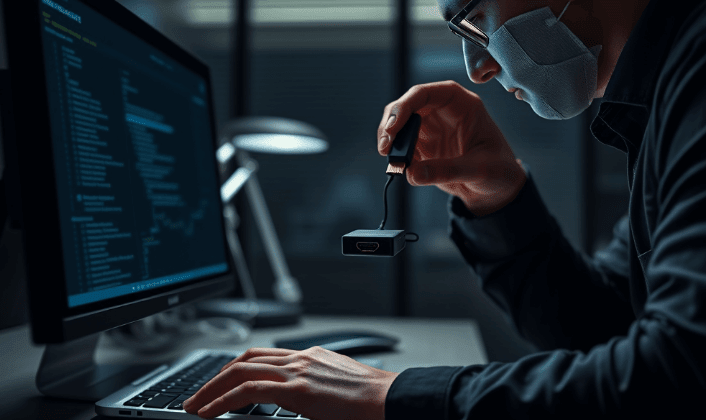
Screen Crab has an impressive set of features that make it a versatile solution for both simple audits and complex intelligence operations. The device operates over a wide temperature range, has a compact size, and does not require special software on the victim computer. This means it can be deployed in minutes without any intervention in the systems.
Main technical parameters:
Interfaces: HDMI (in/out), USB-C for power, MicroSD for storage
Wi-Fi support: 802.11 b/g/n, 2.4 GHz
Power: 5 Volts, 1 Amp (via USB-C)
Dimensions: 105 mm x 51 mm x 21 mm
Operating temperature: 35–45°C
Storage temperature: -20 to +50°C
Humidity: up to 90% non-condensing
This makes the device mobile enough for use in field or office environments without risk to hardware stability.
The process of using Screen Crab is as simple as possible so that even a beginner in the field of cybersecurity can quickly set it up. The entire logic of the device is based on a simple placement of it in the HDMI chain. You only need to connect one HDMI cable to the signal source, the second to the display. Power is supplied via USB-C, which allows you to use a regular power bank or adapter.
After that, if a MicroSD card (formatted in FAT32 or exFAT) is inserted into the device, it automatically starts taking screenshots every 5 seconds by default. No additional software is required. Images are stored on the memory card, which can then be easily viewed or analyzed manually.
Algorithm of actions:
Connect HDMI cables to source and display.
Insert a FAT32 formatted memory card.
Power via USB-C.
After booting, the LED indicator will turn blue, recording has started.
Press the button before removing the SD, the indicator will turn green.
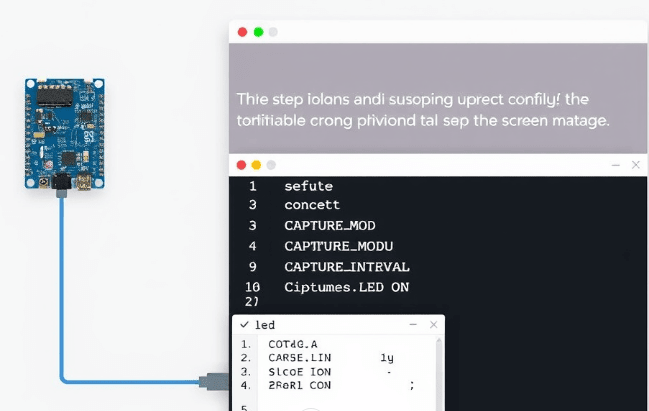
Screen Crab uses a simple but flexible configuration system via a config.txt file that is automatically created in the root directory of the MicroSD card upon first startup. This allows you to change the device settings without any special software. All parameters are written in plain text, where each line begins with a number and a keyword that indicates a specific configuration parameter.
This system allows you to configure the device according to specific scenarios: for example, change the image mode to video, enable or disable de-duplication (avoid saving identical images), configure the interval between images and the behavior of the device when the memory is full. It is also possible to control the button on the case – for safe card removal or complete disconnection of interaction.
Typical config.txt content:
1 LED ON
2 CAPTURE_MODE IMAGE
3 CAPTURE_INTERVAL 5
4 STORAGE FILL
5 BUTTON EJECT
Extended list of parameters:
LED [ON|OFF] — is the LED working
CAPTURE_MODE [IMAGE|VIDEO|OFF] — capture mode
DEDUPLICATE [ON|OFF] — avoid repetitions (only in IMAGE)
CAPTURE_INTERVAL [N] — delay between frames in seconds
STORAGE [FILL|ROTATE] — stop recording or overwrite
BUTTON [EJECT|OFF] — reaction to pressing the button
VIDEO_BITRATE [LOW|MEDIUM|HIGH] — video quality (2, 4, 16 Mbps)
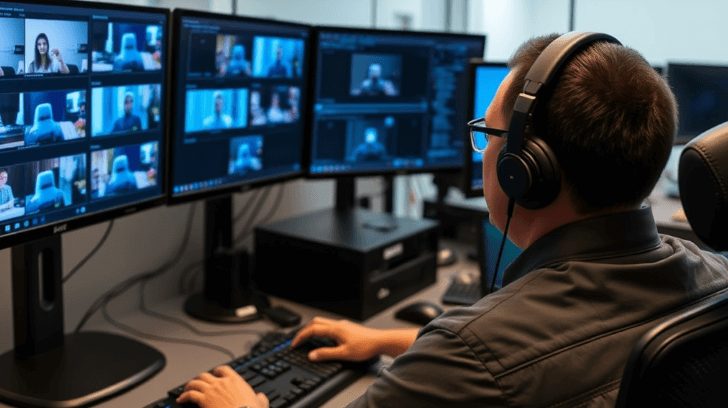
One of the most powerful features of Screen Crab is its support for Cloud C², Hak5’s proprietary cloud platform that allows you to centrally manage multiple devices, receive real-time screenshots/video, view logs, and change configurations remotely. This is incredibly useful in cases where the device is installed in another city or even country and you need to quickly access data or change settings.
To enable Cloud C² support, you need to:
Download the device.config file from the Cloud C² control panel.
Copy it to the root folder of the SD card.
Add or update the Wi-Fi settings in config.txt, which will tell the device which network to connect to.
Wi-Fi configuration example (with processing of spaces and special characters):
Once downloaded, the device automatically connects to a wireless network and connects to a cloud server, allowing full remote control via a browser. All transmitted data can be encrypted via HTTPS.
Although the device is technically advanced, its use is associated with high legal risks. Screen Crab is not just a gadget, it is a potential device for covert surveillance, so its use without the consent of a person or company, in most countries of the world (including Ukraine), can be considered a crime.
In Ukraine, any unauthorized interference with video or audio information (even visual via HDMI) without consent or official permission violates a number of norms of the Criminal Code:
Article 359 — Illegal use of technical means of secret obtaining of information.
Article 361 — Unauthorized interference in the operation of information systems.
Article 182 — Violation of privacy.
Therefore, the device is only allowed to be used:
Information security specialists within the framework of official audits
Red teams during pentests with the consent of the customer
Administrators who have written permission to monitor
Screen Crab opens up a wide range of real-world use cases for cybersecurity professionals that can significantly improve the efficiency of internal audits, insider threat detection, or user activity monitoring. This device allows you to document the actual visual interaction of a user with a system, which is not always possible to track through log files or network traffic. This allows you to create a complete picture of the operator’s behavior – what exactly he did on the screen, which windows were open, what actions were performed in real time.
In a corporate environment, the device can be used for:
checking compliance with internal policies for access to confidential information;
investigating suspicious activity in financial or HR systems;
verifying user actions during information security incidents;
providing an evidence base during an internal investigation of an information leak.
Red Team operations. The device is installed during a simulated attack. Screen Crab allows you to read the actions of “victims”, see how they interact with phishing pages, which documents they open, what they enter manually.
Insider audit. If there is a suspicion that one of the employees may intentionally leak information (by copying, taking pictures of the screen, etc.), you can install a device to document his actions in compliance with labor legislation (if there is a signed monitoring agreement).
Critical infrastructure. At energy, transport or public sector facilities, where continuous monitoring of the operator is important, Screen Crab can act as a hardware backup recording tool – for example, in case of sabotage or human error.
Forensic examination and digital forensics. If you need to provide evidence of the use of certain software, forgery of documents or unwanted activity, captured images from the HDMI stream can be used as digital physical evidence.
Since config.txt allows you to flexibly adapt the device’s behavior to the task, below are examples of configurations for specific scenarios. All examples are field-tested in practice.
Example 1: Normal screenshot mode (every 10 seconds)
1 LED ON
2 CAPTURE_MODE IMAGE
3 CAPTURE_INTERVAL 10
4 STORAGE ROTATE
5 BUTTON EJECT
6 DEDUPLICATE ON
Used for long-term screen monitoring. Replay snapshots are not saved.
Example 2: High-quality video recording (16 Mbps)
1 LED OFF
2 CAPTURE_MODE VIDEO
3 VIDEO_BITRATE HIGH
4 STORAGE FILL
5 BUTTON OFF
Suitable for short recordings during critical operations. Indicator is off for complete stealth.
Example 3: Remote connection to Cloud C² via Wi-Fi
1 WIFI_SSID Corp\ WiFi
2 WIFI_PASS Sup3r\ S3cret\ Pa$$
3 LED ON
4 CAPTURE_MODE IMAGE
5 CAPTURE_INTERVAL 5
6 STORAGE ROTATE
After launching, the device connects to the cloud and broadcasts screenshots in real time.
Recommendations:
Always agree on the use of the device legally (contract, company policy, user consent).
Use for secure internal auditing.
Do not use for personal purposes – it is criminally dangerous.
Keep records in compliance with digital evidence standards (timestamps, data integrity).
Screen Crab is not just a technical toy, but a professional tool with extraordinary potential. Its strength lies in its complete autonomy, rapid deployment, compatibility with Cloud C² and absolute invisibility for the user. It does not require drivers, programs or agents to be installed on the computer. Everything works at the hardware level – quickly, reliably and without traces in the system.
However, with such power comes great responsibility. The legal component of using Screen Crab is no less important than the technical one. Each use must be documented, permitted by internal regulations or agreements, and carried out only within the limits clearly permitted by law. This is especially important for pentest groups that carry out commercial orders.