
08.01.2026
10 min
880



We break down how calculations work in Bash, how to work with strings, modify text, calculate values, and combine data in real scripts. Simple, example-driven, and without unnecessary theory.

A simple explanation of how to perform addition, subtraction, multiplication, and division in Bash when writing scripts.

When writing Bash scripts, you often need to calculate something: find out how much free disk space is left, check file sizes, calculate a password expiration date, count the number of hosts on a network, or determine available bandwidth.
This section of the Bash beginners series looks at how to use arithmetic operators to perform different calculations directly inside scripts.
To refresh your memory, below are the arithmetic operators supported by Bash:
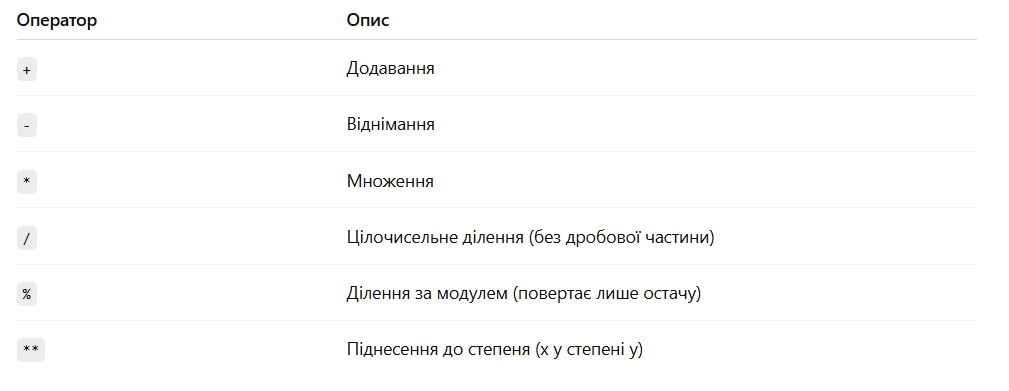
Let’s create a Bash script called addition.sh that simply adds the sizes of two files in bytes and prints the result to the screen.
At this point, command-line arguments in Bash scripts should already be familiar. It’s also important to know the cut and du commands, since the example wouldn’t make sense without them.
The du command shows a file’s size together with its name. Because the output contains two values, the cut command is used to extract only the first column, which is the actual file size. The output of du is passed to cut using a pipe.
Below is the script itself:
#!/bin/bash

fs1=$(du -b $1 | cut -f1)
fs2=$(du -b $2 | cut -f1)

echo "File size of $1 is: $fs1"
echo "File size of $2 is: $fs2"

total=$(($fs1 + $fs2))

echo "Total size is: $total"
Note that the names of the two files are passed to the script as arguments. For example, in this case the script is run with /etc/passwd and /etc/group passed as arguments:
kabary@handbook:~/scripts$ ./addition.sh /etc/passwd /etc/group
File size of /etc/passwd is: 2795
File size of /etc/group is: 1065
Total size is: 3860
total=$(($fs1 + $fs2))
Here, the + operator is used to add the two numbers $fs1 and $fs2. It’s also important to note that any arithmetic expression must be placed inside double parentheses in the following form:
$((arithmetic-expression))
The minus (-) operator can be used in the same way for subtraction. For example, in the expression below, the variable sub will have the value seven:
sub=$((10-3))
Let’s create a Bash script called giga2mega.sh that converts gigabytes (GB) to megabytes (MB):
#!/bin/bash

GIGA=$1
MEGA=$(($GIGA * 1024))

echo "$GIGA GB is equal to $MEGA MB"
Now let’s run the script and see how many megabytes are in four gigabytes:
kabary@handbook:~/scripts$ ./giga2mega.sh 4
4 GB is equal to 4096 MB
Here, the multiplication operator * is used to multiply the number of gigabytes by 1024 and obtain the corresponding value in megabytes:
MEGA=$(($GIGA * 1024))
It’s easy to extend this script with additional functionality and convert gigabytes (GB) to kilobytes (KB):
KILO=$(($GIGA * 1024 * 1024))
You can leave converting gigabytes to bytes as a practical exercise to try on your own.
Bash also provides the division operator /, which allows you to divide two numbers. For example, in the expression below, the variable div will have the value five:
div=$((20 / 4))
Note that this is integer division, so the fractional part is simply discarded. For example, dividing 5 by 2 results in 2, even though that’s obviously not an exact result:
kabary@handbook:~/scripts$ div=$((5 / 2))
kabary@handbook:~/scripts$ echo $div
2
echo "5/2" | bc -l
2.50000000000000000000
Note that together with the bc command, you can also use other operators when you need to work with numbers that include a decimal fraction:
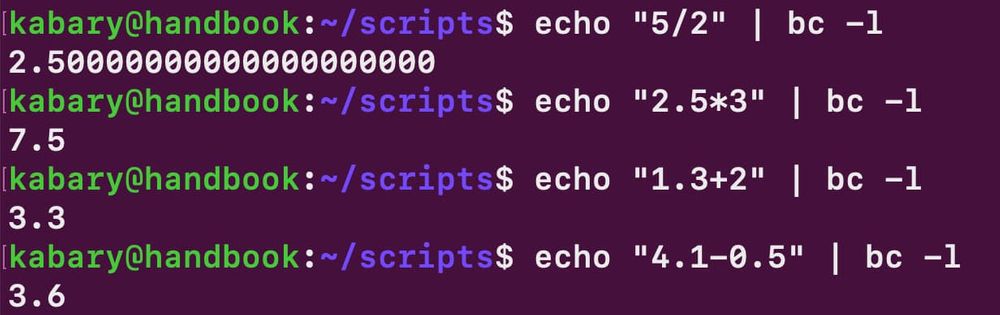
Let’s create a power calculator. For this, we’ll write a script called power.sh that takes two numbers, a and b, as arguments and outputs the result of raising a to the power of b:
#!/bin/bash
a=$1
b=$2
result=$((a**b))
echo "$1^$2=$result"
Note that the exponentiation operator ** is used for the calculation, allowing you to compute the result of raising a to the power of b.
Let’s run the script a few times to make sure it returns the correct results:
kabary@handbook:~/scripts$ ./power.sh 2 3
2^3=8
kabary@handbook:~/scripts$ ./power.sh 3 2
3^2=9
kabary@handbook:~/scripts$ ./power.sh 5 2
5^2=25
kabary@handbook:~/scripts$ ./power.sh 4 2
4^2=16
You can also use the remainder operator % to find the integer remainder. For example, in the expression below, the variable rem will have the value 2:
rem=$((17%5))
The remainder here is 2, because 5 fits into 17 three times, with two units left over.
Time for some practice: creating a temperature converter in Bash
Let’s wrap up this lesson by creating a script called c2f.sh that converts degrees Celsius to degrees Fahrenheit using the formula shown below:
F = C x (9/5) + 32
This will be a good hands-on exercise to reinforce the new features you’ve just learned in this Bash lesson.
Below is one possible solution, although there can be several different ways to solve it.
#!/bin/bash

C=$1
F=$(echo "scale=2; $C * (9/5) + 32" | bc -l)

echo "$C degrees Celsius is equal to $F degrees Fahrenheit."
The bc command is used here because the calculation involves decimal numbers. The scale=2 parameter is also applied to display the result with two digits after the decimal point.
Let’s run the script a few times to make sure it outputs the results correctly.
kabary@handbook:~/scripts$ ./c2f.sh 2
2 degrees Celsius is equal to 35.60 degrees Fahrenheit.
kabary@handbook:~/scripts$ ./c2f.sh -3
-3 degrees Celsius is equal to 26.60 degrees Fahrenheit.
kabary@handbook:~/scripts$ ./c2f.sh 27
27 degrees Celsius is equal to 80.60 degrees Fahrenheit.
Great, that’s sorted. Let’s move on.
Now it’s time to work with strings and see how to handle text in Bash scripts.

If you’re already familiar with working with variables in Bash, you know that there are no separate data types for strings, numbers, and so on. Everything is a variable.
But that doesn’t mean Bash lacks powerful string-handling features.
In the previous section, we looked at arithmetic operators in Bash. This section focuses on working with strings and the different operations you can perform on them. You’ll see how to find the length of a string, concatenate strings, extract substrings, replace parts of text, and perform many other useful tasks.
Let’s start by seeing how to determine the length of a string in Bash.
A string is simply a sequence of characters. Let’s create a string called distro and assign it the value Ubuntu.
distro="Ubuntu"
To find the length of the string distro, you just need to add the # symbol before the variable name. You can do this using the following echo command:
kabary@handbook:~/scripts$ echo ${#distro}
6
Note that the echo command is used only to display the value. It’s the ${#string} construct that actually returns the string length.
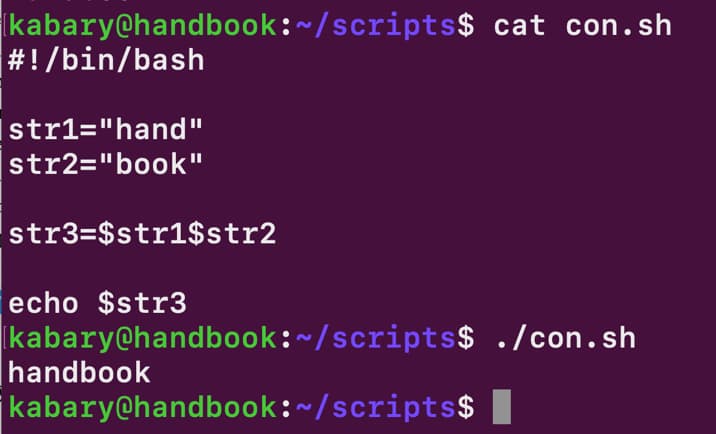
You can append one string to the end of another. This operation is called string concatenation.
As an example, let’s first create two strings, str1 and str2, like this:
str1="hand"
str2="book"
Now you can concatenate both strings and assign the result to a new variable called str3 like this:
str3=$str1$str2
It really doesn’t get any simpler than that, does it?
You can find the position (index) of a specific character or word within a string. As an example, let’s first create a string called str like this:
str="Bash is Cool"
Now you can determine the exact position (index) of the substring cool. To do this, the expr command is used:
kabary@handbook:~/scripts$ word="Cool"
kabary@handbook:~/scripts$ expr index "$str" "$word"
9
The result 9 indicates the position where the word cool starts in the string str.
In this example, conditional constructs like if or else are intentionally not used, since conditional statements will be covered later in this beginner Bash series.
You can also extract substrings from a string, such as a single character, a word, or several words.
As an example, let’s first create a string called foss like this:
foss="Fedora is a free operating system"
kabary@handbook:~/scripts$ echo ${foss:0:6}
Fedora
Note that the first position in a string has an index of 0, just like arrays in Bash. You can also specify only the starting position of a substring without providing a length. In that case, everything from the specified position to the end of the string will be extracted.
For example, to get the substring free operating system from the string foss, it’s enough to specify the starting position 12:
kabary@handbook:~/scripts$ echo ${foss:12}
free operating system
You can replace one substring with another inside a string. For example, the word Fedora in the string foss can be replaced with Ubuntu like this:
kabary@handbook:~/scripts$ echo ${foss/Fedora/Ubuntu}
Ubuntu is a free operating system
Let’s look at another example. Replace the substring free with popular:
kabary@handbook:~/scripts$ echo ${foss/free/popular}
Fedora is a popular operating system
Since the echo command only prints the value, the original string is not actually modified.
You can also remove substrings from a string. As an example, let’s first create a string called fact like this:
fact="Sun is a big star"
Now you can remove the substring big from the string fact like this:
kabary@handbook:~/scripts$ echo ${fact/big}
Sun is a star
cell="112-358-1321"
Now imagine you need to remove all hyphens from the string cell. The expression below will remove only the first occurrence of a hyphen in the string cell:
kabary@handbook:~/scripts$ echo ${cell/-}
112358-1321
To remove all occurrences of the hyphen from the string cell, you need to use the double slash // like this:
kabary@handbook:~/scripts$ echo ${cell//-}
1123581321
Note that echo is used here, so the string cell itself remains unchanged. Only the desired result is printed.
To modify the string itself, you need to assign the resulting value back to the variable like this:
kabary@handbook:~/scripts$ echo $cell
112-358-1321
kabary@handbook:~/scripts$ cell=${cell//-}
kabary@handbook:~/scripts$ echo $cell
1123581321
You can also convert a string to lowercase or uppercase. To begin, let’s create two strings called legend and actor:
legend="john nash"
actor="JULIA ROBERTS"
You can convert all the letters in the string legend to uppercase like this:
kabary@handbook:~/scripts$ echo ${legend^^}
JOHN NASH
In the same way, you can convert all the letters in the string actor to lowercase like this:
kabary@handbook:~/scripts$ echo ${actor,,}
julia roberts
You can also convert only the first character in the string legend to an uppercase letter like this:
kabary@handbook:~/scripts$ echo ${legend^}
John nash
In the same way, you can convert only the first character in the string actor to a lowercase letter like this:
kabary@handbook:~/scripts$ echo ${actor,}
jULIA ROBERTS
You can also change specific characters in a string to uppercase or lowercase. For example, in the string legend, you can convert the letters j and n to uppercase like this:
kabary@handbook:~/scripts$ echo ${legend^^[jn]}
JohN Nash
This section uses simple, clear examples to show how to work with numbers and text in real Bash scripts. After it, writing practical Bash scripts becomes much easier, especially when you need to calculate something, process a string, or quickly modify data without relying on extra tools.