
10.01.2026
9 min
693



Bash in Linux is a core tool for automating everyday tasks. It allows you to combine commands into scripts and run them without repeating the same actions in the terminal over and over again. This is especially useful for people who work with the system regularly and want their workflow to be more organized.
The article covers the basics of working with Bash and explains how the shell interacts with the operating system. It helps clarify why scripts behave differently from regular commands and how Bash is used to automate processes in Linux. This material is suitable for those who are just starting with Bash, as well as for anyone who wants to better understand the logic behind shell scripts.

Getting familiar with shell scripts starts with this step. Here you’ll see how to create the simplest Bash script and how to run it in Linux.
When working with Linux, repetitive tasks come up all the time. This could be backing up a directory, cleaning temporary files, or even cloning a database. Doing these things manually every time is inconvenient and time-consuming.
This is exactly where Bash scripts are useful. They allow routine processes to be automated and run with a single command whenever needed.
This article shows how to create a simple Bash script, how to run it, and what’s important to know at the very beginning of working with shell scripts.
First, create a separate directory called scripts where all Bash scripts will be stored.
mkdir scripts
 cd scripts
Now, inside this “scripts” directory, create a new file called hello.sh using the cat command:
cat > hello.sh
Type the following line directly into the terminal:
echo 'Hello, World!'
After that, press Ctrl+D to save the text to the file and exit the cat command.
You can also use a terminal-based text editor such as Vim, Emacs, or Nano. If you’re working on a desktop Linux system, a graphical editor like Gedit can also be used to add the text to the file.
In this case, the echo command is simply printing the text “Hello World”. The same command can be run directly in the terminal, but here it is executed through a shell script.
Next, the hello.sh file needs to be made executable. This is done using the chmod command as follows:
chmod u+x hello.sh
Finally, run your first shell script by specifying the bash shell before the hello.sh file:
bash hello.sh
The message Hello, World! will appear on the screen. This is probably one of the simplest “Hello World” programs you can write.
Below is a screenshot showing all the steps that were completed earlier:
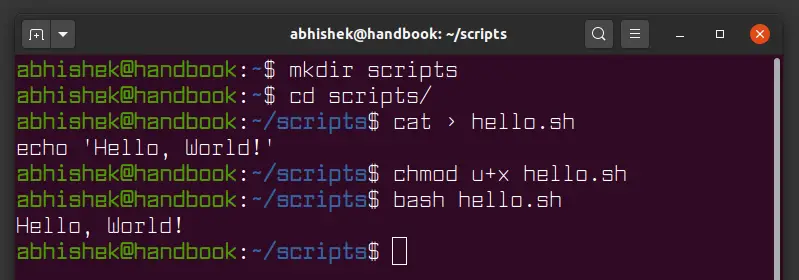
If things feel a bit confusing at this point, that’s normal. This section explains how it all fits together.
Bash, short for Bourne-Again shell, is just one of many shells available in Linux.
A shell is a command-line interpreter that accepts and runs commands. If you’ve ever executed any command in Linux, you’ve already used a shell. When you open a terminal, the system automatically starts the default shell.
In most Linux distributions, Bash is the default shell. That’s why the term “Bash” is often used as a synonym for “shell”.
Shell scripts across different shells usually look very similar, but there are important differences. For example, array indexing in Zsh starts at 1, while in Bash it starts at 0. Because of this, a script written for Zsh may behave differently or not work at all when run with Bash.
To avoid unexpected behavior, it’s best to clearly specify which shell a script is written for. This is done using a shebang.
The line #!/bin/bash is called a shebang. In some sources, it’s also referred to as a hashbang, because it starts with the hash # and exclamation mark !.
This line tells the system that the script should be executed using Bash.
#! /bin/bash

echo 'Hello, World!'
When the line #!/bin/bash is placed at the very top of the script, the system knows that Bash should be used as the interpreter. After that, the hello.sh file can be run directly, without having to specify bash before the script name.
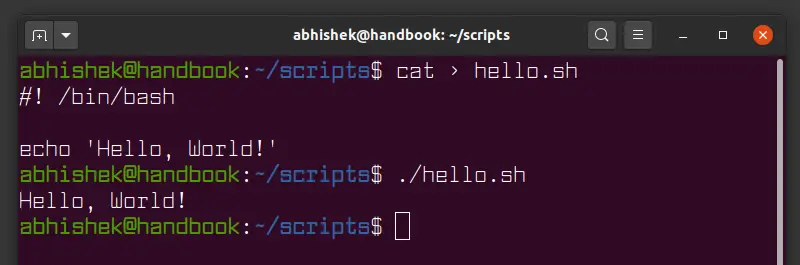
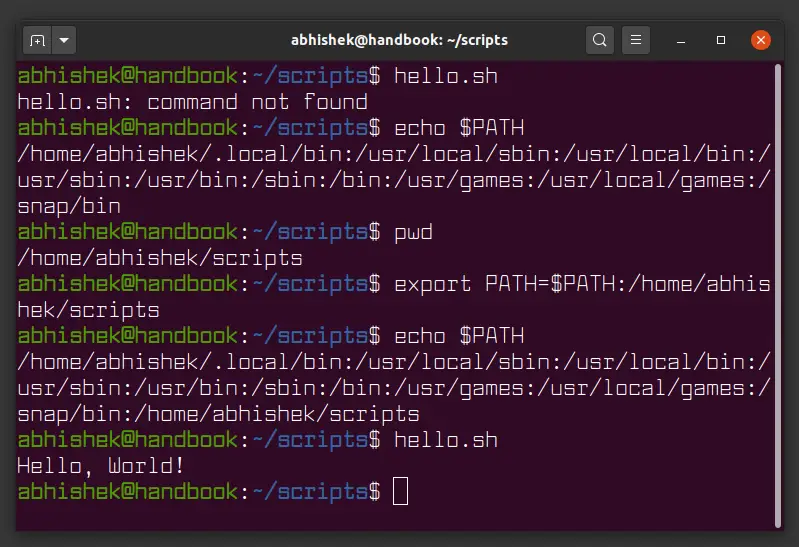
You may notice that the script is executed using ./hello.sh. If the ./ at the beginning is removed, an error will occur.
abhishek@handbook:~/scripts$ hello.sh
hello.sh: command not found
Bash treats this as an attempt to run a command called hello.sh. When any command is entered in the terminal, the shell looks for it in a list of directories stored in the PATH variable.
To view the contents of the PATH variable, you can use the echo command:
echo $PATH
/home/user/.local/bin:/usr/local/sbin:/usr/local/bin:/usr/sbin:/usr/bin:/sbin:/bin:/usr/games:/usr/local/games:/snap/bin
The colon : is used to separate directory paths that the shell checks whenever a command is run.
Linux commands like echo, cat, and others can be executed from anywhere because their executable files are located in bin directories. These directories are already included in the PATH variable. When a command is run, the system goes through each path listed in PATH to find the corresponding executable file.
To run a Bash script from any directory, just like a regular Linux command, the path to that script needs to be added to the PATH variable.
First, you need to find the location of the directory that contains the script. If you are already working in that directory, this can be done using the pwd command:
pwd
export PATH=$PATH:/home/user/scripts
It’s important to note that the scripts directory is added to the end of the PATH variable. This way, the custom path is checked only after the standard system directories.
Now you can run hello.sh:
abhishek@handbook:~/scripts$ hello.sh
Hello, World!

Over time, many things change, and variables are no exception.
Anyone with some programming experience has likely worked with variables before. For those encountering them for the first time, a variable can be thought of as a container that stores a piece of information that may change over time.
When writing Bash scripts, variables are used constantly. The next part shows how variables work and how they can be used in shell scripts.
By now, you already know how to create a simple Bash script that prints “Hello World”.
#! /bin/bash

echo 'Hello, World!'
This was the simplest version of a “Hello World” script. Now it can be made more useful.
To do that, variables are added so the script can greet the user by name. Edit the hello.sh file and use the read command to get input from the user:
#! /bin/bash

echo "What's your name, stranger?"

read name

echo "Hello, $name"
After running the script, it will ask for a name and then greet the user using the name that was entered.
abhishek@handbook:~/scripts$ ./hello.sh
What's your name, stranger?
Elliot
Hello, Elliot
In this example, the name Elliot was entered, and the script responded with the greeting “Hello, Elliot”. This version is much more useful than the standard “Hello, World” message.
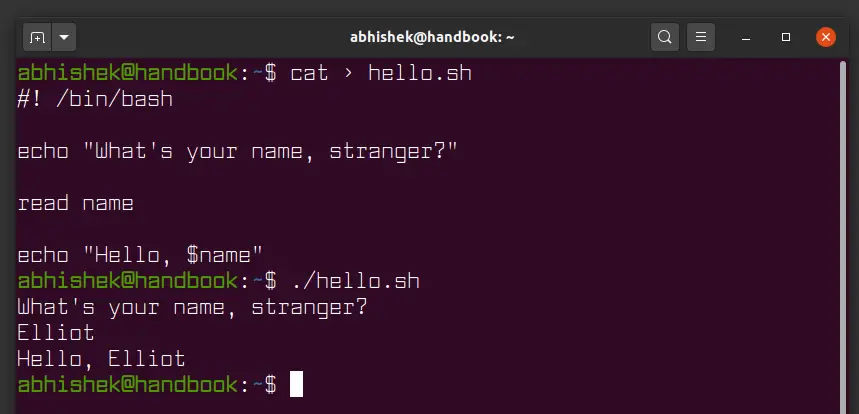
To see how everything works, it helps to go through the script line by line.
At the very top is the shebang line. It tells the system which shell should run the file. In this case, it’s Bash, so the script is executed using Bash.
#!/bin/bash
Next, the script prints a prompt and waits for the user to enter their name:
echo "What's your name, stranger?"
This is a simple echo command that prints a line to the terminal. There’s nothing unusual here.
The next line is where the more interesting part happens:
read name
On this line, the script pauses and waits for user input. The read command takes the name and stores it in the name variable.
After that, the script uses the stored value and prints a greeting with the entered name.
echo “Hello, $name”
There’s one important detail to keep in mind. To access the value of a variable, you need to place a dollar sign in front of its name. If you don’t, Bash will simply print the variable name itself instead of the value stored in it.
In Bash, the dollar sign is what triggers variable value substitution.
Variables can store different kinds of information. This can be numbers, text, or even a single character. In most cases, the difference isn’t very noticeable, because the way variables are handled stays the same.
To create a variable and assign it a value, you just use the equals sign. For example, this creates a variable called age with the value 27.
age=27
After the age variable is created, its value can be changed as many times as needed.
age=3
In this example, the value of the age variable changes from 27 to 3. In Bash, a variable’s value can be updated at any time by assigning it a new value.
Variables can store different types of data. These can be numbers, text strings, or single characters.
letter=’c’
color=’blue’
year=2020
In Bash, you can also create variables whose values do not change. These are used when you need to keep a specific value fixed and prevent it from being modified.
To do this, the readonly command is placed before the variable name:
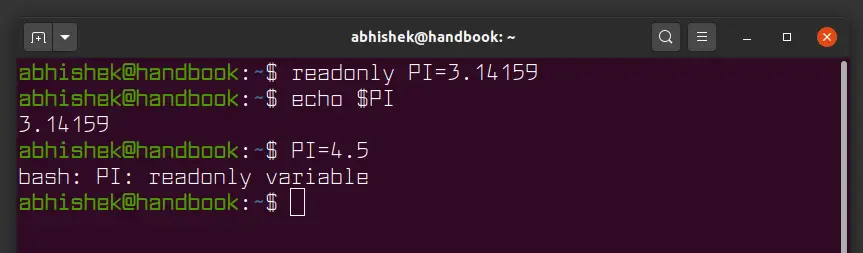
readonly PI=3.14159
This command creates a constant variable named PI with the value 3.14159. After that, its value cannot be changed. If you try to do so, Bash will return an error.
bash: PI: readonly variable
So, the value of a constant variable can only be read. Once it’s created, it can’t be changed.
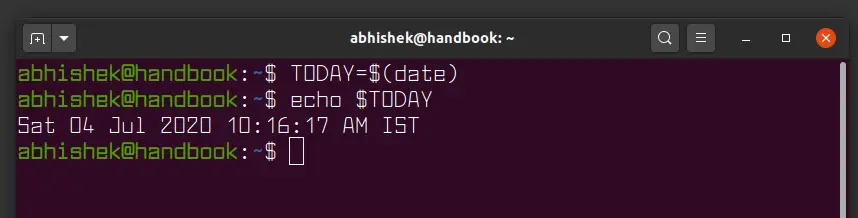
In Bash, you can store the output of a command in a variable. This is called command substitution and it’s commonly used in real-world scripts.
A classic example is the date command, which returns the current date and time:
TODAY=$(date)
In this example, the output of the date command is stored in the TODAY variable. To do this, the command is placed inside parentheses and preceded by a dollar sign.
TODAY=`date`
Using backticks is considered an outdated approach. In modern Bash scripts, the version with parentheses and a dollar sign is used more often.
variable=$(command)
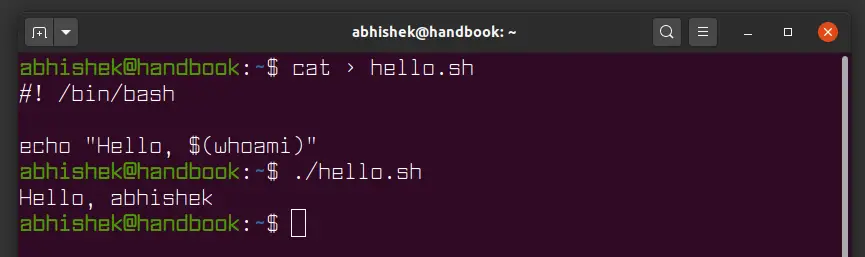
Before finishing, the “Hello World” script can be improved a bit. It can be adjusted so that it works differently. After getting familiar with command substitution, the script no longer needs to ask for a name manually. The required information can be obtained directly while the script is running.
In this case, the whoami command is used, and its output is inserted into the result:
#! /bin/bash

echo "Hello, $(whoami)"
As you can see, this only requires two lines. After running the script, it works exactly as expected:
./hello.sh
Everything works without problems.
If you’re interested, you can also take a look at the declare command, which provides more control when working with variables in Bash.