
08.01.2026
10 min
900



This article explains in simple terms how if, else, and elif work in Bash, along with for, while, and until loops. It focuses only on what is useful in practice. You will learn how Bash decides whether to run a command, how to loop through lists, count values, and repeat actions the required number of times.

In this section of the Bash for Beginners series, you will learn how if-else statements, nested conditions, and the case statement are used in Bash scripts.

You will learn how to use conditional logic in Bash scripts so they behave differently in different situations. This allows you to write more efficient scripts and add basic error checking to your code.
The most basic and important building block for decision-making logic is the if statement. The general syntax of a simple if statement looks like this:
if [ condition ]; then
  your code
fi
The if statement is closed with the word fi. This word is if written in reverse.
Pay close attention to spaces.
There must be a space between the opening and closing brackets and the condition. If it is missing, the shell will report an error.
Spaces are also required before and after comparison operators (
=,==,<=, and others). Otherwise, you will see an error like “unary operator expected”.
Now let’s create an example script called root.sh. This script will print the message “you are root” only if you run it as the root user:
#!/bin/bash

if [ $(whoami) = 'root' ]; then
    echo "You are root"
fi
The whoami command prints the name of the current user. From the lesson on variables in Bash, you already know that the $(command) syntax is used for command substitution and allows you to capture a command’s output.
The condition $(whoami) = 'root' will be true only when you are logged into the system as the root user. Don’t take it on faith. Just run the command and see for yourself.
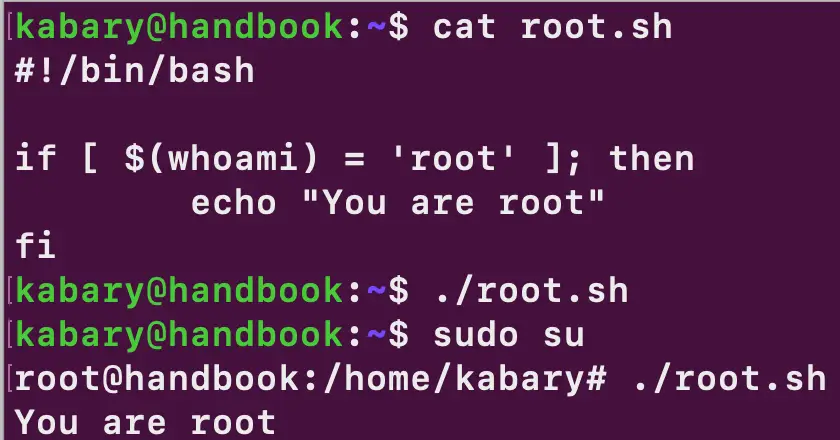
You may have noticed that when you run the root.sh script as a regular user, it produces no output. Code that should run when the if condition is not met can be placed inside the else block. It looks something like this:
#!/bin/bash

if [ $(whoami) = 'root' ]; then
    echo "You are root"
else
    echo "You are not root"
fi
Now, when you run this script as a regular user, it will remind you that you are not the all-powerful root user:
kabary@handbook:~$ ./root.sh
You are not root
The elif (else if) statement is used when you need to check multiple conditions.
For example, the following Bash script age.sh takes your age as an argument and prints a corresponding message based on that age:
#!/bin/bash

AGE=$1

if [ $AGE -lt 13 ]; then
    echo "You are a kid."
elif [ $AGE -lt 20 ]; then
    echo "You are a teenager."
elif [ $AGE -lt 65 ]; then
    echo "You are an adult."
else
    echo "You are an elder."
fi
At this point, you already know how to pass arguments to Bash scripts. So let’s run the age.sh script a few times and see how it behaves with different age values:
kabary@handbook:~$ ./age.sh 11
You are a kid.
kabary@handbook:~$ ./age.sh 18
You are a teenager.
kabary@handbook:~$ ./age.sh 44
You are an adult.
kabary@handbook:~$ ./age.sh 70
You are an elder.
Note that the -lt (less than) test is used here together with the $AGE variable.
Also remember that a single if construct can contain multiple elif statements, but only one else. The entire if block must always be closed with the word fi.
In Bash, you can also place an if statement inside another if. For example, take a look at the following Bash script weather.sh:
#!/bin/bash TEMP=$1 if [ $TEMP -gt 5 ]; then if [ $TEMP -lt 15 ]; then echo "The weather is cold." elif [ $TEMP -lt 25 ]; then echo "The weather is nice." else echo "The weather is hot." fi else echo "It's freezing outside ..." fi
This script takes any temperature value as an argument and prints a message describing what the weather will be like. If the temperature is above five degrees, a nested if-elif condition is evaluated.
Let’s run the script a few times and see how it works in practice:
kabary@handbook:~$ ./weather.sh 0
It's freezing outside ...
kabary@handbook:~$ ./weather.sh 8
The weather is cold.
kabary@handbook:~$ ./weather.sh 16
The weather is nice.
kabary@handbook:~$ ./weather.sh 30
The weather is hot.
In Bash, you can also use the case statement as an alternative to multiple if conditions, which can sometimes become confusing and hard to read. The general syntax of the case statement looks like this:
case "variable" in
    "pattern1" )
        Command … ;;
    "pattern2" )
        Command … ;;
    "pattern2" )
        Command … ;;
esac
Pay attention!
Patterns are always written with a space before the
)character.
Commands inside a
caseblock always end with a double semicolon;;. A space before it is not required.
The
casestatement is closed with the wordesac. This word is simplycasewritten in reverse.
The case statement is especially useful when working with patterns or regular expressions. To demonstrate this, take a look at the following Bash script char.sh:
#!/bin/bash

CHAR=$1

case $CHAR in
[a-z])
echo "Small Alphabet." ;;
[A-Z])
echo "Big Alphabet." ;;
[0-9])
echo "Number." ;;
*)
echo "Special Character."
esac
This script takes a single character as an argument and determines what it is: a lowercase or uppercase letter, a number, or a special character.
kabary@handbook:~$ ./char.sh a
Small Alphabet.
kabary@handbook:~$ ./char.sh Z
Big Alphabet.
kabary@handbook:~$ ./char.sh 7
Number.
kabary@handbook:~$ ./char.sh $
Special Character.
Note that the wildcard asterisk * is used here to define the default case. It serves the same purpose as the else block in an if condition.
Bash provides many test conditions that can be used with the if statement. The choice depends on what you are working with: numbers, strings, or files. In practice, these tests act as logical operators in Bash.
Below are some of the most common test conditions:
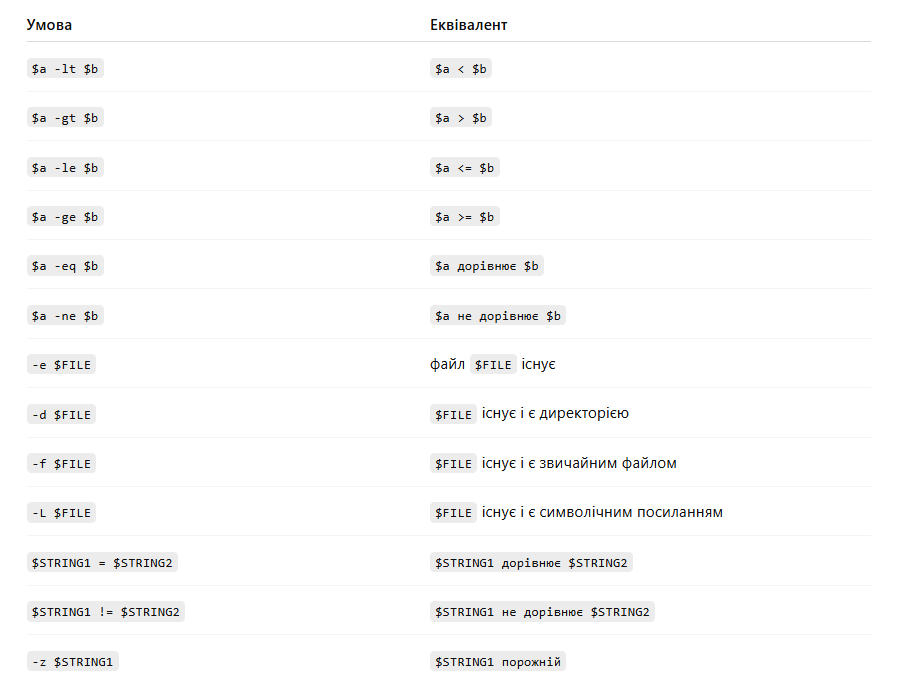
Fortunately, you don’t need to memorize all of these test conditions, since you can always look them up in the man test documentation:
kabary@handbook:~$ man test
Let’s create a final script called filetype.sh that determines whether a file is a regular file, a directory, or a symbolic link:
#!/bin/bash

if [ $# -ne 1 ]; then
    echo "Error: Invalid number of arguments"
 	exit 1
fi

file=$1

if [ -f $file ]; then
    echo "$file is a regular file."
elif [ -L $file ]; then
    echo "$file is a soft link."
elif [ -d $file ]; then
    echo "$file is a directory."
else
    echo "$file does not exist"
fi
The script includes a simple check for the number of arguments. If no argument is provided or if more than one is given, execution stops immediately and a message is shown without running the rest of the code.
Now you can run the script a few times and see how it behaves with different file types:
kabary@handbook:~$ ./filetype.sh weather.sh
weather.sh is a regular file.
kabary@handbook:~$ ./filetype.sh /bin
/bin is a soft link.
kabary@handbook:~$ ./filetype.sh /var
/var is a directory.
kabary@handbook:~$ ./filetype.sh
Error: Invalid number of arguments
Previously, all if-else constructs were used inside separate Bash scripts. This is convenient and correct, but not always necessary.
When you just need to quickly check a condition and see the result, if-else can be written on a single line and executed directly in the terminal, without creating a separate file.
Suppose you have the following Bash script:
if [ $(whoami) = 'root' ]; then
    echo "You are root"
else
    echo "You are not root"
fi
if [ $(whoami) = 'root' ]; then echo "root"; else echo "not root"; fi
You can copy this code directly into the terminal and immediately see what it does. The logic is simple: each command is followed by a semicolon, and then the next if-else condition continues.
In the end, this makes it much clearer how conditional logic works in Bash and how it can be used to build more flexible scripts. To reinforce what you’ve learned, you can try a few simple Bash exercises from the PDF below, which also includes ready-made solutions.
Loops are an essential part of any scripting language. This section of the Bash for Beginners series explains for, while, and until loops using clear, practical examples.

The ability to use loops is a very powerful feature of Bash scripts. Loops have many use cases and greatly simplify task automation.
This lesson covers the three main types of loops in Bash. It also shows how to use loops to iterate over array elements. In addition, it explains how to use the break and continue statements to control loop execution, and finally looks at how to create infinite loops.
The for loop is one of the three types of loop constructs available in Bash. There are two main ways to write a for loop.
C-style for loop syntax
Using a for loop with a list or range of values
C-style for loops in Bash
Anyone familiar with programming languages such as C or C++ will easily recognize this for loop syntax:
for ((initialize ; condition ; increment)); do
[COMMANDS]
done
Using the C-style syntax mentioned above, the for loop below will print the message “Hello Friend” ten times:
for ((i = 0 ; i < 10 ; i++)); do
    echo "Hello Friend"
done
First, the for loop initializes the integer variable i with the value zero and then checks the condition (i < 10). If the condition is true, the loop prints the line echo "Hello Friend", increments the value of i by 1, and runs again. This process repeats until i becomes greater than or equal to 10.
kabary@handbook:~$ bash hello.sh
Hello Friend
Hello Friend
Hello Friend
Hello Friend
Hello Friend
Hello Friend
Hello Friend
Hello Friend
Hello Friend
Hello Friend
There is another form of the for loop syntax that is especially convenient when working with lists of files or strings, ranges of numbers, arrays, or command output. A for loop with a list or range looks like this:
for item in [LIST]; do
[COMMANDS]
done
For example, the following for loop does exactly the same thing as the C-style for loop discussed in the previous section:
for i in {1..10}; do
    echo "Hello Friend"
done
The var.sh script shown below will print all files and directories located in the /var directory:
#!/bin/bash

for i in /var/*; do
    echo $i
done
Below is an example of the output produced when running the var.sh script:
kabary@handbook:~$ ./var.sh
/var/backups
/var/cache
/var/crash
/var/lib
/var/local
/var/lock
/var/log
/var/mail
/var/metrics
/var/opt
/var/run
/var/snap
/var/spool
/var/tmp
The while loop is another popular and easy-to-understand type of loop that can be used in Bash scripts. The general syntax of a while loop in Bash looks like this:
while [ condition ]; do
[COMMANDS]
done
For example, the 3x10.sh script below uses a while loop and prints the first ten multiples of three:
#!/bin/bash

num=1
while [ $num -le 10 ]; do
    echo $(($num * 3))
    num=$(($num+1))
done
Here is the output of the script shown above:
kabary@handbook:~$ ./3x10.sh
3
6
9
12
15
18
21
24
27
30
First, the variable num is initialized with the value 1. The while loop then runs as long as num is less than or equal to 10. Inside the loop body, the echo command prints the value of num multiplied by three, after which num is incremented by 1.
Those familiar with C or C++ may miss the do-while loop, but Bash does not provide such a construct. Instead, Bash offers a different type of loop called until. The until loop uses the same syntax as while:
until [ condition ]; do
[COMMANDS]
Done
The difference between while and until is simple and comes down to the condition. A while loop runs as long as the condition is true. An until loop, on the other hand, runs until the condition becomes true.
The same 3x10.sh script can easily be written using until instead of while. You just need to invert the logic of the condition check:
#!/bin/bash

num=1
until [ $num -gt 10 ]; do
    echo $(($num * 3))
    num=$(($num+1))
done
Note that negating the test condition [ $num -le 10 ] results in [ $num -gt 10 ].
Now that you are familiar with loops in Bash scripts, you can move on.
If you have been following this lesson series from the beginning, Bash arrays should already be familiar to you. The for loop is most commonly used to iterate over array elements.
For example, the following prime.sh script loops through the prime array and prints each element:
#!/bin/bash

prime=(2 3 5 7 11 13 17 19 23 29)
for i in "${prime[@]}"; do
    echo $i
done
Here is the output of the prime.sh script:
kabary@handbook:~$ ./prime.sh
2
3
5
7
11
13
17
19
23
29
There are situations where it makes no sense to run a loop until the end. Sometimes it is enough to stop it early or skip a single iteration. For this, Bash provides break and continue. The break statement immediately exits the loop, and execution continues after it.
In the example below, the loop stops early and prints only the numbers from one to three:
for ((i=1;i<=10;i++)); do
    echo $i
    if [ $i -eq 3 ]; then
        break
    fi
done
The continue statement is used when you need to skip a single iteration of a loop. The loop does not stop; it immediately moves on to the next iteration without executing the remaining commands in the current one.
In the example below, the odd.sh script iterates through the numbers from one to ten and prints only the odd ones, ignoring all even values:
#!/bin/bash
for ((i=0;i<=10;i++)); do
    if [ $(($i % 2)) -ne 1 ]; then
        continue
    fi
    echo $i
done
Here is the output showing the odd numbers:
kabary@handbook:~$ ./odd.sh
1
3
5
7
9
An infinite loop is a situation where a loop never stops and keeps running over and over again. This happens when the exit condition is never met.
Most often, such loops appear because of a simple logic error. For example, when trying to print numbers from 1 to 10 in reverse order, it is easy to accidentally write a loop that never finishes:
for ((i=10;i>0;i++)); do
    echo $i
done
The problem is that the loop keeps increasing the value of the variable i by 1. To fix this, you need to replace i++ with i--, like this:
for ((i=10;i>0;i--)); do
    echo $i
done
In some cases, infinite loops are created intentionally, for example to wait for a specific external condition in the system. Creating an infinite for loop in Bash is very simple and looks like this:
for ((;;)); do
    [COMMANDS]
done
If you need to create an infinite while loop, you can do it like this:
while [ true ]; do
    [COMMANDS]
done
This section helps you better understand how loops work in Bash and how to use them effectively in scripts.