
08.01.2026
10 min
898



Bash is often seen as something simple, just a set of commands for the terminal. But once functions and automation logic come into play, it turns into a full-fledged tool that genuinely saves time. This article looks at how to move step by step from scattered commands to clear, well-structured Bash scripts that can be used in everyday work.
The material is aimed at those who already know the basics of Bash and want to go further: learn how to structure code, avoid repetition, and automate common tasks. No overloaded terminology, no “magic”, just logic, examples, and practical thinking. It’s a solid starting point for anyone who wants Bash to work for them, not the other way around.

Never rewrite code, use functions.

When Bash scripts grow larger, it’s very easy for them to become messy. At some point, you may notice that you’re rewriting the same pieces of code again and again in different parts of the script. Fortunately, this can be avoided by using functions in Bash.
Functions help keep code organized and make scripts easier to read. In this guide, you’ll learn how to create functions, return values from functions, and pass arguments to them in Bash scripts. You’ll also see how variable scope works and how to define recursive functions.
In Bash, there are two different syntaxes for declaring functions. Below is the most commonly used way to create a function in Bash:
function_name () {
commands
}
The second, less commonly used way to create functions in Bash starts with the reserved word function, followed by the function name, for example:
function function_name {
commands
}
Now there are a few important things to keep in mind when working with functions:
A function will never run unless you explicitly call it.
The function definition must appear before any call to that function.
Whenever you need a function to run, you simply call it. A function call is made by referencing the function’s name.
Take a look at the following Bash script, fun.sh:
#!/bin/bash

hello () {
echo "Hello World"
}

hello
hello
hello
A function named hello is defined, and it simply prints the line “Hello World” to the terminal. Notice that the hello function is called three times, so when the script runs, the “Hello World” line appears on the screen three times.
kabary@handbook:~$ ./fun.sh
Hello World
Hello World
Hello World
In many programming languages, functions return a value when they are called. In Bash, things work differently, because Bash functions do not return values directly.
When a Bash function finishes executing, it returns the exit status of the last command that was run, which is stored in the $? variable.
A value of 0 indicates successful execution, while any non-zero positive number from 1 to 255 indicates an error.
You can use the return statement to change a function’s exit status. For example, take a look at the following script, error.sh:
#! /bin/bash

error () {
blabla
return 0
}

error
echo "The return status of the error function is: $?"
kabary@handbook:~$ ./error.sh
./error.sh: line 4: blabla: command not found
The return status of the error function is: 0
Without the return 0 statement, the error function would never have returned a non-zero exit status, because blabla results in a command not found error.
As you can see, even though Bash functions do not return values directly, this behavior can be worked around by changing the function’s exit status.
It’s also important to remember that the return statement immediately stops the execution of a function.
Arguments can be passed to a function in the same way they are passed to a Bash script. You simply include the arguments when calling the function.
As an example, take a look at the following Bash script, iseven.sh:
#!/bin/bash

iseven () {
if [ $(($1 % 2)) -eq 0 ]; then
echo "$1 is even."
else
echo "$1 is odd."
fi
}

iseven 3
iseven 4
iseven 20
iseven 111
The iseven() function checks whether a number is even or odd. The iseven() function is called four times. In each call, one number is passed as the first argument to the function and is accessed inside the function using the $1 variable.
Let’s run the Bash script iseven.sh to make sure it works correctly:
kabary@handbook:~$ ./iseven.sh 3 is odd. 4 is even. 20 is even. 111 is odd.
It’s also worth remembering that arguments passed to Bash functions and arguments passed to the Bash script itself are not the same thing. To see the difference more clearly, take a look at the following Bash script, funarg.sh:
#!/bin/bash

fun () {
echo "$1 is the first argument to fun()"
echo "$2 is the second argument to fun()"
}

echo "$1 is the first argument to the script."
echo "$2 is the second argument to the script."

fun Yes 7
kabary@handbook:~$ ./funarg.sh Cool Stuff
Cool is the first argument to the script.
Stuff is the second argument to the script.
Yes is the first argument to fun()7 is the second argument to fun()
As you can see, even though the same variables $1 and $2 are used for both script arguments and function arguments, they behave differently inside a function and produce different results.
In Bash, variables can be either global or local. A global variable can be accessed from anywhere in the script, regardless of context. A local variable, on the other hand, is only available inside the function in which it is defined.
To see how this works in practice, take a look at the following Bash script, scope.sh:
#!/bin/bash

v1='A'
v2='B'

myfun() {
local v1='C'
v2='D'
echo "Inside myfun(): v1: $v1, v2: $v2"
}

echo "Before calling myfun(): v1: $v1, v2: $v2"
myfun
echo "After calling myfun(): v1: $v1, v2: $v2"
Using the local keyword, a separate local variable v1 is created, while the value of the global variable v2 is changed. An important point is that the same variable name can safely be used for local variables in different functions without causing any issues.
Now you can run the script and see how this works in practice:
kabary@handbook:~$ ./scope.sh
Before calling myfun(): v1: A, v2: B
Inside myfun(): v1: C, v2: D
After calling myfun(): v1: A, v2: D
A local variable with the same name as a global one takes priority inside a function. At the same time, a global variable can be modified directly from within a function.
A recursive function is a function that calls itself. This approach is useful when a problem can be gradually broken down into smaller, simpler steps. A classic example of recursion is calculating a factorial.
Take a look at the following Bash script, factorial.sh.
It’s also important to remember that a local variable with the same name as a global one takes precedence inside a function, while the global variable can still be modified from within that function.
#!/bin/bash

factorial () {
if [ $1 -le 1 ]; then
echo 1
else
last=$(factorial $(( $1 -1)))
echo $(( $1 * last ))
fi
}

echo -n "4! is: "
factorial 4
echo -n "5! is: "
factorial 5
echo -n "6! is: "
factorial 6
Any recursive function must start with a base case. This is what stops the chain of recursive calls. In the factorial() function, the base case looks like this:
if [ $1 -le 1 ]; then
echo 1
Now let’s move on to the recursive case for the factorial function. To calculate the factorial of a number n, where n is a positive number greater than one, you need to multiply n by the factorial of n-1:
factorial(n) = n * factorial(n-1)
last=$(factorial $(( $1 -1)))
echo $(( $1 * last ))
kabary@handbook:~$ ./factorial.sh
4! is: 24
5! is: 120
6! is: 720
As an additional exercise, try writing a recursive function to calculate the n-th Fibonacci number. Start by defining the base case, then move on to the recursive case. You’ve got this.
Either you create automation, or you get automated.

You can now use all the Bash skills you’ve gained in this beginner series to create truly useful scripts. These scripts help automate boring, repetitive administrative tasks.
Automation should be the end goal whenever you write a Bash script.
In this lesson, you’ll see several examples of automation scripts that can easily be extended to handle almost any task. These examples use Bash arrays, if-else conditions, loops, and other concepts covered in this series.
Creating a user on multiple servers is a task system administrators face quite often. Doing it manually is inconvenient and exhausting, so it makes sense to automate the process using a Bash script.
To get started, you need to create a text file that contains a list of servers where the user should be added. These can be hostnames or IP addresses.
For example, here’s a file called servers.txt that contains five different servers:
kabary@handbook:~$ cat servers.txt
server1
server2
server3
server4
server5
Keep in mind that server hostnames are used here because the IP addresses have already been added to the /etc/hosts file. If needed, you can also use the SSH configuration file instead.
Now take a look at the following Bash script, adduser.sh:
#!/bin/bash

servers=$(cat servers.txt)

echo -n "Enter the username: "
read name
echo -n "Enter the user id: "
read uid

for i in $servers; do
echo $i
ssh $i "sudo useradd -m -u $uid $name"
if [ $? -eq 0 ]; then
echo "User $name added on $i"
else
echo "Error on $i"
fi
done
The adduser.sh script will first prompt you to enter the username and user ID of the account you want to add. After that, it will go through all the servers listed in the servers.txt file, connect to each one via SSH, and create the specified user.
Let’s run the script and see how it works:
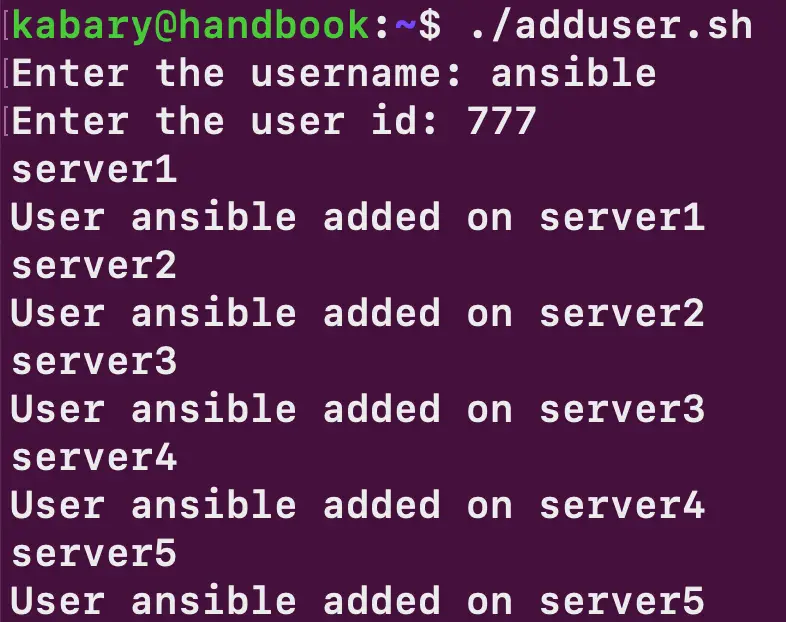
The script ran successfully, and the ansible user was added to all five servers. There are a few important points to keep in mind here:
You can use SSH keys without a passphrase or run
ssh-agentto avoid being prompted for a key or password while the script is running.
You must have a valid account with superuser privileges on all servers, without requiring a password.
Now imagine having to add a user to more than 100 different Linux servers. The adduser.sh script can easily save you hours, or even days, of manual work.
Backups are something that needs to be done regularly, so it makes perfect sense to automate this process. Take a look at the following Bash script, backup.sh:
#!/bin/bash

backup_dirs=("/etc" "/home" "/boot")
dest_dir="/backup"
dest_server="server1"
backup_date=$(date +%b-%d-%y)

echo "Starting backup of: ${backup_dirs[@]}"

for i in "${backup_dirs[@]}"; do
sudo tar -Pczf /tmp/$i-$backup_date.tar.gz $i
if [ $? -eq 0 ]; then
echo "$i backup succeeded."
else
echo "$i backup failed."
fi
scp /tmp/$i-$backup_date.tar.gz $dest_server:$dest_dir
if [ $? -eq 0 ]; then
echo "$i transfer succeeded."
else
echo "$i transfer failed."
fi
done

sudo rm /tmp/*.gzecho "Backup is done."
So, first an array called backup_dirs is created to store all the directories that need to be included in the backup. Then three more variables are defined:
dest_dir: specifies the directory where the backups will be stored.
dest_server: specifies the server to which the backups will be sent.
backup_time: stores the date of the backup.
Next, for each directory in the backup_dirs array, a gzip-compressed tar archive is created in /tmp. After that, the backups are transferred to the destination server using the scp command. Finally, all gzip archives are removed from the /tmp directory.
Below is an example of running the backup.sh script:
kabary@handbook:~$ ./backup.sh
Starting backup of: /etc /home /boot
/etc backup succeeded.
etc-Aug-30-20.tar.gz 100% 1288KB 460.1KB/s   00:02
/etc transfer succeeded.
/home backup succeeded.
home-Aug-30-20.tar.gz 100% 2543KB 547.0KB/s   00:04
/home transfer succeeded.
/boot backup succeeded.
boot-Aug-30-20.tar.gz 100%  105MB 520.2KB/s   03:26
/boot transfer succeeded.
Backup is done.
kabary@handbook:~$ crontab -e
0	0	*	*	* /home/kabary/scripts/backup.sh
File systems will eventually run out of space, and the only thing you can do is react in time before the system starts throwing errors or crashes altogether. To check how much free space is left on any file system, you can use the df command:
kabary@handbook:~$ df -h / /apps /database
Filesystem Size  Used Avail Use% Mounted on
/dev/sda5 20G  7.9G   11G  44% /
/dev/mapper/vg1-applv 4.9G  2.4G  2.3G  52% /apps
/dev/mapper/vg1-dblv 4.9G  4.5G  180M  97% /database
The /database file system is almost full, with 97% of the space currently in use. To display only the usage percentage, you can use the awk command to show just the fifth field.
Now take a look at the following Bash script, disk_space.sh:
#!/bin/bash
filesystems=("/" "/apps" "/database")
for i in ${filesystems[@]}; do
usage=$(df -h $i | tail -n 1 | awk '{print $5}' | cut -d % -f1)
if [ $usage -ge 90 ]; then
alert="Running out of space on $i, Usage is: $usage%"
echo "Sending out a disk space alert email."
echo $alert | mail -s "$i is $usage% full" your_email
fi
done
First, an array called filesystems is created, listing all the file systems that need to be monitored. Then, for each one, the disk usage percentage is retrieved and checked to see whether it is greater than or equal to 90. If the usage exceeds 90%, the script sends an alert email indicating that the file system is running out of free space.
Note that you need to replace your_email in the script with your actual email address.
The script was run:
kabary@handbook:~$ ./disk_space.sh
Sending out a disk space alert email.
As a result, the following email was received:

You may want to run the disk_space.sh script roughly every six hours. In that case, it can also be scheduled to run as a cron job:
kabary@handbook:~$ crontab -e
0	*/6 *		*		* /home/kabary/scripts/disk_space.sh
This brings us to the end of our Bash beginner tutorial series. Hopefully, you enjoyed learning Bash scripting. With Bash scripts in your toolkit, you can automate almost any boring or time-consuming task on Linux.