10.03.2026
15 min
1247



Do you save your passwords directly in your browser? We get it — it’s really convenient. But in reality, this habit can become an easy win for malware or even for a colleague who happens to sit down at your laptop for a moment.
In this article, we explain in simple terms — without complicated technical jargon — how attackers can extract your login credentials in just a few seconds and why basic system protection often can’t stop it. Read on to learn how to properly secure your data and stop worrying about the safety of your personal accounts.
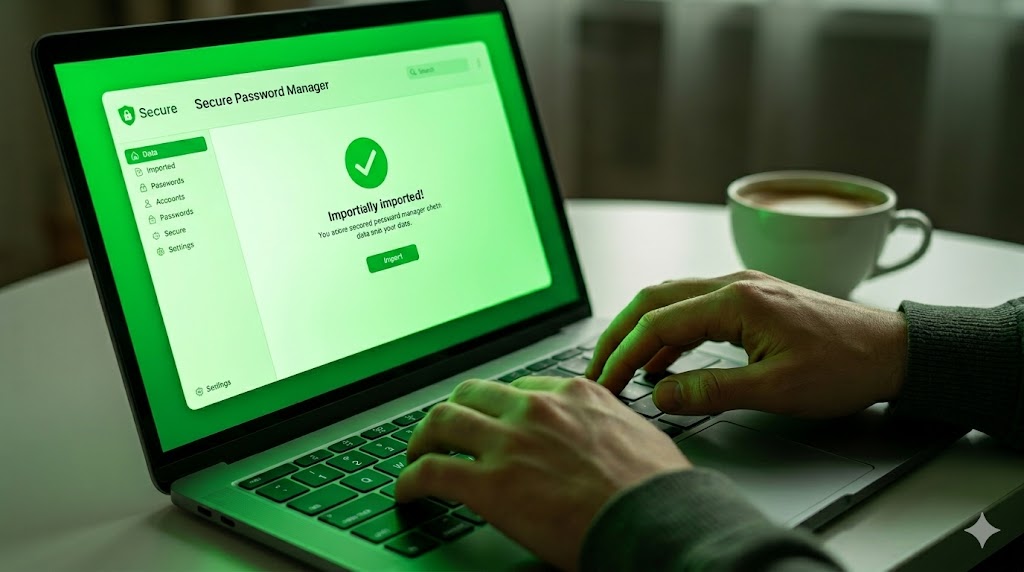
What does a regular day at work look like? Sitting at your desk and trying to place an order on Rozetka, or check your work e-mail using ukr.net; or getting onto the Diia government services website. The nice thing about working online (or even offline) is that your web-browser gives you the option to save your login information so that every time you want to get back on you don’t have to enter all of your information again. It’s really convenient, saves you a lot of time, and most people will use this feature without questioning it.
There are also a number of other factors which make quick access to your online work tools a priority today. Many Ukrainian employees work from home, and therefore have to switch their computers to a UPS (uninterruptible power supply) during power outages, while others are constantly moving between their homes, offices, and coffee shops. This has made it easier for hackers to trick them into thinking that their digital keys are safely protected with the latest technology. However, in reality, this convenience is just creating an illusion of security.
Ethical hackers and cybersecurity experts have been warning about this for years: the built-in password managers within your browser are not “safe” – they are more like glass boxes. An attacker who gains even minimal control over your device will quickly gain access to all of your accounts. In this article we will explain how modern hackers exploit this vulnerability, how pirated software fits into the picture, and why your personal data may be under attack at any moment.
Most of us are aware of the simple techniques to be able to gain access into someone’s computer without having to hack into it. A common example is leaving an unlocked laptop open on a table while out getting food during the day at the office. Or using a computer in a coffee shop, library, etc. The reason this works so well is because most computers will fill in the password area automatically if the user has checked “remember my password” while logging in. All anyone needs to do then is simply click on the field and press enter one time. They can quickly look up to see what the password was.
Here’s how this kind of breach can happen in real life:
An attacker approaches your unlocked computer while you’re distracted by a conversation or a phone call.
They right-click on the password field.
From the browser’s context menu, they choose Inspect or Inspect Element.
In the developer panel, they find the attribute
type="password"and simply change it totype="text".
Your hidden password instantly appears on the screen as plain text, where it can easily be photographed or remembered.
This method is very old and doesn’t require any additional software, yet it still works in virtually every popular web browser and on almost any website.
Naturally, no one steals large amounts of information manually anymore — now they use automation and scalability to carry out their attacks. The first step in most attacks occurs when users accidentally download malicious software. Malicious software is also delivered via phishing emails — which today appear to be coming from reputable organizations in Ukraine (banks, delivery services, tax authorities), as well as via pirated software, cracked games, and Telegram channels whose content may be suspect.
After the “stealer” malware (the term used by security experts) enters a user’s computer, it immediately and silently searches the computer for data stored on the device.
The majority of modern web browsers have login credentials stored in a standard database file located inside a hidden folder on the hard drive of the computer. These credentials contain website addresses and usernames in plaintext. Passwords are encrypted, but this encryption method is flawed due to the way the encryption/decryption process works.
On Windows systems, the browser uses the default built-in data protection mechanism provided by Microsoft, called DPAPI. The problem with using this mechanism is that the decryption key is linked to the user account currently logged into the Windows system. What this means is that once a malicious program is able to run under your user account on your Windows system, the malicious program can simply ask Windows to decrypt the saved passwords, and since the request is being made from what appears to be you, the legitimate user, the Windows system will do so.
In addition, there are literally hundreds of affordable pre-built scripts available for purchase that can easily obtain the entire password database of your browser in less than a second and then quietly transmit it to a remote attacker’s server.
You might think that switching to a different, less popular browser could solve the problem. Unfortunately, many browsers share the same underlying technologies and therefore have similar weaknesses. Let’s look at the most common options.
Google Chrome, Microsoft Edge, Opera, and Brave are all built on the Chromium engine and use very similar methods for storing data. They rely heavily on the operating system for protection. If malware gets onto the computer — or if someone simply copies the folder containing your system files to a flash drive — it becomes relatively easy to decrypt the stored data.
Mozilla Firefox takes a slightly different approach and uses its own encryption system that does not directly depend on Windows protection mechanisms. However, if you haven’t enabled the browser’s master password feature in the privacy settings, the decryption keys are still stored locally on your hard drive. For malicious tools, this usually isn’t much of an obstacle, and they can retrieve the data just as quickly.
After reading all this, a logical question arises: how do dedicated password managers work, and why do security experts recommend them?
The answer lies in what is known as a zero-knowledge architecture.
When you use a professional password manager, your data is not stored in simple system files. Instead, the application creates a secure cryptographic vault. All your logins, passwords, notes, and even payment card details are encrypted before they ever leave your device. What reaches the company’s servers is just an unreadable string of encrypted data.
The key to unlocking that vault is your master password, which is never transmitted anywhere. The developers of the service cannot see your password and have no access to your stored data. Even if the company’s servers were compromised, attackers would only obtain encrypted data — essentially meaningless without the master key. Breaking that encryption by brute force would take an impractically long time, even with powerful computing resources.
Understanding the real risks means it’s better to act proactively. Stopping the practice of saving passwords in your browser is the first and most important step. Moving to a dedicated password manager takes about fifteen minutes, but it can protect you for years to come.
Step 1. Choose a reliable service. Today, the best options are password managers with a strong reputation. For example, Bitwarden is completely free for personal use, has open-source code, and is widely considered one of the most trustworthy solutions. A popular paid alternative is 1Password. If you prefer not to store your data in the cloud at all, consider KeePass, which keeps your encrypted database only on your local computer.
Step 2. Install the application and create a master password. Download the program only from the developer’s official website. During the initial setup, you’ll be asked to create a master password. This will be the only password you need to remember, so make it long and unique. A good approach is to use a phrase made up of four or five unrelated words. Write it down and store it somewhere safe at home, because if you lose it, you won’t be able to recover access to your password vault.
Step 3. Export your data from the browser. Open your browser settings, find the section that manages saved passwords, and choose the export option. The system will ask you to confirm the action with your computer’s password. After that, it will generate a regular CSV file containing all your saved accounts.
Step 4. Import the data into your new password manager. Open your new password manager, go to the import tool in its settings, and upload the CSV file you just created. Once imported, all your accounts will be securely stored in the encrypted vault.
Step 5. Remove the old traces. This is a critical step that should never be skipped. Go back to your browser settings and completely delete all saved passwords. Also disable the option that asks to save passwords in the future. Then locate the CSV file you created earlier, delete it from your computer, and make sure to empty your system’s recycle bin.
Step 6. Update your most important passwords. Since your old passwords were stored in an insecure environment, there is a chance that some of them may already have been compromised. Take the time to generate new, strong, long, and unique passwords using your password manager for your most important accounts — including your primary email, social media profiles, and financial services.
At this point, your digital life will be much better protected. To keep things convenient, simply install the official browser extension for your new password manager. It will safely autofill your login details on trusted websites and can also help protect you from phishing attempts by verifying the authenticity of pages.
And remember: for maximum security, always enable two-factor authentication wherever it’s available.