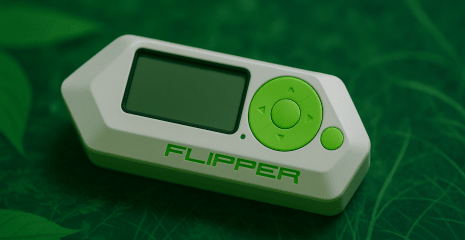
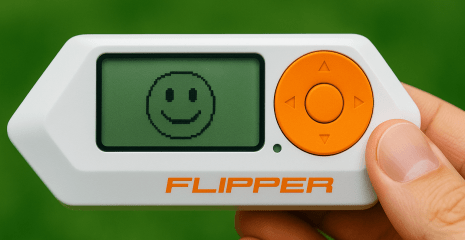
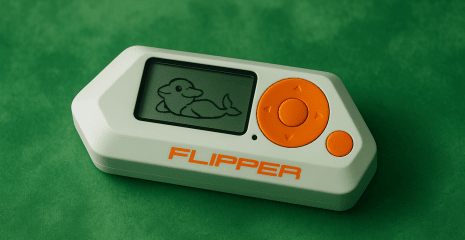
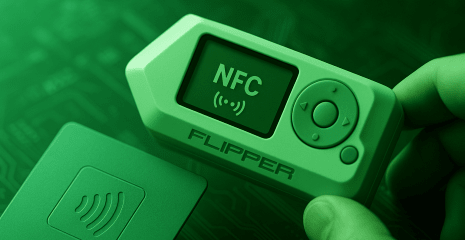
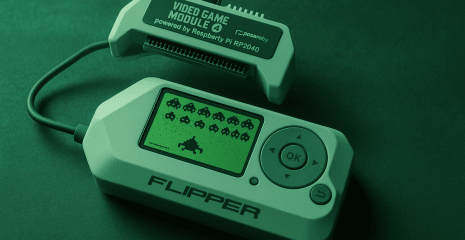
Flipper Zero is one of the most powerful multi-purpose gadgets for security researchers, pentesters, and tech enthusiasts. In this part of the series, we look at one of the most talked-about features, Bad USB. This mode allows you to turn Flipper Zero into a HID device (keyboard) that executes pre-written commands in the form of DuckyScript scripts. The article explains how to prepare Flipper to work with Bad USB, what conditions are required for launch, how to properly write a script, save it, and run it via USB or Bluetooth.

Disclaimer: The information provided in this article is for educational and informational purposes only. The author is not responsible for any misuse or incorrect use of the Flipper Zero device.
Flipper Zero can act as a regular input device — like a keyboard or mouse — but its real power is that it doesn’t require human keystrokes. Instead, it runs pre-programmed commands by simulating keystrokes. This opens up a wide range of automation possibilities, both for legitimate and potentially dangerous purposes. Using such technology allows you to:
Launch terminals or command shells without the user’s knowledge.
Insert prepared texts or scripts (e.g. PowerShell, bash).
Load and open malicious web pages.
Create new users or change system settings.
Steal data or install backdoors.
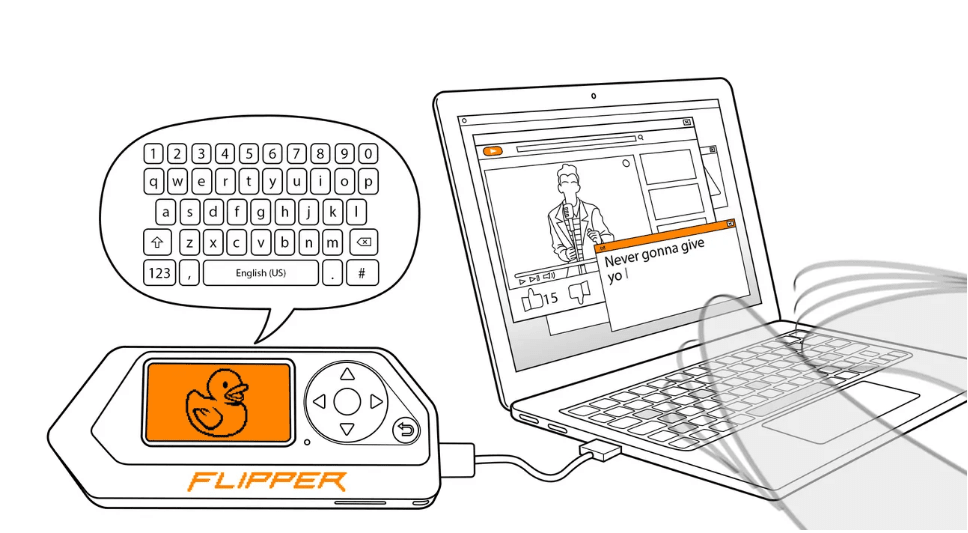
Before you can run any script on the Flipper Zero, there are a few important things you need to do. Without them, the device will either not start or simply will not be able to read your scripts. Make sure you have done the following:
A microSD card is installed in the Flipper Zero — without it, the Bad USB application simply will not appear in the menu.
The device is flashed with the latest firmware version (you can update it via qFlipper).
The script is created in .txt format — any text editor will do, the main thing is to save it in ASCII.
The script is written in the Rubber Ducky Script language (for example, DELAY 500, GUI r, STRING powershell, ENTER).
Once you have prepared your script as a .txt file, you need to properly transfer it to the device itself. Flipper does not read files from any directory – it is important to put them in the correct folder. There are two officially supported transfer methods for this:
Via the qFlipper desktop app (USB connection).
Via the Flipper Mobile app (Bluetooth).
In both cases, the file should be moved to the directory:
SD_Card/badusb/
The file will then appear in the Bad USB menu on Flipper itself.
Note: if there is already a file with the same name in this folder, it will be automatically overwritten — without any confirmation.

Once the file is downloaded, you can proceed to its execution. The most stable and reliable way to launch it is via a USB connection. It guarantees minimal delays and full compatibility with any OS. Here’s how to do it step by step:
First, close qFlipper — it can block the USB port.
Turn on Flipper and go to: Main Menu → Bad USB.
Select the desired script from the list.
Check if the application is running in USB mode (the USB check box should be active).
If necessary, select the appropriate keyboard layout (for example, US, RU, UK, etc.).
Connect Flipper to the computer via a USB cable.
Click the Run button — the script will immediately start executing on the computer.

An alternative way to run scripts is via Bluetooth, which allows you to run Bad USB scripts without physically connecting the device to your PC. This is useful, for example, when the USB port is busy or you want to keep Flipper discreet. The procedure is a bit more complicated, but also simple:
Activate Bluetooth on Flipper: Main Menu → Settings → Bluetooth.
Close qFlipper on your computer, if it is open.
Go to Main Menu → Bad USB on Flipper.
Select the desired script.
Check that Flipper is running in BLE mode — the Bluetooth icon will appear.
If necessary, change the keyboard layout: Config → select the desired one.
On your computer, open Bluetooth settings and connect to Flipper.
Confirm the connection on both sides (click OK on your computer and on Flipper).
Click Run — the script will start executing on the remote computer.
To break the pair, go to Config → Remove Pairing.
Flipper Zero with Bad USB is not just a fun toy, but a powerful tool for automation, penetration testing, and system vulnerability demonstration. Its ability to emulate HID devices allows you to run scripts that would normally require physical access to a computer. Thanks to DuckyScript support, Flipper is able to perform a wide range of actions: from opening a terminal to launching complex attacks.
But with this comes responsibility. Everyone who uses Bad USB should be clearly aware of the legal consequences of unauthorized use. In the right hands, it is a tool of protection, in the wrong hands, a potential threat.
Therefore, always adhere to ethical standards, test your scripts in a safe environment, and remember: the power of technology is in how it is used.
If necessary, I can help with creating a script, debugging it, or teach you how to write DuckyScript from scratch.