01.07.2025
6 min
1637



Learn how to build Kali NetHunter for OnePlus 7 Pro yourself — with full control over the kernel, rootfs, and chroot. A step-by-step guide will help you create your own custom NetHunter build even without an official image. Perfect for pentesting, working with HID, MITM, WiFi attacks, and security analysis directly from Android. We explain everything: from preparing the environment to flashing via TWRP. NetHunter — in your hands.

In previous articles, we have covered the process of installing NetHunter with and without root privileges on a OnePlus 7 device using a pre-compiled image from the Kali website. Since the OnePlus 7 is NetHunter’s priority high-end device, its image is already compiled and ready to download and install without any additional builds. With these images, NetHunter supports all 89 Android models; however, it only offers to download up to 32 pre-compiled images. Because of this, for 57 devices, users will have to manually create an installation image. That’s what we will cover in this article.
When I tried to build a NetHunter image or just the kernel on a Windows 10 machine, everything went smoothly. However, the final build seemed to be corrupted because TWRP was unable to flash it properly. When I built the image in Kali Linux, everything went smoothly. This will allow the image build process to be performed in Kali running in a virtual machine.
Once your Kali is prepared, install the ADB and fastboot tools using the commands below. ADB and fastboot will then be used to flash our images. This step is only necessary if you will be flashing the built images directly from the Kali virtual machine, not from the host computer.
apt-get install android-tools-adb
apt-get install android-tools-fastboot
First, we clone the NetHunter repository from GitLab using the Git command:
git clone https://gitlab.com/kalilinux/nethunter/build-scripts/kali-nethunter-project
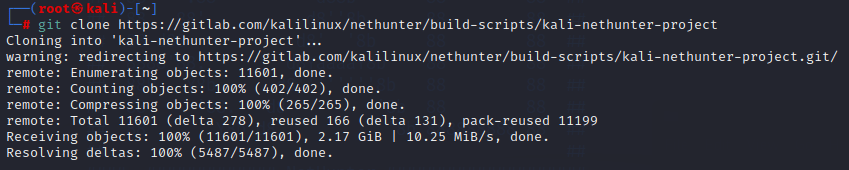
This will download all the necessary files such as the chroot constructor, precompiled kernels with modules, and installation scripts.
Change to the NetHunter project installer directory:
cd kali-nethunter-project/nethunter-installer/
And run the bootstraps script, which, depending on your choice, will either download the NetHunter images for all devices or simply update the device catalog with the newly added images. This will take some time.
./bootstrap.sh
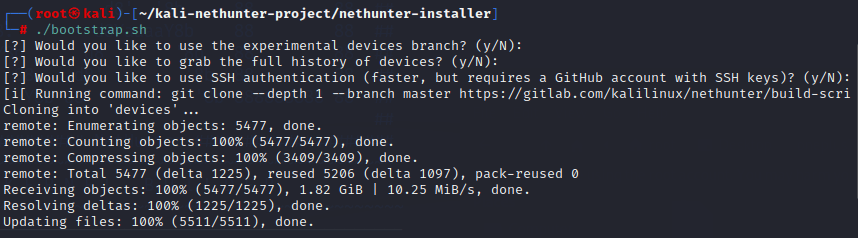
The same directory also contains the Python script build.py that we will use to build our image.
From the help message, as seen in Figure 3, we can see a list of supported device codenames ( –devices ), different Android versions, a kernel-only build option ( –kernel ), and a build option with a different chroot size ( –rootfs ).
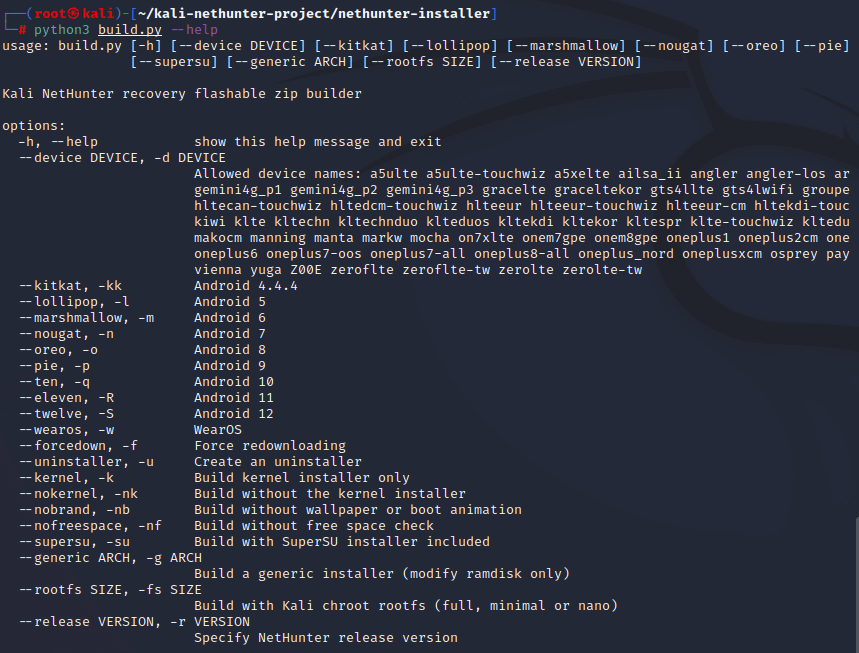
For better understanding, here are the commands to create different NetHunter images. To create a full chroot image that will be installed on our OnePlus 7 running stock Android 10, we will use:
python3 build.py -d oneplus7-oos --ten --rootfs full
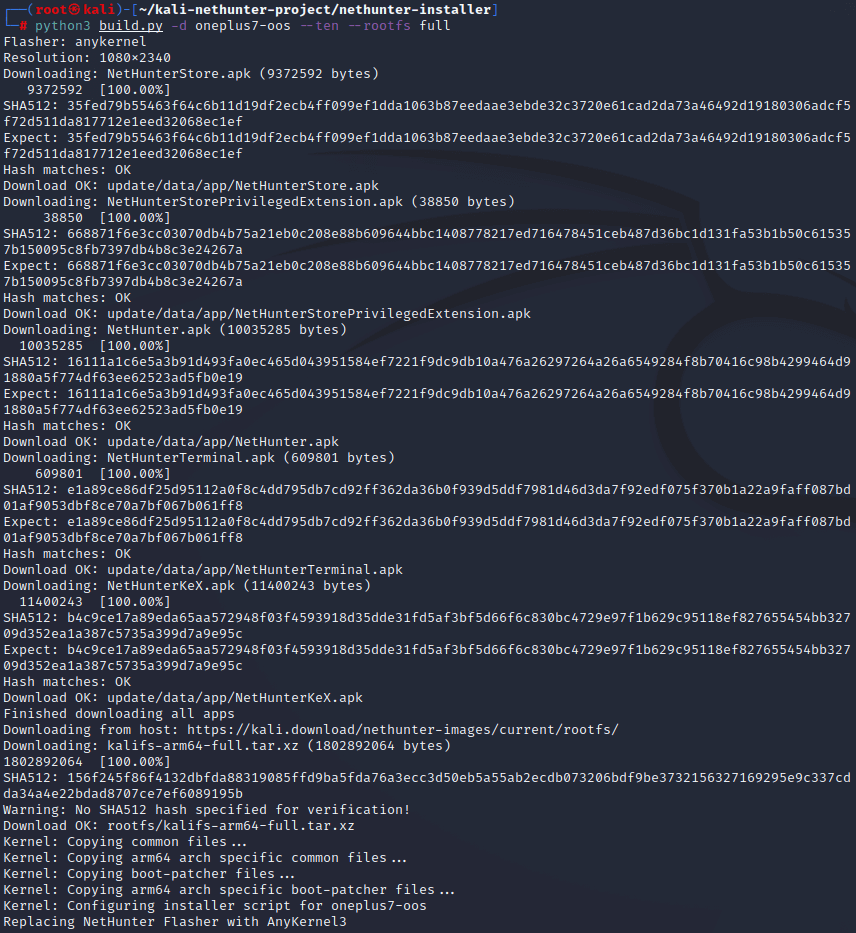
If you don’t want to bundle the chroot and just build the app with your own kernel, you can use the command below. However, you will need to download or copy the chroot to your device before using it.
python3 build.py -d oneplus7-oos --ten
To build just the kernel image without the full NetHunter image, use the –kernel option instead of the –rootfs option:
python3 build.py -d oneplus7-oos --ten --kernel
As a result, there is a ZIP file for all these commands, stored in the same directory as the build script. This build installer then needs to be flashed in recovery mode (TWRP).
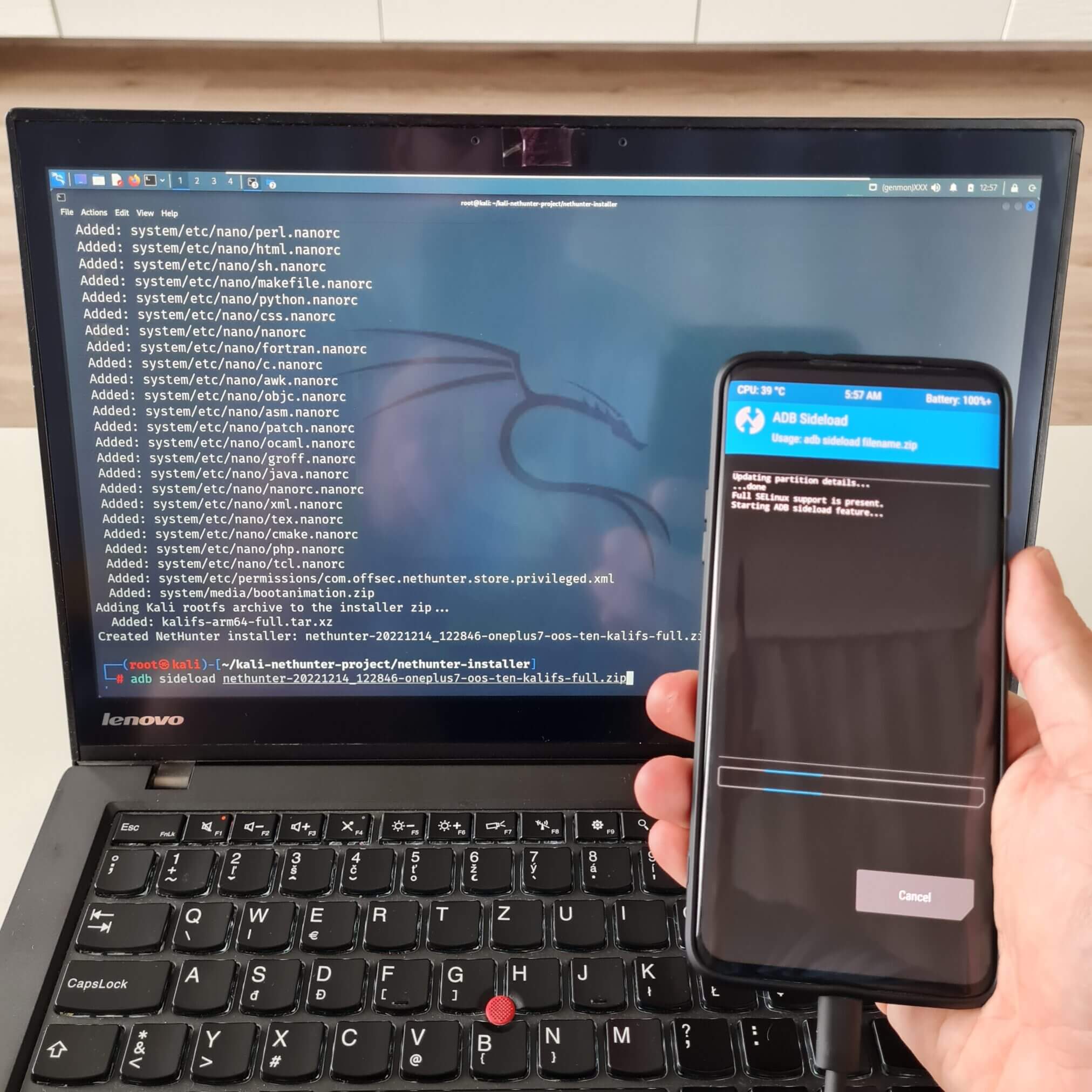
If your device is not on the list of 38 devices with a pre-compiled image, you have two options. Either search to see if someone has already compiled and tested an image file – I recommend searching the XDA forum – or build it yourself.
While I demonstrated creating a NetHunter image for the OnePlus 7, the same scenario applies to any other supported device, where you replace the device model and the Android version installed on your smartphone. You can find a list of supported devices in the help menu of the build script.
If your device is not even on the list of 85 devices supported by NetHunter, then you need to find the kernel sources for your device, compile them using AnyKernel, which is provided by NetHunter, and port them to your new device.