
01.07.2025
6 min
1635



Scan local networks directly from your Android device using Kali NetHunter and Nmap. In this article, we explain in detail how to perform a network scan, identify open ports, services, and the OS of target devices. We look at using NSE scripts to detect vulnerabilities, as well as analyzing the security of Wi-Fi routers. The NetHunter interface allows you to run scans even without a terminal. The step-by-step instructions are suitable for both beginners and experienced users. Learn how to turn your smartphone into a full-fledged tool for network pentesting.

In today’s post, we’ll talk about scanning your network with Nmap on your Android device. Nmap is one of the most popular network exploration tools. It supports ping scanning (determining active hosts), many port scanning methods, version detection (determining service protocols and versions of applications listening on ports), as well as TCP/IP fingerprinting (identifying the OS of a remote host or device), and much more. In addition to explaining the Nmap NetHunter user interface and how to use it, we’ll go one step further to actually demonstrate its functionality on our router to find open ports and known vulnerabilities, as well as how to access files on our smartphone through open ports in file managers.
Nmap, short for Network Mapper, is a widely used and very versatile network scanning tool. It is available as part of the NetHunter system with a graphical user interface (GUI) that runs a command-line version and is used to explore the network. You can see a simple Nmap Scan interface in Figure 1.
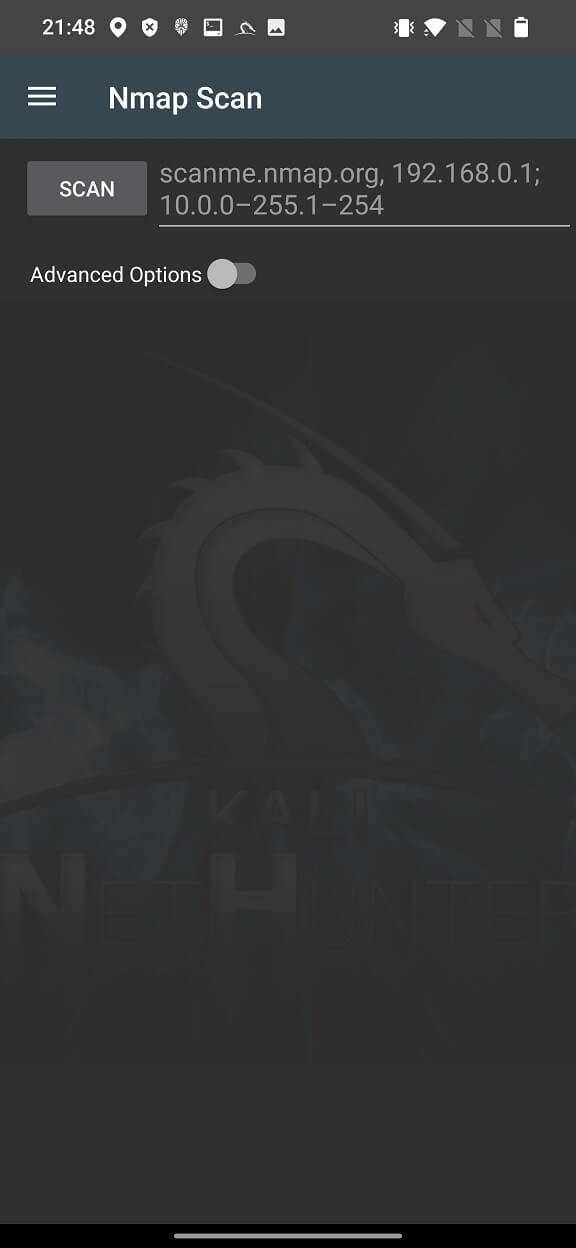
With Nmap, you can discover hosts on a network, scan ports, list services running on a network, detect OS, and scan for known vulnerabilities, known as the Nmap Script Engine (NSE). This allows us to explore various scanning methods, including TCP SYN, UDP, ICMP, and other scans. All you need to do is enter the IP address, hostnames, networks, etc. in the edit box. When you run a scan, NetHunter Terminal will launch a command-line version of Nmap and scan the address you entered.
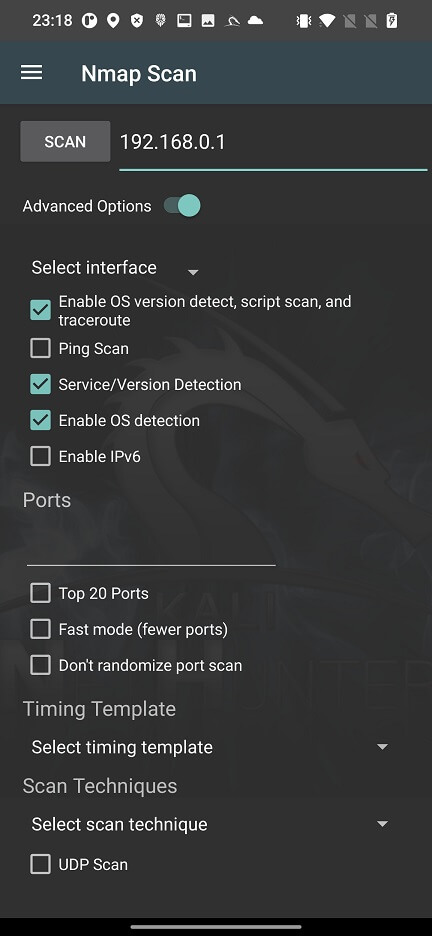
To run an in-depth scan of targets without typing a long string on the command line, you can use Nmap with advanced options, see Figure 2.
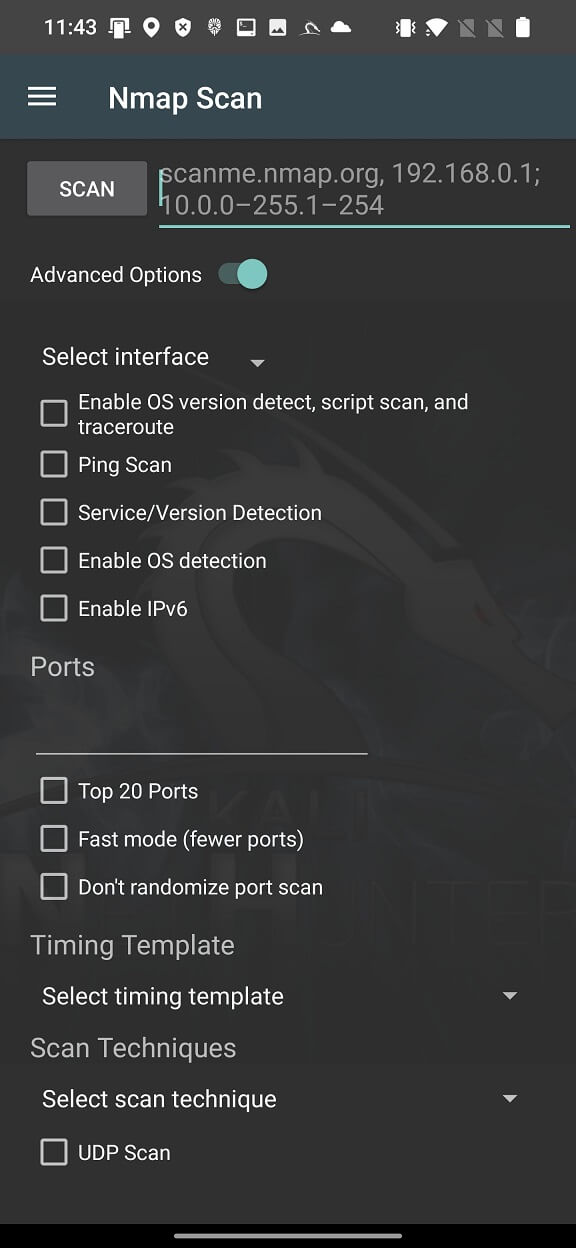
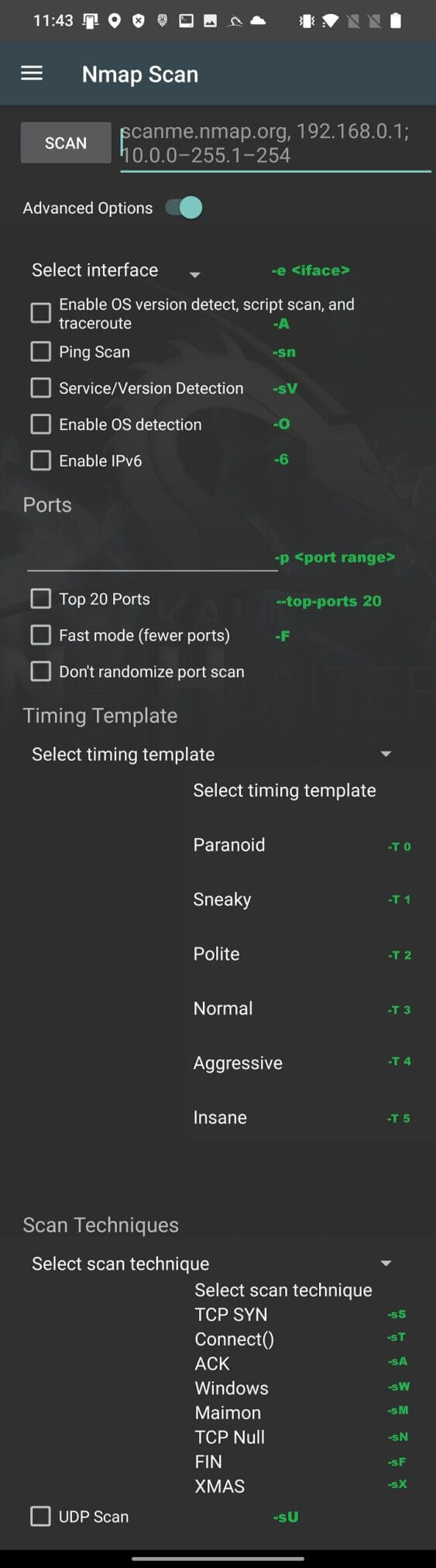
These options cover only the most used Nmap arguments, not all of them. In your scan you can conveniently enable particular interface such as wlan0, wlan1, eth0 or rndis0, OS and service detection, top 20 or custom port scan, select timing template and choose scan technique.
Based on the Nmap Scan source code available on GitLab, for better understanding of these options, I assigned actual argument to each of the option In Figure 3.
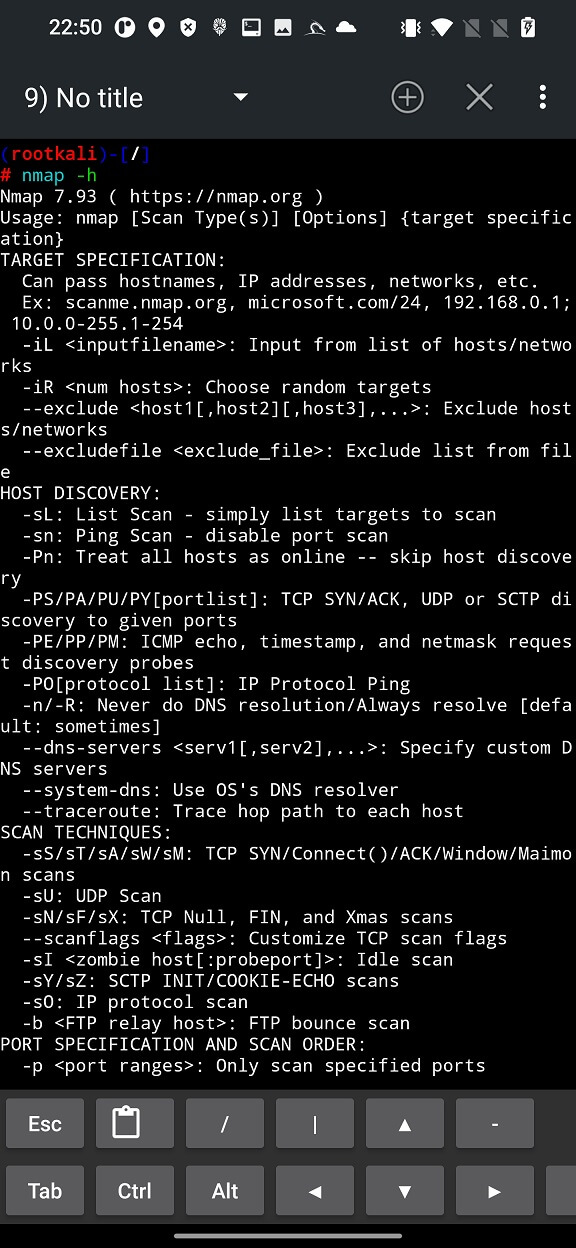
If you want to perform a deeper and more specific scan, I advise you to use Nmap in the NetHunter Terminal application.
As a result, these scans can help an ethical mobile hacker understand potential entry points for network attacks or assess the security status of the network.
In this example, we are trying to scan and get detailed information about our local Wi-Fi router. Our NetHunter smartphone is already connected to a Wi-Fi network that is under our control. From the Network details of the currently connected networks, we can get the IP address of our router (Gateway).
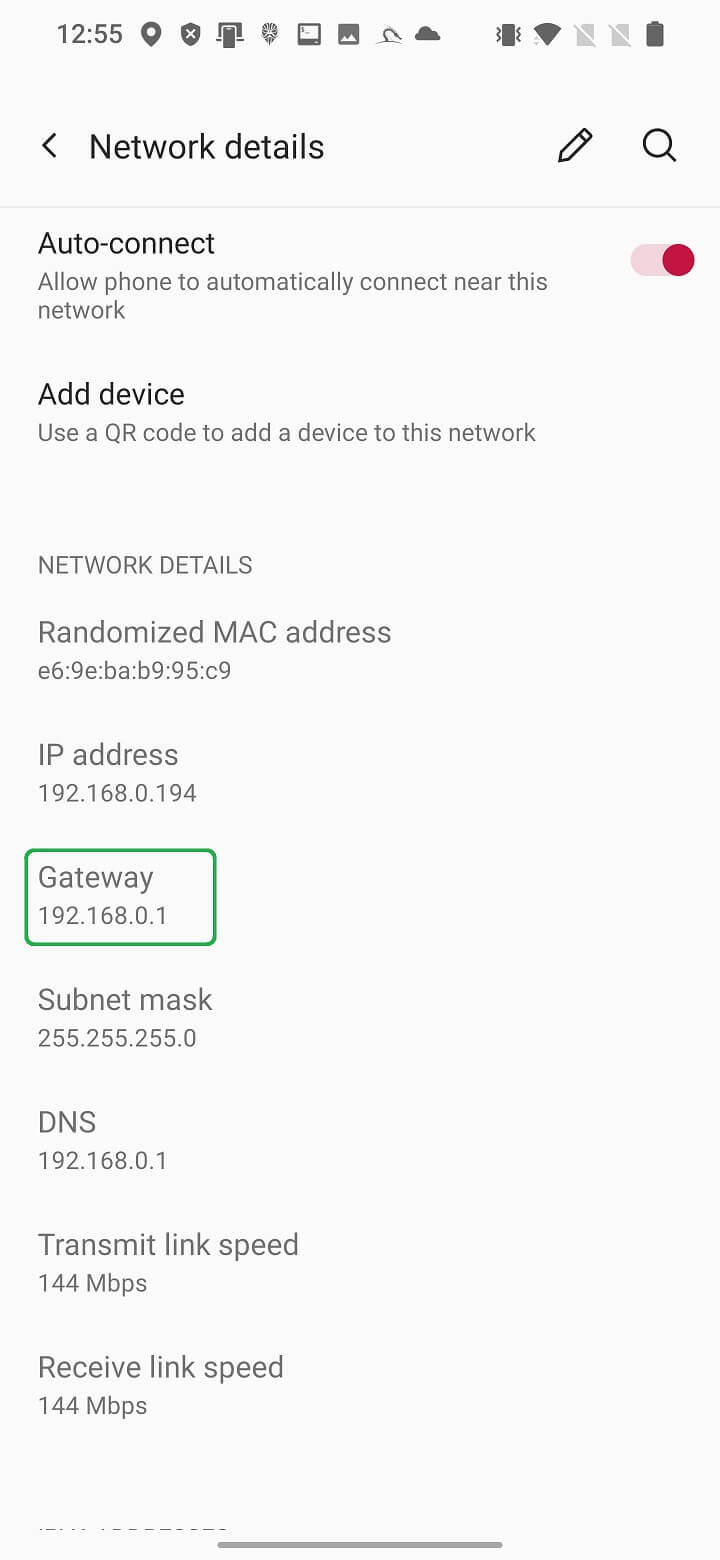
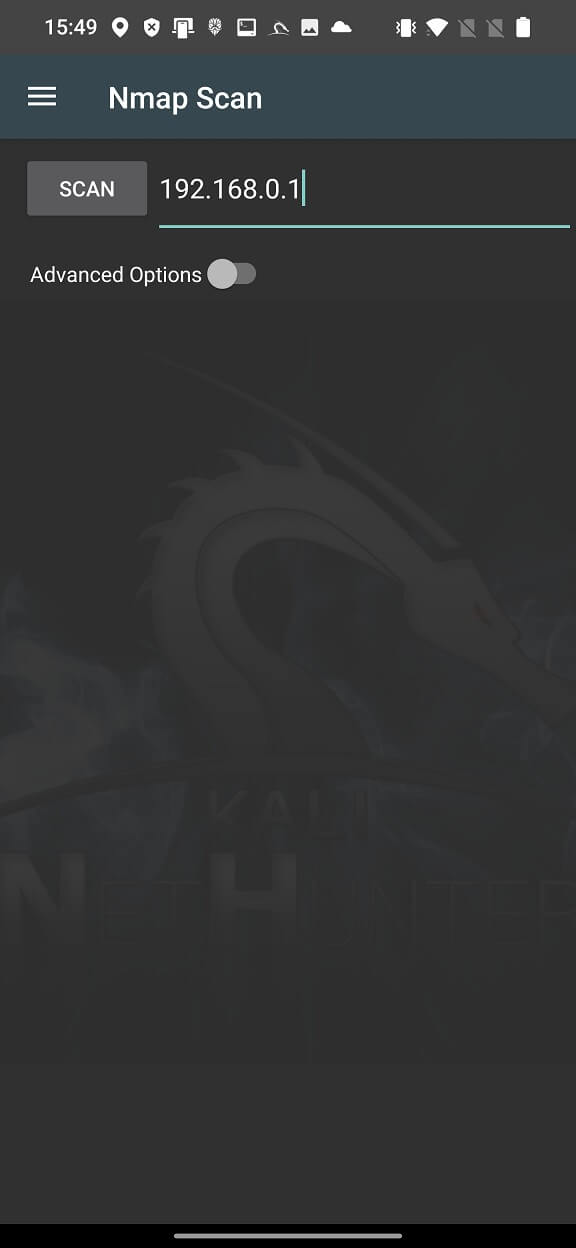
We will use this IP address as the target to perform a simple Nmap scan. Enter the IP address in the edit box and press the SCAN button, as shown in Figure 6.
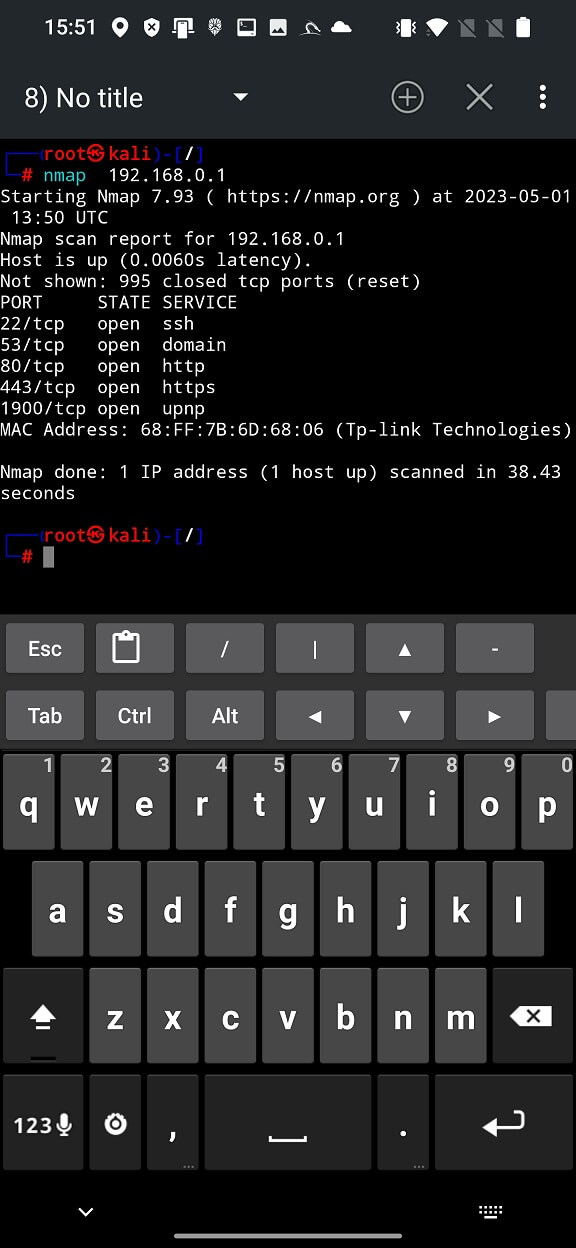
A simple GUI runs Nmap in the NetHunter terminal with the given arguments – just the IP address. From the scan result shown in Figure 4, we can see that five ports are open (22, 53, 80, 443, 1900), on which five services are running (ssh, domain, https, https and upnp), the MAC address and the brand of our router (Tp-link). This gives us a brief information about our access point.
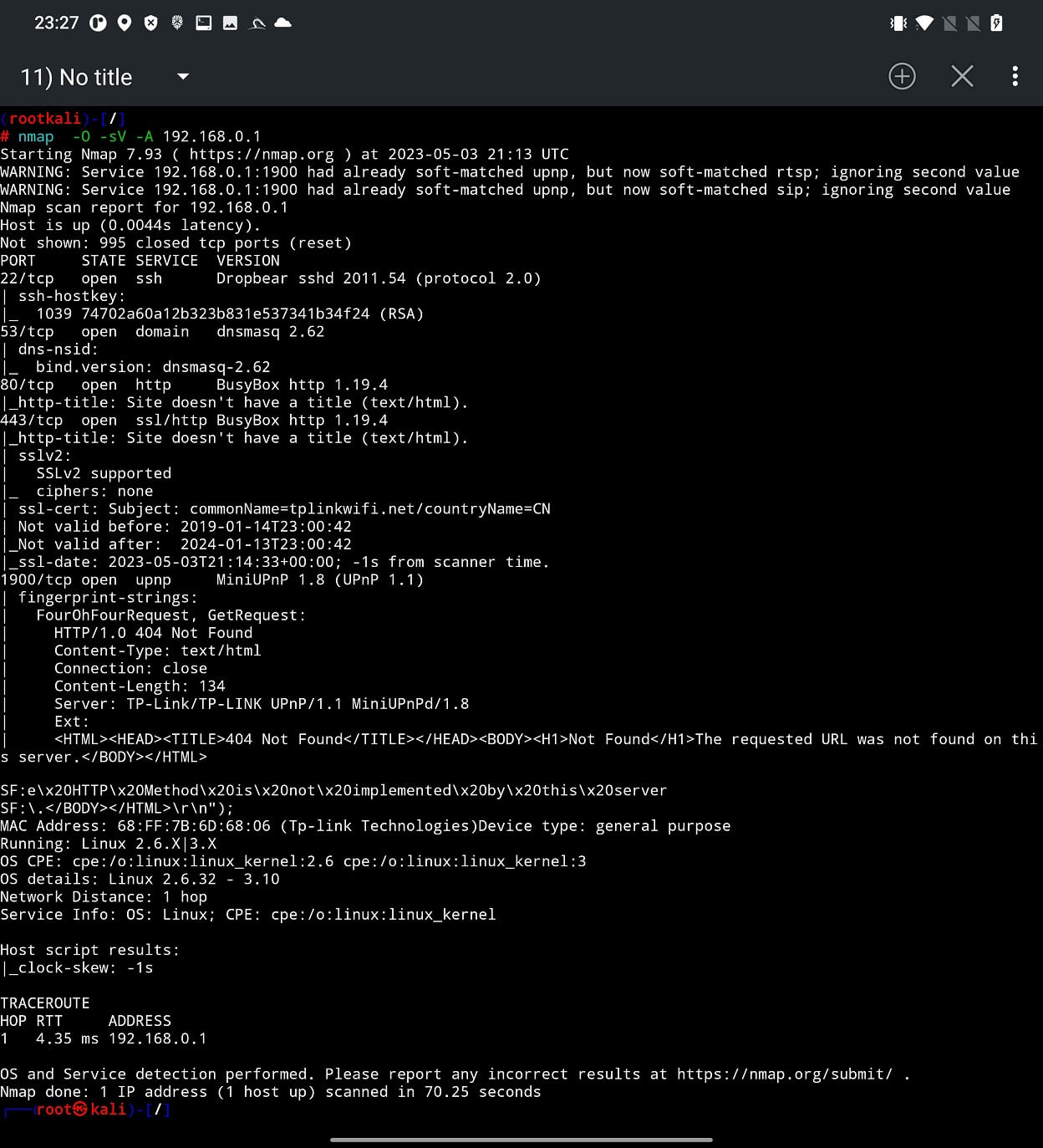
To perform a quick and in-depth scan, we enable Advanced Options and select additional options for reading our device’s fingerprints, as shown in Figure 8.
From the output, see Figure 9, we have identified the Linux version running on our tested router, the open ports with the versions of the running services. To scan all ports and their services, you can select your own port range in the edit box, for example, 0-65535.
Based on the fingerprinted OS and version of running services of various open ports we can perform vulnerability scan. Unfortunately, it is not part of Nmap Scan user interface, so we have to use Terminal. Nmap provides script scan option, where you have to provide a path to particular script or just enter script category. In our scan we will go with scan category. Nmap Scripting Engine (NSE) defines for us list of 14 categories that are auth, broadcast, brute, default. discovery, dos, exploit, external, fuzzer, intrusive, malware, safe, version, and vuln. Explanation to each of them you can find on official Nmap website. We will use vuln category, that focuses on identifying vulnerabilities present in the target system. These scripts leverage various techniques to detect common security issues, known vulnerabilities, default or weak configurations, and potential entry points for exploitation. To launch this scan, you have to include -sV and –script vuln arguments, see Figure 10.
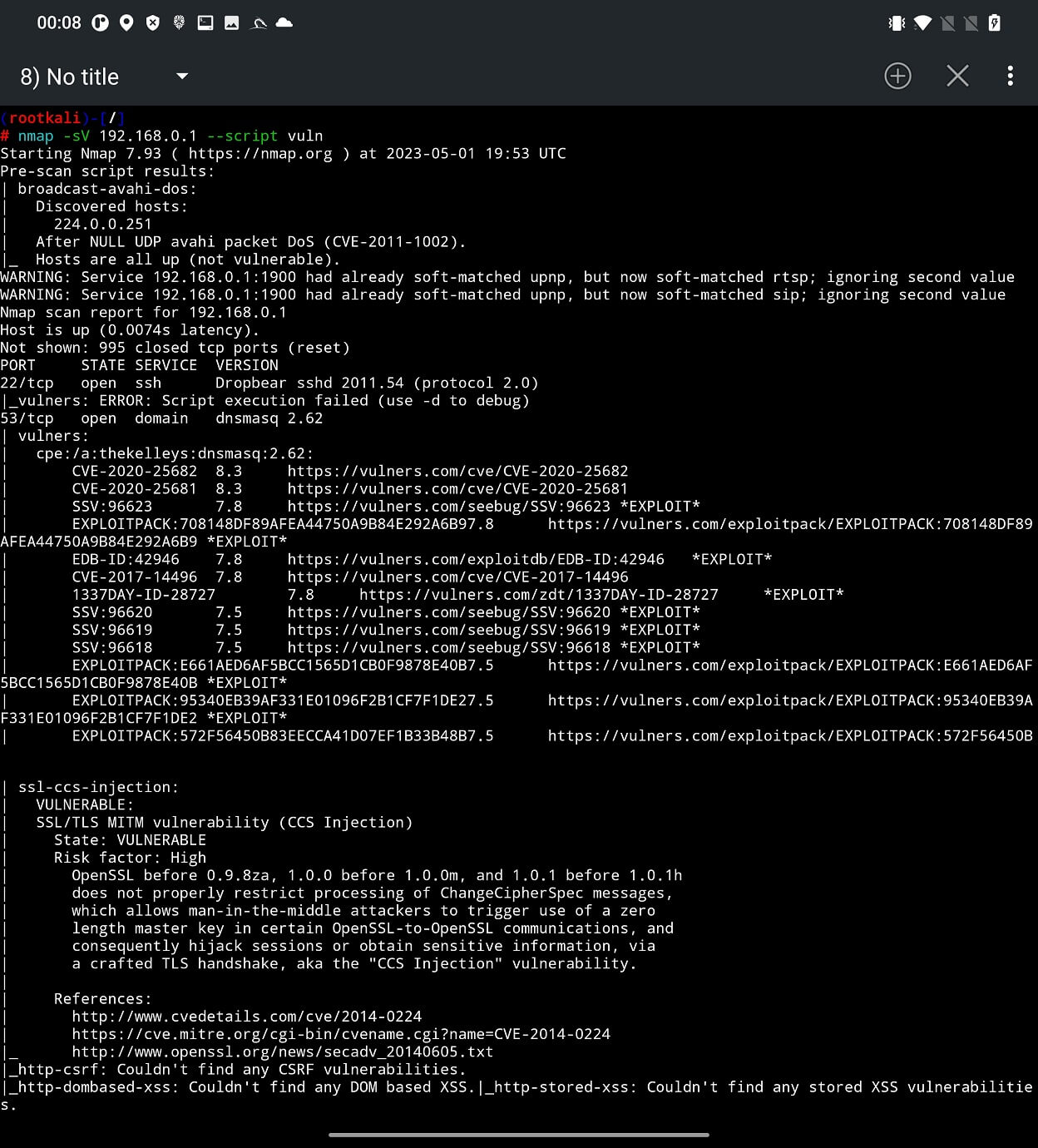
The scan results can reveal potential issues on the target device that are tracked by CVE. Based on these, you can use SearchSploit to find additional details or even an exploit. In some cases, such exploits may even be included in Metasploit, which means that you can check if you can use them without any additional effort.
Most file managers allow the user to create a local server that is accessible from other devices, such as a computer, to share files, photos, and music. This option must be enabled manually by the user. However, a problem can occur when the user forgets about it and the program leaves a port open, giving access to the external storage ( /storage/0/emulated/) to anyone on the network. If this happens on your home network, you may not consider it a problem. However, if you leave your home network and connect to public Wi-Fi with this option still enabled, your device data could be at risk.
While Nmap is a useful and legitimate tool for network administrators and security professionals, it can also be used by attackers to scan and attack your network. Therefore, it is important to take some preventive measures to protect your network from Nmap attacks. Here are some tips you can follow:
Prevention: Make sure your network requires user authentication with a strong password to limit unwanted attempts to scan devices on your network.
Firewall: Use a firewall to block or restrict incoming and outgoing traffic on your network. You can configure your firewall to allow access only to trusted hosts and services, and to deny or drop any suspicious or unwanted packets. You can also use firewall rules to detect and block common types of Nmap scans, such as SYN, ACK, FIN, XMAS, NULL, or UDP scans.
Disable Unnecessary Services: Disable all unnecessary or unused services and ports on your network devices and systems. By reducing the attack surface, you limit the potential impact of Nmap scans.
Network Segmentation: Divide your network into smaller, isolated subnets. This helps limit the impact of Nmap attacks by isolating critical systems and reducing the attack surface.
Monitoring: Use network monitoring and intrusion detection systems to detect and respond to any Nmap scans or attacks on your network. You can use tools like Snort, Suricata, Bro, or Wireshark to analyze network traffic and detect any anomalies or signatures of Nmap scans.
Update: Regularly update and patch your systems and devices by installing the latest security updates and patches. You can also use tools like Nmap itself, Nessus, or OpenVAS to scan your own network and find any vulnerabilities or misconfigurations that need to be fixed.
Nmap is a great tool for network scanning and security testing, and it works great even on NetHunter. With NetHunter, you can use Nmap on your mobile device and take advantage of its portability, flexibility, and convenience. You can scan any network you’re connected to and use the results to find vulnerabilities, exploits, or other information. You can also customize your scan with various options and parameters, and save or export the results for further analysis. Nmap on NetHunter is a must-have tool for any cybersecurity enthusiast or professional who wants a powerful and portable hacking tool in their pocket.